
When an Android app starts behaving strangely, loading slowly, or taking up more storage than expected, clearing its cache can sometimes help.
The important part is knowing the difference between clearing cache and clearing app data. Clearing the cache is generally intended to remove temporary files, while clearing an app’s storage/data can reset the app and may remove locally stored information.
If you simply want to clear temporary files without signing out or deleting your account, use the Clear cache option rather than Clear storage or Clear data.
Important: Android menus vary between phones and Android versions. The wording may be slightly different on Samsung Galaxy, Google Pixel, Xiaomi, Redmi, OnePlus, Motorola, and other devices.
Main Points
- Clear cache removes temporary cached files.
- Clear storage/data is a different and more disruptive action.
- Clearing cache normally does not delete your online account.
- Your account information stored on the app’s servers is not the same thing as the app’s local cache.
- An app may rebuild its cache after you continue using it.
- You should check the available storage information before and after clearing the cache.
- If an app is still malfunctioning, clearing its cache may not be enough.
1. What Does Clearing an App’s Cache Mean?
Apps often create temporary files while you use them.
These files can help an app load content more efficiently, but the cache can grow over time.
For example, an app may temporarily store:
- Images
- Thumbnails
- Temporary files
- Previously loaded content
- Other cached resources
Clearing the cache removes these temporary files.
The app itself remains installed.
You don’t normally need to reinstall the application just because you cleared its cache.

Type: Original Android screenshot.
Show: An app’s Storage, Storage & cache, or similar screen with Clear cache visible.
Purpose: This is the most important screenshot in the article because it shows the exact option readers need.
Safe option: Take your own screenshot using an Android device. Avoid copying screenshots from other websites.
2. Clear Cache vs. Clear Storage/Data
This is the most important distinction to understand before changing anything.
Clear Cache
Clears temporary cached files associated with the app.
It is generally the less disruptive option.
Clear Storage / Clear Data
This is different.
Depending on the app, clearing its storage or data can remove locally stored information and reset the application.
You may need to sign in again or configure the app again.
Because of this, don’t select Clear storage, Clear data, or similarly named options when your goal is simply to clear temporary cache files.
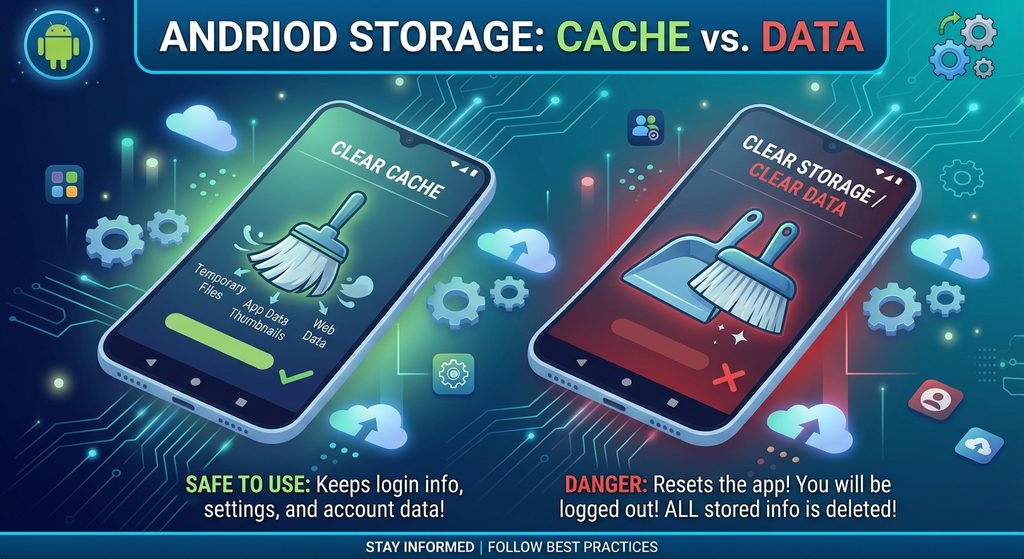
Type: Original screenshot.
Show: The app storage screen where both Clear cache and Clear storage/data are visible, if your Android version displays both.
Purpose: Helps readers avoid accidentally choosing the wrong option.
Safe option: Use your own screenshot and clearly highlight the difference with a caption or annotation.
3. Open Android Settings
Start by opening the Settings app on your phone.
Then look for:
Apps
Depending on your phone, it may appear as:
- Apps
- Apps & notifications
- App management
- Manage apps
The exact name depends on your Android version and manufacturer.
If you cannot find it, use the search function inside Settings and search for Apps.
4. Select the App You Want to Fix
Once you’ve opened the list of installed apps, find the application whose cache you want to clear.
For example, you might choose an app that:
- Is using a lot of storage
- Is loading slowly
- Isn’t displaying content correctly
- Has started behaving unexpectedly
- Has accumulated a large cache
Tap the app to open its information page.
Look for an option such as:
Storage
or
Storage & cache
Tap it to continue.
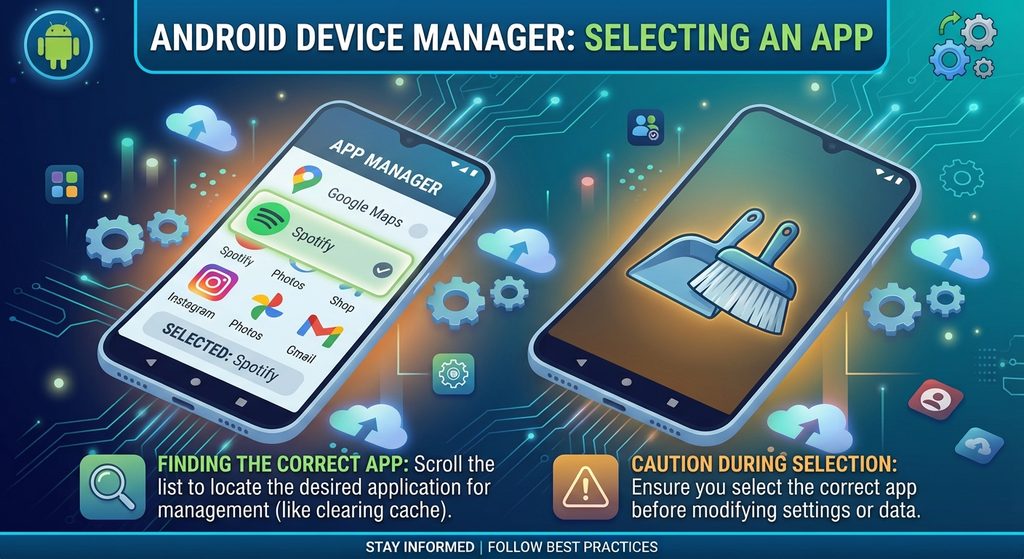
Type: Original Android screenshot.
Show: The Apps list with the selected app’s information page or the path toward its storage settings.
Purpose: Shows readers how to reach the cache controls.
Safe option: Use a non-sensitive app or test device when creating the screenshot.
5. Find the Clear Cache Button
Inside the app’s storage section, you may see information about how much storage the application is using.
Depending on your device, you may see:
- App size
- User data
- Cache
- Total storage
- Clear cache
- Clear storage
Look specifically for:
Clear cache
Do not confuse it with Clear storage or Clear data.
If the cache amount is very small, clearing it may not make a noticeable difference in your available storage.
6. Tap Clear Cache
Once you’ve confirmed that you’re selecting Clear cache, tap it.
On some Android versions, the cache amount may immediately decrease or change to zero.
The exact appearance depends on your phone.
You normally don’t need to uninstall the app or restart your phone simply because you cleared its cache.
Afterward, open the app and use it normally.
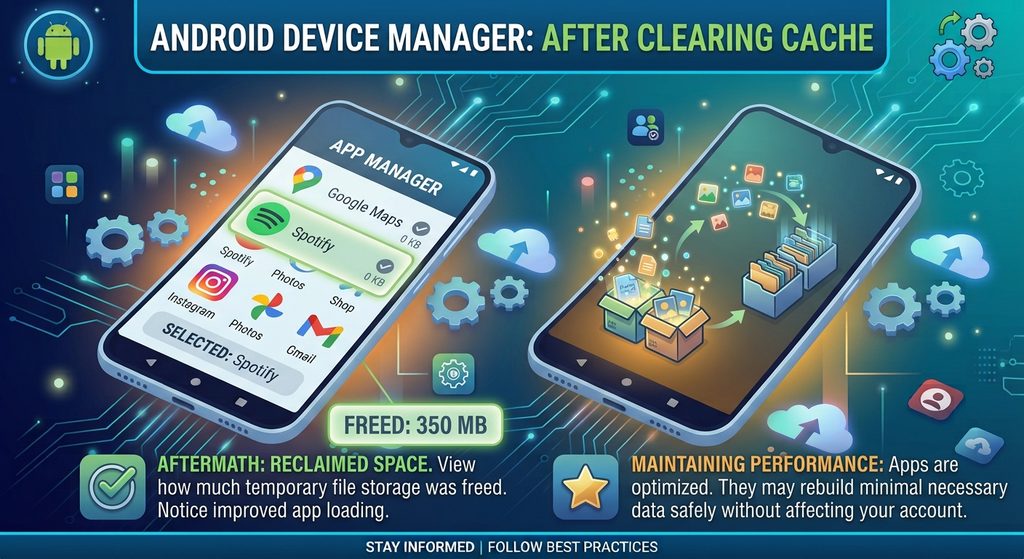
Type: Original screenshot.
Show: The same storage screen after clearing the cache, showing the reduced cache amount if the phone displays it.
Purpose: Gives readers a visual before-and-after demonstration.
Safe option: Take both screenshots on your own device.
7. Will Clearing Cache Delete Your Account?
This is a common concern.
Clearing an app’s cache is different from deleting an online account.
For many apps, your account is associated with information stored on the company’s servers rather than only in the temporary cache on your phone.
Therefore, clearing the cache is not normally the same thing as deleting your account.
However, this does not mean every app behaves identically.
The safest approach is to distinguish between:
Clear cache
Temporary cached files.
Clear storage/data
Local application data that may affect settings or sign-in state.
Delete account
A separate account-management action offered by the service.
Never choose an account-deletion option simply because you want to clear storage.
8. Will Clearing Cache Log You Out?
For a normal Clear cache action, you generally shouldn’t expect it to delete your account or intentionally remove your account from the service.
However, app behavior can vary, and Android manufacturers may label storage options differently.
If staying signed in is especially important, don’t experiment with Clear storage or Clear data unless you understand what that particular app does.
If you accidentally clear an app’s data, you may need to sign in again or restore settings depending on the application.
9. What Happens After You Clear the Cache?
The first time you reopen an app after clearing its cache, some content may need to be generated or downloaded again.
You might notice that:
- An app takes slightly longer to load initially.
- Images or thumbnails load again.
- Cached content is recreated.
- The cache begins increasing again as you use the app.
This is normal.
A cache is designed to be temporary. Apps can create new cached files as they operate.
So don’t be surprised if the cache doesn’t remain at zero.
10. When Should You Clear an App’s Cache?
You don’t necessarily need to clear cache regularly.
It can be worth considering when:
- An app is behaving unexpectedly.
- Temporary files have grown unusually large.
- An app isn’t displaying content correctly.
- You’re troubleshooting a specific app problem.
- You need to free a small amount of storage.
If an app is working normally and its cache isn’t causing a storage problem, there may be no reason to clear it.
11. Clearing Cache Is Not a Complete Storage Solution
If your phone is running out of storage, clearing a few app caches may not solve the problem.
Apps can be only one part of your storage usage.
Large amounts of space may instead be occupied by:
- Photos
- Videos
- Downloads
- Offline music
- Offline maps
- Large games
- Documents
- Messaging media
- App data
If you need to free significant storage, check your phone’s overall storage breakdown rather than clearing every app’s cache.
12. Don’t Clear Cache for Every App at Once
You may find websites or apps recommending that you clear the cache of every application regularly.
That isn’t necessary for most users.
Instead, focus on the app that is actually causing a problem or consuming an unusually large amount of cached storage.
Clearing every app’s cache can also mean that apps need to recreate temporary files later.
A targeted approach is usually simpler:
Identify the problem → Check the app → Clear its cache → Test the app
13. What If the App Still Doesn’t Work?
If clearing the cache doesn’t fix the problem, don’t immediately clear the app’s data.
First try less disruptive troubleshooting steps.
Depending on the problem, you could:
- Close and reopen the app.
- Restart the phone.
- Check whether an app update is available.
- Check your internet connection.
- Check whether the app’s service is experiencing an outage.
- Review the app’s own settings.
- Check the developer’s support information.
If the problem continues, you can investigate more advanced troubleshooting options.
14. Be Careful With Clear Storage or Clear Data
This deserves extra attention.
If your Android phone displays a button such as:
Clear storage
or
Clear data
don’t treat it as another name for clearing cache.
Clearing app data can reset the application and may remove locally stored information.
Depending on the app, you could lose:
- Local settings
- Downloaded content
- Offline files
- Unsynchronized information
- Other app-specific data
The exact consequences depend on the application.
If you don’t know what will happen, don’t select the option just to experiment.
Common Problems
I Don’t See “Clear Cache”
The option may be located under Storage, Storage & cache, or another similarly named menu.
Use Settings search and search for the app or cache.
Some apps or Android versions may present storage controls differently.
The Cache Is Already Very Small
There may be little benefit to clearing it.
If you’re trying to solve a performance problem, investigate other possible causes instead.
The Cache Comes Back After I Clear It
That’s normal.
Apps can create new cached files as you use them.
I Accidentally Cleared App Data
The app may behave as if it has been freshly configured.
Depending on the app, you may need to sign in again or restore settings and downloaded content.
If important information was stored locally and wasn’t backed up, check the app’s support documentation before taking further action.
Clearing Cache Didn’t Fix the Problem
Cache isn’t responsible for every app problem.
Try restarting the phone, updating the app, checking the connection, or following the app developer’s troubleshooting instructions.
Important Things to Know
Android interfaces vary between manufacturers and software versions.
For example, the path on one phone may look like:
Settings → Apps → App Name → Storage & cache → Clear cache
Another phone may use different wording.
The important distinction is between clearing temporary cache and clearing the app’s stored data.
If your goal is simply to remove temporary files without unnecessarily resetting the app, look specifically for the Clear cache option.
Conclusion
Clearing an app’s cache is a simple Android troubleshooting step that can remove temporary files without requiring you to uninstall the app.
Open Settings, find the app, open its Storage or Storage & cache section, and select Clear cache.
Most importantly, don’t confuse this option with Clear storage or Clear data. Those actions can have much larger effects on the app and may require you to sign in or configure it again.
If you’re troubleshooting an app, start with the least disruptive option, clear the cache, and then test the app again.

