

How to Check App Permissions on Android and Remove Unnecessary Access

Android apps often ask for permission to access certain features or information on your phone. Depending on the app, these permissions can include access to your camera, microphone, location, contacts, photos, files, or notifications.

Some permissions are necessary for an app to work properly. Others may not be needed for the way you use the app.

Checking app permissions regularly can help you understand what apps can access and remove permissions that you no longer want to grant.

The exact permission names and menu locations can vary depending on your Android version and phone manufacturer.

Quick Answer

To check an app’s permissions on Android:

  1. Open Settings.
  2. Tap Apps.
  3. Select the app you want to review.
  4. Tap Permissions.
  5. Review the permissions listed under allowed or not allowed.
  6. Tap a permission you don’t want the app to use.
  7. Choose an available option such as Don’t allow.
  8. Test the app afterward to make sure an important feature hasn’t stopped working.

You can also review permissions by permission type, such as Location, Camera, or Microphone, on many Android phones.


1. What Are App Permissions?

App permissions control whether an app can access certain device features or information.

For example, a navigation app may request location access because it needs your location to provide directions.

A messaging app may request access to the microphone if you want to record voice messages.

A camera app needs access to the camera to take pictures.

Common Android permissions can include:

  • Camera
  • Microphone
  • Location
  • Contacts
  • Photos and videos
  • Music and audio
  • Files
  • Nearby devices
  • Phone
  • SMS
  • Calendar

The permissions available on your phone can vary depending on the Android version and the apps installed.


2. Open the App Settings

Start by opening Settings on your Android phone.

Then look for:

Apps

On some devices, the menu may be called something slightly different, such as Apps & notifications.

Tap it to see the applications installed on your phone.
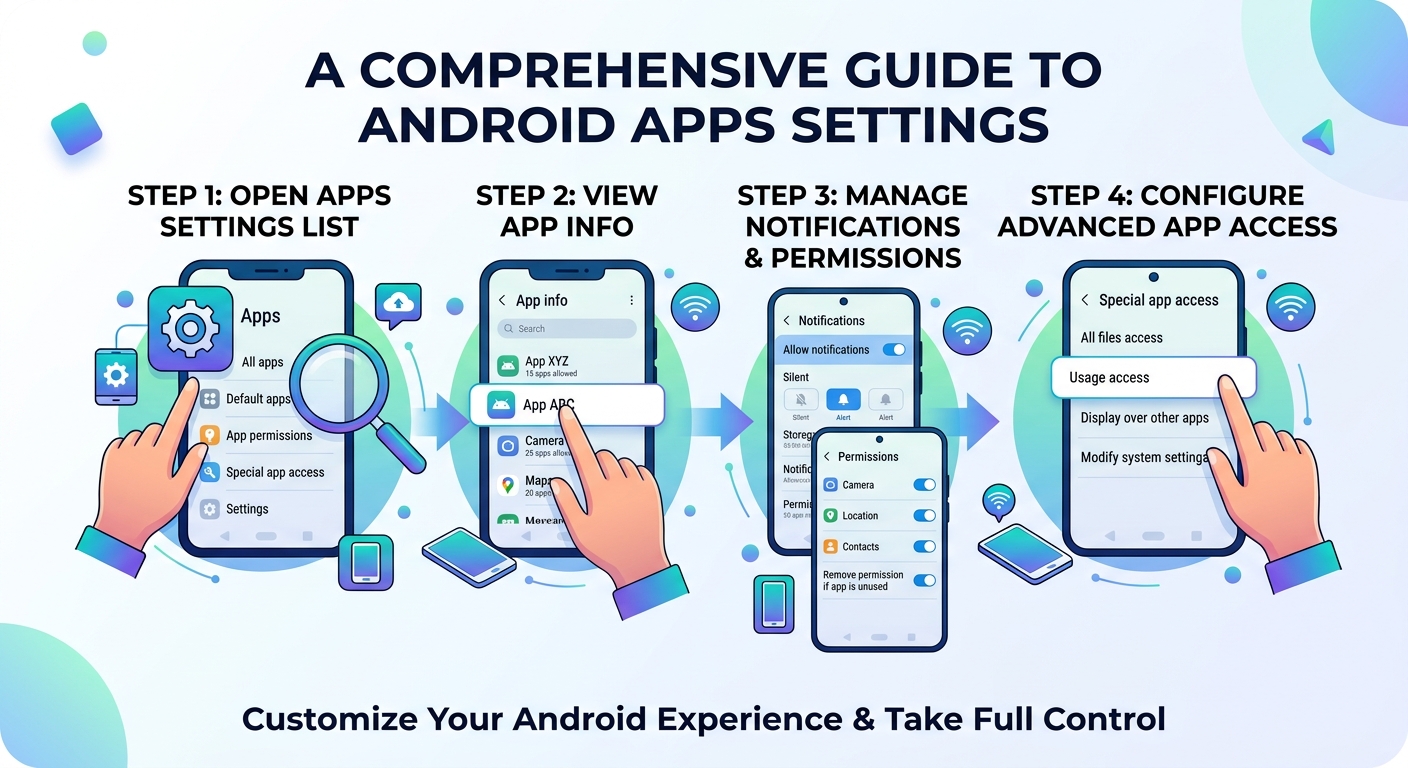
Type: Original screenshot.

Show: Settings with the Apps option visible.

Purpose: Helps beginners identify where app-management settings are located.

Safe option: Take your own screenshot from an Android phone. Don’t copy a screenshot from another website.


3. Select the App You Want to Check

After opening the Apps section, you’ll see a list of installed applications.

Choose the app whose permissions you want to review.

For example, you might check:

  • A social media app
  • A shopping app
  • A game
  • A photo-editing app
  • A messaging app
  • A weather app

After opening the app’s information page, look for Permissions.

Tap it to see which permissions the app currently has.


4. Review the App’s Permissions

The permissions screen may separate permissions into categories such as:

Allowed

and

Not allowed

The exact presentation varies by Android version.

Look through the list and consider whether each permission makes sense for the way you use the app.

For example, if an app has access to your microphone, ask yourself:

Does this app actually need microphone access for a feature I use?

If the answer is no, you can investigate whether Android allows you to remove that permission.
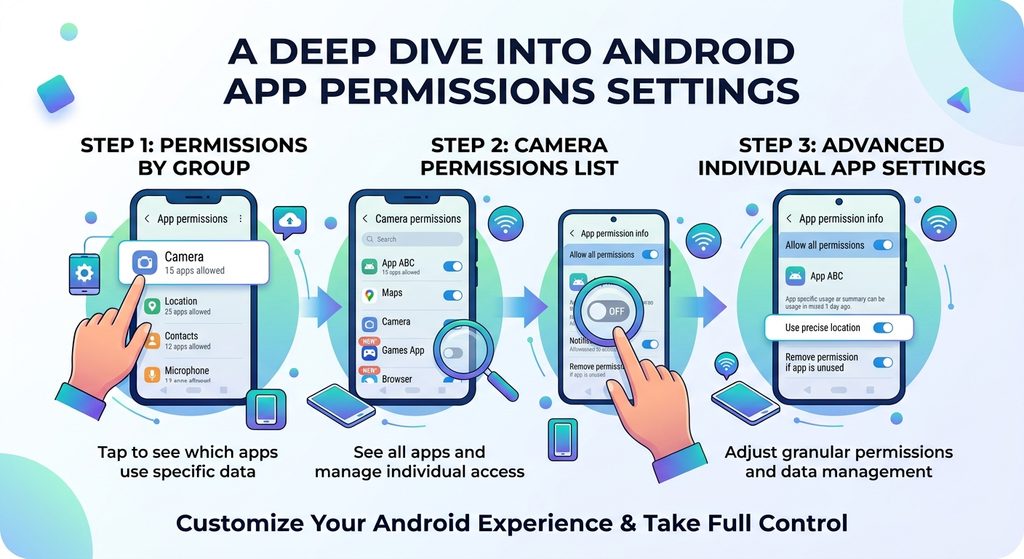
Type: Original screenshot.

Show: An app’s Permissions page displaying several permission categories.

Purpose: Gives readers a clear visual reference for the permission-review process.

Safe option: Use your own phone and avoid displaying personal information.


5. Remove a Permission You Don’t Want to Grant

If Android allows you to change a permission, tap the permission and select an option such as:

Don’t allow

The available choices depend on the permission and Android version.

For some permissions, Android may provide more than two options.

For example, location access may offer choices related to allowing access only while using the app or allowing access more broadly.

Choose the option that matches how you want the app to function.

Don’t automatically disable every permission.

The purpose of reviewing permissions is to make informed changes, not to prevent every app from accessing everything.


6. Understand Location Permissions

Location access deserves special attention because apps can use it to determine where your device is.

Depending on your Android version and the app, location permissions may provide different levels of access.

You may see choices such as:

  • Don’t allow
  • Ask every time
  • Allow only while using the app
  • Allow all the time

Not every option is available for every app.

For an app that only needs your location while you are actively using it, an option that limits access to use of the app may be appropriate.

However, some features may require broader access.

For example, an app that provides certain background location features may not work correctly if background access is removed.
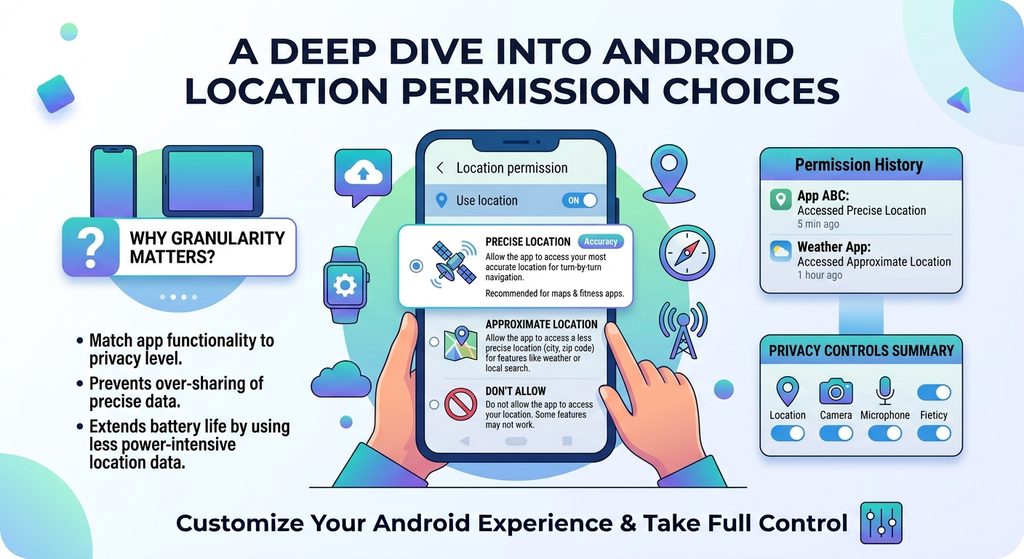
Type: Original screenshot.

Show: Android’s available location permission choices for an app.

Purpose: Explains that Android may offer different levels of location access.

Safe option: Create your own screenshot and avoid showing your real location or personal information.


7. Check Camera and Microphone Access

Camera and microphone permissions are also worth reviewing.

A camera permission allows an app to access the device camera when Android grants that access.

Microphone permission allows an app to access the microphone when permitted.

Check which apps have these permissions and consider whether they are necessary.

For example:

  • A video-calling app may need the camera and microphone.
  • A camera app obviously needs camera access.
  • A voice-recording app needs microphone access.
  • A simple game may not require either permission for its core gameplay.

These are examples rather than universal rules. Always consider the actual features of the app.


8. Check Photo and Video Access

Modern Android versions can provide more specific controls for photos and videos than older versions.

Depending on your Android version and the app, you may be able to choose which photos and videos an app can access rather than giving it unrestricted access to your entire photo collection.

If an app only needs a few pictures—for example, when you upload a profile photo—you may not need to give it access to everything.

The available controls depend on the Android version and how the app requests access.
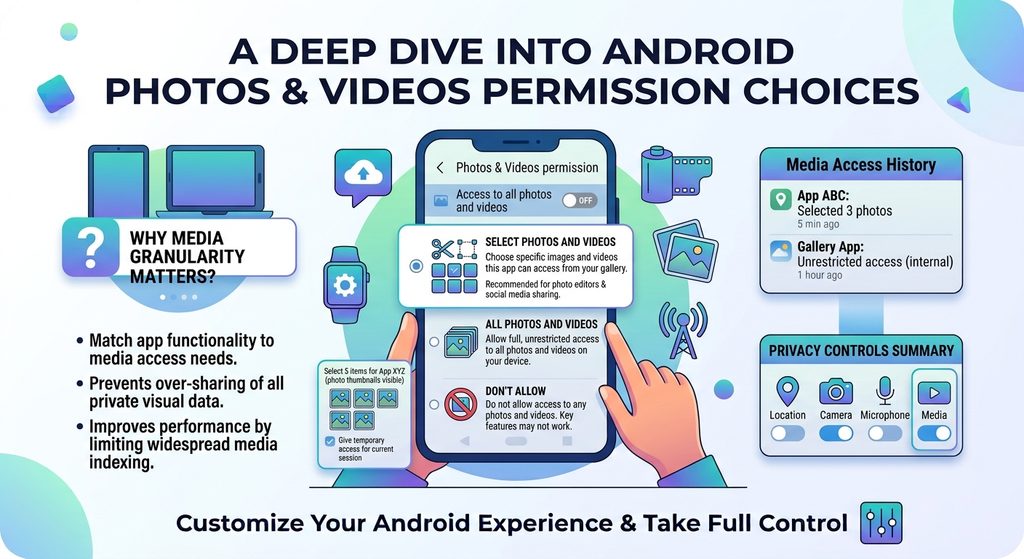
Type: Original screenshot.

Show: The photo/video permission options available for an app.

Purpose: Shows readers how Android can provide more controlled access to personal media.

Safe option: Use a test device or ensure private photos aren’t visible in the screenshot.


9. Review Contacts and Calendar Access

Some apps request access to contacts or calendar information.

Before allowing these permissions, consider what feature requires them.

For example, a communication app may use contacts to help you find people you know.

A calendar application may need calendar access to display or manage events.

If an app has access to these types of information without a feature you use requiring it, review whether Android lets you remove the permission.

Remember that disabling a permission can affect a feature that depends on it.


10. Review Permissions by Category

Checking apps one by one isn’t always the easiest approach.

Many Android phones also let you review which apps have access to a particular permission.

You may find a section similar to:

Settings → Privacy → Permission manager

The exact path can vary.

From there, you may be able to select a permission such as:

  • Location
  • Camera
  • Microphone
  • Contacts
  • Calendar
  • Files and media

Android can then show apps associated with that permission.

This is useful when you want to answer questions such as:

Which apps can access my microphone?

or

Which apps have location permission?
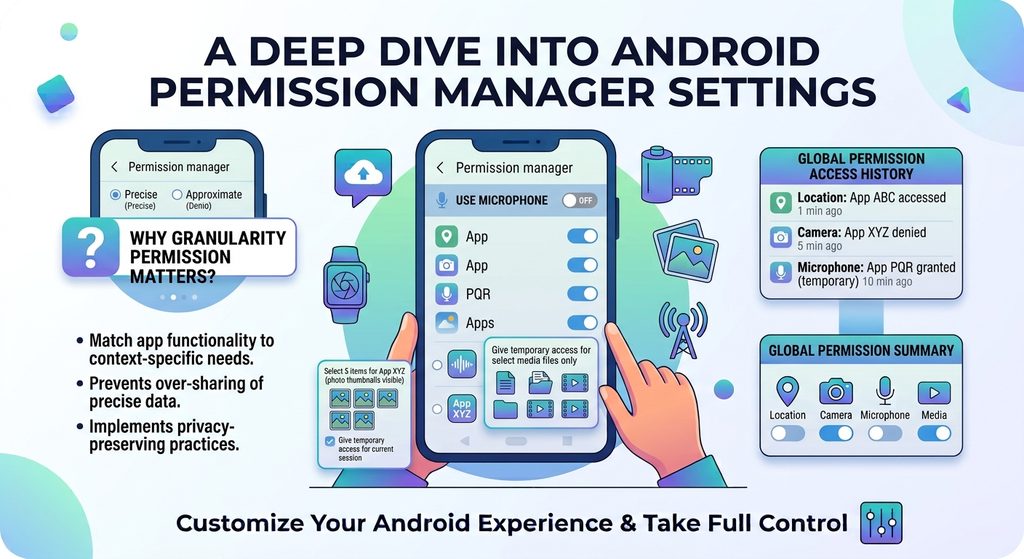
Type: Original screenshot.

Show: Android’s Permission Manager or equivalent privacy-permission screen.

Purpose: Demonstrates how to review permissions by category instead of checking apps individually.

Safe option: Use your own screenshot.


11. Don’t Remove Permissions Without Understanding the Effect

Removing a permission isn’t always harmless.

If an app relies on a permission for an important feature, that feature may stop working.

For example, removing microphone access from a voice-recording app would prevent it from using the microphone.

Similarly, removing camera access from a video-calling application can prevent video from working.

If something stops working after you change a permission, you can usually return to the app’s permission settings and reconsider the choice.


12. Check Permissions After Installing New Apps

Permission reviews shouldn’t be limited to apps you’ve had for years.

When installing a new application, pay attention to the permissions it requests.

Think about whether the requested access matches the app’s purpose.

For example, an application designed to edit photos may reasonably need access to photos you choose to edit.

That doesn’t automatically mean it needs access to unrelated information.

The important thing is to understand what the permission enables and whether you want to grant it.


13. Be Careful With Apps From Unknown Sources

Apps installed outside the official app stores can require additional caution.

Before installing an application from an unfamiliar source, consider:

  • Who published it?
  • Why does it need the requested permissions?
  • Is the source trustworthy?
  • Is the app still maintained?
  • Does the app’s requested access make sense for its purpose?

Don’t assume that an app is safe simply because it asks for a familiar permission.

Similarly, don’t assume that every app requesting several permissions is malicious. Permission requirements depend heavily on what the application actually does.


14. Use Android’s Privacy Indicators

On supported Android versions, the system can provide visual indicators when certain sensitive device features are being accessed.

For example, Android can show indicators when an app is using the camera or microphone.

If you notice an unexpected privacy indicator, check which app is using the relevant feature and review its permissions.

The exact indicator and behavior can vary by Android version and manufacturer.
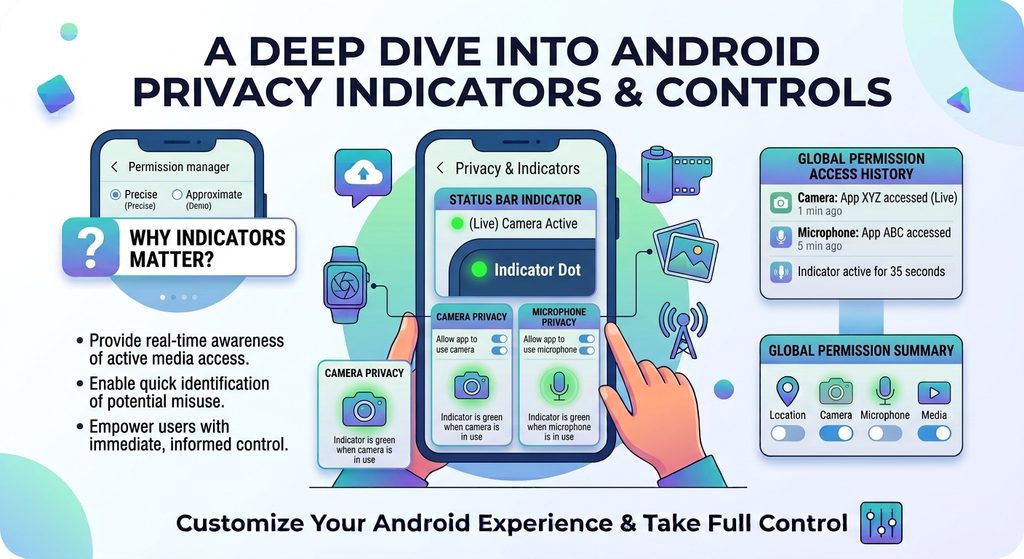
Type: Original screenshot.

Show: The Android privacy indicator appearing while an app is using the camera or microphone.

Purpose: Helps readers recognize Android’s visual privacy notifications.

Safe option: Take the screenshot yourself using a test application or device.


15. Review Unused Apps

Apps that you no longer use are worth reviewing.

If you haven’t used an application for a long time, ask:

  • Do I still need it?
  • Does it contain important information?
  • Is it receiving updates?
  • Does it have permissions I don’t want it to retain?

If you no longer need the app, uninstalling it may be simpler than managing its permissions.

Some Android versions also provide features related to unused apps that can help manage permissions or storage. The exact behavior depends on the device and software version.


Common Problems

I Can’t Find the Permissions Option

The menu structure varies between Android phones.

Open Settings and use the built-in search feature. Search for:

Permissions

or

Permission Manager

You can also open the app’s information page and look for Permissions.

A Permission I Removed Keeps Coming Back

Some apps may request permission again when you use a feature that requires it.

If you grant the permission again, Android may restore the access.

The App Stopped Working After I Removed a Permission

The app may depend on that permission for a particular feature.

Return to the app’s permission settings and determine whether that feature requires access.

You don’t necessarily need to restore every permission—only the one required for the feature you want to use.

I Don’t Recognize an App With Permission Access

First identify the application before changing anything.

Some system and manufacturer apps may have permissions that are necessary for normal phone functionality.

Don’t disable permissions for system components simply because their names aren’t familiar.


Important Things to Know

Android permissions are designed to give users control over access to certain device features and information, but the exact controls vary between Android versions and manufacturers.

A permission being available does not automatically mean an app is doing something harmful.

Likewise, an app requesting a permission doesn’t necessarily mean you should grant it.

The useful approach is to consider:

What does this app do?

What feature requires this permission?

Do I want to give the app that access?

If the answer is unclear, investigate the app and its features before changing the permission.


Conclusion

Checking app permissions is a simple way to understand what your Android apps can access.

Start by opening an app’s settings and reviewing its Permissions section. Pay particular attention to sensitive permissions such as location, camera, microphone, contacts, and photos.

Remove permissions you don’t need when Android gives you the option, but remember that some app features may stop working when their required access is removed.

You can also use Android’s permission-management tools to review access by category rather than checking every application individually.

The goal isn’t to deny every permission. It’s to give apps only the access that makes sense for the features you actually use.

Android apps often ask for permission to access certain features or information on your phone. Depending on the app, these permissions can include access to your camera, microphone, location, contacts, photos, files, or notifications.

Some permissions are necessary for an app to work properly. Others may not be needed for the way you use the app.

Checking app permissions regularly can help you understand what apps can access and remove permissions that you no longer want to grant.

The exact permission names and menu locations can vary depending on your Android version and phone manufacturer.

Quick Answer

To check an app’s permissions on Android:

  1. Open Settings.
  2. Tap Apps.
  3. Select the app you want to review.
  4. Tap Permissions.
  5. Review the permissions listed under allowed or not allowed.
  6. Tap a permission you don’t want the app to use.
  7. Choose an available option such as Don’t allow.
  8. Test the app afterward to make sure an important feature hasn’t stopped working.

You can also review permissions by permission type, such as Location, Camera, or Microphone, on many Android phones.


1. What Are App Permissions?

App permissions control whether an app can access certain device features or information.

For example, a navigation app may request location access because it needs your location to provide directions.

A messaging app may request access to the microphone if you want to record voice messages.

A camera app needs access to the camera to take pictures.

Common Android permissions can include:

  • Camera
  • Microphone
  • Location
  • Contacts
  • Photos and videos
  • Music and audio
  • Files
  • Nearby devices
  • Phone
  • SMS
  • Calendar

The permissions available on your phone can vary depending on the Android version and the apps installed.


2. Open the App Settings

Start by opening Settings on your Android phone.

Then look for:

Apps

On some devices, the menu may be called something slightly different, such as Apps & notifications.

Tap it to see the applications installed on your phone.

Type: Original screenshot.

Show: Settings with the Apps option visible.

Purpose: Helps beginners identify where app-management settings are located.

Safe option: Take your own screenshot from an Android phone. Don’t copy a screenshot from another website.


3. Select the App You Want to Check

After opening the Apps section, you’ll see a list of installed applications.

Choose the app whose permissions you want to review.

For example, you might check:

  • A social media app
  • A shopping app
  • A game
  • A photo-editing app
  • A messaging app
  • A weather app

After opening the app’s information page, look for Permissions.

Tap it to see which permissions the app currently has.


4. Review the App’s Permissions

The permissions screen may separate permissions into categories such as:

Allowed

and

Not allowed

The exact presentation varies by Android version.

Look through the list and consider whether each permission makes sense for the way you use the app.

For example, if an app has access to your microphone, ask yourself:

Does this app actually need microphone access for a feature I use?

If the answer is no, you can investigate whether Android allows you to remove that permission.

Type: Original screenshot.

Show: An app’s Permissions page displaying several permission categories.

Purpose: Gives readers a clear visual reference for the permission-review process.

Safe option: Use your own phone and avoid displaying personal information.


5. Remove a Permission You Don’t Want to Grant

If Android allows you to change a permission, tap the permission and select an option such as:

Don’t allow

The available choices depend on the permission and Android version.

For some permissions, Android may provide more than two options.

For example, location access may offer choices related to allowing access only while using the app or allowing access more broadly.

Choose the option that matches how you want the app to function.

Don’t automatically disable every permission.

The purpose of reviewing permissions is to make informed changes, not to prevent every app from accessing everything.


6. Understand Location Permissions

Location access deserves special attention because apps can use it to determine where your device is.

Depending on your Android version and the app, location permissions may provide different levels of access.

You may see choices such as:

  • Don’t allow
  • Ask every time
  • Allow only while using the app
  • Allow all the time

Not every option is available for every app.

For an app that only needs your location while you are actively using it, an option that limits access to use of the app may be appropriate.

However, some features may require broader access.

For example, an app that provides certain background location features may not work correctly if background access is removed.

Type: Original screenshot.

Show: Android’s available location permission choices for an app.

Purpose: Explains that Android may offer different levels of location access.

Safe option: Create your own screenshot and avoid showing your real location or personal information.


7. Check Camera and Microphone Access

Camera and microphone permissions are also worth reviewing.

A camera permission allows an app to access the device camera when Android grants that access.

Microphone permission allows an app to access the microphone when permitted.

Check which apps have these permissions and consider whether they are necessary.

For example:

  • A video-calling app may need the camera and microphone.
  • A camera app obviously needs camera access.
  • A voice-recording app needs microphone access.
  • A simple game may not require either permission for its core gameplay.

These are examples rather than universal rules. Always consider the actual features of the app.


8. Check Photo and Video Access

Modern Android versions can provide more specific controls for photos and videos than older versions.

Depending on your Android version and the app, you may be able to choose which photos and videos an app can access rather than giving it unrestricted access to your entire photo collection.

If an app only needs a few pictures—for example, when you upload a profile photo—you may not need to give it access to everything.

The available controls depend on the Android version and how the app requests access.

Type: Original screenshot.

Show: The photo/video permission options available for an app.

Purpose: Shows readers how Android can provide more controlled access to personal media.

Safe option: Use a test device or ensure private photos aren’t visible in the screenshot.


9. Review Contacts and Calendar Access

Some apps request access to contacts or calendar information.

Before allowing these permissions, consider what feature requires them.

For example, a communication app may use contacts to help you find people you know.

A calendar application may need calendar access to display or manage events.

If an app has access to these types of information without a feature you use requiring it, review whether Android lets you remove the permission.

Remember that disabling a permission can affect a feature that depends on it.


10. Review Permissions by Category

Checking apps one by one isn’t always the easiest approach.

Many Android phones also let you review which apps have access to a particular permission.

You may find a section similar to:

Settings → Privacy → Permission manager

The exact path can vary.

From there, you may be able to select a permission such as:

  • Location
  • Camera
  • Microphone
  • Contacts
  • Calendar
  • Files and media

Android can then show apps associated with that permission.

This is useful when you want to answer questions such as:

Which apps can access my microphone?

or

Which apps have location permission?

Type: Original screenshot.

Show: Android’s Permission Manager or equivalent privacy-permission screen.

Purpose: Demonstrates how to review permissions by category instead of checking apps individually.

Safe option: Use your own screenshot.


11. Don’t Remove Permissions Without Understanding the Effect

Removing a permission isn’t always harmless.

If an app relies on a permission for an important feature, that feature may stop working.

For example, removing microphone access from a voice-recording app would prevent it from using the microphone.

Similarly, removing camera access from a video-calling application can prevent video from working.

If something stops working after you change a permission, you can usually return to the app’s permission settings and reconsider the choice.


12. Check Permissions After Installing New Apps

Permission reviews shouldn’t be limited to apps you’ve had for years.

When installing a new application, pay attention to the permissions it requests.

Think about whether the requested access matches the app’s purpose.

For example, an application designed to edit photos may reasonably need access to photos you choose to edit.

That doesn’t automatically mean it needs access to unrelated information.

The important thing is to understand what the permission enables and whether you want to grant it.


13. Be Careful With Apps From Unknown Sources

Apps installed outside the official app stores can require additional caution.

Before installing an application from an unfamiliar source, consider:

  • Who published it?
  • Why does it need the requested permissions?
  • Is the source trustworthy?
  • Is the app still maintained?
  • Does the app’s requested access make sense for its purpose?

Don’t assume that an app is safe simply because it asks for a familiar permission.

Similarly, don’t assume that every app requesting several permissions is malicious. Permission requirements depend heavily on what the application actually does.


14. Use Android’s Privacy Indicators

On supported Android versions, the system can provide visual indicators when certain sensitive device features are being accessed.

For example, Android can show indicators when an app is using the camera or microphone.

If you notice an unexpected privacy indicator, check which app is using the relevant feature and review its permissions.

The exact indicator and behavior can vary by Android version and manufacturer.

Type: Original screenshot.

Show: The Android privacy indicator appearing while an app is using the camera or microphone.

Purpose: Helps readers recognize Android’s visual privacy notifications.

Safe option: Take the screenshot yourself using a test application or device.


15. Review Unused Apps

Apps that you no longer use are worth reviewing.

If you haven’t used an application for a long time, ask:

  • Do I still need it?
  • Does it contain important information?
  • Is it receiving updates?
  • Does it have permissions I don’t want it to retain?

If you no longer need the app, uninstalling it may be simpler than managing its permissions.

Some Android versions also provide features related to unused apps that can help manage permissions or storage. The exact behavior depends on the device and software version.


Common Problems

I Can’t Find the Permissions Option

The menu structure varies between Android phones.

Open Settings and use the built-in search feature. Search for:

Permissions

or

Permission Manager

You can also open the app’s information page and look for Permissions.

A Permission I Removed Keeps Coming Back

Some apps may request permission again when you use a feature that requires it.

If you grant the permission again, Android may restore the access.

The App Stopped Working After I Removed a Permission

The app may depend on that permission for a particular feature.

Return to the app’s permission settings and determine whether that feature requires access.

You don’t necessarily need to restore every permission—only the one required for the feature you want to use.

I Don’t Recognize an App With Permission Access

First identify the application before changing anything.

Some system and manufacturer apps may have permissions that are necessary for normal phone functionality.

Don’t disable permissions for system components simply because their names aren’t familiar.


Important Things to Know

Android permissions are designed to give users control over access to certain device features and information, but the exact controls vary between Android versions and manufacturers.

A permission being available does not automatically mean an app is doing something harmful.

Likewise, an app requesting a permission doesn’t necessarily mean you should grant it.

The useful approach is to consider:

What does this app do?

What feature requires this permission?

Do I want to give the app that access?

If the answer is unclear, investigate the app and its features before changing the permission.


Conclusion

Checking app permissions is a simple way to understand what your Android apps can access.

Start by opening an app’s settings and reviewing its Permissions section. Pay particular attention to sensitive permissions such as location, camera, microphone, contacts, and photos.

Remove permissions you don’t need when Android gives you the option, but remember that some app features may stop working when their required access is removed.

You can also use Android’s permission-management tools to review access by category rather than checking every application individually.

The goal isn’t to deny every permission. It’s to give apps only the access that makes sense for the features you actually use.

More from author

LEAVE A REPLY

Please enter your comment!
Please enter your name here

Related posts

Advertismentspot_img

Latest posts

How to Organize Apps on an Android Home Screen

A cluttered Android home screen can make it difficult to find the apps you use every day. When dozens of icons are spread across...

How to Make Your Android Phone Easier to Use for Beginners

A new Android phone can feel confusing when you are not familiar with its settings, buttons, notifications, and apps. Even simple tasks such as...

How to Find Which Apps Are Using the Most Storage on Android

Running out of storage on your Android phone can be frustrating, especially when you are not sure what is taking up all the space....

Want to stay up to date with the latest news?

We would love to hear from you! Please fill in your details and we will stay in touch. It's that simple!