How to Stop an Android App From Running in the Background

Some Android apps continue working in the background even when you are not actively using them. This can be useful for apps that need to sync messages, update content, track activity, or send notifications. However, apps that use too much background activity can sometimes contribute to battery drain, mobile data usage, or unnecessary system activity.

Android provides several ways to control how apps work in the background. The exact settings can vary depending on your Android version and phone manufacturer, so you may see slightly different names or menus.

Main Points

  • Android can limit how much an app works in the background.
  • Restricting background activity can help reduce battery or data usage.
  • Some apps need background access for notifications, syncing, location, or other features.
  • Battery optimization, background data, and background activity are related but different settings.
  • Samsung Galaxy and other Android phones may place these controls in different menus.
  • Avoid restricting essential apps unless you understand what features may stop working.

What Does It Mean When an App Runs in the Background?

An app is running in the background when it performs tasks even though you are not currently using it on screen.

For example, an app might:

  • Check for new messages
  • Sync account information
  • Upload or download files
  • Refresh content
  • Use location services
  • Send notifications
  • Perform scheduled tasks

Background activity does not always mean an app is constantly using your processor or battery. Android manages background processes automatically and may stop or limit apps when necessary.

If a particular app is using unusually high battery or data, however, you may want to check its background settings.


1. Open Android Settings

Start by opening the Settings app on your Android phone.

Depending on your phone, the Settings app may look slightly different.

You can usually find it in your app drawer or by swiping down from the top of the screen and tapping the gear icon.
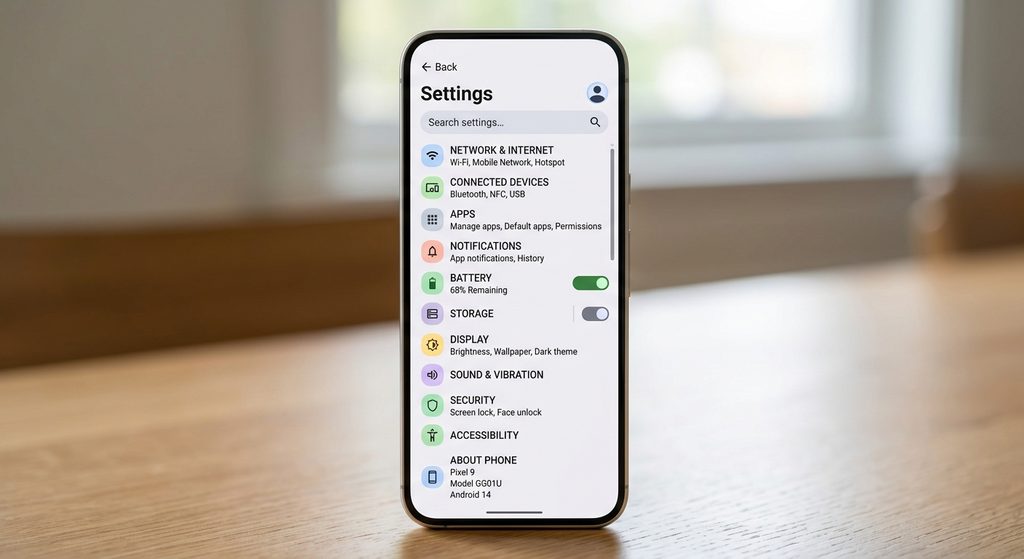
What to show:
A screenshot of the main Android Settings screen, with the relevant app/battery settings area visible.

Purpose:
Help beginners identify where to start.


2. Open the Apps Section

Look for an option such as:

Settings → Apps

On some phones, it may be called:

  • Apps
  • Apps & notifications
  • Application manager
  • See all apps

Tap the option that lets you view your installed applications.

You should now see a list of apps installed on your phone.


3. Select the App You Want to Restrict

Find the app that you believe is using too much background activity.

Tap the app to open its App info page.

You may see information such as:

  • Permissions
  • Notifications
  • Storage
  • Mobile data
  • Battery
  • Open by default
  • Other app settings

The available options depend on your Android version and manufacturer.
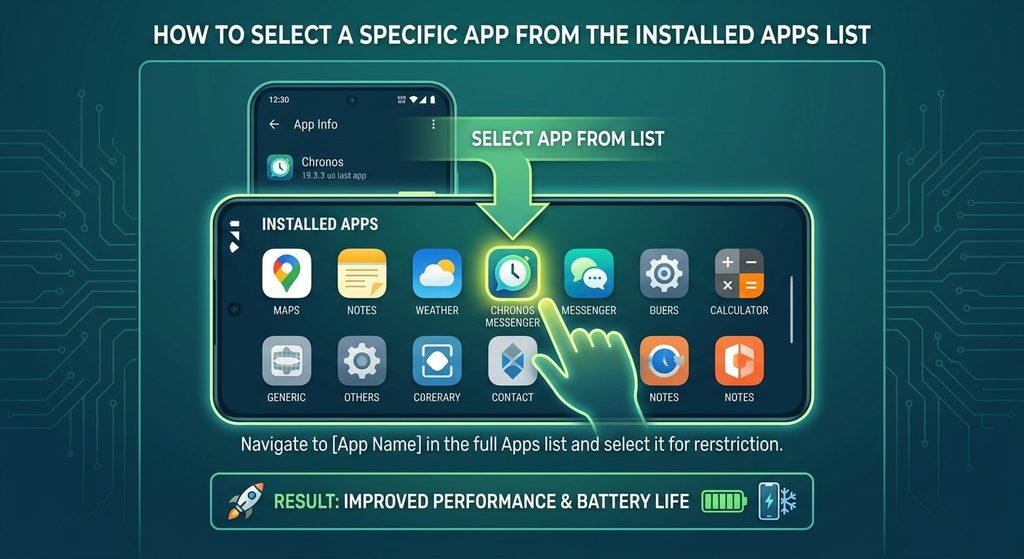
What to show:
The installed apps list with one test app selected.

Purpose:
Show readers how to reach the individual app’s settings.


4. Check the App’s Battery Settings

Look for Battery, Battery usage, or a similar option on the app’s information page.

Tap it.

Depending on your phone, you may see options related to how the app is allowed to use battery while running in the background.

Some Android versions provide choices such as:

  • Unrestricted
  • Optimized
  • Restricted

The exact choices can vary.

What Do These Options Mean?

Unrestricted
The app may have fewer restrictions on its background activity. This can be useful for apps that need to work reliably in the background, but it may allow greater battery usage.

Optimized
Android manages the app’s background activity according to its battery-management system.

Restricted
Android applies stronger limits to the app’s ability to work in the background.

If your goal is to reduce unnecessary background activity, Restricted may be appropriate for certain apps.

However, don’t assume that every app should be restricted.
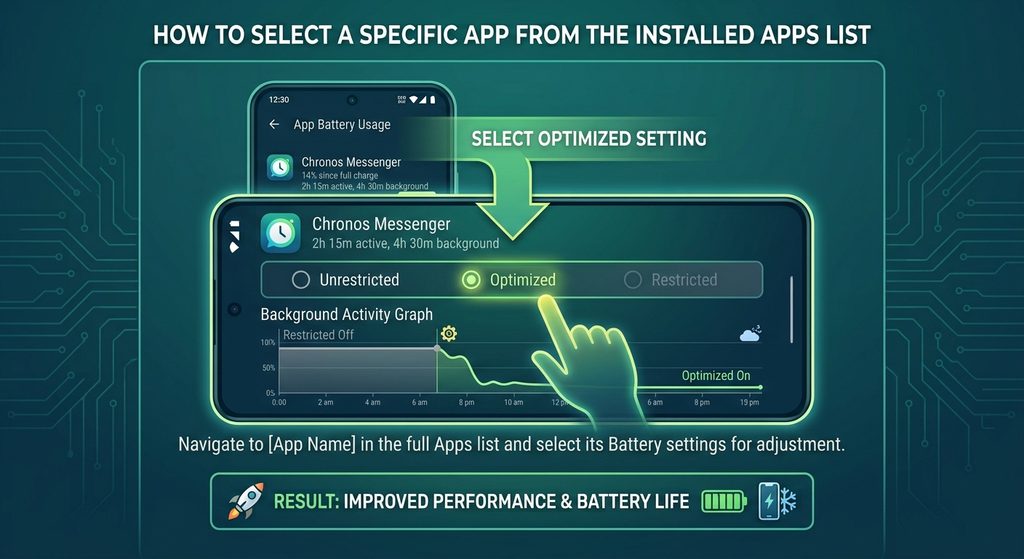
What to show:
The battery settings for a test app, including the available background/battery options.

Purpose:
Explain where users can control background behavior.


5. Restrict Background Activity When the Option Is Available

If your Android phone provides a Restricted battery option, selecting it can limit the app’s background activity.

Before applying the restriction, consider what the app does.

For example, restricting a messaging app could affect how quickly notifications arrive. A file-syncing app may also need background access to perform automatic synchronization.

For an app that you rarely use and do not need to keep working in the background, stronger restrictions may be more practical.

After changing the setting, Android will manage that app according to the selected restriction.


6. Check Background Mobile Data Usage

Battery activity is not the only reason you might want to control an app.

Some apps can also use mobile data in the background.

If your Android version provides the option, open the app’s settings and look for:

Mobile data & Wi-Fi

or a similar option.

You may see a setting for:

Background data

If available, disabling background data can prevent the app from using mobile data when you are not actively using it.

This can be useful if you have a limited mobile-data plan.

However, it can also affect automatic syncing and other features.
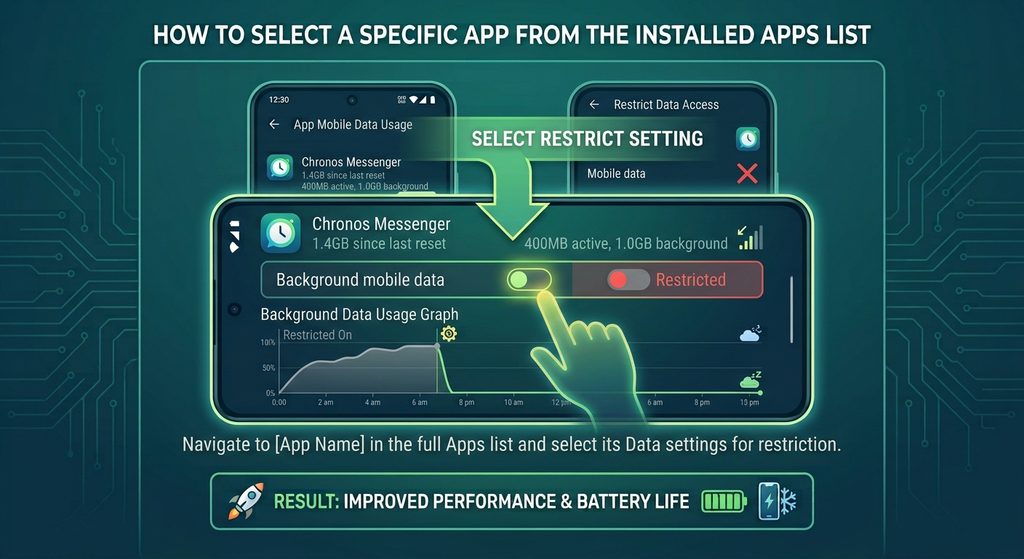
What to show:
An app’s mobile-data settings with the background-data option visible.

Purpose:
Show the difference between limiting background data and limiting battery activity.


7. Use Android’s Battery Settings to Find Problem Apps

If you don’t know which app is causing excessive background activity, don’t randomly restrict applications.

Instead, check your phone’s battery usage.

Depending on your Android version, you may find it under:

Settings → Battery

Then look for something like:

  • Battery usage
  • Battery usage by app
  • App battery usage

This can show which apps have consumed battery recently.

Look for an app that appears to be using an unusually large amount of battery compared with how much you actually use it.

Remember that high battery usage does not automatically mean an app is running unnecessarily in the background. An app can consume battery because you actively used it for a long time.


8. Don’t Confuse Background Activity With an App Being Open

You don’t necessarily need to force-close every app that appears in your recent apps screen.

Android is designed to manage applications and memory automatically.

Removing an app from the recent-apps screen is also not the same thing as permanently preventing background activity.

If an app repeatedly causes problems, use the relevant Battery, Mobile data, or app-management settings instead of constantly closing it manually.


9. Be Careful With Messaging and Email Apps

Some applications are specifically designed to work in the background.

Messaging and email apps are common examples.

They may need background access to:

  • Check for new messages
  • Sync mail
  • Deliver notifications
  • Update account information

If you heavily restrict these apps, you may notice delayed notifications or slower synchronization.

If notifications are important to you, test the app after changing its background settings.


10. Samsung Galaxy Phones May Use Different Settings

Samsung Galaxy devices can organize battery-management options differently from other Android phones.

You may encounter settings related to:

  • Background usage limits
  • Sleeping apps
  • Deep sleeping apps
  • Battery optimization

These settings can reduce how frequently certain apps operate in the background.

For example, an app placed into a stronger sleep category may not behave the same way as an app that is allowed to run normally.

Because Samsung’s menus can change between One UI versions, use the search function inside Settings if you cannot find the option described in this article.

Search for terms such as:

Battery, Background usage limits, or Sleeping apps.


11. What Happens When You Restrict an App?

The result depends on the app and the type of restriction you apply.

You may notice:

  • Notifications arrive later
  • Automatic syncing happens less frequently
  • Background uploads are delayed
  • Content refreshes when you open the app
  • The app uses less battery
  • The app uses less mobile data

Some apps may continue working normally because Android still allows certain system-managed activity.

The important point is that restricting an app does not guarantee that it will never perform any background activity.


12. If the App Still Uses Too Much Battery

If restricting background activity does not solve the problem, check whether the app has an update available.

An outdated app can sometimes behave differently from a newer version.

You can also try:

  1. Restarting your phone.
  2. Checking for an app update.
  3. Checking for an Android system update.
  4. Reviewing the app’s battery usage.
  5. Clearing the app’s cache if appropriate.
  6. Checking whether another app is responsible for related activity.

If the problem continues, consider whether the app is actually necessary.

Avoid uninstalling an app that is required for another service unless you understand what removing it will affect.


13. Should You Restrict Every App?

No.

There is usually no need to restrict every application on your phone.

Android already has its own system for managing memory, battery, and background processes.

Instead, focus on apps that:

  • You rarely use
  • Consume unusually high battery
  • Use unnecessary mobile data
  • Perform background activity you don’t need
  • Do not need immediate notifications

This makes it easier to avoid breaking useful features.


Common Problems

I Can’t Find the Background Restriction Option

Your Android version or phone manufacturer may use a different menu.

Open Settings and use its search function for terms such as:

Battery, Background, App battery usage, or Mobile data.

Will Restricting an App Uninstall It?

No. Restricting an app’s background activity does not normally uninstall the application.

Will I Stop Receiving Notifications?

Possibly, depending on the app and the type of restriction.

Important apps such as messaging, email, security, and authentication apps may need background access for timely notifications.

Why Does the App Still Appear in Battery Usage?

Battery-usage reports can include activity from earlier periods. Also, restricting background activity does not necessarily mean the app can never use battery.

Does Restricting Background Activity Save Battery?

It can reduce battery consumption in situations where an app was performing unnecessary background work, but the amount saved depends on the app and how it was being used.


Important Things to Know

Before restricting an Android app, remember these points:

  • Android menu names vary between devices.
  • Samsung Galaxy phones may use different battery-management controls.
  • Battery restrictions and background-data restrictions are not exactly the same.
  • Some apps require background activity for notifications and synchronization.
  • Restricting an app may change how quickly it updates.
  • Don’t restrict essential system or security apps without understanding the consequences.
  • You usually don’t need to manually stop every app on your phone.
  • Check battery usage first if you’re trying to identify the cause of battery drain.

Conclusion

Android gives you several ways to control how applications behave when you’re not actively using them. The most useful approach is to identify apps that are consuming unusual amounts of battery or mobile data and then adjust their individual settings.

Depending on your phone, you may be able to use battery restrictions, background-data controls, sleeping-app settings, or similar features.

Because Android manufacturers organize these controls differently, the exact steps may not look identical on every device. If a restriction causes delayed notifications or synchronization problems, you can return to the app’s settings and change the restriction.

Some Android apps continue working in the background even when you are not actively using them. This can be useful for apps that need to sync messages, update content, track activity, or send notifications. However, apps that use too much background activity can sometimes contribute to battery drain, mobile data usage, or unnecessary system activity.

Android provides several ways to control how apps work in the background. The exact settings can vary depending on your Android version and phone manufacturer, so you may see slightly different names or menus.

Main Points

  • Android can limit how much an app works in the background.
  • Restricting background activity can help reduce battery or data usage.
  • Some apps need background access for notifications, syncing, location, or other features.
  • Battery optimization, background data, and background activity are related but different settings.
  • Samsung Galaxy and other Android phones may place these controls in different menus.
  • Avoid restricting essential apps unless you understand what features may stop working.

What Does It Mean When an App Runs in the Background?

An app is running in the background when it performs tasks even though you are not currently using it on screen.

For example, an app might:

  • Check for new messages
  • Sync account information
  • Upload or download files
  • Refresh content
  • Use location services
  • Send notifications
  • Perform scheduled tasks

Background activity does not always mean an app is constantly using your processor or battery. Android manages background processes automatically and may stop or limit apps when necessary.

If a particular app is using unusually high battery or data, however, you may want to check its background settings.


1. Open Android Settings

Start by opening the Settings app on your Android phone.

Depending on your phone, the Settings app may look slightly different.

You can usually find it in your app drawer or by swiping down from the top of the screen and tapping the gear icon.

What to show:
A screenshot of the main Android Settings screen, with the relevant app/battery settings area visible.

Purpose:
Help beginners identify where to start.


2. Open the Apps Section

Look for an option such as:

Settings → Apps

On some phones, it may be called:

  • Apps
  • Apps & notifications
  • Application manager
  • See all apps

Tap the option that lets you view your installed applications.

You should now see a list of apps installed on your phone.


3. Select the App You Want to Restrict

Find the app that you believe is using too much background activity.

Tap the app to open its App info page.

You may see information such as:

  • Permissions
  • Notifications
  • Storage
  • Mobile data
  • Battery
  • Open by default
  • Other app settings

The available options depend on your Android version and manufacturer.

What to show:
The installed apps list with one test app selected.

Purpose:
Show readers how to reach the individual app’s settings.


4. Check the App’s Battery Settings

Look for Battery, Battery usage, or a similar option on the app’s information page.

Tap it.

Depending on your phone, you may see options related to how the app is allowed to use battery while running in the background.

Some Android versions provide choices such as:

  • Unrestricted
  • Optimized
  • Restricted

The exact choices can vary.

What Do These Options Mean?

Unrestricted
The app may have fewer restrictions on its background activity. This can be useful for apps that need to work reliably in the background, but it may allow greater battery usage.

Optimized
Android manages the app’s background activity according to its battery-management system.

Restricted
Android applies stronger limits to the app’s ability to work in the background.

If your goal is to reduce unnecessary background activity, Restricted may be appropriate for certain apps.

However, don’t assume that every app should be restricted.

What to show:
The battery settings for a test app, including the available background/battery options.

Purpose:
Explain where users can control background behavior.


5. Restrict Background Activity When the Option Is Available

If your Android phone provides a Restricted battery option, selecting it can limit the app’s background activity.

Before applying the restriction, consider what the app does.

For example, restricting a messaging app could affect how quickly notifications arrive. A file-syncing app may also need background access to perform automatic synchronization.

For an app that you rarely use and do not need to keep working in the background, stronger restrictions may be more practical.

After changing the setting, Android will manage that app according to the selected restriction.


6. Check Background Mobile Data Usage

Battery activity is not the only reason you might want to control an app.

Some apps can also use mobile data in the background.

If your Android version provides the option, open the app’s settings and look for:

Mobile data & Wi-Fi

or a similar option.

You may see a setting for:

Background data

If available, disabling background data can prevent the app from using mobile data when you are not actively using it.

This can be useful if you have a limited mobile-data plan.

However, it can also affect automatic syncing and other features.

What to show:
An app’s mobile-data settings with the background-data option visible.

Purpose:
Show the difference between limiting background data and limiting battery activity.


7. Use Android’s Battery Settings to Find Problem Apps

If you don’t know which app is causing excessive background activity, don’t randomly restrict applications.

Instead, check your phone’s battery usage.

Depending on your Android version, you may find it under:

Settings → Battery

Then look for something like:

  • Battery usage
  • Battery usage by app
  • App battery usage

This can show which apps have consumed battery recently.

Look for an app that appears to be using an unusually large amount of battery compared with how much you actually use it.

Remember that high battery usage does not automatically mean an app is running unnecessarily in the background. An app can consume battery because you actively used it for a long time.


8. Don’t Confuse Background Activity With an App Being Open

You don’t necessarily need to force-close every app that appears in your recent apps screen.

Android is designed to manage applications and memory automatically.

Removing an app from the recent-apps screen is also not the same thing as permanently preventing background activity.

If an app repeatedly causes problems, use the relevant Battery, Mobile data, or app-management settings instead of constantly closing it manually.


9. Be Careful With Messaging and Email Apps

Some applications are specifically designed to work in the background.

Messaging and email apps are common examples.

They may need background access to:

  • Check for new messages
  • Sync mail
  • Deliver notifications
  • Update account information

If you heavily restrict these apps, you may notice delayed notifications or slower synchronization.

If notifications are important to you, test the app after changing its background settings.


10. Samsung Galaxy Phones May Use Different Settings

Samsung Galaxy devices can organize battery-management options differently from other Android phones.

You may encounter settings related to:

  • Background usage limits
  • Sleeping apps
  • Deep sleeping apps
  • Battery optimization

These settings can reduce how frequently certain apps operate in the background.

For example, an app placed into a stronger sleep category may not behave the same way as an app that is allowed to run normally.

Because Samsung’s menus can change between One UI versions, use the search function inside Settings if you cannot find the option described in this article.

Search for terms such as:

Battery, Background usage limits, or Sleeping apps.


11. What Happens When You Restrict an App?

The result depends on the app and the type of restriction you apply.

You may notice:

  • Notifications arrive later
  • Automatic syncing happens less frequently
  • Background uploads are delayed
  • Content refreshes when you open the app
  • The app uses less battery
  • The app uses less mobile data

Some apps may continue working normally because Android still allows certain system-managed activity.

The important point is that restricting an app does not guarantee that it will never perform any background activity.


12. If the App Still Uses Too Much Battery

If restricting background activity does not solve the problem, check whether the app has an update available.

An outdated app can sometimes behave differently from a newer version.

You can also try:

  1. Restarting your phone.
  2. Checking for an app update.
  3. Checking for an Android system update.
  4. Reviewing the app’s battery usage.
  5. Clearing the app’s cache if appropriate.
  6. Checking whether another app is responsible for related activity.

If the problem continues, consider whether the app is actually necessary.

Avoid uninstalling an app that is required for another service unless you understand what removing it will affect.


13. Should You Restrict Every App?

No.

There is usually no need to restrict every application on your phone.

Android already has its own system for managing memory, battery, and background processes.

Instead, focus on apps that:

  • You rarely use
  • Consume unusually high battery
  • Use unnecessary mobile data
  • Perform background activity you don’t need
  • Do not need immediate notifications

This makes it easier to avoid breaking useful features.


Common Problems

I Can’t Find the Background Restriction Option

Your Android version or phone manufacturer may use a different menu.

Open Settings and use its search function for terms such as:

Battery, Background, App battery usage, or Mobile data.

Will Restricting an App Uninstall It?

No. Restricting an app’s background activity does not normally uninstall the application.

Will I Stop Receiving Notifications?

Possibly, depending on the app and the type of restriction.

Important apps such as messaging, email, security, and authentication apps may need background access for timely notifications.

Why Does the App Still Appear in Battery Usage?

Battery-usage reports can include activity from earlier periods. Also, restricting background activity does not necessarily mean the app can never use battery.

Does Restricting Background Activity Save Battery?

It can reduce battery consumption in situations where an app was performing unnecessary background work, but the amount saved depends on the app and how it was being used.


Important Things to Know

Before restricting an Android app, remember these points:

  • Android menu names vary between devices.
  • Samsung Galaxy phones may use different battery-management controls.
  • Battery restrictions and background-data restrictions are not exactly the same.
  • Some apps require background activity for notifications and synchronization.
  • Restricting an app may change how quickly it updates.
  • Don’t restrict essential system or security apps without understanding the consequences.
  • You usually don’t need to manually stop every app on your phone.
  • Check battery usage first if you’re trying to identify the cause of battery drain.

Conclusion

Android gives you several ways to control how applications behave when you’re not actively using them. The most useful approach is to identify apps that are consuming unusual amounts of battery or mobile data and then adjust their individual settings.

Depending on your phone, you may be able to use battery restrictions, background-data controls, sleeping-app settings, or similar features.

Because Android manufacturers organize these controls differently, the exact steps may not look identical on every device. If a restriction causes delayed notifications or synchronization problems, you can return to the app’s settings and change the restriction.

More from author

LEAVE A REPLY

Please enter your comment!
Please enter your name here

Related posts

Advertismentspot_img

Latest posts

How to Clear an App’s Cache on Android Without Deleting Your Account

When an Android app starts behaving strangely, loading slowly, or taking up more storage than expected, clearing its cache can sometimes help. The important part...

How to Check App Permissions on Android and Remove Unnecessary Access

Android apps often ask for permission to access certain features or information on your phone. Depending on the app, these permissions can include access...

How to Organize Apps on an Android Home Screen

A cluttered Android home screen can make it difficult to find the apps you use every day. When dozens of icons are spread across...

Want to stay up to date with the latest news?

We would love to hear from you! Please fill in your details and we will stay in touch. It's that simple!