How to Share Large Files From Your Phone Without Using a USB Cable

Sharing large files from your Android phone does not require a USB cable. Depending on the file size, internet connection, and device you are sending the file to, you can use cloud storage, nearby wireless sharing, messaging apps, or a direct transfer method.

The best option depends on what you are trying to send. A few photos can be transferred quickly with nearby sharing, while a large video or folder may be easier to upload to cloud storage and share with a link.

Main Points

  • You can transfer large files without connecting your phone with a USB cable.
  • Cloud storage is useful when the recipient is somewhere else.
  • Nearby wireless sharing is convenient when the other device is physically close.
  • Large videos and folders may require more time or storage space.
  • The maximum file size depends on the service or app you use.
  • Always check whether the recipient has permission to access the shared file.
  • For private files, review sharing permissions before sending the link.

1. Choose the Best Transfer Method

Before sharing a large file, decide how you want the recipient to receive it.

Here are the most common options:

MethodBest ForInternet Required?
Cloud storageLarge files sent to someone remotelyUsually yes
Nearby wireless sharingPhones or computers that are close togetherOften no internet required
Messaging appsSmaller videos, photos and documentsUsually yes
File-transfer servicesSending a large file through a linkYes
Local Wi-Fi transferMoving files between devices on the same networkDepends on the method

For a very large video, a cloud-storage or file-transfer service is often more practical than trying to send the file through a normal messaging conversation.


2. Check the File Size First

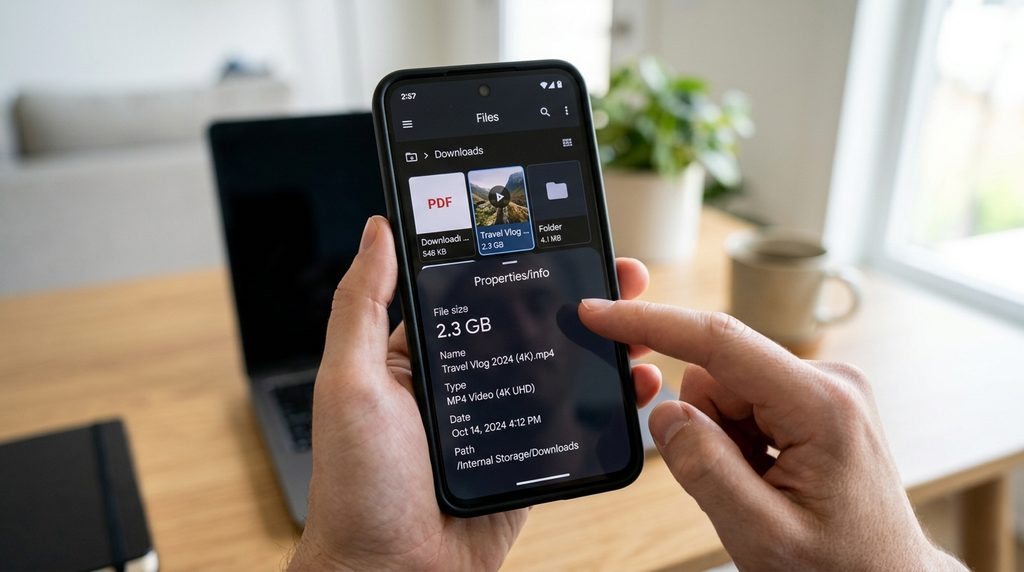
Before choosing a transfer method, check how large the file actually is.

Open your phone’s Files, My Files, or another file manager.

Find the file you want to send and open its information or properties.

You may see a size such as:

  • 50 MB
  • 500 MB
  • 1 GB
  • 4 GB

The larger the file, the longer the upload or transfer may take.
3. Use Nearby Sharing for Devices That Are Close

If the person receiving the file is physically nearby, Android’s built-in nearby sharing feature can be a convenient option.

On newer Android devices, this feature is commonly available as Quick Share.

It can be used to send files between compatible Android devices and, depending on the setup, other supported devices.

How to Use It

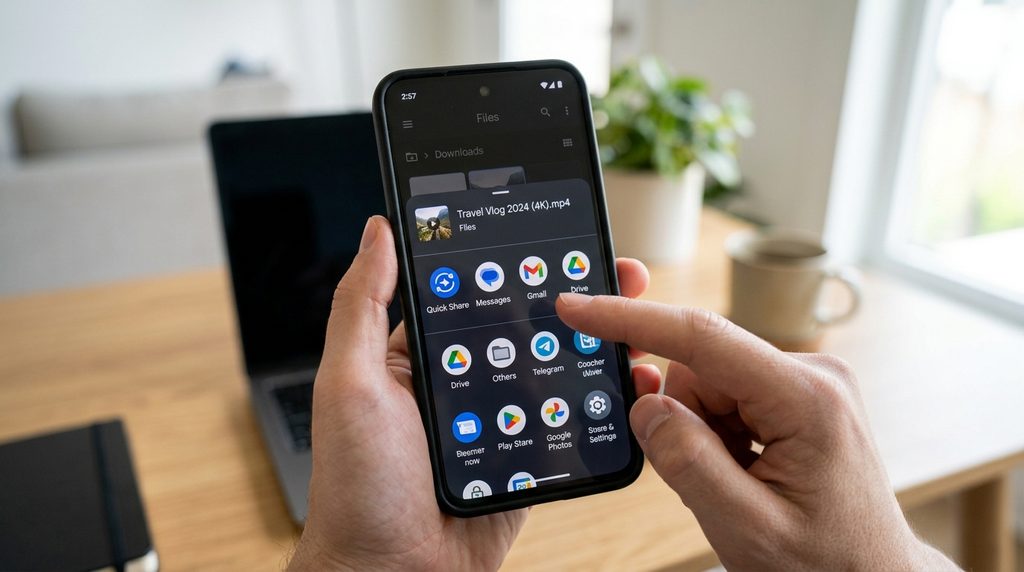
  1. Open the Files or Gallery app.
  2. Select the file you want to send.
  3. Tap Share.
  4. Look for Quick Share.
  5. Select the nearby device.
  6. Ask the recipient to accept the transfer if prompted.
  7. Wait for the transfer to finish.

The exact interface can vary depending on your Android version and phone manufacturer.
4. Keep the Two Devices Nearby

When using a nearby wireless transfer method, keep the devices reasonably close together.

The transfer may use wireless connections managed by the operating system. Depending on the device and situation, Bluetooth, Wi-Fi, or other wireless technologies may be involved.

Avoid moving the devices far apart while a large file is being transferred.

For a large video, the transfer may take longer than a small photo, especially if the devices or wireless conditions are not ideal.


5. Use Google Drive for Remote Sharing

If the recipient is not nearby, cloud storage can be much more convenient.

One common option is Google Drive.

The basic process is:

  1. Open Google Drive on your phone.
  2. Tap the option to upload a file.
  3. Select the large file.
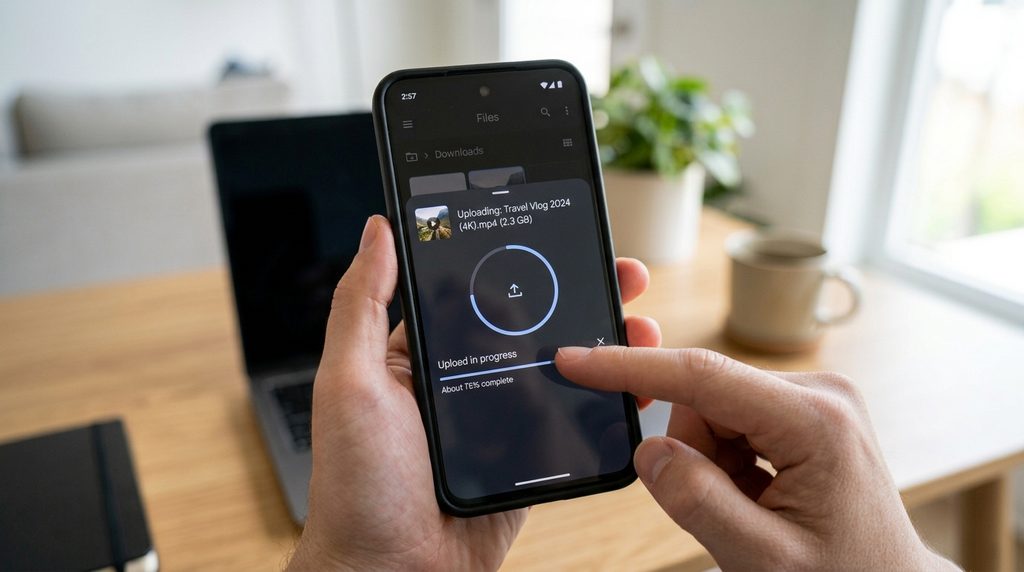
  4. Wait for the upload to finish.
  5. Open the uploaded file.
  6. Choose the sharing option.
  7. Set the appropriate access permissions.
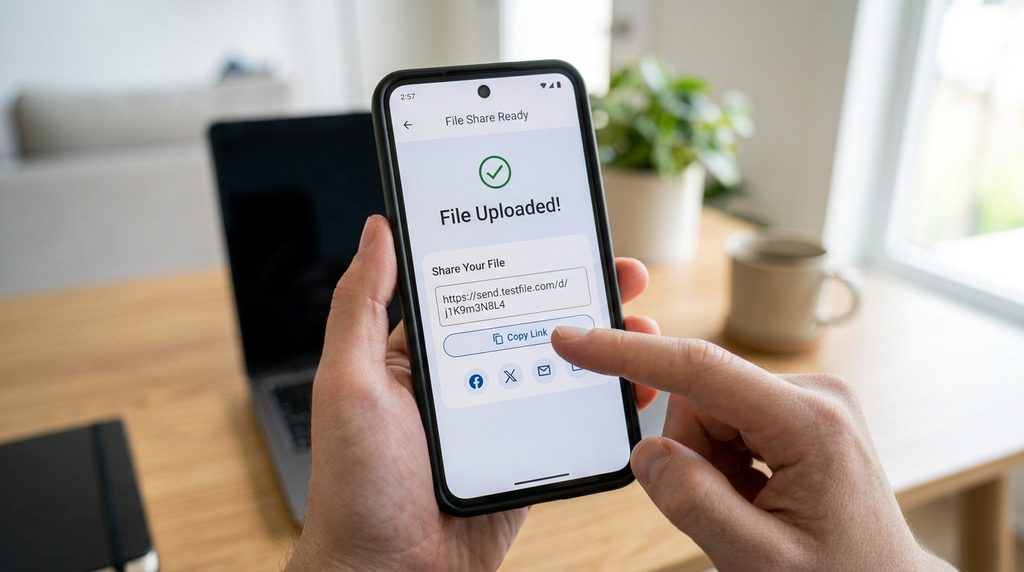
  8. Copy the sharing link.
  9. Send the link to the recipient.

The recipient can then open the link and download the file, depending on the permissions you selected.

6. Check Sharing Permissions Before Sending the Link

This is especially important for private documents, personal photos, work files, or other sensitive information.

Before sending a cloud-storage link, check who can access the file.

Depending on the service, you may have options such as:

  • Restricted access
  • Specific people
  • Anyone with the link

Do not automatically choose the broadest sharing option.

If the file contains private information, use the most limited access setting that still allows the intended recipient to open it.


7. Use a File-Transfer Service for Very Large Files

Another option is a dedicated file-transfer service.

These services generally allow you to upload a file and generate a download link.

The recipient receives the link rather than the entire file being sent directly through a messaging app.

The exact maximum file size, expiration period, storage limit, and sharing features depend on the service and plan.

Before using one, check its current limits and privacy terms.

8. Send the File Through a Messaging App

Messaging apps can also be useful for sharing files.

However, they may impose limits on:

  • Maximum file size
  • File type
  • Storage
  • Compression
  • Download availability

If you send a large video as a normal photo or video attachment, the service may compress it.

If maintaining the original quality is important, check whether the app allows the file to be sent as a document/file instead.

This can help avoid unnecessary compression in some apps.


9. Use Wi-Fi When Uploading Large Files

Large files can consume significant mobile data.

If you are uploading a multi-gigabyte video to cloud storage, check whether you are connected to Wi-Fi before starting.

For example, a 2 GB file can use roughly 2 GB of upload data, although the actual amount may vary slightly because of how the service handles the upload.

If your mobile plan has a limited data allowance, uploading large files over cellular data can use a substantial portion of it.


10. Keep Your Phone Connected During Large Uploads

Large uploads can take time.

For a particularly large file:

  1. Connect to a reliable Wi-Fi network.
  2. Make sure your phone has enough battery.
  3. Start the upload.
  4. Avoid closing the app if your phone restricts background activity.
  5. Wait for the upload to complete.
  6. Confirm that the file is available before sharing the link.

Some Android phones may restrict background activity to save battery.

If an upload repeatedly stops when you leave the app, check the app’s battery and background-activity settings.


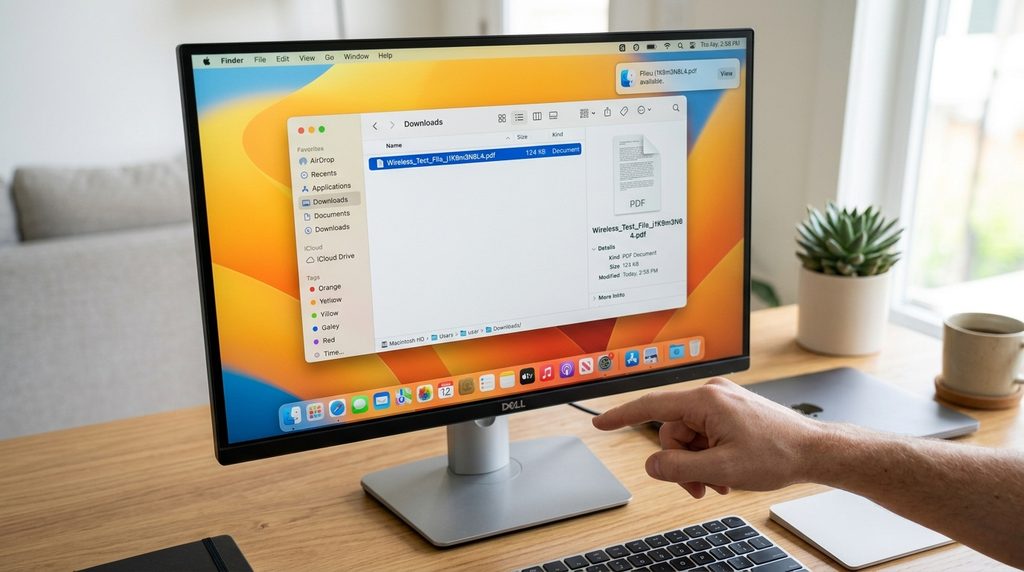
11. Transfer Files Between Your Phone and Computer Without USB

You can also move files wirelessly between your Android phone and computer.

Depending on your devices, you may be able to use:

  • Quick Share
  • Cloud storage
  • A local network file-sharing method
  • A manufacturer’s wireless transfer feature

For example, you can upload a file from your phone to cloud storage and then open the same account on your computer.

This avoids physically connecting the phone to the computer.
12. What If the File Is Too Large?

If your chosen service refuses to upload or send the file, check its maximum file-size limit.

You can then:

  • Use another transfer method
  • Upgrade storage if appropriate
  • Compress the file
  • Split a large folder into smaller parts
  • Transfer it using another wireless method

Before compressing a video, remember that compression can reduce quality depending on the tool and settings.

For photos and videos, it is often better to keep the original file when preserving quality is important.


13. What If the Transfer Is Very Slow?

A slow transfer does not necessarily mean something is wrong with your phone.

Possible causes include:

  • Weak Wi-Fi
  • Slow internet upload speed
  • Large file size
  • Network congestion
  • Distance between wireless devices
  • Background battery restrictions
  • The transfer service limiting speed

Try moving closer to the Wi-Fi router, using a stronger network, or waiting until network traffic is lower.

For nearby wireless transfers, keep both devices close and make sure the relevant wireless features are enabled.


14. Check the File After Transfer

Don’t immediately delete the original file from your phone.

First, confirm that the recipient can access the transferred copy.

For example:

  1. Open the shared link from another device or account when possible.
  2. Download the file.
  3. Open it.
  4. Check that it plays or opens correctly.
  5. Confirm that the file size looks reasonable.

Once you know the transfer was successful, you can decide whether you still need the original copy on your phone.


Common Problems

The Recipient Cannot Open My Link

Check the sharing permissions.

The file may be restricted to your account or specific users.

The Upload Keeps Stopping

Check your internet connection and whether Android is restricting the app’s background activity.

Also make sure the phone has enough free storage for temporary processing if the service requires it.

My Video Quality Looks Worse

Some messaging services compress videos.

Try sharing the original file or using a cloud-storage/file-transfer link instead.

The File Takes Too Long to Upload

Large files require more upload time.

A slow internet upload speed can make the process especially slow.

Try a reliable Wi-Fi connection.

Quick Share Does Not Show the Other Device

Make sure the receiving device supports the feature and is discoverable.

Keep the devices nearby and check that the relevant wireless settings are enabled.


Important Things to Know

  • Large files can take a long time to upload.
  • Cloud storage is useful when the recipient is somewhere else.
  • Nearby wireless sharing is convenient when devices are close.
  • Check file-size limits before starting a large transfer.
  • Wi-Fi is usually preferable for large uploads when mobile data is limited.
  • Check sharing permissions before sending private files.
  • Messaging apps may compress photos and videos.
  • Don’t delete the original until you confirm the transfer worked.
  • Android menus and sharing features can vary between devices and Android versions.

Conclusion

You do not need a USB cable to share large files from an Android phone. For nearby devices, Quick Share can provide a convenient wireless option. When the recipient is somewhere else, cloud storage or a dedicated file-transfer service can make it easier to send a large file through a link.

The right method depends on the file size, whether the recipient is nearby, your internet connection, and whether preserving the original quality is important.

For private files, pay particular attention to sharing permissions and make sure only the intended people can access the file.

Sharing large files from your Android phone does not require a USB cable. Depending on the file size, internet connection, and device you are sending the file to, you can use cloud storage, nearby wireless sharing, messaging apps, or a direct transfer method.

The best option depends on what you are trying to send. A few photos can be transferred quickly with nearby sharing, while a large video or folder may be easier to upload to cloud storage and share with a link.

Main Points

  • You can transfer large files without connecting your phone with a USB cable.
  • Cloud storage is useful when the recipient is somewhere else.
  • Nearby wireless sharing is convenient when the other device is physically close.
  • Large videos and folders may require more time or storage space.
  • The maximum file size depends on the service or app you use.
  • Always check whether the recipient has permission to access the shared file.
  • For private files, review sharing permissions before sending the link.

1. Choose the Best Transfer Method

Before sharing a large file, decide how you want the recipient to receive it.

Here are the most common options:

MethodBest ForInternet Required?
Cloud storageLarge files sent to someone remotelyUsually yes
Nearby wireless sharingPhones or computers that are close togetherOften no internet required
Messaging appsSmaller videos, photos and documentsUsually yes
File-transfer servicesSending a large file through a linkYes
Local Wi-Fi transferMoving files between devices on the same networkDepends on the method

For a very large video, a cloud-storage or file-transfer service is often more practical than trying to send the file through a normal messaging conversation.


2. Check the File Size First

Before choosing a transfer method, check how large the file actually is.

Open your phone’s Files, My Files, or another file manager.

Find the file you want to send and open its information or properties.

You may see a size such as:

  • 50 MB
  • 500 MB
  • 1 GB
  • 4 GB

The larger the file, the longer the upload or transfer may take.

3. Use Nearby Sharing for Devices That Are Close

If the person receiving the file is physically nearby, Android’s built-in nearby sharing feature can be a convenient option.

On newer Android devices, this feature is commonly available as Quick Share.

It can be used to send files between compatible Android devices and, depending on the setup, other supported devices.

How to Use It

  1. Open the Files or Gallery app.
  2. Select the file you want to send.
  3. Tap Share.
  4. Look for Quick Share.
  5. Select the nearby device.
  6. Ask the recipient to accept the transfer if prompted.
  7. Wait for the transfer to finish.

The exact interface can vary depending on your Android version and phone manufacturer.

4. Keep the Two Devices Nearby

When using a nearby wireless transfer method, keep the devices reasonably close together.

The transfer may use wireless connections managed by the operating system. Depending on the device and situation, Bluetooth, Wi-Fi, or other wireless technologies may be involved.

Avoid moving the devices far apart while a large file is being transferred.

For a large video, the transfer may take longer than a small photo, especially if the devices or wireless conditions are not ideal.


5. Use Google Drive for Remote Sharing

If the recipient is not nearby, cloud storage can be much more convenient.

One common option is Google Drive.

The basic process is:

  1. Open Google Drive on your phone.
  2. Tap the option to upload a file.
  3. Select the large file.
  4. Wait for the upload to finish.
  5. Open the uploaded file.
  6. Choose the sharing option.
  7. Set the appropriate access permissions.
  8. Copy the sharing link.
  9. Send the link to the recipient.

The recipient can then open the link and download the file, depending on the permissions you selected.


6. Check Sharing Permissions Before Sending the Link

This is especially important for private documents, personal photos, work files, or other sensitive information.

Before sending a cloud-storage link, check who can access the file.

Depending on the service, you may have options such as:

  • Restricted access
  • Specific people
  • Anyone with the link

Do not automatically choose the broadest sharing option.

If the file contains private information, use the most limited access setting that still allows the intended recipient to open it.


7. Use a File-Transfer Service for Very Large Files

Another option is a dedicated file-transfer service.

These services generally allow you to upload a file and generate a download link.

The recipient receives the link rather than the entire file being sent directly through a messaging app.

The exact maximum file size, expiration period, storage limit, and sharing features depend on the service and plan.

Before using one, check its current limits and privacy terms.


8. Send the File Through a Messaging App

Messaging apps can also be useful for sharing files.

However, they may impose limits on:

  • Maximum file size
  • File type
  • Storage
  • Compression
  • Download availability

If you send a large video as a normal photo or video attachment, the service may compress it.

If maintaining the original quality is important, check whether the app allows the file to be sent as a document/file instead.

This can help avoid unnecessary compression in some apps.


9. Use Wi-Fi When Uploading Large Files

Large files can consume significant mobile data.

If you are uploading a multi-gigabyte video to cloud storage, check whether you are connected to Wi-Fi before starting.

For example, a 2 GB file can use roughly 2 GB of upload data, although the actual amount may vary slightly because of how the service handles the upload.

If your mobile plan has a limited data allowance, uploading large files over cellular data can use a substantial portion of it.


10. Keep Your Phone Connected During Large Uploads

Large uploads can take time.

For a particularly large file:

  1. Connect to a reliable Wi-Fi network.
  2. Make sure your phone has enough battery.
  3. Start the upload.
  4. Avoid closing the app if your phone restricts background activity.
  5. Wait for the upload to complete.
  6. Confirm that the file is available before sharing the link.

Some Android phones may restrict background activity to save battery.

If an upload repeatedly stops when you leave the app, check the app’s battery and background-activity settings.


11. Transfer Files Between Your Phone and Computer Without USB

You can also move files wirelessly between your Android phone and computer.

Depending on your devices, you may be able to use:

  • Quick Share
  • Cloud storage
  • A local network file-sharing method
  • A manufacturer’s wireless transfer feature

For example, you can upload a file from your phone to cloud storage and then open the same account on your computer.

This avoids physically connecting the phone to the computer.

12. What If the File Is Too Large?

If your chosen service refuses to upload or send the file, check its maximum file-size limit.

You can then:

  • Use another transfer method
  • Upgrade storage if appropriate
  • Compress the file
  • Split a large folder into smaller parts
  • Transfer it using another wireless method

Before compressing a video, remember that compression can reduce quality depending on the tool and settings.

For photos and videos, it is often better to keep the original file when preserving quality is important.


13. What If the Transfer Is Very Slow?

A slow transfer does not necessarily mean something is wrong with your phone.

Possible causes include:

  • Weak Wi-Fi
  • Slow internet upload speed
  • Large file size
  • Network congestion
  • Distance between wireless devices
  • Background battery restrictions
  • The transfer service limiting speed

Try moving closer to the Wi-Fi router, using a stronger network, or waiting until network traffic is lower.

For nearby wireless transfers, keep both devices close and make sure the relevant wireless features are enabled.


14. Check the File After Transfer

Don’t immediately delete the original file from your phone.

First, confirm that the recipient can access the transferred copy.

For example:

  1. Open the shared link from another device or account when possible.
  2. Download the file.
  3. Open it.
  4. Check that it plays or opens correctly.
  5. Confirm that the file size looks reasonable.

Once you know the transfer was successful, you can decide whether you still need the original copy on your phone.


Common Problems

The Recipient Cannot Open My Link

Check the sharing permissions.

The file may be restricted to your account or specific users.

The Upload Keeps Stopping

Check your internet connection and whether Android is restricting the app’s background activity.

Also make sure the phone has enough free storage for temporary processing if the service requires it.

My Video Quality Looks Worse

Some messaging services compress videos.

Try sharing the original file or using a cloud-storage/file-transfer link instead.

The File Takes Too Long to Upload

Large files require more upload time.

A slow internet upload speed can make the process especially slow.

Try a reliable Wi-Fi connection.

Quick Share Does Not Show the Other Device

Make sure the receiving device supports the feature and is discoverable.

Keep the devices nearby and check that the relevant wireless settings are enabled.


Important Things to Know

  • Large files can take a long time to upload.
  • Cloud storage is useful when the recipient is somewhere else.
  • Nearby wireless sharing is convenient when devices are close.
  • Check file-size limits before starting a large transfer.
  • Wi-Fi is usually preferable for large uploads when mobile data is limited.
  • Check sharing permissions before sending private files.
  • Messaging apps may compress photos and videos.
  • Don’t delete the original until you confirm the transfer worked.
  • Android menus and sharing features can vary between devices and Android versions.

Conclusion

You do not need a USB cable to share large files from an Android phone. For nearby devices, Quick Share can provide a convenient wireless option. When the recipient is somewhere else, cloud storage or a dedicated file-transfer service can make it easier to send a large file through a link.

The right method depends on the file size, whether the recipient is nearby, your internet connection, and whether preserving the original quality is important.

For private files, pay particular attention to sharing permissions and make sure only the intended people can access the file.

More from author

LEAVE A REPLY

Please enter your comment!
Please enter your name here

Related posts

Advertismentspot_img

Latest posts

How to Scan Documents With Your Phone and Save Them as PDFs

You do not need a traditional scanner to turn a paper document into a PDF. An Android phone camera can scan documents and save...

How to Stop an Android App From Running in the Background

Some Android apps continue working in the background even when you are not actively using them. This can be useful for apps that need...

How to Clear an App’s Cache on Android Without Deleting Your Account

When an Android app starts behaving strangely, loading slowly, or taking up more storage than expected, clearing its cache can sometimes help. The important part...

Want to stay up to date with the latest news?

We would love to hear from you! Please fill in your details and we will stay in touch. It's that simple!