
A cluttered Android home screen can make it difficult to find the apps you use every day. When dozens of icons are spread across multiple pages, even simple tasks can take longer than necessary.
Organizing your apps doesn’t require complicated changes. You can remove unnecessary shortcuts, move frequently used apps to convenient locations, create folders, and keep the home screen focused on the apps you actually use.
The exact options can vary depending on your Android version, phone manufacturer, and launcher.
Quick Answer
To organize apps on an Android home screen:
- Remove app shortcuts you don’t regularly use.
- Move frequently used apps to the main home-screen page.
- Keep important apps in easy-to-reach positions.
- Create folders for groups of related apps.
- Remove unnecessary widgets and shortcuts.
- Keep less frequently used apps in the app drawer instead of the home screen.
- Use a simple layout that is easy to remember.
- Review the home screen occasionally and remove clutter.
1. Start With Your Current Home Screen
Before moving anything, take a quick look at your current home screen.
Ask yourself:
- Which apps do I use every day?
- Which apps do I use occasionally?
- Which apps do I rarely open?
- Which icons are duplicates or shortcuts I don’t need?
- Which apps should be easy to access?
You don’t need to organize everything at once.
Start with the main home-screen page because this is the screen you see most often.
A simple home screen is usually easier to navigate than one filled with dozens of icons.
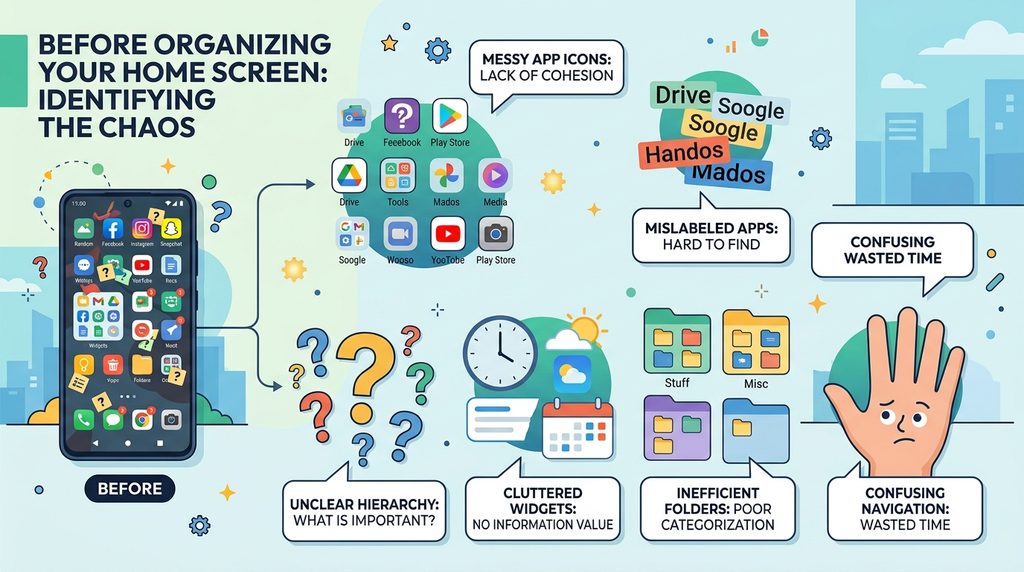
Type: Original screenshot.
Show: A cluttered Android home screen with multiple app icons.
Purpose: Gives readers a visual example of what an unorganized home screen can look like.
Safe option: Use your own Android phone and make sure no personal information is visible.
2. Decide Which Apps Belong on the Main Screen
The main home screen should contain the apps you use most frequently.
For example, you might regularly use:
- Phone
- Messages
- Contacts
- Camera
- Photos
- Web browser
- Maps
- A messaging app
These apps can be placed on the main screen so you don’t have to search for them every time.
Don’t feel that every installed app needs to be visible.
Apps that you use only occasionally can remain in the app drawer.
3. Remove Unnecessary App Shortcuts
Removing an app icon from the home screen usually does not uninstall the app.
On many Android phones, you can press and hold an app icon and choose an option such as:
Remove
or
Remove from Home
The exact wording depends on the launcher.
This removes the shortcut from the home screen while leaving the application installed.
That’s useful when you want to reduce clutter without deleting an app.
Important Difference
Remove from Home Screen
Removes the shortcut.
Uninstall
Removes the application from the phone.
Be careful not to choose Uninstall when you only want to clean up the home screen.
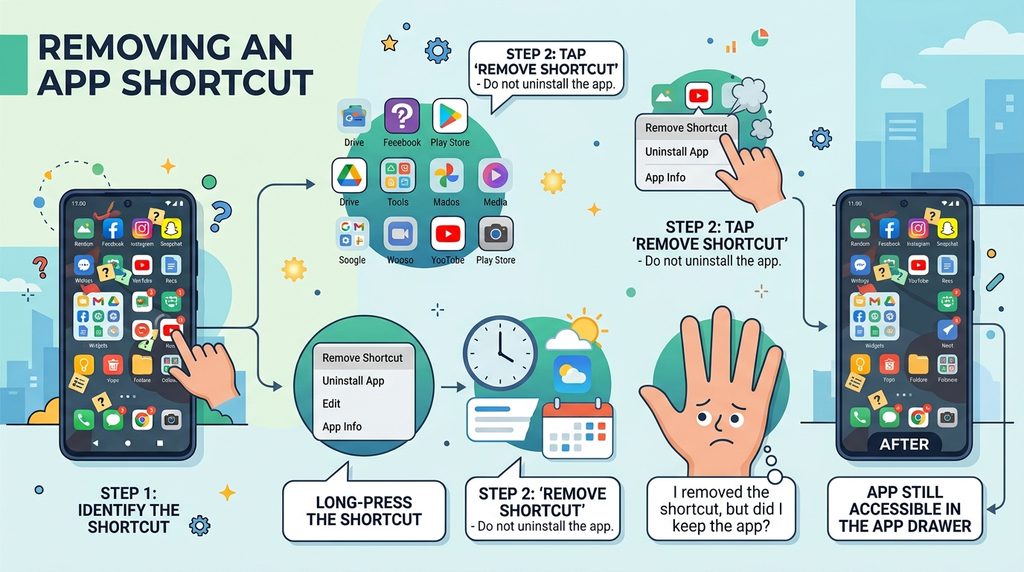
Type: Original screenshot.
Show: The menu that appears after pressing and holding an app icon, with the option to remove it from the home screen.
Purpose: Helps readers understand the difference between removing a shortcut and uninstalling an app.
Safe option: Create your own screenshot.
4. Move Frequently Used Apps Into Convenient Positions
You can usually press and hold an app icon and drag it to another location.
Place frequently used apps somewhere that feels natural and easy to reach.
For example, you could put your most-used apps along the bottom portion of the screen.
If you normally hold your phone with one hand, consider which areas of the screen are easiest for you to reach.
There is no universal “perfect” layout. The best arrangement is the one that makes your everyday tasks easier.
5. Keep the Most Important Apps on the First Page
If your phone has multiple home-screen pages, try to make the first page your primary workspace.
For example:
Page 1
- Phone
- Messages
- Camera
- Photos
- Browser
- Maps
Page 2
- Work apps
- Shopping apps
- Travel apps
Page 3
- Games
- Occasional-use apps
This isn’t a strict rule.
If you use certain apps every day, put them on the first page regardless of their category.
The goal is to reduce the number of swipes needed to reach frequently used apps.
6. Create Folders for Related Apps
Folders are useful when you have several apps that belong to the same category.
For example, you could create folders such as:
- Communication
- Social
- Shopping
- Travel
- Work
- Finance
- Photos
- Entertainment
On many Android launchers, you can create a folder by dragging one app icon on top of another.
The phone will then create a folder containing those apps.
You can usually tap the folder name to rename it.
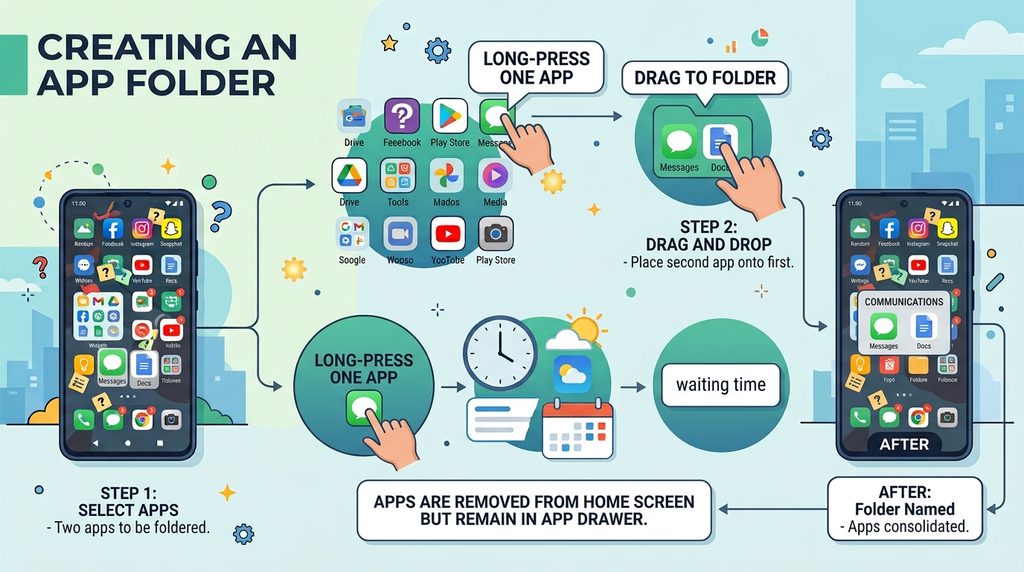
Type: Original screenshot.
Show: Two related app icons being combined into a folder, followed by the resulting folder.
Purpose: Demonstrates how folders can reduce home-screen clutter.
Safe option: Use your own screenshots and only show apps that are appropriate for your website.
7. Don’t Create Too Many Folders
Folders can organize your home screen, but too many folders can create another problem.
Imagine opening your home screen and seeing:
- Folder 1
- Folder 2
- Folder 3
- Folder 4
- Folder 5
- Folder 6
- Folder 7
Finding an app could become harder rather than easier.
Create folders only when they genuinely make a group of apps easier to manage.
If you have only two or three apps in a category, you may not need a folder at all.
8. Keep the Bottom Dock for Your Most-Used Apps
Many Android launchers have a fixed area at the bottom of the home screen, often called the dock or favorites area.
The apps placed there may remain visible as you move between home-screen pages.
Use this space for apps you access very frequently.
For example:
- Phone
- Messages
- Browser
- Camera
The exact number of apps that can fit in the dock depends on your phone and launcher.
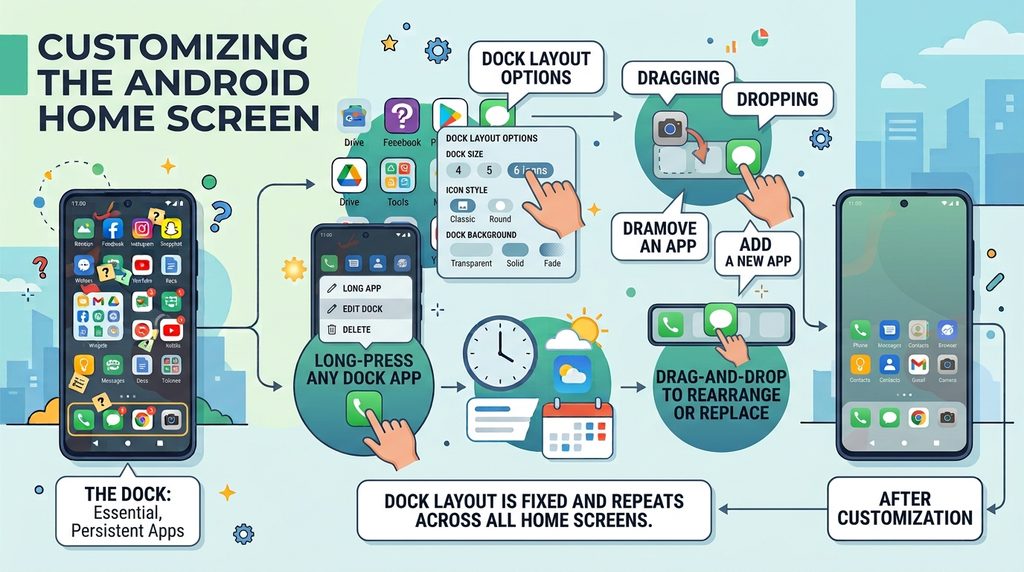
Type: Original screenshot.
Show: The bottom dock/favorites area containing frequently used apps.
Purpose: Shows readers how the dock can provide quick access.
Safe option: Take your own screenshot.
9. Remove Widgets You Don’t Need
Widgets can be useful, but too many can make the home screen crowded.
Common examples include:
- Weather
- Clock
- Calendar
- News
- Search
- Notes
- Music controls
Keep widgets that provide information you actually use.
If you rarely look at a widget, removing it can create more space for useful app shortcuts.
To remove a widget, press and hold it and look for an option such as Remove.
Removing a widget generally doesn’t uninstall the associated app.
10. Keep the Search Bar if You Use It
Many Android phones place a search bar on the home screen.
Depending on the device, it may allow you to search for:
- Apps
- Contacts
- Settings
- Web results
- Other information
If you frequently use search to find apps, keeping the search bar can be useful.
If it takes up valuable space and you never use it, check whether your launcher allows you to remove or change it.
Some manufacturers don’t allow certain built-in home-screen elements to be removed.
11. Use the App Drawer for Less Frequently Used Apps
The app drawer is useful because it allows you to keep your home screen simple while still having access to installed apps.
Instead of placing every app on the home screen, leave less frequently used apps in the app drawer.
For example, you might keep:
Home screen:
Phone, Messages, Camera, Photos, Browser, Maps
App drawer:
Everything else
This approach can be particularly useful for beginners because it gives the home screen a clear purpose.
12. Organize Apps by How You Use Them
You don’t have to organize apps according to strict categories.
Instead, organize them around your habits.
For example, if you frequently travel, you might keep:
- Maps
- Translation
- Booking
- Weather
together or easily accessible.
If you primarily use your phone for communication, keep:
- Phone
- Messages
- Contacts
- Video calling
close together.
The organization should match the way you actually use your phone.
13. Keep Your Layout Consistent
Once you’ve created a layout that works, try not to move icons around unnecessarily.
Consistency helps you remember where everything is.
For example:
Bottom dock: Most-used apps
Main screen: Daily-use apps
Second page: Work or personal categories
Folders: Groups of less frequently used apps
After a while, you may automatically know where to find an app without searching.
14. Use a Simple Naming System for Folders
Folder names should tell you what is inside.
Good examples include:
- Work
- Travel
- Shopping
- Photos
- Games
- Social
- Tools
Avoid vague names such as:
- Stuff
- Apps
- Other
- Misc
A clear folder name makes the app easier to find later.
15. Remove Duplicate or Unnecessary Shortcuts
Sometimes the same app can appear as a shortcut, widget, or icon in multiple places.
If you don’t need those duplicates, remove the unnecessary shortcuts.
For example, you may have:
- An app icon on the first page
- The same app inside a folder
- A widget for the same service
You don’t necessarily need all three.
Keep whichever option is most useful.
16. Avoid Changing Everything at Once
If you’re organizing your own phone—or helping someone who is new to Android—make changes gradually.
Start with:
- Remove unnecessary shortcuts.
- Move frequently used apps.
- Create a few useful folders.
- Remove unnecessary widgets.
- Check the layout again.
This makes it easier to identify which changes actually helped.
A complicated layout isn’t automatically a better layout.
17. Remember That Android Launchers Are Different
The exact home-screen controls depend on the launcher installed on the phone.
Google Pixel, Samsung Galaxy, Xiaomi, Redmi, OnePlus, Motorola, and other Android devices may provide different options.
You may see different commands such as:
- Remove
- Remove from Home
- Uninstall
- Add to Home
- Widget
- Home settings
If the instructions don’t exactly match your phone, press and hold an empty area of the home screen and look for Home settings or a similar option.
This can help you discover the customization options available on your device.
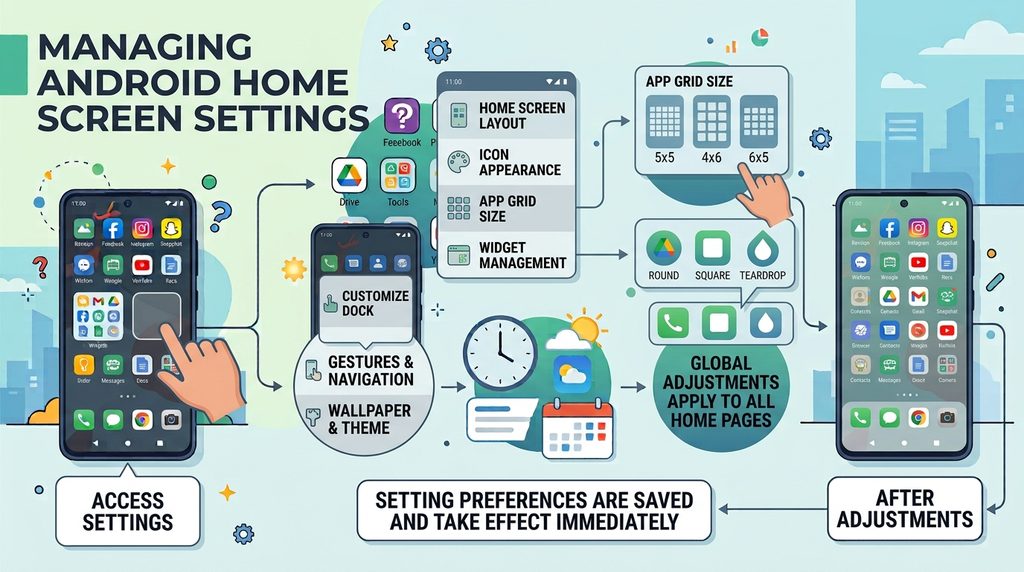
Type: Original screenshot.
Show: The menu that appears after pressing and holding an empty area of the home screen.
Purpose: Shows readers where launcher customization options can be found.
Safe option: Use your own Android screenshot.
Common Problems
I Removed an App From the Home Screen by Mistake
Don’t worry.
The app may still be installed.
Open the app drawer or use the phone’s app search to find it. You can then add it back to the home screen if necessary.
I Accidentally Uninstalled an App
Check your app store to see whether the application can be installed again.
If the app contained important locally stored information, check whether that information was backed up or synchronized before reinstalling it.
I Can’t Move an App Icon
Some launchers may have a setting that locks the home-screen layout.
Look under the home-screen settings for an option related to Lock Home Screen Layout or similar wording.
If the layout is locked, you may need to disable the lock before moving icons.
My Phone Doesn’t Let Me Remove a Widget
Some built-in widgets or home-screen elements may be controlled by the phone manufacturer or launcher.
Press and hold the widget and check what options are available.
My Home Screen Looks Different From the Instructions
That’s normal.
Android manufacturers use different launchers and interfaces.
Use the general process rather than relying only on the exact appearance of the buttons.
Important Things to Know
Organizing an Android home screen is mostly about reducing unnecessary steps.
You don’t need to create a complicated folder structure or fill every available space.
A useful setup might have:
- A few frequently used apps on the first page
- A small number of folders
- A clean dock
- Only useful widgets
- Less frequently used apps in the app drawer
Also remember that removing an icon is not the same as uninstalling an app.
If you’re helping a beginner organize a phone, explain this difference before making changes.
Conclusion
A well-organized Android home screen can make everyday phone use faster and less confusing.
Start by identifying the apps you use most often. Put those apps in convenient locations, remove unnecessary shortcuts, create a few meaningful folders, and keep widgets only when they provide useful information.
There’s no single layout that works for everyone. The best home screen is the one that matches the person’s habits and makes frequently used features easy to find.
Keep the layout simple, consistent, and easy to remember, and avoid adding unnecessary clutter just because the phone gives you space to do so.

