

How to Make Your Android Phone Easier to Use for Beginners

A new Android phone can feel confusing when you are not familiar with its settings, buttons, notifications, and apps. Even simple tasks such as finding an app, changing the text size, adjusting the volume, or returning to the home screen can take time to learn.

Fortunately, Android includes many built-in features that can make the phone easier to understand and use.

You don’t need to change dozens of settings. A few simple adjustments—such as increasing text size, organizing the home screen, simplifying notifications, and learning basic navigation—can make everyday use much easier.

Quick Answer

To make an Android phone easier for a beginner:

  1. Increase the text size if the screen is difficult to read.
  2. Organize frequently used apps on the home screen.
  3. Remove unnecessary apps and shortcuts.
  4. Learn the basic Back, Home, and Recent Apps controls.
  5. Adjust notification settings so important alerts are easier to notice.
  6. Increase touch or display accessibility settings when needed.
  7. Set up contacts and frequently used features for quick access.
  8. Keep the phone and apps updated.
  9. Learn how to use Settings search instead of searching through every menu.
  10. Make only changes that actually improve the person’s everyday experience.

Android menus can differ depending on the phone manufacturer, Android version, and device model.


1. Start by Cleaning Up the Home Screen

The home screen is one of the first things a beginner interacts with.

If it contains dozens of app icons, folders, widgets, and shortcuts, finding something can become difficult.

Start by keeping only the apps that are used regularly.

For example, a simple home screen might contain:

  • Phone
  • Messages
  • Contacts
  • Camera
  • Photos
  • WhatsApp or another frequently used messaging app
  • Web browser
  • Settings

You don’t need to remove apps from the phone completely. You can simply remove unnecessary shortcuts from the home screen while keeping the apps installed.

This creates a less cluttered starting point.
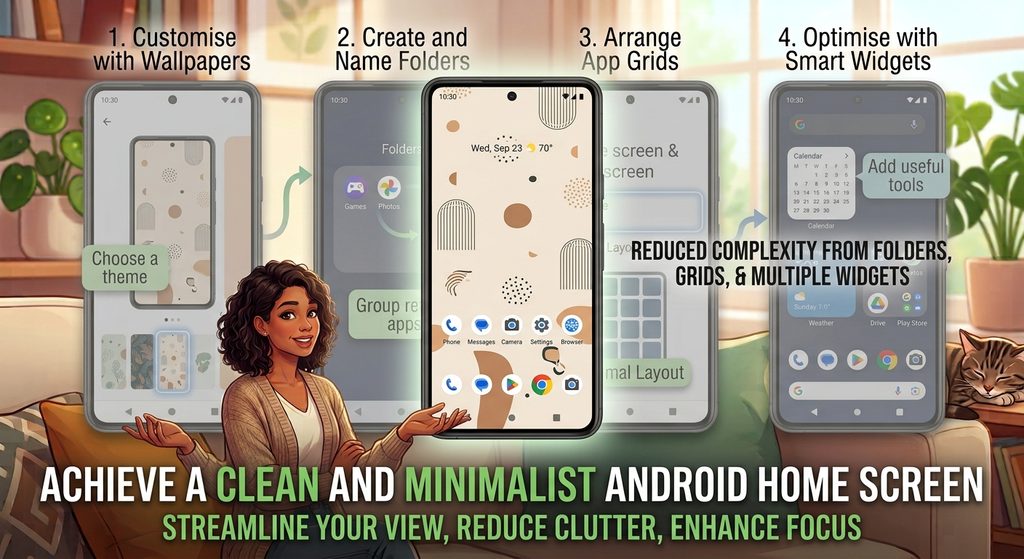
IMAGE 1 — Clean Android Home Screen

Type: Original screenshot.

Show: A simple Android home screen containing a small number of commonly used apps.

Purpose: Gives beginners a visual example of an uncluttered home screen.

Safe option: Take your own screenshot and use a test device or hide personal information.


2. Put Frequently Used Apps in Easy-to-Find Places

Think about which apps the person uses every day.

Those apps should be easy to reach without searching through several pages.

You can place frequently used apps near the bottom of the home screen or in the dock, depending on the phone’s launcher.

For example, someone who frequently makes calls might keep:

Phone → Contacts → Messages

close together.

Someone who frequently takes pictures might keep:

Camera → Photos

next to each other.

The goal isn’t to create a perfect layout. The goal is to make common tasks easier to remember.


3. Increase the Text Size if Reading Is Difficult

Android provides display and accessibility settings that can make text easier to read.

Look in Settings for options such as:

Display → Font size

or

Accessibility → Display size and text

The exact location can vary.

Increasing text size can make menus, messages, and other on-screen information easier to read.

Don’t increase it excessively, though. Very large text can cause some apps to display less information on the screen.

Try a slightly larger setting first and adjust it until it feels comfortable.
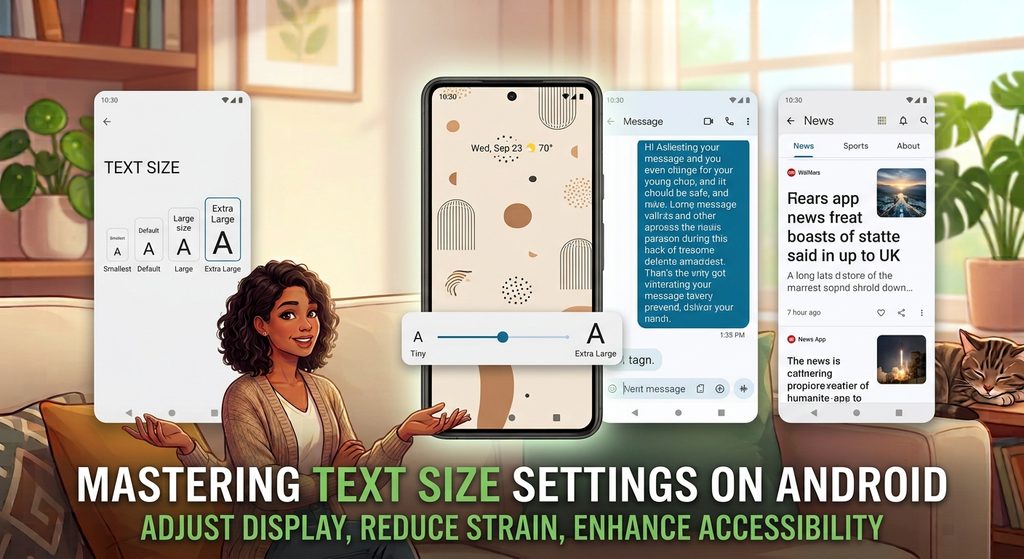
IMAGE 2 — Text Size Settings

Type: Original screenshot.

Show: Android’s text-size or display-size settings.

Purpose: Shows beginners where they can make text easier to read.

Safe option: Create your own screenshot from an Android device.


4. Make Screen Elements Easier to See

Text size isn’t the only display setting that can affect readability.

Depending on the Android device, you may also find options for:

  • Display size
  • Bold text
  • High contrast text
  • Magnification
  • Color and contrast adjustments

Not every phone provides exactly the same options.

If someone has difficulty distinguishing small icons or interface elements, increasing the display size can sometimes be more useful than increasing text size alone.

After changing a setting, check the home screen and a few commonly used apps to make sure everything still looks comfortable.


5. Learn the Basic Android Navigation Controls

One of the most useful things for a beginner is understanding how to move around the phone.

Android phones may use gesture navigation or navigation buttons.

With gesture navigation, common actions include:

  • Swipe up to go Home.
  • Swipe up and hold to view recent apps.
  • Swipe from the left or right edge to go Back.

The exact behavior can vary.

Some Android phones can also use traditional navigation buttons, commonly including:

  • Back
  • Home
  • Recent apps

If gestures feel confusing, check the phone’s navigation settings to see whether another navigation method is available.
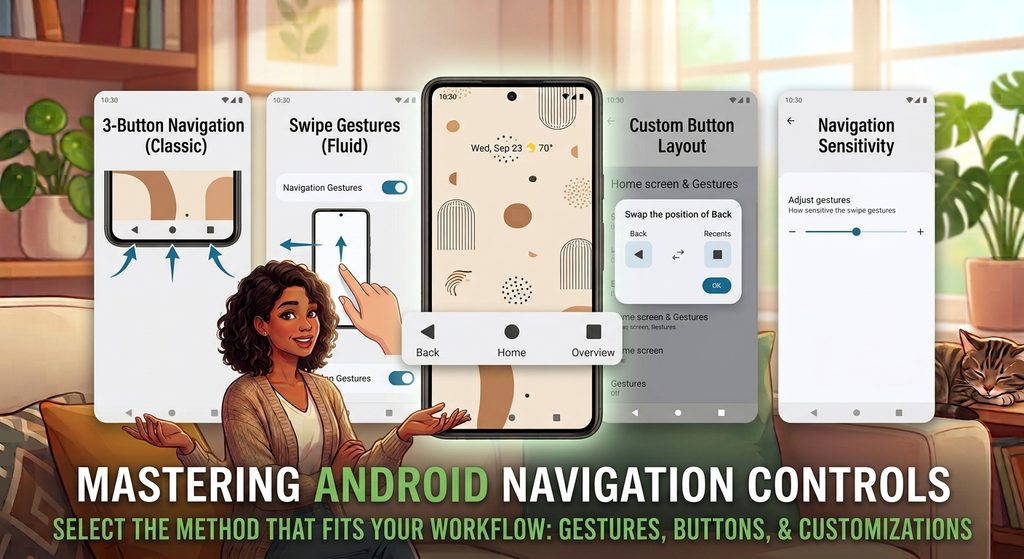
IMAGE 3 — Android Navigation Controls

Type: Original screenshot or simple original graphic.

Show: Either the navigation buttons or gesture-navigation area.

Purpose: Helps beginners understand how to return Home, go Back, and switch between apps.

Safe option: Create your own visual rather than copying an image from another website.


6. Teach the Difference Between the Home Screen and the App Drawer

Beginners sometimes think that every installed app must appear on the home screen.

That’s not necessarily the case.

The home screen is the main starting area.

The app drawer, when available on the device, contains installed apps that aren’t necessarily placed on the home screen.

On many Android phones, you can access the app drawer by swiping upward from the home screen.

This means you don’t have to fill the home screen with every application.


7. Reduce Unnecessary Notifications

A phone can become confusing when every installed app sends notifications.

A beginner may see dozens of alerts and have difficulty determining which ones are important.

Review the notification settings and turn off notifications that aren’t useful.

A common path is:

Settings → Notifications → App notifications

The exact menu can vary.

Consider keeping notifications enabled for important apps such as:

  • Phone
  • Messages
  • Calendar
  • Banking or payment apps, when appropriate
  • Important communication apps

For less important apps, you can reduce or disable notifications.

This can make the phone feel considerably simpler.
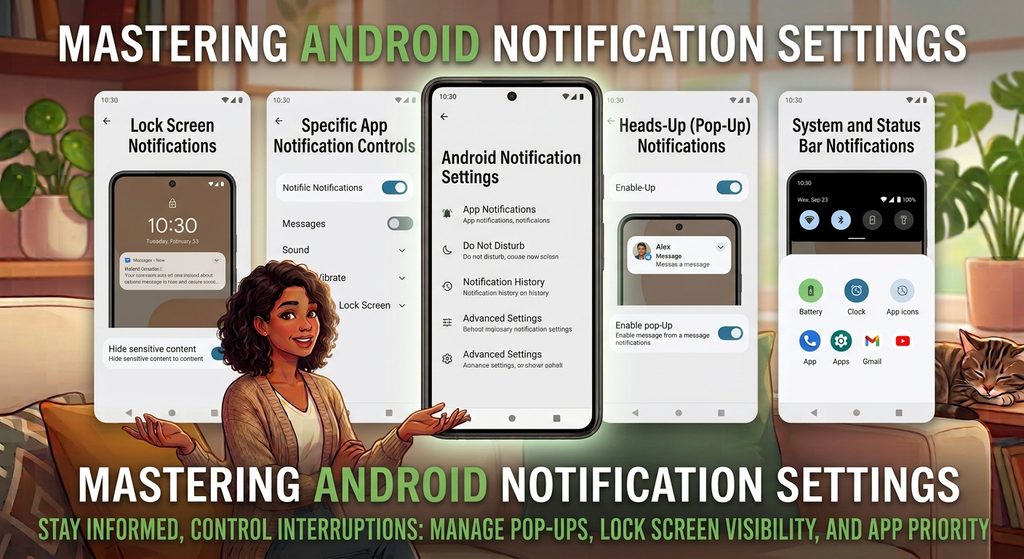
IMAGE 4 — Notification Settings

Type: Original screenshot.

Show: The Android notification settings page with individual apps listed.

Purpose: Shows how a beginner can control which apps are allowed to send notifications.

Safe option: Use your own device and avoid displaying private notifications.


8. Make Important Contacts Easy to Reach

If the phone is primarily being set up for someone who regularly calls a small number of people, make those contacts easy to find.

Save important contacts with clear names rather than relying on phone numbers.

For frequently contacted people, Android or the phone manufacturer’s interface may provide shortcuts or contact widgets.

For example, you could make a frequently called family member easier to reach from the home screen.

Be careful when creating shortcuts for contacts, especially on a shared device, because personal information may become visible to anyone who can access the screen.


9. Set a Comfortable Volume Level

Sound settings are another area worth checking.

Android usually provides separate controls for different types of sound, such as:

  • Media
  • Calls
  • Notifications
  • Alarms

A beginner may accidentally lower media volume while expecting the phone’s ringtone to become quieter, or vice versa.

Use the volume buttons and open the expanded volume controls when necessary to see which volume category is being changed.

Set the ringtone and notification volume to a level that is easy to hear without being unnecessarily loud.


10. Make the Keyboard Easier to Use

Typing can be one of the most frustrating parts of using a smartphone.

If the keyboard feels too small, check whether your keyboard app provides options for:

  • Keyboard height
  • Layout
  • Text correction
  • Suggestion settings
  • Voice typing

The exact options depend on the keyboard installed on the phone.

You can also check Android’s accessibility and language/input settings for additional options.

Don’t change many keyboard settings at once. Make one adjustment, test it, and then decide whether another change is necessary.
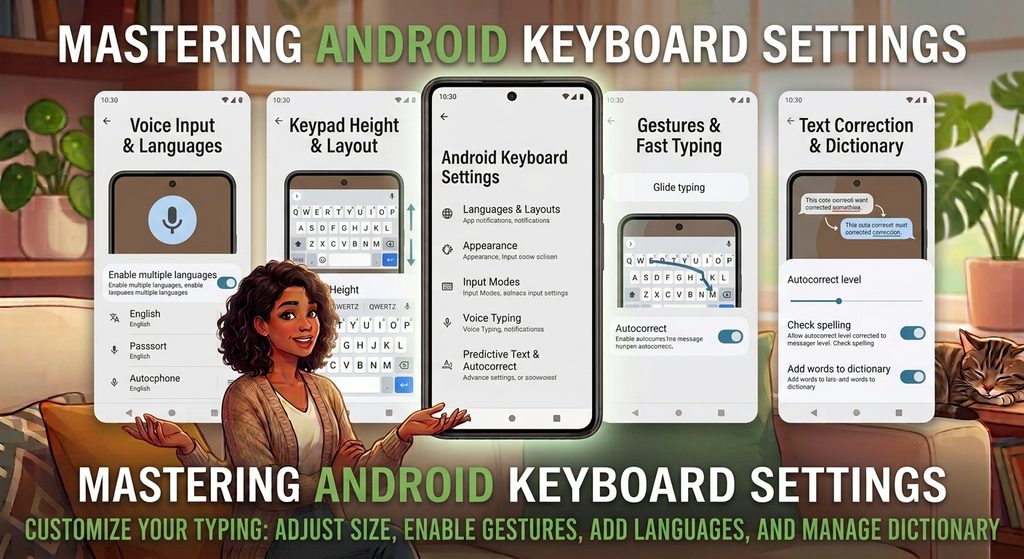
IMAGE 5 — Keyboard Settings

Type: Original screenshot.

Show: Keyboard settings, preferably showing an option such as keyboard size or layout.

Purpose: Helps beginners understand that the keyboard can often be adjusted.

Safe option: Use your own screenshot and don’t include private typed information.


11. Teach the Person How to Search Settings

Android has many settings, and beginners don’t need to memorize where every option is located.

One of the easiest shortcuts is the Settings search feature.

Open Settings and look for the search icon or search field.

You can search for terms such as:

  • Wi-Fi
  • Bluetooth
  • Brightness
  • Notifications
  • Battery
  • Storage
  • Accessibility
  • Font size

This can be much easier than opening multiple menus to find one setting.
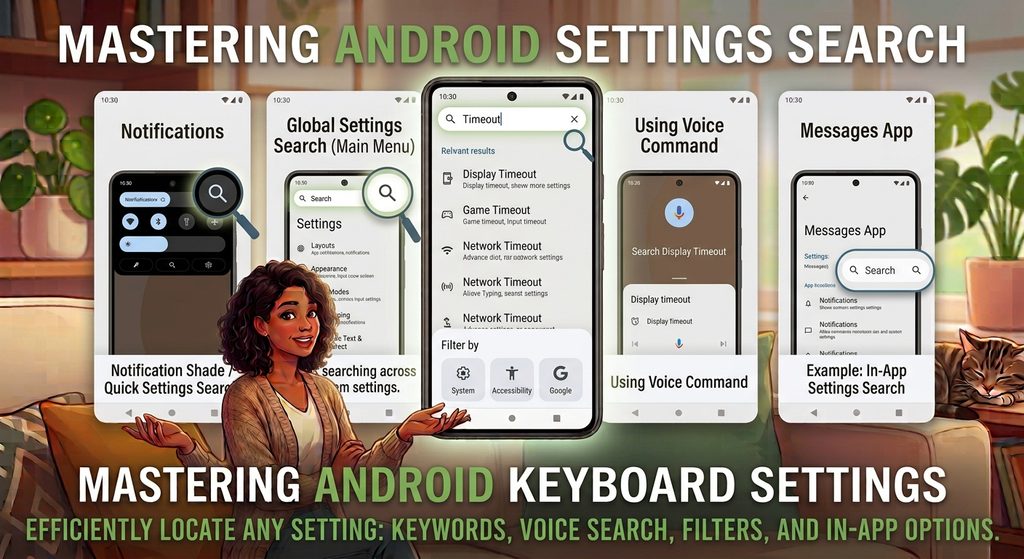
IMAGE 6 — Settings Search

Type: Original screenshot.

Show: Android Settings with the search field being used.

Purpose: Demonstrates an easy way for beginners to find settings.


12. Remove Apps That Aren’t Needed

A phone becomes harder to navigate when it contains many apps that aren’t being used.

Review the installed apps and remove applications that are genuinely unnecessary.

However, don’t uninstall an app simply because its purpose isn’t immediately obvious.

Some apps may be required by the phone or another service.

If you’re unsure what an app does, check its name and purpose before removing it.

For a beginner’s phone, fewer unnecessary apps can mean fewer notifications, fewer confusing icons, and less clutter.


13. Organize Apps Into Simple Folders

If the person uses many apps, folders can reduce home-screen clutter.

For example, you might create folders such as:

  • Communication
  • Photos
  • Work
  • Travel
  • Shopping

Avoid creating too many folders.

A folder system is useful only when it makes apps easier to find.

For someone who uses only a handful of apps, folders may actually make things more complicated.


14. Turn on Useful Accessibility Features When Needed

Android includes accessibility features designed to help people interact with their devices more easily.

Depending on the phone, these may include:

  • Magnification
  • Larger text
  • Display adjustments
  • Screen readers
  • Hearing-related options
  • Interaction controls

Not every feature is necessary for every beginner.

Choose only the features that solve an actual problem.

For example, if the main issue is small text, start with text or display size rather than changing unrelated accessibility settings.
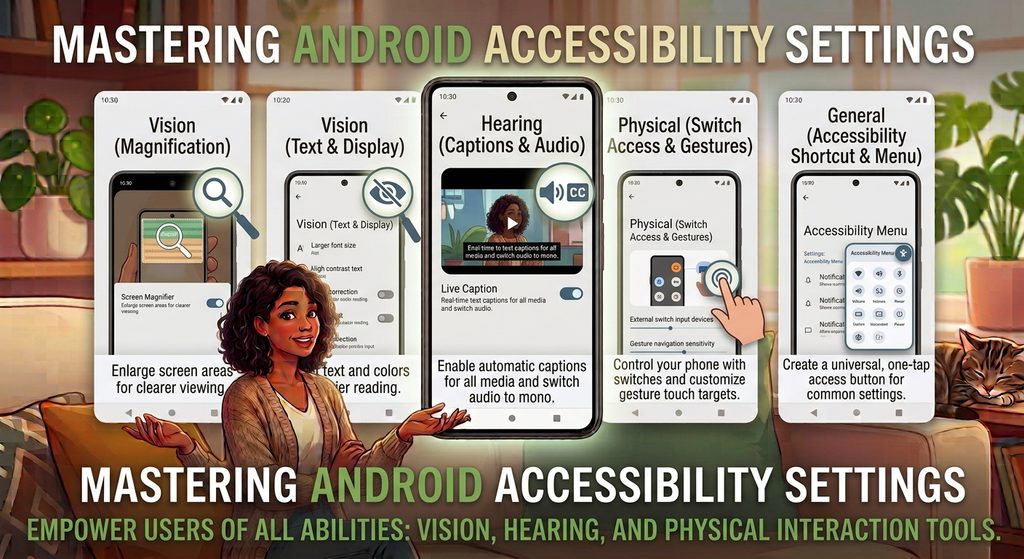
IMAGE 7 — Android Accessibility Settings

Type: Original screenshot.

Show: The Accessibility section with several available options.

Purpose: Shows beginners where additional ease-of-use features can be found.

Safe option: Take your own screenshot from the device being demonstrated.


15. Teach Basic Wi-Fi and Mobile Data Controls

A beginner should know how to check whether the phone is connected to the internet.

The quick settings panel usually provides shortcuts for things such as:

  • Wi-Fi
  • Mobile data
  • Bluetooth
  • Airplane mode

Swipe down from the top of the screen to open the notification or quick settings panel.

The appearance and number of controls vary by device.

Teaching someone what these icons mean can prevent confusion when an app suddenly stops loading.


16. Keep the Phone Updated

Software updates can include security improvements, bug fixes, and changes to the user interface.

Check the phone’s software-update section periodically.

You can generally find it through Settings, although the exact location differs by manufacturer.

Apps can also receive updates through the relevant app store.

For beginners, automatic updates can reduce the need to manually check every application, although update settings can vary.


17. Set Up a Simple Lock Screen

A secure lock screen is important, but it should also be practical for the person using the phone.

Android devices may support methods such as:

  • PIN
  • Password
  • Pattern
  • Fingerprint
  • Face unlock

Available methods depend on the phone.

Choose a method the user can reliably remember and use.

Avoid writing a PIN or password somewhere visible on the phone.

If the lock screen displays notification details, review the privacy settings if sensitive information could be visible while the phone is locked.


Common Problems Beginners Face

“I Can’t Find an App.”

Open the app drawer if your phone has one, or use the phone’s app search feature.

You can also use the Settings search function if you are looking for a particular setting rather than an app.

“I Accidentally Closed the App.”

Don’t panic.

Open the recent-apps view and look for the application. If necessary, return to the home screen and open the app again.

“Everything on the Screen Looks Too Small.”

Try increasing the text size or display size in Settings.

“My Phone Keeps Showing Notifications.”

Open notification settings and review which apps are allowed to send alerts.

“I Can’t Find a Setting.”

Use the search function inside Settings rather than manually checking every category.

“I Don’t Know What an App Does.”

Don’t immediately uninstall it. Check the app’s name and purpose first, especially if it came pre-installed with the phone.


Important Things to Know

Android is not identical on every phone.

Samsung Galaxy, Google Pixel, Xiaomi, Redmi, OnePlus, Motorola, and other manufacturers can change the appearance and location of settings.

Software updates can also change menus.

Because of this, avoid giving beginners instructions based entirely on exact menu names. When possible, explain the purpose of the setting and mention that the location may vary.

Most importantly, don’t change settings simply because they exist.

A beginner-friendly phone should be simple, comfortable, and predictable. Make changes based on the person’s actual needs.


Conclusion

Making an Android phone easier for a beginner doesn’t require complicated modifications.

Start with the basics: clean up the home screen, make frequently used apps easy to find, increase text size when necessary, reduce unnecessary notifications, and teach the basic navigation controls.

Then introduce useful features such as Settings search, accessibility options, contact shortcuts, and simple app organization.

The best setup is not necessarily the one with the most customization. It’s the one that allows the person using the phone to complete everyday tasks without unnecessary confusion.

A new Android phone can feel confusing when you are not familiar with its settings, buttons, notifications, and apps. Even simple tasks such as finding an app, changing the text size, adjusting the volume, or returning to the home screen can take time to learn.

Fortunately, Android includes many built-in features that can make the phone easier to understand and use.

You don’t need to change dozens of settings. A few simple adjustments—such as increasing text size, organizing the home screen, simplifying notifications, and learning basic navigation—can make everyday use much easier.

Quick Answer

To make an Android phone easier for a beginner:

  1. Increase the text size if the screen is difficult to read.
  2. Organize frequently used apps on the home screen.
  3. Remove unnecessary apps and shortcuts.
  4. Learn the basic Back, Home, and Recent Apps controls.
  5. Adjust notification settings so important alerts are easier to notice.
  6. Increase touch or display accessibility settings when needed.
  7. Set up contacts and frequently used features for quick access.
  8. Keep the phone and apps updated.
  9. Learn how to use Settings search instead of searching through every menu.
  10. Make only changes that actually improve the person’s everyday experience.

Android menus can differ depending on the phone manufacturer, Android version, and device model.


1. Start by Cleaning Up the Home Screen

The home screen is one of the first things a beginner interacts with.

If it contains dozens of app icons, folders, widgets, and shortcuts, finding something can become difficult.

Start by keeping only the apps that are used regularly.

For example, a simple home screen might contain:

  • Phone
  • Messages
  • Contacts
  • Camera
  • Photos
  • WhatsApp or another frequently used messaging app
  • Web browser
  • Settings

You don’t need to remove apps from the phone completely. You can simply remove unnecessary shortcuts from the home screen while keeping the apps installed.

This creates a less cluttered starting point.

IMAGE 1 — Clean Android Home Screen

Type: Original screenshot.

Show: A simple Android home screen containing a small number of commonly used apps.

Purpose: Gives beginners a visual example of an uncluttered home screen.

Safe option: Take your own screenshot and use a test device or hide personal information.


2. Put Frequently Used Apps in Easy-to-Find Places

Think about which apps the person uses every day.

Those apps should be easy to reach without searching through several pages.

You can place frequently used apps near the bottom of the home screen or in the dock, depending on the phone’s launcher.

For example, someone who frequently makes calls might keep:

Phone → Contacts → Messages

close together.

Someone who frequently takes pictures might keep:

Camera → Photos

next to each other.

The goal isn’t to create a perfect layout. The goal is to make common tasks easier to remember.


3. Increase the Text Size if Reading Is Difficult

Android provides display and accessibility settings that can make text easier to read.

Look in Settings for options such as:

Display → Font size

or

Accessibility → Display size and text

The exact location can vary.

Increasing text size can make menus, messages, and other on-screen information easier to read.

Don’t increase it excessively, though. Very large text can cause some apps to display less information on the screen.

Try a slightly larger setting first and adjust it until it feels comfortable.

IMAGE 2 — Text Size Settings

Type: Original screenshot.

Show: Android’s text-size or display-size settings.

Purpose: Shows beginners where they can make text easier to read.

Safe option: Create your own screenshot from an Android device.


4. Make Screen Elements Easier to See

Text size isn’t the only display setting that can affect readability.

Depending on the Android device, you may also find options for:

  • Display size
  • Bold text
  • High contrast text
  • Magnification
  • Color and contrast adjustments

Not every phone provides exactly the same options.

If someone has difficulty distinguishing small icons or interface elements, increasing the display size can sometimes be more useful than increasing text size alone.

After changing a setting, check the home screen and a few commonly used apps to make sure everything still looks comfortable.


5. Learn the Basic Android Navigation Controls

One of the most useful things for a beginner is understanding how to move around the phone.

Android phones may use gesture navigation or navigation buttons.

With gesture navigation, common actions include:

  • Swipe up to go Home.
  • Swipe up and hold to view recent apps.
  • Swipe from the left or right edge to go Back.

The exact behavior can vary.

Some Android phones can also use traditional navigation buttons, commonly including:

  • Back
  • Home
  • Recent apps

If gestures feel confusing, check the phone’s navigation settings to see whether another navigation method is available.

IMAGE 3 — Android Navigation Controls

Type: Original screenshot or simple original graphic.

Show: Either the navigation buttons or gesture-navigation area.

Purpose: Helps beginners understand how to return Home, go Back, and switch between apps.

Safe option: Create your own visual rather than copying an image from another website.


6. Teach the Difference Between the Home Screen and the App Drawer

Beginners sometimes think that every installed app must appear on the home screen.

That’s not necessarily the case.

The home screen is the main starting area.

The app drawer, when available on the device, contains installed apps that aren’t necessarily placed on the home screen.

On many Android phones, you can access the app drawer by swiping upward from the home screen.

This means you don’t have to fill the home screen with every application.


7. Reduce Unnecessary Notifications

A phone can become confusing when every installed app sends notifications.

A beginner may see dozens of alerts and have difficulty determining which ones are important.

Review the notification settings and turn off notifications that aren’t useful.

A common path is:

Settings → Notifications → App notifications

The exact menu can vary.

Consider keeping notifications enabled for important apps such as:

  • Phone
  • Messages
  • Calendar
  • Banking or payment apps, when appropriate
  • Important communication apps

For less important apps, you can reduce or disable notifications.

This can make the phone feel considerably simpler.

IMAGE 4 — Notification Settings

Type: Original screenshot.

Show: The Android notification settings page with individual apps listed.

Purpose: Shows how a beginner can control which apps are allowed to send notifications.

Safe option: Use your own device and avoid displaying private notifications.


8. Make Important Contacts Easy to Reach

If the phone is primarily being set up for someone who regularly calls a small number of people, make those contacts easy to find.

Save important contacts with clear names rather than relying on phone numbers.

For frequently contacted people, Android or the phone manufacturer’s interface may provide shortcuts or contact widgets.

For example, you could make a frequently called family member easier to reach from the home screen.

Be careful when creating shortcuts for contacts, especially on a shared device, because personal information may become visible to anyone who can access the screen.


9. Set a Comfortable Volume Level

Sound settings are another area worth checking.

Android usually provides separate controls for different types of sound, such as:

  • Media
  • Calls
  • Notifications
  • Alarms

A beginner may accidentally lower media volume while expecting the phone’s ringtone to become quieter, or vice versa.

Use the volume buttons and open the expanded volume controls when necessary to see which volume category is being changed.

Set the ringtone and notification volume to a level that is easy to hear without being unnecessarily loud.


10. Make the Keyboard Easier to Use

Typing can be one of the most frustrating parts of using a smartphone.

If the keyboard feels too small, check whether your keyboard app provides options for:

  • Keyboard height
  • Layout
  • Text correction
  • Suggestion settings
  • Voice typing

The exact options depend on the keyboard installed on the phone.

You can also check Android’s accessibility and language/input settings for additional options.

Don’t change many keyboard settings at once. Make one adjustment, test it, and then decide whether another change is necessary.

IMAGE 5 — Keyboard Settings

Type: Original screenshot.

Show: Keyboard settings, preferably showing an option such as keyboard size or layout.

Purpose: Helps beginners understand that the keyboard can often be adjusted.

Safe option: Use your own screenshot and don’t include private typed information.


11. Teach the Person How to Search Settings

Android has many settings, and beginners don’t need to memorize where every option is located.

One of the easiest shortcuts is the Settings search feature.

Open Settings and look for the search icon or search field.

You can search for terms such as:

  • Wi-Fi
  • Bluetooth
  • Brightness
  • Notifications
  • Battery
  • Storage
  • Accessibility
  • Font size

This can be much easier than opening multiple menus to find one setting.

IMAGE 6 — Settings Search

Type: Original screenshot.

Show: Android Settings with the search field being used.

Purpose: Demonstrates an easy way for beginners to find settings.


12. Remove Apps That Aren’t Needed

A phone becomes harder to navigate when it contains many apps that aren’t being used.

Review the installed apps and remove applications that are genuinely unnecessary.

However, don’t uninstall an app simply because its purpose isn’t immediately obvious.

Some apps may be required by the phone or another service.

If you’re unsure what an app does, check its name and purpose before removing it.

For a beginner’s phone, fewer unnecessary apps can mean fewer notifications, fewer confusing icons, and less clutter.


13. Organize Apps Into Simple Folders

If the person uses many apps, folders can reduce home-screen clutter.

For example, you might create folders such as:

  • Communication
  • Photos
  • Work
  • Travel
  • Shopping

Avoid creating too many folders.

A folder system is useful only when it makes apps easier to find.

For someone who uses only a handful of apps, folders may actually make things more complicated.


14. Turn on Useful Accessibility Features When Needed

Android includes accessibility features designed to help people interact with their devices more easily.

Depending on the phone, these may include:

  • Magnification
  • Larger text
  • Display adjustments
  • Screen readers
  • Hearing-related options
  • Interaction controls

Not every feature is necessary for every beginner.

Choose only the features that solve an actual problem.

For example, if the main issue is small text, start with text or display size rather than changing unrelated accessibility settings.

IMAGE 7 — Android Accessibility Settings

Type: Original screenshot.

Show: The Accessibility section with several available options.

Purpose: Shows beginners where additional ease-of-use features can be found.

Safe option: Take your own screenshot from the device being demonstrated.


15. Teach Basic Wi-Fi and Mobile Data Controls

A beginner should know how to check whether the phone is connected to the internet.

The quick settings panel usually provides shortcuts for things such as:

  • Wi-Fi
  • Mobile data
  • Bluetooth
  • Airplane mode

Swipe down from the top of the screen to open the notification or quick settings panel.

The appearance and number of controls vary by device.

Teaching someone what these icons mean can prevent confusion when an app suddenly stops loading.


16. Keep the Phone Updated

Software updates can include security improvements, bug fixes, and changes to the user interface.

Check the phone’s software-update section periodically.

You can generally find it through Settings, although the exact location differs by manufacturer.

Apps can also receive updates through the relevant app store.

For beginners, automatic updates can reduce the need to manually check every application, although update settings can vary.


17. Set Up a Simple Lock Screen

A secure lock screen is important, but it should also be practical for the person using the phone.

Android devices may support methods such as:

  • PIN
  • Password
  • Pattern
  • Fingerprint
  • Face unlock

Available methods depend on the phone.

Choose a method the user can reliably remember and use.

Avoid writing a PIN or password somewhere visible on the phone.

If the lock screen displays notification details, review the privacy settings if sensitive information could be visible while the phone is locked.


Common Problems Beginners Face

“I Can’t Find an App.”

Open the app drawer if your phone has one, or use the phone’s app search feature.

You can also use the Settings search function if you are looking for a particular setting rather than an app.

“I Accidentally Closed the App.”

Don’t panic.

Open the recent-apps view and look for the application. If necessary, return to the home screen and open the app again.

“Everything on the Screen Looks Too Small.”

Try increasing the text size or display size in Settings.

“My Phone Keeps Showing Notifications.”

Open notification settings and review which apps are allowed to send alerts.

“I Can’t Find a Setting.”

Use the search function inside Settings rather than manually checking every category.

“I Don’t Know What an App Does.”

Don’t immediately uninstall it. Check the app’s name and purpose first, especially if it came pre-installed with the phone.


Important Things to Know

Android is not identical on every phone.

Samsung Galaxy, Google Pixel, Xiaomi, Redmi, OnePlus, Motorola, and other manufacturers can change the appearance and location of settings.

Software updates can also change menus.

Because of this, avoid giving beginners instructions based entirely on exact menu names. When possible, explain the purpose of the setting and mention that the location may vary.

Most importantly, don’t change settings simply because they exist.

A beginner-friendly phone should be simple, comfortable, and predictable. Make changes based on the person’s actual needs.


Conclusion

Making an Android phone easier for a beginner doesn’t require complicated modifications.

Start with the basics: clean up the home screen, make frequently used apps easy to find, increase text size when necessary, reduce unnecessary notifications, and teach the basic navigation controls.

Then introduce useful features such as Settings search, accessibility options, contact shortcuts, and simple app organization.

The best setup is not necessarily the one with the most customization. It’s the one that allows the person using the phone to complete everyday tasks without unnecessary confusion.

More from author

LEAVE A REPLY

Please enter your comment!
Please enter your name here

Related posts

Advertismentspot_img

Latest posts

How to Find Which Apps Are Using the Most Storage on Android

Running out of storage on your Android phone can be frustrating, especially when you are not sure what is taking up all the space....

How to Stop Unwanted Notifications on Android

Unwanted notifications can quickly turn an Android phone into a constant source of interruptions. Shopping apps may send promotional alerts, games may ask you...

How to Free Up Storage on an Android Phone Without Deleting Important Files

Running out of storage on an Android phone can be frustrating, especially when the storage screen shows that photos, videos, apps, and other files...

Want to stay up to date with the latest news?

We would love to hear from you! Please fill in your details and we will stay in touch. It's that simple!