

How to Find Which Apps Are Using the Most Storage on Android

Running out of storage on your Android phone can be frustrating, especially when you are not sure what is taking up all the space. Apps can use much more storage than their original download size because they may accumulate cached files, downloaded content, photos, videos, and other app data over time.

The good news is that Android provides built-in storage tools that let you see which apps are using the most space. Once you identify the largest apps, you can decide whether to clear their cache, remove downloaded content, move files elsewhere, or uninstall apps you no longer need.

Quick Answer

To find apps using the most storage on Android:

  1. Open Settings.
  2. Go to Storage, Apps, or Apps & notifications, depending on your phone.
  3. Open the list of installed apps.
  4. Look for the apps showing the largest storage usage.
  5. Tap an app to see how much space is being used by the app itself and its data or cache.
  6. Clear unnecessary cache or uninstall apps you no longer use.

The exact menu names can vary between Android versions and phone manufacturers.


1. Open Your Android Phone’s Settings

Start by opening the Settings app.

You can usually find it in your app drawer or by pulling down the notification panel and tapping the gear icon.

Once Settings is open, look for an option related to storage or apps.

Depending on your Android phone, you may see options such as:

  • Storage
  • Apps
  • Apps & notifications
  • Device care
  • Battery and device care

The wording can be different on Samsung Galaxy, Google Pixel, Xiaomi, Redmi, OnePlus, Motorola, and other Android devices.
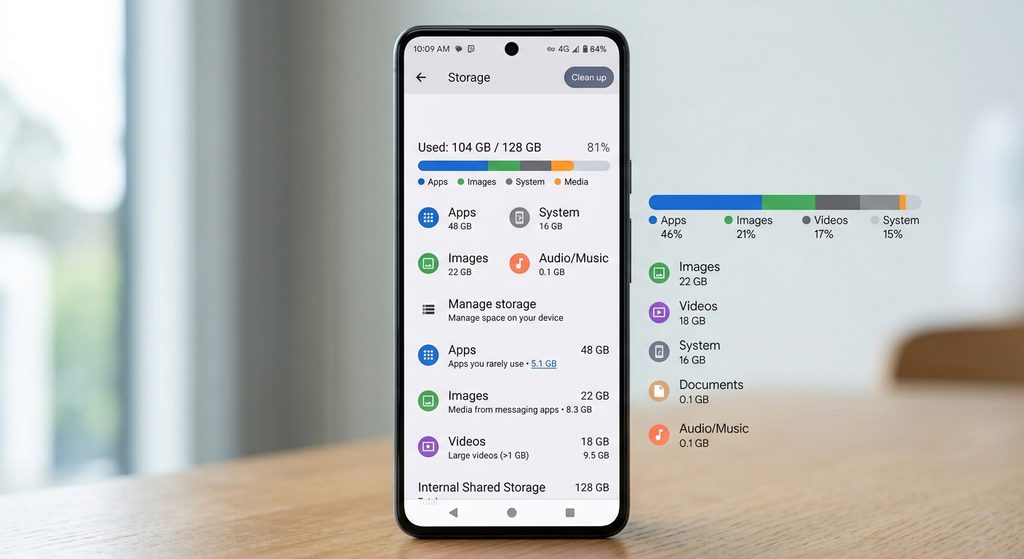
IMAGE 1 — Android Storage Settings

Type: Original screenshot of the phone’s Settings screen.

Show: The Settings menu with the Storage option visible.

Purpose: Helps readers identify where to begin checking storage.

Safe option: Take your own screenshot on an Android phone. Avoid copying screenshots from another website.


2. Check the Storage Section

If your phone has a Storage section, open it.

You may see a breakdown of how your phone’s storage is being used.

For example, Android may separate storage into categories such as:

  • Apps
  • Photos and videos
  • Music and audio
  • Documents
  • System
  • Other files

This overview is useful because it tells you whether apps are actually one of the main reasons your storage is getting full.

If Apps are using a large amount of storage, the next step is to identify which individual apps are responsible.


3. Find the List of Installed Apps

On some Android phones, you can find storage usage by going through:

Settings → Apps

On other devices, the storage page may provide an option to view apps and their storage usage.

Open the installed-app list and look for an option that shows storage information.

Some phones may allow you to sort apps by size, while others may require you to open apps individually to check their storage usage.

If your phone does not provide a direct “largest apps first” option, you may need to compare the storage size shown for individual apps.


4. Look for Apps Using the Most Space

Once you have the app list, start looking for apps with unusually large storage usage.

Large apps are not automatically a problem. Games, video-editing apps, social media apps, streaming apps, and messaging apps can legitimately require a lot of space.

For example, an app might have:

  • A large original installation size
  • Cached images and videos
  • Downloaded videos or music
  • Offline maps
  • Documents
  • User-generated content
  • Other stored app data

This is why an app that originally looked small when installed can eventually occupy several gigabytes.
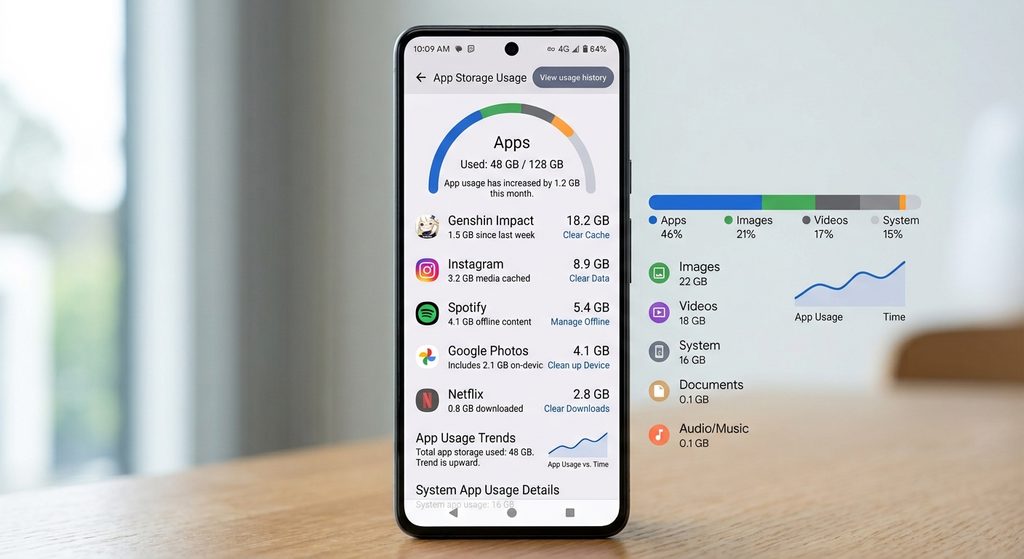
IMAGE 2 — App Storage Usage Screen

Type: Original screenshot.

Show: An app’s Storage or Storage & cache screen showing the amount of space it uses.

Purpose: Demonstrates where readers can see an app’s storage breakdown.

Safe option: Create your own screenshot using a non-sensitive app or test device.


5. Check the App’s Storage Details

Tap an app that appears to be using a significant amount of space.

Depending on your Android version, you may see information such as:

  • App size
  • User data
  • Cache
  • Total storage used

These categories are important because they tell you what is actually consuming the space.

App Size

App size refers to the storage required by the installed application itself.

You generally cannot remove the app’s core files without uninstalling it.

User Data

User data can include information created or stored by the app.

Depending on the application, this could include settings, downloaded content, files, accounts, databases, or other information.

Be careful before deleting app data because doing so can reset the application or remove locally stored information.

Cache

Cache consists of temporary files that an app stores to help it work more efficiently.

Clearing the cache can sometimes free up storage without uninstalling the app.

However, the app may create cache files again as you continue using it.


6. Don’t Confuse App Size With Total Storage Usage

One common mistake is assuming that an app’s download size is the same as the amount of storage it currently occupies.

It may not be.

A social media app, for example, can accumulate cached images and videos as you browse. A streaming application may also store downloaded content for offline viewing.

Similarly, messaging applications can become large because of photos, videos, voice messages, documents, and other media.

Therefore, when looking for storage problems, pay attention to the total storage usage, not just the original size of the app.


7. Check Apps That Store Lots of Media

Some categories of apps are particularly likely to accumulate data.

Check apps such as:

  • Social media apps
  • Video streaming apps
  • Music apps
  • Messaging apps
  • Photo-editing apps
  • Video-editing apps
  • Games
  • Cloud-storage apps
  • Navigation apps

This doesn’t mean you should delete these apps. Instead, check what is actually taking up their storage.

For example, if a streaming app has downloaded several movies or playlists for offline use, removing downloads from inside the app may free more space than simply clearing its cache.
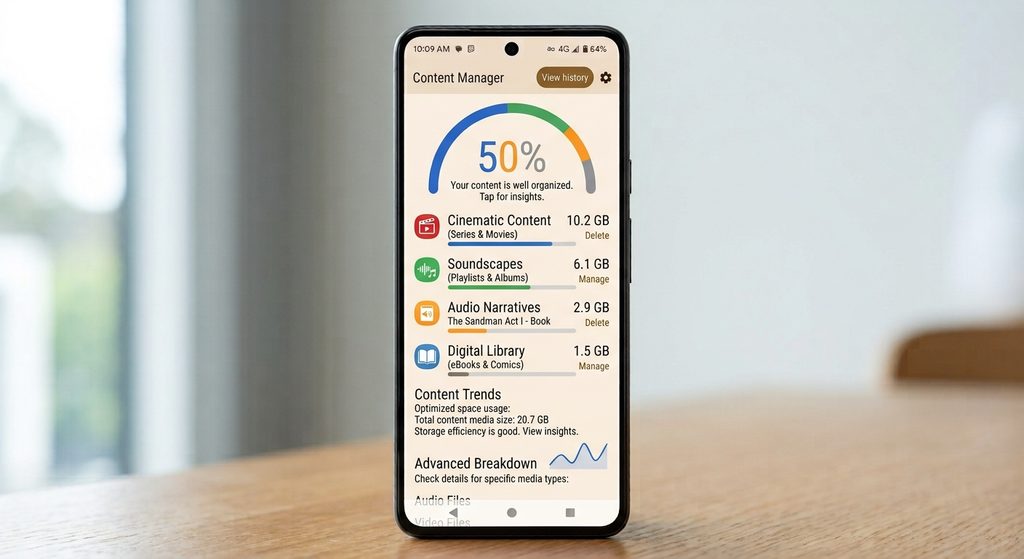
IMAGE 3 — Downloaded Content Inside an App

Type: Original screenshot.

Show: An app’s offline/downloaded content section, such as downloaded videos, music, or maps.

Purpose: Shows readers that storage can come from downloaded content rather than the app itself.

Safe option: Use your own account/device and hide personal information before taking the screenshot.


8. Clear an App’s Cache When Appropriate

If an app has accumulated a large cache, you may be able to clear it.

A common Android path is:

Settings → Apps → [App Name] → Storage & cache → Clear cache

The exact wording and location can vary.

Clearing the cache is different from clearing the app’s data.

Clear Cache

This generally removes temporary cached files.

Clear Storage or Clear Data

This can remove the app’s locally stored data and may reset the app.

Because the behavior can vary by app, don’t use Clear storage or Clear data simply because an app is large.

If you are unsure what will be deleted, check the app’s own settings or documentation first.


9. Remove Downloads From Inside the App

Sometimes an app is large because you intentionally downloaded files.

Examples include:

  • Netflix or other streaming downloads
  • Spotify or other music downloads
  • Offline maps
  • Podcasts
  • Large game resources
  • Documents
  • Video projects

If you still use the app, removing unnecessary downloads is often more appropriate than uninstalling it.

Open the relevant app and look for sections such as:

Downloads, Offline, Storage, or Manage Downloads.

Delete only content you no longer need.
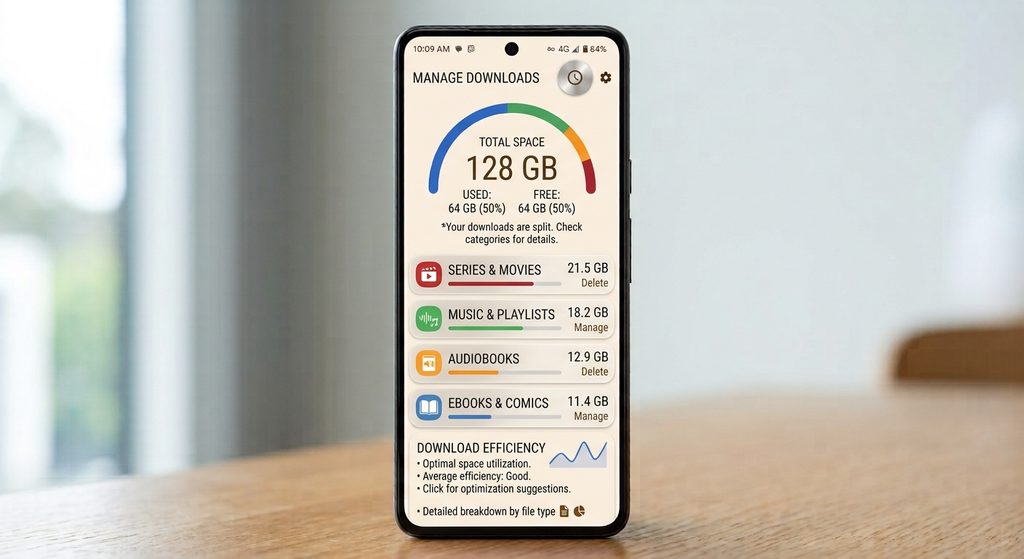
IMAGE 4 — Manage Downloads Screen

Type: Original screenshot.

Show: A legitimate app’s download-management screen with downloaded files/content.

Purpose: Shows readers where large offline files may be hiding.

Privacy note: Do not include personal names, account information, private messages, or other sensitive information.


10. Uninstall Apps You No Longer Use

If you find an app that takes up a lot of storage and you no longer need it, uninstalling it can free the app’s storage and associated local data.

You can usually uninstall an app by:

  1. Opening Settings.
  2. Selecting Apps.
  3. Choosing the app.
  4. Selecting Uninstall.

On many Android phones, you can also uninstall an app by pressing and holding its icon and selecting Uninstall.

Before uninstalling an app, consider whether it contains important locally stored information.

Some apps synchronize information with an online account, while others may keep certain files only on the device.


11. Check Your Largest Apps Regularly

You don’t need to wait until your phone completely runs out of storage.

Checking storage occasionally can help you identify apps or downloads that have grown unexpectedly large.

A simple routine is:

  1. Open your phone’s storage settings.
  2. Check the Apps category.
  3. Identify unusually large apps.
  4. Open their storage details.
  5. Remove unnecessary downloads or cache.
  6. Uninstall apps you no longer need.

Doing this periodically can make it easier to keep your phone’s storage under control.


12. Samsung Galaxy Phones May Use Different Menus

If you have a Samsung Galaxy phone, the storage-management interface may look different from the Android interface shown on a Google Pixel or another manufacturer’s device.

Samsung devices commonly provide storage information through Settings and Device care or Battery and device care, depending on the software version.

The exact menu names can change after software updates.

If the instructions in this article don’t match your phone exactly, use the Settings search function and search for:

Storage

or

Apps

This can often help you locate the relevant setting without manually searching through every menu.
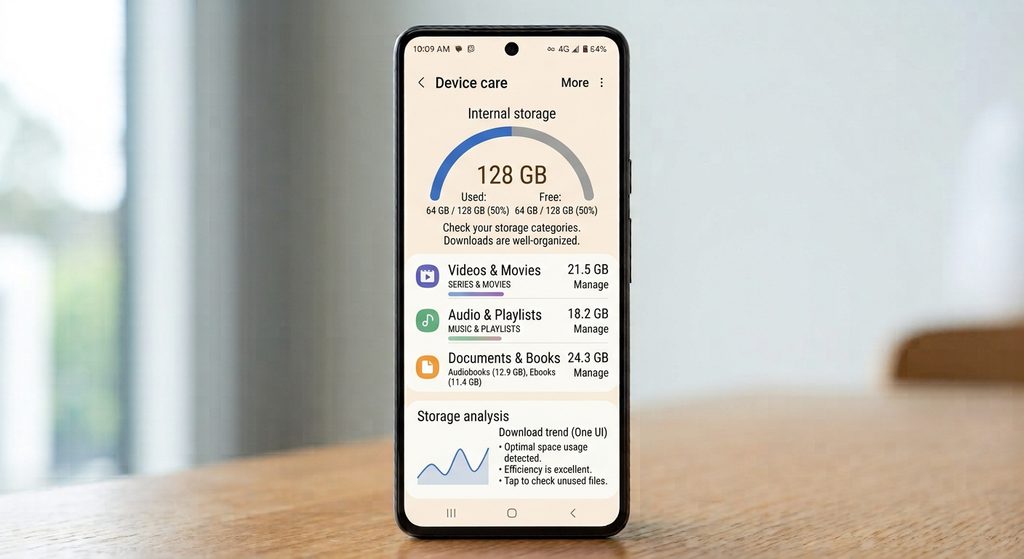
IMAGE 5 — Samsung Storage Interface

Type: Original screenshot, only if the article specifically includes Samsung instructions.

Show: Samsung’s storage/device-care interface.

Purpose: Demonstrates manufacturer-specific differences.

Safe option: Take your own screenshot from a Samsung Galaxy device. Do not copy one from another tech website.


13. What You Shouldn’t Delete Just Because It Looks Large

Not everything taking up storage should be removed.

Be especially careful with:

  • System files
  • Files you don’t recognize
  • App data
  • Personal photos and videos
  • Important documents
  • Offline files you still need
  • Backup files
  • Work or school files

A large file or category doesn’t necessarily mean it is unnecessary.

Before deleting anything, make sure you know what it is and whether you may need it later.


Common Problems When Checking App Storage

I Can’t Sort Apps by Storage Size

Some Android versions and manufacturers don’t provide a simple largest-to-smallest sorting option.

If that’s the case, open the apps you suspect are large and compare their storage information.

An App Is Large Even Though I Don’t Use It Much

Usage frequency doesn’t always determine storage size.

An app may have accumulated cached files, downloaded content, or other data even if you don’t actively use it.

Clearing Cache Didn’t Free Much Space

That’s normal in some cases.

Cache files may already be relatively small, or Android may recreate them after you continue using the app.

If the app contains downloaded content, check inside the app itself.

The Storage Number Keeps Changing

Storage usage can change as apps create temporary files, receive updates, download content, or remove cached data.

A small change over time isn’t necessarily a problem.


Important Things to Know

Android storage menus differ between manufacturers and software versions. A Google Pixel, Samsung Galaxy, Xiaomi, OnePlus, Motorola, and other Android phones may use different menu names or organize storage information differently.

The safest approach is to focus on the general process:

Settings → Storage/Apps → Find large apps → Check storage details → Remove only unnecessary data

Also remember that clearing cache, clearing app data, deleting downloads, and uninstalling an app are different actions.

If an app contains important information, make sure it is backed up or synchronized before removing its data.


Conclusion

Finding which apps are using the most storage on Android is a useful first step when your phone is running low on space.

Start by checking Settings → Storage or Settings → Apps, depending on your device. Identify apps with high storage usage, then check whether the space comes from the app itself, cached files, user data, or downloaded content.

Instead of immediately uninstalling large apps, determine what is actually using the storage. You may be able to free significant space simply by removing unnecessary downloads or clearing temporary cache files.

And before deleting app data or important files, always make sure you understand what will be removed.

Running out of storage on your Android phone can be frustrating, especially when you are not sure what is taking up all the space. Apps can use much more storage than their original download size because they may accumulate cached files, downloaded content, photos, videos, and other app data over time.

The good news is that Android provides built-in storage tools that let you see which apps are using the most space. Once you identify the largest apps, you can decide whether to clear their cache, remove downloaded content, move files elsewhere, or uninstall apps you no longer need.

Quick Answer

To find apps using the most storage on Android:

  1. Open Settings.
  2. Go to Storage, Apps, or Apps & notifications, depending on your phone.
  3. Open the list of installed apps.
  4. Look for the apps showing the largest storage usage.
  5. Tap an app to see how much space is being used by the app itself and its data or cache.
  6. Clear unnecessary cache or uninstall apps you no longer use.

The exact menu names can vary between Android versions and phone manufacturers.


1. Open Your Android Phone’s Settings

Start by opening the Settings app.

You can usually find it in your app drawer or by pulling down the notification panel and tapping the gear icon.

Once Settings is open, look for an option related to storage or apps.

Depending on your Android phone, you may see options such as:

  • Storage
  • Apps
  • Apps & notifications
  • Device care
  • Battery and device care

The wording can be different on Samsung Galaxy, Google Pixel, Xiaomi, Redmi, OnePlus, Motorola, and other Android devices.

IMAGE 1 — Android Storage Settings

Type: Original screenshot of the phone’s Settings screen.

Show: The Settings menu with the Storage option visible.

Purpose: Helps readers identify where to begin checking storage.

Safe option: Take your own screenshot on an Android phone. Avoid copying screenshots from another website.


2. Check the Storage Section

If your phone has a Storage section, open it.

You may see a breakdown of how your phone’s storage is being used.

For example, Android may separate storage into categories such as:

  • Apps
  • Photos and videos
  • Music and audio
  • Documents
  • System
  • Other files

This overview is useful because it tells you whether apps are actually one of the main reasons your storage is getting full.

If Apps are using a large amount of storage, the next step is to identify which individual apps are responsible.


3. Find the List of Installed Apps

On some Android phones, you can find storage usage by going through:

Settings → Apps

On other devices, the storage page may provide an option to view apps and their storage usage.

Open the installed-app list and look for an option that shows storage information.

Some phones may allow you to sort apps by size, while others may require you to open apps individually to check their storage usage.

If your phone does not provide a direct “largest apps first” option, you may need to compare the storage size shown for individual apps.


4. Look for Apps Using the Most Space

Once you have the app list, start looking for apps with unusually large storage usage.

Large apps are not automatically a problem. Games, video-editing apps, social media apps, streaming apps, and messaging apps can legitimately require a lot of space.

For example, an app might have:

  • A large original installation size
  • Cached images and videos
  • Downloaded videos or music
  • Offline maps
  • Documents
  • User-generated content
  • Other stored app data

This is why an app that originally looked small when installed can eventually occupy several gigabytes.

IMAGE 2 — App Storage Usage Screen

Type: Original screenshot.

Show: An app’s Storage or Storage & cache screen showing the amount of space it uses.

Purpose: Demonstrates where readers can see an app’s storage breakdown.

Safe option: Create your own screenshot using a non-sensitive app or test device.


5. Check the App’s Storage Details

Tap an app that appears to be using a significant amount of space.

Depending on your Android version, you may see information such as:

  • App size
  • User data
  • Cache
  • Total storage used

These categories are important because they tell you what is actually consuming the space.

App Size

App size refers to the storage required by the installed application itself.

You generally cannot remove the app’s core files without uninstalling it.

User Data

User data can include information created or stored by the app.

Depending on the application, this could include settings, downloaded content, files, accounts, databases, or other information.

Be careful before deleting app data because doing so can reset the application or remove locally stored information.

Cache

Cache consists of temporary files that an app stores to help it work more efficiently.

Clearing the cache can sometimes free up storage without uninstalling the app.

However, the app may create cache files again as you continue using it.


6. Don’t Confuse App Size With Total Storage Usage

One common mistake is assuming that an app’s download size is the same as the amount of storage it currently occupies.

It may not be.

A social media app, for example, can accumulate cached images and videos as you browse. A streaming application may also store downloaded content for offline viewing.

Similarly, messaging applications can become large because of photos, videos, voice messages, documents, and other media.

Therefore, when looking for storage problems, pay attention to the total storage usage, not just the original size of the app.


7. Check Apps That Store Lots of Media

Some categories of apps are particularly likely to accumulate data.

Check apps such as:

  • Social media apps
  • Video streaming apps
  • Music apps
  • Messaging apps
  • Photo-editing apps
  • Video-editing apps
  • Games
  • Cloud-storage apps
  • Navigation apps

This doesn’t mean you should delete these apps. Instead, check what is actually taking up their storage.

For example, if a streaming app has downloaded several movies or playlists for offline use, removing downloads from inside the app may free more space than simply clearing its cache.

IMAGE 3 — Downloaded Content Inside an App

Type: Original screenshot.

Show: An app’s offline/downloaded content section, such as downloaded videos, music, or maps.

Purpose: Shows readers that storage can come from downloaded content rather than the app itself.

Safe option: Use your own account/device and hide personal information before taking the screenshot.


8. Clear an App’s Cache When Appropriate

If an app has accumulated a large cache, you may be able to clear it.

A common Android path is:

Settings → Apps → [App Name] → Storage & cache → Clear cache

The exact wording and location can vary.

Clearing the cache is different from clearing the app’s data.

Clear Cache

This generally removes temporary cached files.

Clear Storage or Clear Data

This can remove the app’s locally stored data and may reset the app.

Because the behavior can vary by app, don’t use Clear storage or Clear data simply because an app is large.

If you are unsure what will be deleted, check the app’s own settings or documentation first.


9. Remove Downloads From Inside the App

Sometimes an app is large because you intentionally downloaded files.

Examples include:

  • Netflix or other streaming downloads
  • Spotify or other music downloads
  • Offline maps
  • Podcasts
  • Large game resources
  • Documents
  • Video projects

If you still use the app, removing unnecessary downloads is often more appropriate than uninstalling it.

Open the relevant app and look for sections such as:

Downloads, Offline, Storage, or Manage Downloads.

Delete only content you no longer need.

IMAGE 4 — Manage Downloads Screen

Type: Original screenshot.

Show: A legitimate app’s download-management screen with downloaded files/content.

Purpose: Shows readers where large offline files may be hiding.

Privacy note: Do not include personal names, account information, private messages, or other sensitive information.


10. Uninstall Apps You No Longer Use

If you find an app that takes up a lot of storage and you no longer need it, uninstalling it can free the app’s storage and associated local data.

You can usually uninstall an app by:

  1. Opening Settings.
  2. Selecting Apps.
  3. Choosing the app.
  4. Selecting Uninstall.

On many Android phones, you can also uninstall an app by pressing and holding its icon and selecting Uninstall.

Before uninstalling an app, consider whether it contains important locally stored information.

Some apps synchronize information with an online account, while others may keep certain files only on the device.


11. Check Your Largest Apps Regularly

You don’t need to wait until your phone completely runs out of storage.

Checking storage occasionally can help you identify apps or downloads that have grown unexpectedly large.

A simple routine is:

  1. Open your phone’s storage settings.
  2. Check the Apps category.
  3. Identify unusually large apps.
  4. Open their storage details.
  5. Remove unnecessary downloads or cache.
  6. Uninstall apps you no longer need.

Doing this periodically can make it easier to keep your phone’s storage under control.


12. Samsung Galaxy Phones May Use Different Menus

If you have a Samsung Galaxy phone, the storage-management interface may look different from the Android interface shown on a Google Pixel or another manufacturer’s device.

Samsung devices commonly provide storage information through Settings and Device care or Battery and device care, depending on the software version.

The exact menu names can change after software updates.

If the instructions in this article don’t match your phone exactly, use the Settings search function and search for:

Storage

or

Apps

This can often help you locate the relevant setting without manually searching through every menu.

IMAGE 5 — Samsung Storage Interface

Type: Original screenshot, only if the article specifically includes Samsung instructions.

Show: Samsung’s storage/device-care interface.

Purpose: Demonstrates manufacturer-specific differences.

Safe option: Take your own screenshot from a Samsung Galaxy device. Do not copy one from another tech website.


13. What You Shouldn’t Delete Just Because It Looks Large

Not everything taking up storage should be removed.

Be especially careful with:

  • System files
  • Files you don’t recognize
  • App data
  • Personal photos and videos
  • Important documents
  • Offline files you still need
  • Backup files
  • Work or school files

A large file or category doesn’t necessarily mean it is unnecessary.

Before deleting anything, make sure you know what it is and whether you may need it later.


Common Problems When Checking App Storage

I Can’t Sort Apps by Storage Size

Some Android versions and manufacturers don’t provide a simple largest-to-smallest sorting option.

If that’s the case, open the apps you suspect are large and compare their storage information.

An App Is Large Even Though I Don’t Use It Much

Usage frequency doesn’t always determine storage size.

An app may have accumulated cached files, downloaded content, or other data even if you don’t actively use it.

Clearing Cache Didn’t Free Much Space

That’s normal in some cases.

Cache files may already be relatively small, or Android may recreate them after you continue using the app.

If the app contains downloaded content, check inside the app itself.

The Storage Number Keeps Changing

Storage usage can change as apps create temporary files, receive updates, download content, or remove cached data.

A small change over time isn’t necessarily a problem.


Important Things to Know

Android storage menus differ between manufacturers and software versions. A Google Pixel, Samsung Galaxy, Xiaomi, OnePlus, Motorola, and other Android phones may use different menu names or organize storage information differently.

The safest approach is to focus on the general process:

Settings → Storage/Apps → Find large apps → Check storage details → Remove only unnecessary data

Also remember that clearing cache, clearing app data, deleting downloads, and uninstalling an app are different actions.

If an app contains important information, make sure it is backed up or synchronized before removing its data.


Conclusion

Finding which apps are using the most storage on Android is a useful first step when your phone is running low on space.

Start by checking Settings → Storage or Settings → Apps, depending on your device. Identify apps with high storage usage, then check whether the space comes from the app itself, cached files, user data, or downloaded content.

Instead of immediately uninstalling large apps, determine what is actually using the storage. You may be able to free significant space simply by removing unnecessary downloads or clearing temporary cache files.

And before deleting app data or important files, always make sure you understand what will be removed.

More from author

LEAVE A REPLY

Please enter your comment!
Please enter your name here

Related posts

Advertismentspot_img

Latest posts

How to Make Your Android Phone Easier to Use for Beginners

A new Android phone can feel confusing when you are not familiar with its settings, buttons, notifications, and apps. Even simple tasks such as...

How to Stop Unwanted Notifications on Android

Unwanted notifications can quickly turn an Android phone into a constant source of interruptions. Shopping apps may send promotional alerts, games may ask you...

How to Free Up Storage on an Android Phone Without Deleting Important Files

Running out of storage on an Android phone can be frustrating, especially when the storage screen shows that photos, videos, apps, and other files...

Want to stay up to date with the latest news?

We would love to hear from you! Please fill in your details and we will stay in touch. It's that simple!