
Want to save an address, send an error message, or record part of a web page? A screenshot lets you keep an image of what’s displayed on your smartphone. It usually only takes two taps. Learn how to do it on Samsung, iPhone, and other Android devices, and how to capture a longer page. Also called a screenshot, a screenshot can be cropped, edited, and shared. The available options depend on your phone model and software version.
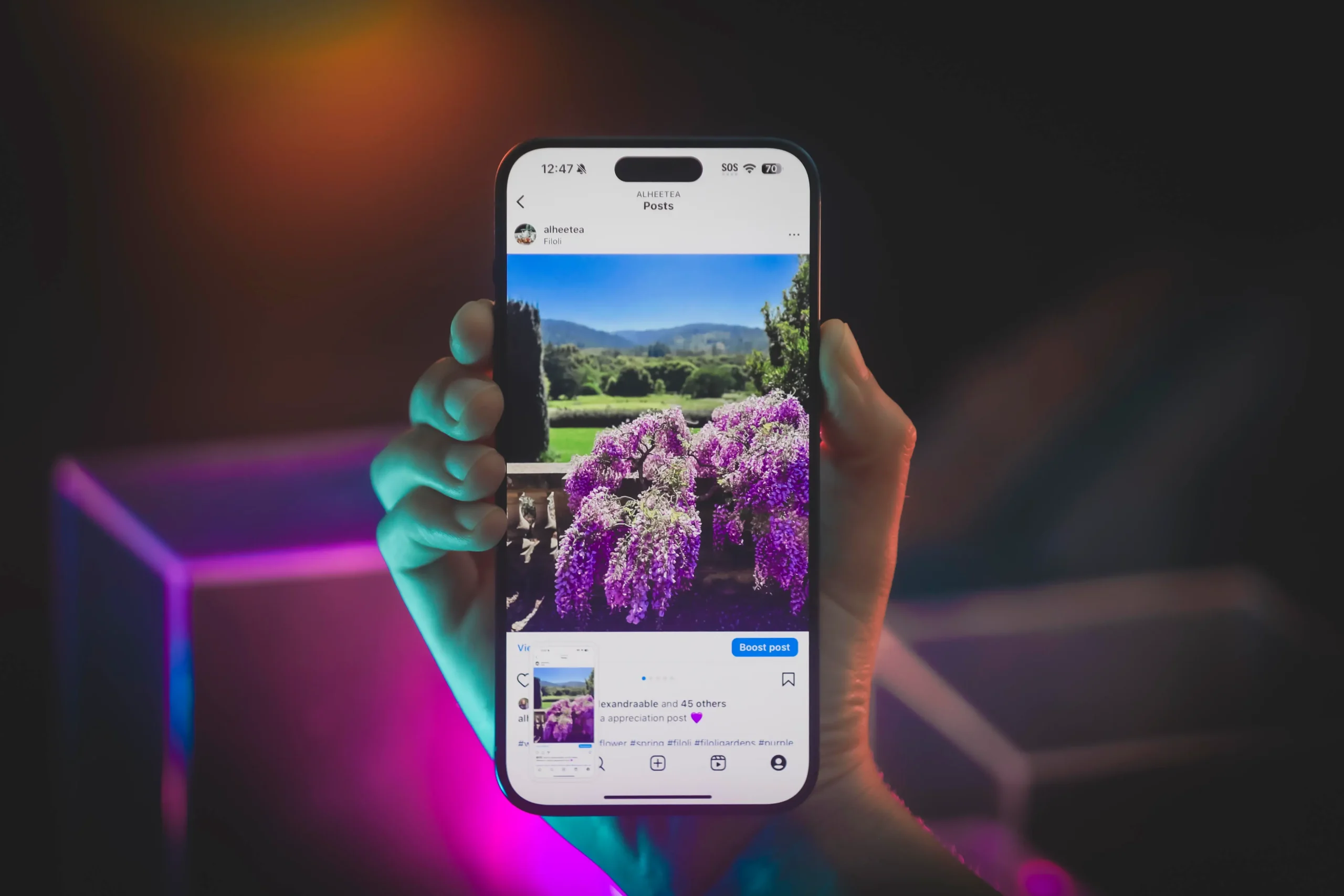
A screenshot on Samsung
Here’s how to do it on recent Samsung Galaxy models:
- Open the screen you want to capture.
- Briefly and simultaneously press the side button and Volume Down button.
- Tap the preview to edit or share the screenshot.
The image is saved in the Gallery
On compatible models, you can also use a gesture. Enable Swipe to Capture in Settings > Advanced Features > Motions and Gestures . Then swipe the screen with the side of your hand. Labels may vary depending on the software version.
A screenshot on an iPhone
The combination depends on the buttons present on your iPhone:
| Your iPhone | Press simultaneously |
|---|---|
| With Face ID, no homHometton | The side button and Volume Up |
| With main button and side button | The main button and the side button |
| Older model with top button | The main button and the top button |
Release the buttons immediately. Depending on your settings and iOS version, a thumbnail or editing interface will appear.
Captures saved in Photos are found in the Screenshots media type.
A screenshot on Android
On most other Android smartphones, use the Power and Volume Down buttons. Press them simultaneously when the desired screen is open.
The image is located in your photos application or gallery, usually in the Screenshots folder
Still not working? Some devices offer a capture option when you press and hold the power button. If this option isn’t available, consult the manufacturer’s instructions.
Take a scrolling screenshot
Want to capture more than what’s on the screen? Scrolling capture lets you extend the image. This feature is only available in compatible apps and displays.
On Samsung and other Android devices
Start by taking a standard screenshot. If the “Capture more” option appears, select it and define the content you want to keep.
On Samsung devices, you’ll generally use the Scroll Capture function represented by downward-pointing arrows. This allows you to extend the capture to the bottom of the page.
On iPhone
For example, open a web page in Safari and take a screenshot. Open the preview if necessary, then choose Full Page .
Optionally, select a smaller portion, then use the suggested saving option. Available buttons and formats vary depending on your iOS version.
Edit and share your screenshot.
The editing tools allow you to crop the image or highlight a detail. This way, you only share the information that is useful to the recipient.
Also check if any personal data, notifications, or other information you wish to keep private is visible. Remove them by cropping the image, then check the result before sending.
You don’t need the internet to take a screenshot. To send it by email or via a messaging app, you use Wi-Fi or your mobile data.
Why isn’t the capture working?
First, check the button combination. Does only the volume change? You may not have pressed both buttons simultaneously. Also, make sure you have enough storage space.
Is the problem limited to a single app? Some apps block screenshots to protect sensitive information, especially on certain banking app screens. Look for a built-in sharing or download function.