
Widgets are now part of our daily lives, often without us even realizing it. But what exactly are they, how do they work, and how can you unlock their full potential? Find all the answers below. If you regularly use your smartphone or computer, you’ve undoubtedly already used one or more widgets, even if you don’t know exactly what they are. That’s why we’re going to explain everything about these little gadgets below.
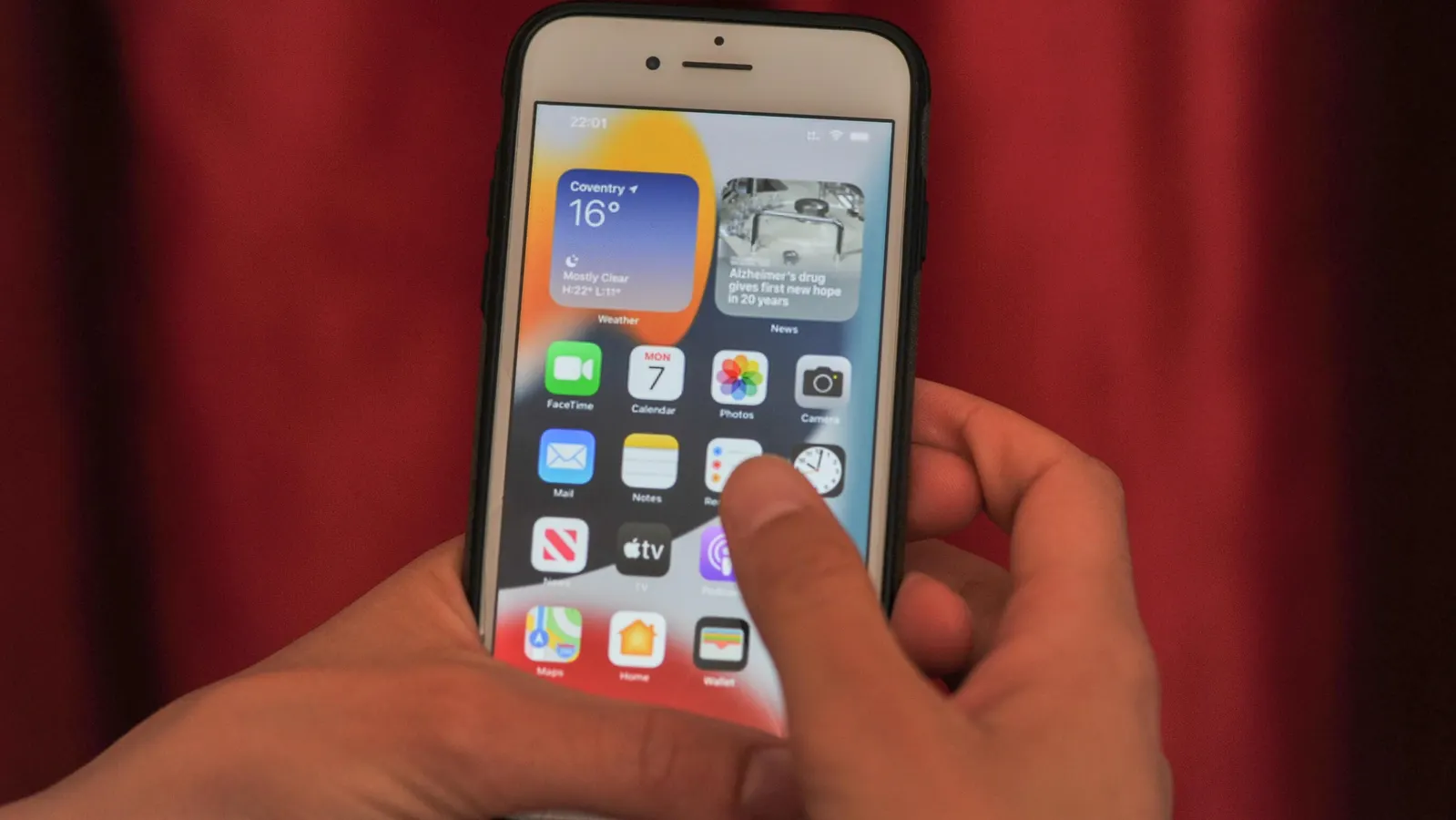
What is a widget?
As its name suggests, a widget is a small digital gadget that you can add to a website, computer, or smartphone. A widget, which can easily be compared to an application, can offer additional features to your device or website to make your user experience more enjoyable and comprehensive. They can also provide you with useful and interesting information on a wide range of topics, such as the weather or stock market indices. Generally, widgets are directly linked to a specific application but are displayed outside of it. For example, you can display an application’s widget directly on your smartphone’s home screen. For instance, a widget from X (formerly Twitter) allows you to view the latest Xs from your subscriptions directly on your home screen. Widgets can be installed and used on all devices: laptops, tablets, smartphones, and, as mentioned, web browsers. These widgets can therefore quickly become essential personal assistants for accessing all kinds of information and taking advantage of various functionalities.
How do I add and customize widgets?
We most often use widgets on mobile devices. On these devices, it’s extremely easy to add widgets to your home screen or lock screen. Here’s how to add a widget to your home screen:
- Go to the home screen of your smartphone or tablet. Note that the procedure is the same for both Android and iOS devices.
- Touch and hold a space on the home screen until a context menu appears.
- On iPhone or iPad, tap “Edit” and then “Add Widget.” On Android, tap the Widget button to see a list of all widgets linked to your apps.
- After choosing the widget you want to add, you can customize its size and placement on your home screen. You can also customize it by long-pressing a widget to display all the customization options.
- To remove a widget, touch and hold the widget for several seconds until the “Remove widget” option appears.
And what about on a computer? On Windows 11, you can access the Widgets panel by clicking the button in the bottom-left corner of the screen. This panel is fully customizable. Here’s how to add and customize your widgets on Windows:
- Open the widget table by clicking in the bottom left corner of your screen. You can also open it using the Windows+W keys on your keyboard.
- Once this table is open, you will see a small “+” button in the top right corner.
- By clicking on it, Windows will offer you basic widgets such as weather, Spotify, traffic information, etc.
- But you can also download plenty of them by going to the widget section of the Microsoft Store.
- You then have the option to pin a widget so that it doesn’t move from its position on the board. To do this, hover over a widget until three vertical dots appear. Click on them and then on “Pin widget”.
- You can move a widget with a single click by clicking and dragging it.
- Using the three vertical dots mentioned above, you can change the size of the widget and customize it.
If you are using a Mac computer, here’s how to add and customize a widget:
- On your Mac desktop, Control-click on the desktop.
- Search for the widget you want in the widget gallery. Click on a category to discover all the widgets related to it.
- To add a widget to your desktop, you can drag it from the gallery to the desktop or click the “Add widget” button.
- You can customize a widget by clicking on it while holding down the Control key.
What are the best widgets available?
Creating an exhaustive list of all widgets is impossible, as there are thousands. The widgets that are relevant to you depend on the applications you use daily and the features or information you’re looking for. However, some of the most popular include:
- A widget for your music, like Spotify, allows you to easily change songs, pause playback, or get information about what you’re listening to.
- The weather widget is a classic feature that allows you to get all the weather information for the coming days at a glance.
- The Parcel app widget allows you to easily track the delivery status of your valuable parcels.
- The Google widget allows you to perform a Google search much faster without opening an application.
- The Post-it widget can be extremely useful for noting things not to forget and having them constantly in view when using your smartphone or computer.
- A TikTok fan? The app has its own widget that will show you the most popular videos of the moment!
- The calendar widget also allows you to have a quick view of your agenda and everything that is on the agenda, as well as the coming days.