

Android Phone Charges Normally Until You Use It? Find Out Why Charging Slows Down

Have you ever plugged in your Android phone, noticed the battery percentage rising normally, and then watched charging slow down as soon as you start using it? Perhaps your phone charges quickly while sitting on a table but takes much longer when you browse social media, watch videos, play games, or make video calls.

This behavior can be frustrating, especially when you need your phone ready before leaving home. However, it does not automatically mean your battery is damaged or your charger has stopped working.

When you use your phone while charging, the device consumes electricity at the same time that the battery receives it. Activities such as gaming, video streaming, navigation, and recording video can increase power consumption and generate additional heat. Your phone may also reduce its charging rate to protect the battery when temperatures become too high.

In this guide, you’ll learn why Android charging slows down while using your phone, how to identify the likely cause, and which practical troubleshooting steps can help restore normal charging performance.

Why Does Android Charging Slow Down When You Use Your Phone?

Your phone receives power from its charger, but not all that power necessarily goes directly into the battery. Some is used to run the screen, processor, wireless connections, and active applications.

The amount of power reaching the battery depends on several factors, including charger compatibility, battery temperature, battery condition, and how much electricity the phone consumes.

For example, a compatible charger might supply enough power to charge your phone quickly while the screen is off. When you start a demanding game, the processor and display consume more power. As a result, the battery may charge more slowly even though the charger is still working correctly.

Several common factors can explain this behavior:

  • High power consumption: Demanding apps use some of the power supplied by the charger.
  • Excessive heat: The phone may reduce charging speed to protect its battery.
  • Incompatible charging equipment: A cable or adapter may not support the phone’s expected charging rate.
  • Background activity: Apps may continue using processing power and network connections even when you are not actively interacting with them.
  • Battery wear: An aging battery may behave differently from a new one.
  • Charging limits: Some phones manage charging speed according to battery level, temperature, or battery-protection settings.

Understanding which factor applies to your phone will help you choose the right solution rather than replacing accessories unnecessarily.

Step 1: Check Whether Your Phone Is Actually Charging Slowly

Before changing any settings, compare your phone’s charging behavior under different conditions.

Perform a simple charging test

  1. Connect your phone to a compatible wall charger using your usual charging cable.
  2. Note the current battery percentage.
  3. Leave the phone plugged in with the screen off for approximately 15 minutes.
  4. Record the new battery percentage.
  5. Repeat the test for another 15 minutes while performing a typical activity, such as browsing the web.
  6. Compare the results.

For a more useful comparison, begin both tests at a similar battery percentage and keep the charger, cable, and environment the same.
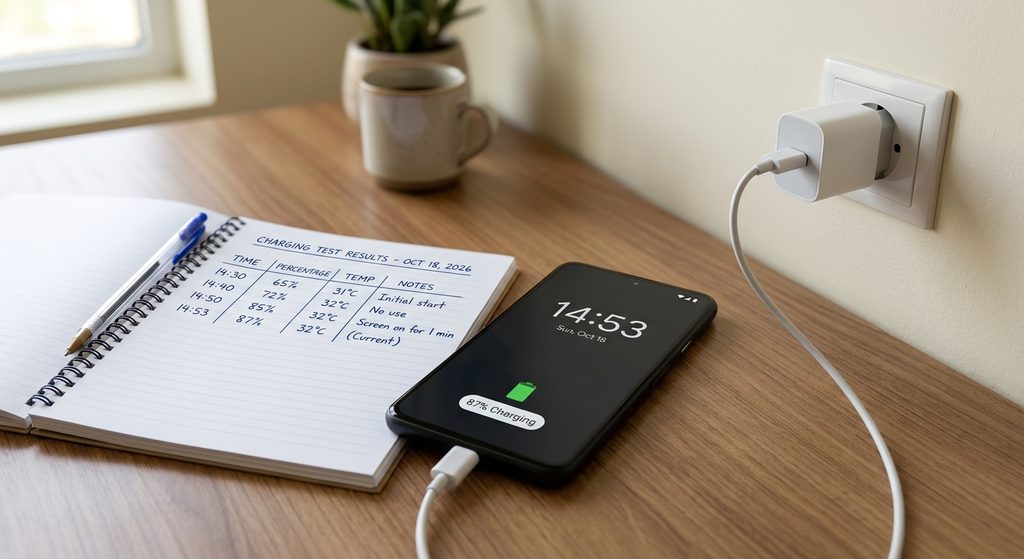
The results can help you identify a pattern:

  • Charges faster with the screen off: Screen activity, app usage, or heat may be affecting charging performance.
  • Charges slowly in both tests: Check the charger, cable, charging port, battery temperature, and battery condition.
  • Battery percentage stays the same during heavy use: The phone may be consuming nearly as much power as the charger supplies.
  • Battery percentage decreases while plugged in: Power consumption may exceed incoming power, or the charging equipment may not be delivering enough power.

These observations are clues rather than definitive diagnoses. Charging rates naturally change depending on the battery level, temperature, and phone model.

Step 2: Check Whether Your Phone Is Overheating

Heat is one of the most common reasons charging performance changes during phone use.

Your Android phone produces heat when running demanding applications. Charging also generates heat, so performing both activities simultaneously can increase the device’s temperature.

To protect the battery and internal components, many phones automatically reduce charging power when temperatures rise beyond their preferred operating range.

How to check for heat-related charging limits

  1. Disconnect the charger if the phone feels unusually hot.
  2. Stop demanding activities, such as gaming, video recording, or navigation.
  3. Remove a thick case if it traps heat and can be removed safely.
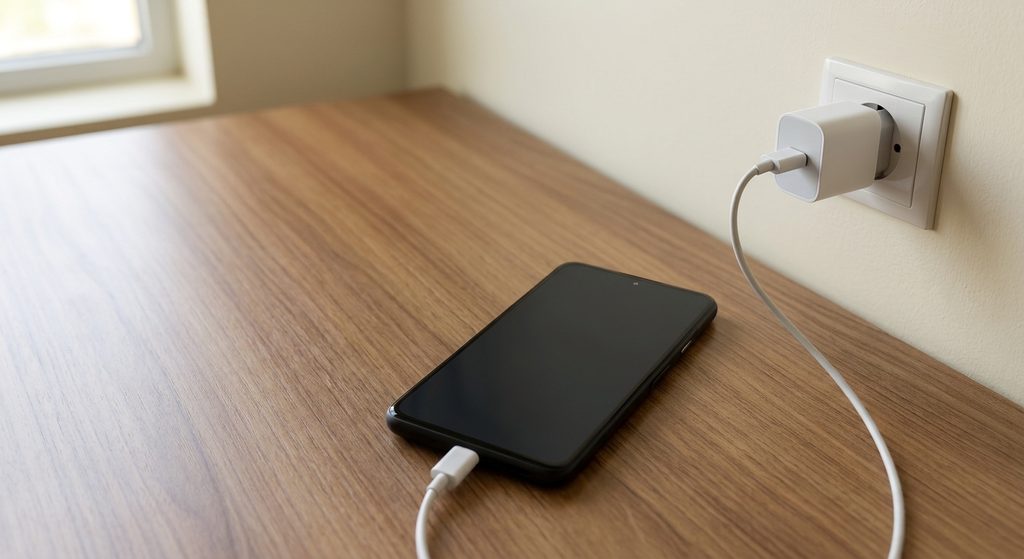
  4. Place the phone on a hard, well-ventilated surface away from direct sunlight.
  5. Allow it to cool naturally before charging again.
  6. Once it returns to a normal temperature, reconnect the charger and compare its behavior.
Avoid these common mistakes

Do not put your phone in a refrigerator or freezer to cool it quickly. Sudden temperature changes and condensation can damage electronic components.

Likewise, avoid covering a hot phone with blankets or charging it under a pillow. Keep it away from direct heat sources and follow the manufacturer’s temperature guidance.

A useful sign: If charging becomes faster after the phone cools down, temperature management may be contributing to the problem. If the phone repeatedly becomes unusually hot during light use, investigate further rather than assuming the behavior is normal.

Step 3: Identify Apps That Consume Too Much Power

Some apps use considerably more power than others. Games, camera applications, video editors, navigation tools, and video-streaming services can place a substantial load on your phone while it is charging.

Even ordinary applications may consume additional energy when they continuously synchronize information, upload files, or use location services.

Review battery usage on Android

  1. Open Settings.
  2. Select Battery or Battery usage.
  3. Look for the battery usage breakdown.
  4. Identify applications that have consumed unusually high amounts of power.
  5. If an app appears responsible, review its background activity and usage settings.

The menu names differ across manufacturers and Android versions. Battery statistics may also reset or change over time, so use them as clues rather than treating them as exact measurements of charging power.

Test charging without demanding apps

Close demanding activities, turn off the screen, and leave the phone connected to its charger for approximately 15 minutes.

Then compare this result with a similar period spent using the same demanding application.

If charging improves when the app is not running, reduce unnecessary use during charging or adjust that app’s background activity where appropriate.

Avoid force-stopping system processes or disabling applications you do not recognize. Focus on identifiable apps and settings that you can safely change.

Step 4: Check Your Charger and USB Cable

Your phone may charge slowly during use because the charger cannot provide enough power to meet both its operating needs and its charging requirements.

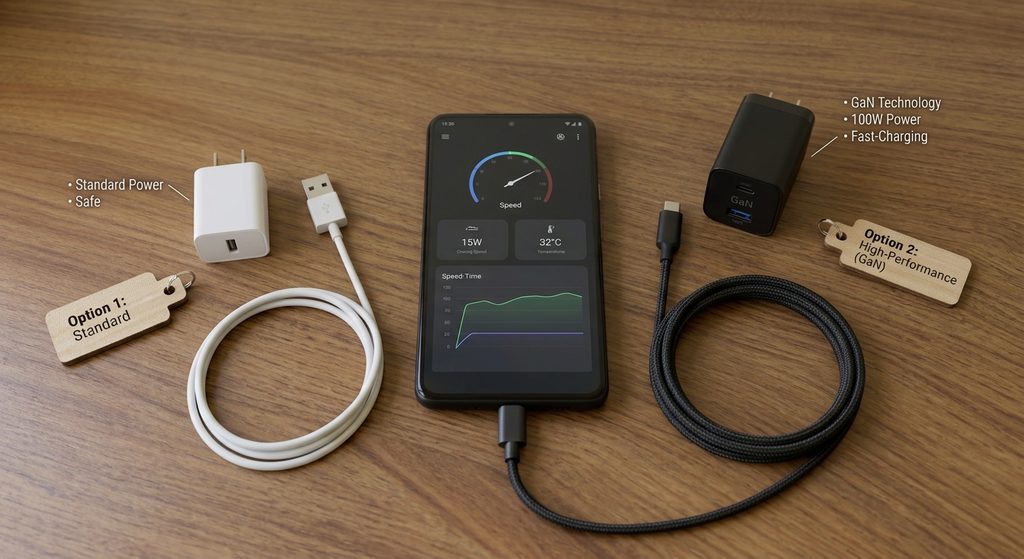
Not all USB chargers deliver the same output. Some support fast-charging standards that others do not, and some cables may limit the power that can be delivered.

Test your charging accessories

  1. Check the charger’s output specifications and compare them with your phone manufacturer’s recommendations.
  2. Inspect the cable for cuts, bent connectors, loose fittings, or other visible damage.
  3. If possible, try a known-good, compatible charging cable.
  4. If the issue continues, test a compatible wall adapter.
  5. Repeat the same charging test using the replacement accessories.
Why charger compatibility matters

A charger advertised with a high wattage rating does not guarantee that every phone will charge at that rate. The phone, charger, and cable must support compatible charging protocols.

For example, a phone that supports a particular fast-charging standard may charge more slowly with an adapter that uses a different standard.

Use reputable, undamaged accessories that meet your device’s specifications. Avoid loose connectors, damaged cables, and suspiciously cheap adapters.

Important: Never insert metal objects into the charging port to remove debris. If the port appears damaged, contains stubborn debris, or becomes unusually hot, seek professional assistance.

Step 5: Check Charging Settings and Battery Protection Features

Some Android phones include settings designed to protect battery health or manage charging behavior.

Depending on the manufacturer, these features may limit charging to a selected percentage, adjust charging schedules, or change charging behavior based on temperature.

What to review

  1. Open Settings.
  2. Navigate to Battery or the battery protection section.
  3. Look for features such as Battery Protection, Optimized Charging, or Adaptive Charging.
  4. Read the descriptions to understand how each feature affects charging.
  5. Check whether a charging limit or schedule explains the behavior you are seeing.
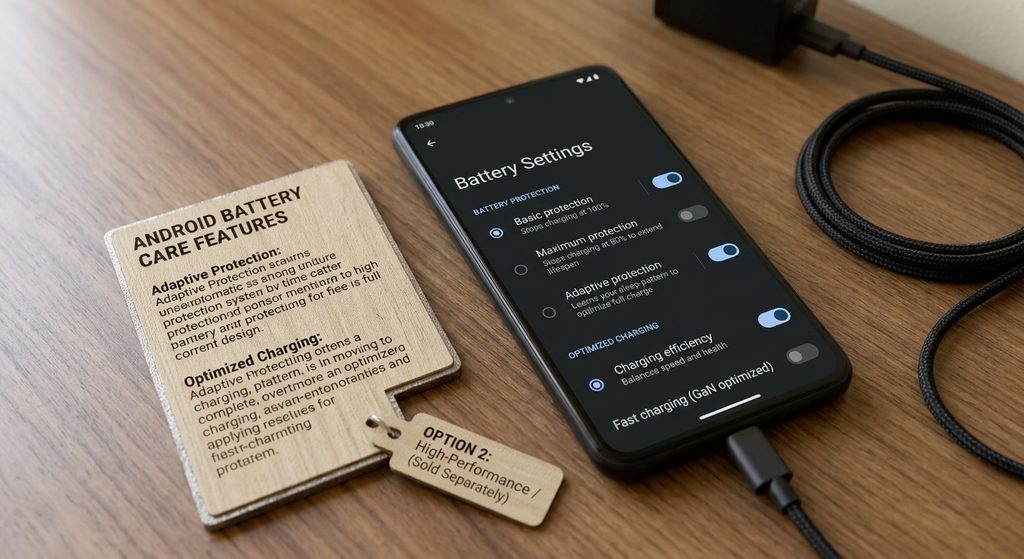
These features do not necessarily cause slow charging during phone use. For example, a battery limit may explain why charging stops at a particular percentage, while temperature protection may reduce charging power during demanding activities.

Do not disable battery-protection features automatically. First determine whether the observed behavior matches the feature’s stated purpose.

Step 6: Check for Battery Wear or Charging Port Problems

If your phone charges slowly even when idle, using compatible accessories, battery wear or a hardware issue may be involved.

Lithium-ion batteries gradually lose capacity with age and repeated use. Battery wear can affect how a phone behaves during charging, although slow charging alone does not prove that the battery needs replacement.

Signs that deserve closer attention

  • Charging performance has gradually worsened over several months.
  • The phone frequently shuts down unexpectedly despite showing remaining battery power.
  • The charging connector feels loose or charging stops when the cable moves slightly.
  • The device repeatedly displays charging warnings.
  • The phone becomes unusually hot during light activity.

Some manufacturers provide battery health information in Settings or their official diagnostic tools. Other phones may not expose a precise battery health percentage.

If the charging port is loose, damaged, or obstructed, avoid attempting repairs with sharp objects. A qualified technician can inspect the port and battery safely.

Stop using the phone and seek prompt professional assistance if the battery appears swollen, the casing separates, or you notice smoke, a burning smell, or extreme heat. Do not continue charging a potentially damaged device.

Additional Troubleshooting Tips

If you are still experiencing slow charging, work through this checklist:

  • Restart the phone: A restart can resolve temporary software problems.
  • Install official updates: Check for available Android and manufacturer updates.
  • Avoid heavy use while charging: Gaming, video recording, and navigation can increase power consumption and heat.
  • Use a wall outlet for testing: This helps rule out the limited output of some computer USB ports or other power sources.
  • Check your surroundings: Direct sunlight and hot rooms can interfere with charging performance.
  • Compare similar battery levels: Charging commonly slows as the battery approaches full.
  • Review recent changes: Consider whether the problem began after installing an app or replacing charging equipment.

Change one variable at a time so you can identify which adjustment actually helps.

Frequently Asked Questions

Why does my Android battery percentage barely increase while I use my phone?

The phone may be consuming much of the incoming power to run the screen, processor, and applications. If heat rises, the device may also reduce charging power to protect its components.

Is it bad to use an Android phone while charging?

Ordinary use while charging is generally supported, provided the phone and accessories are in good condition and temperatures remain within the manufacturer’s recommended range. Demanding activities can increase heat and slow charging.

Does a higher-wattage charger always charge an Android phone faster?

No. The phone must support the charger’s charging standard, and the cable must be suitable. The device may also reduce charging speed because of temperature or battery-management limits.

Should I replace my battery if charging is slow?

Not necessarily. Test the charging equipment, temperature, and app usage first. If the problem persists or the battery shows signs of damage or unusual deterioration, have the device assessed by a qualified technician.

Conclusion

When Android charging slows down while using your phone, the cause is often a combination of power consumption, temperature, charging equipment, or battery-management behavior.

Start by comparing charging with the screen off and during normal use. Then check for overheating, identify demanding apps, test a compatible charger and cable, and review your phone’s battery settings.

If the problem continues even when the phone is cool and idle, investigate possible battery or charging-port issues.

The goal is not simply to make the battery percentage rise faster. It is to identify why charging performance changes and restore reliable charging without compromising your phone’s safety or long-term battery health.

Have you ever plugged in your Android phone, noticed the battery percentage rising normally, and then watched charging slow down as soon as you start using it? Perhaps your phone charges quickly while sitting on a table but takes much longer when you browse social media, watch videos, play games, or make video calls.

This behavior can be frustrating, especially when you need your phone ready before leaving home. However, it does not automatically mean your battery is damaged or your charger has stopped working.

When you use your phone while charging, the device consumes electricity at the same time that the battery receives it. Activities such as gaming, video streaming, navigation, and recording video can increase power consumption and generate additional heat. Your phone may also reduce its charging rate to protect the battery when temperatures become too high.

In this guide, you’ll learn why Android charging slows down while using your phone, how to identify the likely cause, and which practical troubleshooting steps can help restore normal charging performance.

Why Does Android Charging Slow Down When You Use Your Phone?

Your phone receives power from its charger, but not all that power necessarily goes directly into the battery. Some is used to run the screen, processor, wireless connections, and active applications.

The amount of power reaching the battery depends on several factors, including charger compatibility, battery temperature, battery condition, and how much electricity the phone consumes.

For example, a compatible charger might supply enough power to charge your phone quickly while the screen is off. When you start a demanding game, the processor and display consume more power. As a result, the battery may charge more slowly even though the charger is still working correctly.

Several common factors can explain this behavior:

  • High power consumption: Demanding apps use some of the power supplied by the charger.
  • Excessive heat: The phone may reduce charging speed to protect its battery.
  • Incompatible charging equipment: A cable or adapter may not support the phone’s expected charging rate.
  • Background activity: Apps may continue using processing power and network connections even when you are not actively interacting with them.
  • Battery wear: An aging battery may behave differently from a new one.
  • Charging limits: Some phones manage charging speed according to battery level, temperature, or battery-protection settings.

Understanding which factor applies to your phone will help you choose the right solution rather than replacing accessories unnecessarily.

Step 1: Check Whether Your Phone Is Actually Charging Slowly

Before changing any settings, compare your phone’s charging behavior under different conditions.

Perform a simple charging test

  1. Connect your phone to a compatible wall charger using your usual charging cable.
  2. Note the current battery percentage.
  3. Leave the phone plugged in with the screen off for approximately 15 minutes.
  4. Record the new battery percentage.
  5. Repeat the test for another 15 minutes while performing a typical activity, such as browsing the web.
  6. Compare the results.

For a more useful comparison, begin both tests at a similar battery percentage and keep the charger, cable, and environment the same.

The results can help you identify a pattern:

  • Charges faster with the screen off: Screen activity, app usage, or heat may be affecting charging performance.
  • Charges slowly in both tests: Check the charger, cable, charging port, battery temperature, and battery condition.
  • Battery percentage stays the same during heavy use: The phone may be consuming nearly as much power as the charger supplies.
  • Battery percentage decreases while plugged in: Power consumption may exceed incoming power, or the charging equipment may not be delivering enough power.

These observations are clues rather than definitive diagnoses. Charging rates naturally change depending on the battery level, temperature, and phone model.

Step 2: Check Whether Your Phone Is Overheating

Heat is one of the most common reasons charging performance changes during phone use.

Your Android phone produces heat when running demanding applications. Charging also generates heat, so performing both activities simultaneously can increase the device’s temperature.

To protect the battery and internal components, many phones automatically reduce charging power when temperatures rise beyond their preferred operating range.

How to check for heat-related charging limits

  1. Disconnect the charger if the phone feels unusually hot.
  2. Stop demanding activities, such as gaming, video recording, or navigation.
  3. Remove a thick case if it traps heat and can be removed safely.
  4. Place the phone on a hard, well-ventilated surface away from direct sunlight.
  5. Allow it to cool naturally before charging again.
  6. Once it returns to a normal temperature, reconnect the charger and compare its behavior.

Avoid these common mistakes

Do not put your phone in a refrigerator or freezer to cool it quickly. Sudden temperature changes and condensation can damage electronic components.

Likewise, avoid covering a hot phone with blankets or charging it under a pillow. Keep it away from direct heat sources and follow the manufacturer’s temperature guidance.

A useful sign: If charging becomes faster after the phone cools down, temperature management may be contributing to the problem. If the phone repeatedly becomes unusually hot during light use, investigate further rather than assuming the behavior is normal.

Step 3: Identify Apps That Consume Too Much Power

Some apps use considerably more power than others. Games, camera applications, video editors, navigation tools, and video-streaming services can place a substantial load on your phone while it is charging.

Even ordinary applications may consume additional energy when they continuously synchronize information, upload files, or use location services.

Review battery usage on Android

  1. Open Settings.
  2. Select Battery or Battery usage.
  3. Look for the battery usage breakdown.
  4. Identify applications that have consumed unusually high amounts of power.
  5. If an app appears responsible, review its background activity and usage settings.

The menu names differ across manufacturers and Android versions. Battery statistics may also reset or change over time, so use them as clues rather than treating them as exact measurements of charging power.

Test charging without demanding apps

Close demanding activities, turn off the screen, and leave the phone connected to its charger for approximately 15 minutes.

Then compare this result with a similar period spent using the same demanding application.

If charging improves when the app is not running, reduce unnecessary use during charging or adjust that app’s background activity where appropriate.

Avoid force-stopping system processes or disabling applications you do not recognize. Focus on identifiable apps and settings that you can safely change.

Step 4: Check Your Charger and USB Cable

Your phone may charge slowly during use because the charger cannot provide enough power to meet both its operating needs and its charging requirements.

Not all USB chargers deliver the same output. Some support fast-charging standards that others do not, and some cables may limit the power that can be delivered.

Test your charging accessories

  1. Check the charger’s output specifications and compare them with your phone manufacturer’s recommendations.
  2. Inspect the cable for cuts, bent connectors, loose fittings, or other visible damage.
  3. If possible, try a known-good, compatible charging cable.
  4. If the issue continues, test a compatible wall adapter.
  5. Repeat the same charging test using the replacement accessories.

Why charger compatibility matters

A charger advertised with a high wattage rating does not guarantee that every phone will charge at that rate. The phone, charger, and cable must support compatible charging protocols.

For example, a phone that supports a particular fast-charging standard may charge more slowly with an adapter that uses a different standard.

Use reputable, undamaged accessories that meet your device’s specifications. Avoid loose connectors, damaged cables, and suspiciously cheap adapters.

Important: Never insert metal objects into the charging port to remove debris. If the port appears damaged, contains stubborn debris, or becomes unusually hot, seek professional assistance.

Step 5: Check Charging Settings and Battery Protection Features

Some Android phones include settings designed to protect battery health or manage charging behavior.

Depending on the manufacturer, these features may limit charging to a selected percentage, adjust charging schedules, or change charging behavior based on temperature.

What to review

  1. Open Settings.
  2. Navigate to Battery or the battery protection section.
  3. Look for features such as Battery Protection, Optimized Charging, or Adaptive Charging.
  4. Read the descriptions to understand how each feature affects charging.
  5. Check whether a charging limit or schedule explains the behavior you are seeing.

These features do not necessarily cause slow charging during phone use. For example, a battery limit may explain why charging stops at a particular percentage, while temperature protection may reduce charging power during demanding activities.

Do not disable battery-protection features automatically. First determine whether the observed behavior matches the feature’s stated purpose.

Step 6: Check for Battery Wear or Charging Port Problems

If your phone charges slowly even when idle, using compatible accessories, battery wear or a hardware issue may be involved.

Lithium-ion batteries gradually lose capacity with age and repeated use. Battery wear can affect how a phone behaves during charging, although slow charging alone does not prove that the battery needs replacement.

Signs that deserve closer attention

  • Charging performance has gradually worsened over several months.
  • The phone frequently shuts down unexpectedly despite showing remaining battery power.
  • The charging connector feels loose or charging stops when the cable moves slightly.
  • The device repeatedly displays charging warnings.
  • The phone becomes unusually hot during light activity.

Some manufacturers provide battery health information in Settings or their official diagnostic tools. Other phones may not expose a precise battery health percentage.

If the charging port is loose, damaged, or obstructed, avoid attempting repairs with sharp objects. A qualified technician can inspect the port and battery safely.

Stop using the phone and seek prompt professional assistance if the battery appears swollen, the casing separates, or you notice smoke, a burning smell, or extreme heat. Do not continue charging a potentially damaged device.

Additional Troubleshooting Tips

If you are still experiencing slow charging, work through this checklist:

  • Restart the phone: A restart can resolve temporary software problems.
  • Install official updates: Check for available Android and manufacturer updates.
  • Avoid heavy use while charging: Gaming, video recording, and navigation can increase power consumption and heat.
  • Use a wall outlet for testing: This helps rule out the limited output of some computer USB ports or other power sources.
  • Check your surroundings: Direct sunlight and hot rooms can interfere with charging performance.
  • Compare similar battery levels: Charging commonly slows as the battery approaches full.
  • Review recent changes: Consider whether the problem began after installing an app or replacing charging equipment.

Change one variable at a time so you can identify which adjustment actually helps.

Frequently Asked Questions

Why does my Android battery percentage barely increase while I use my phone?

The phone may be consuming much of the incoming power to run the screen, processor, and applications. If heat rises, the device may also reduce charging power to protect its components.

Is it bad to use an Android phone while charging?

Ordinary use while charging is generally supported, provided the phone and accessories are in good condition and temperatures remain within the manufacturer’s recommended range. Demanding activities can increase heat and slow charging.

Does a higher-wattage charger always charge an Android phone faster?

No. The phone must support the charger’s charging standard, and the cable must be suitable. The device may also reduce charging speed because of temperature or battery-management limits.

Should I replace my battery if charging is slow?

Not necessarily. Test the charging equipment, temperature, and app usage first. If the problem persists or the battery shows signs of damage or unusual deterioration, have the device assessed by a qualified technician.

Conclusion

When Android charging slows down while using your phone, the cause is often a combination of power consumption, temperature, charging equipment, or battery-management behavior.

Start by comparing charging with the screen off and during normal use. Then check for overheating, identify demanding apps, test a compatible charger and cable, and review your phone’s battery settings.

If the problem continues even when the phone is cool and idle, investigate possible battery or charging-port issues.

The goal is not simply to make the battery percentage rise faster. It is to identify why charging performance changes and restore reliable charging without compromising your phone’s safety or long-term battery health.

Related Posts

LEAVE A REPLY

Please enter your comment!
Please enter your name here

Related posts

Latest posts

Android Camera Takes Blurry Photos Only When Switching Between Lenses? Fix Focus and Lens Problems

Introduction Have you noticed that your Android phone takes clear photos with its main camera but produces blurry images when you switch to the ultrawide...

Android Phone Keeps Disconnecting From Wi-Fi When the Screen Turns Off? How to Fix It

Your Android phone connects to Wi-Fi perfectly while you are using it, but something changes as soon as you press the power button. Messages...

How to Recognize Suspicious App Permissions Before Installing an App

Installing a new Android app is usually simple, but it is worth checking what the app wants to access before you tap Install. Some...