

Android Phone Keeps Disconnecting From Wi-Fi When the Screen Turns Off? How to Fix It

Your Android phone connects to Wi-Fi perfectly while you are using it, but something changes as soon as you press the power button. Messages arrive late, downloads stop progressing, notifications appear only after you unlock the screen, or apps suddenly reconnect to the internet when you wake the phone.

If this sounds familiar, your phone may be restricting background activity, experiencing a Wi-Fi connectivity problem, or using a battery-saving feature that affects network access while the display is off.

The good news is that you can investigate several common causes without installing additional apps or resetting your phone. The exact settings vary between Android versions and manufacturers, including Samsung Galaxy, Google Pixel, Xiaomi, Redmi, and Motorola devices.

This guide explains how to troubleshoot the problem step by step, starting with simple checks and moving to more advanced solutions.

Why Does Android Wi-Fi Disconnect When the Screen Is Off?

When you lock your phone, Android may limit certain background activities to conserve battery power. However, your Wi-Fi connection should not necessarily disconnect every time the screen turns off.

The problem may be related to one or more of these factors:

  • Battery optimization: The system may restrict background activity for certain apps.
  • Wi-Fi power-saving settings: Some manufacturers provide additional controls that affect wireless connectivity during sleep.
  • Router problems: The router may disconnect an idle device or have trouble maintaining its connection.
  • Background data restrictions: Apps may be unable to communicate normally while running in the background.
  • Connectivity glitches: A temporary software problem can interfere with Wi-Fi after the phone locks.
  • Third-party apps: Battery savers, VPNs, firewalls, or network-management apps may affect connectivity.

Before changing several settings at once, test your phone and make one adjustment at a time. This makes it easier to identify the actual cause.

Step 1: Check Whether Wi-Fi Actually Disconnects

The first step is to determine whether the phone loses its Wi-Fi connection or whether individual apps simply stop working in the background.

These problems can look similar, but they require different solutions.

How to perform the test

  1. Connect your Android phone to your usual Wi-Fi network.
  2. Open a webpage to confirm that the internet is working.
  3. Turn off the screen and leave the phone locked for approximately two to five minutes.
  4. Unlock the phone and immediately check the Wi-Fi symbol.
  5. Open a webpage and see whether it loads immediately or only after a delay.

Repeat the test while keeping the phone in the same location.

If the Wi-Fi icon disappears or the phone switches to mobile data, investigate the wireless connection itself. If Wi-Fi remains connected but messages or downloads stop, background restrictions may be the more likely explanation.
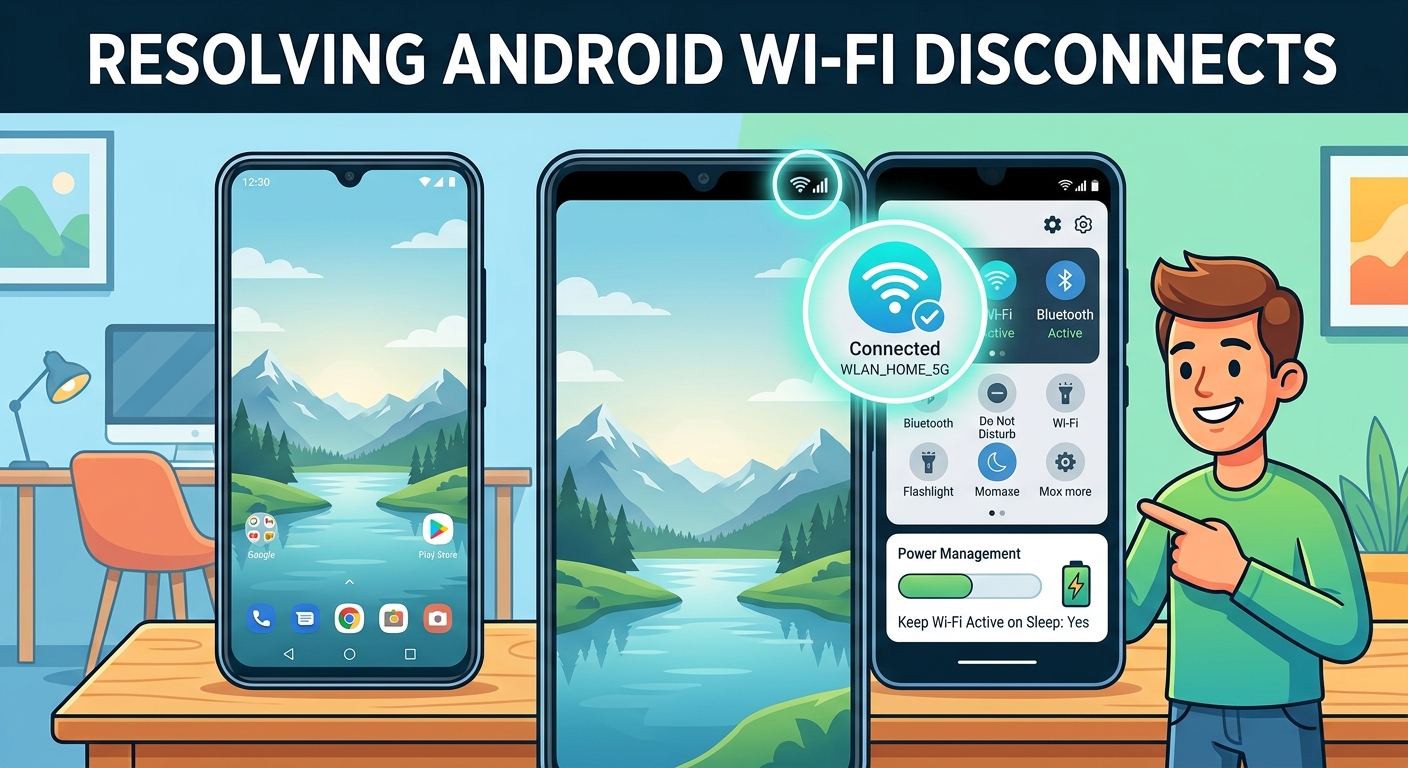
Helpful tip: If possible, repeat the test with another Wi-Fi network. If the issue happens only on one network, the router or its configuration may be responsible.

Step 2: Restart Your Phone and Wi-Fi Router

A temporary network glitch can cause an Android phone to lose connectivity after being idle. Restarting both devices is a simple way to rule out short-lived problems before changing advanced settings.

Restart your Android phone

  1. Open the phone’s power menu.
  2. Select Restart if that option is available.
  3. Wait for the phone to boot completely.
  4. Reconnect to your Wi-Fi network if necessary.
  5. Lock the screen for several minutes and test the connection again.

Restart your router

If the problem continues, restart your wireless router using its normal power procedure. Wait until the Wi-Fi network becomes available again, then reconnect your phone.

Avoid pressing the router’s Reset button, which may erase its configuration and require you to set up the network again.

If other devices also lose their Wi-Fi connections when idle, the router deserves closer attention. If only your Android phone experiences the problem, continue to the next step.

Step 3: Check Battery Saver and Background Restrictions

Battery-saving features are designed to extend battery life, but some manufacturers add extra restrictions that can affect background tasks.

Android’s standard Battery Saver does not necessarily disconnect Wi-Fi when the screen turns off. Still, testing whether battery-saving settings influence your device is worthwhile.

Temporarily disable Battery Saver

  1. Open Settings.
  2. Navigate to Battery or Battery and device care, depending on your phone.
  3. Find Battery Saver, Power saving, or a similarly named option.
  4. Turn it off temporarily.
  5. Lock your phone and repeat the Wi-Fi test.

If connectivity improves, review your manufacturer’s additional power-saving controls before deciding which settings to keep disabled.
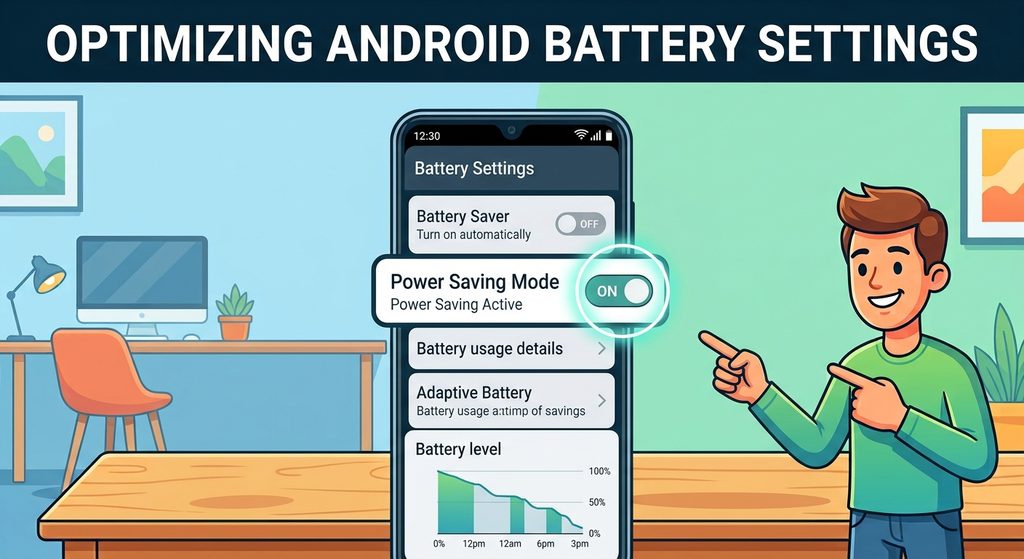
Check manufacturer-specific battery controls

Some Android phones offer extra features beyond the standard Android settings. Depending on the model, these may include:

  • Ultra power-saving modes
  • Automatic app sleeping
  • Background app restrictions
  • Aggressive battery management
  • Per-app power-saving rules

On Samsung Galaxy phones, for example, check the battery settings for background usage limits and sleeping apps. Other manufacturers may place similar options under Battery, Apps, or Special features.

Important: Do not disable every battery optimization setting on your phone. First test whether a specific feature is causing the problem. Unnecessary changes can increase battery consumption without improving Wi-Fi reliability.

Step 4: Allow Important Apps to Run in the Background

Sometimes Wi-Fi stays connected, but certain apps stop receiving messages or completing downloads when the screen is off.

Messaging apps, email clients, cloud storage services, and download managers may need permission to continue background work.

Review an app’s battery settings

  1. Open Settings and select Apps.
  2. Choose the affected application.
  3. Tap App battery usage, Battery, or a similar option.
  4. Review the available background activity controls.
  5. If the app is restricted, select a less restrictive setting where appropriate.

On some devices, the options may include Restricted, Optimized, and Unrestricted. The labels and available choices vary.

Start with the specific app that fails rather than changing settings for every application.

For example, if email notifications arrive only after unlocking your phone, review the email app’s background permissions. If a large file download pauses, check the download app’s battery restrictions and whether it supports downloads while running in the background.
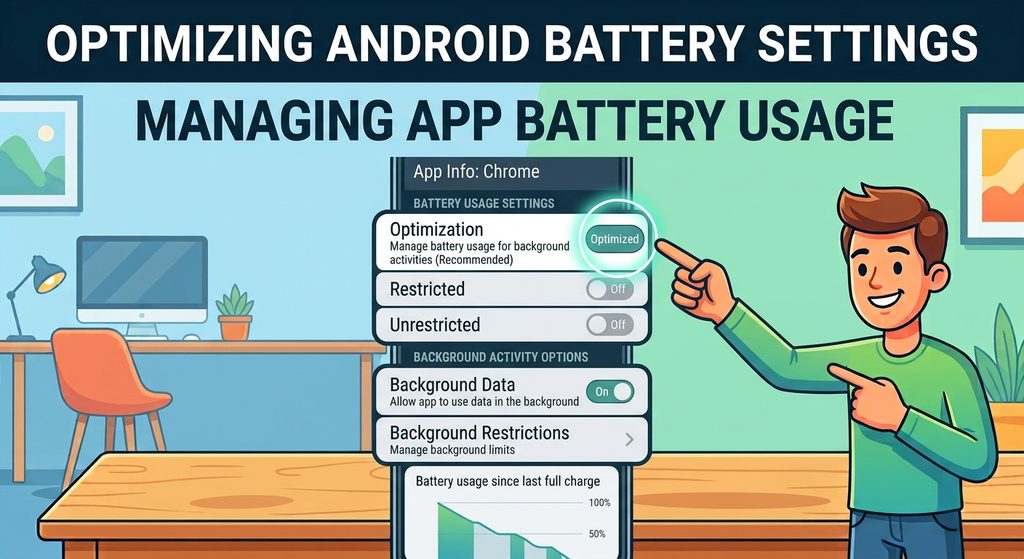
Check background data access

Some apps also have a separate background data setting.

  1. Open Settings → Apps.
  2. Select the affected app.
  3. Open Mobile data, Data usage, or the equivalent menu.
  4. Check whether background data is allowed.

The exact options depend on the device and Android version. Background data controls primarily affect mobile data, so changing them may not fix a genuine Wi-Fi disconnection. However, they can help explain why an app appears offline while the phone is locked.

Step 5: Look for Wi-Fi Sleep or Power-Saving Settings

Older Android devices and some manufacturer-customized systems include Wi-Fi sleep policies or wireless power-saving options.

These settings are not available on every modern Android phone, so do not worry if you cannot find them.

What to check

  1. Open Settings.
  2. Enter the Wi-Fi or Network and Internet section.
  3. Look for advanced Wi-Fi settings, intelligent Wi-Fi, or additional connectivity options.
  4. Check for any explicit setting that disables Wi-Fi during sleep or restricts connectivity while idle.
  5. If you find one, review its description and test the available alternatives.

On supported Samsung devices, Intelligent Wi-Fi may contain additional connectivity and power-saving options. The names and behavior can differ by model and software version.

Avoid changing unrelated developer settings or hidden system options based on instructions written for a different phone.

If no Wi-Fi sleep setting exists, skip this step. Its absence does not mean anything is wrong with your device.

Step 6: Forget the Wi-Fi Network and Reconnect

If your phone repeatedly loses its connection to one particular network, the saved Wi-Fi configuration may be contributing to the issue.

Removing the saved network and connecting again can resolve certain authentication or configuration glitches.

Follow these steps

  1. Open Settings → Wi-Fi or Network and Internet.
  2. Select your connected Wi-Fi network.
  3. Tap Forget or Forget network.
  4. Find the network again in the available Wi-Fi list.
  5. Enter the Wi-Fi password and reconnect.
  6. Lock the screen and check whether the connection remains stable.
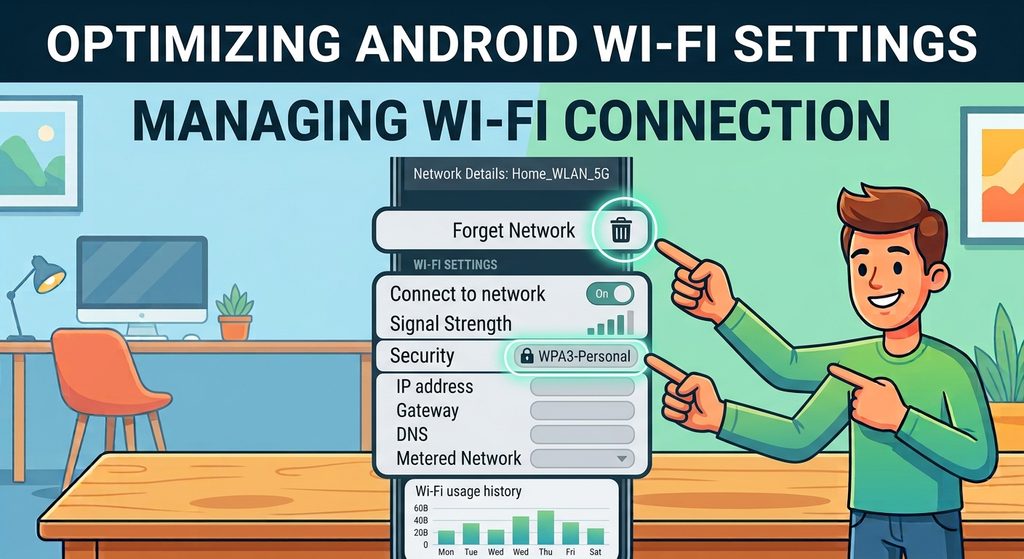
Make sure you know the correct Wi-Fi password before forgetting the network. This procedure removes the saved connection from your phone but does not delete any files or personal data.

Step 7: Check Your Router’s Settings

If the phone disconnects only from your home Wi-Fi, check whether the router is contributing to the problem.

Depending on the router model, investigate these settings:

  • Idle device disconnection: Check whether the router has a feature that disconnects inactive wireless devices.
  • DHCP lease settings: Unusual network configuration or address conflicts may interrupt connectivity.
  • Access control: Confirm that your phone has not been restricted by a device-access rule.
  • Firmware updates: Check the router manufacturer’s instructions for available updates.
  • Wi-Fi band compatibility: If your router offers both 2.4 GHz and 5 GHz networks, test the other band if your phone supports it.

Do not change several router settings simultaneously. Record the original values and test one change at a time. If you are unfamiliar with router administration, ask your internet provider for help rather than modifying advanced network settings blindly.

Step 8: Update Android and Your Apps

Outdated software can sometimes contribute to Wi-Fi instability, background processing issues, or compatibility problems.

To check for an Android update:

  1. Open Settings.
  2. Select System → Software updates or Software update, depending on your device.
  3. Check whether an update is available.
  4. Follow the manufacturer’s installation instructions.

Also update the affected apps through Google Play.

If the problem started immediately after an update, check whether the manufacturer has released a newer patch. Avoid installing unofficial firmware or random system files as a troubleshooting shortcut.

Additional Troubleshooting Tips

If your Android phone still disconnects when locked, use this quick checklist.

  • Test another network: This helps distinguish a router-specific problem from a phone-related issue.
  • Temporarily disable a third-party VPN: If you use one, test whether connectivity improves without it. Re-enable it after testing.
  • Check for overheating: Excessive heat may affect device performance. Let the phone cool naturally if it becomes unusually hot.
  • Review recent changes: Consider whether the problem began after installing an app, changing battery settings, or updating Android.
  • Consider resetting network settings: As a later option, use the network reset feature if your phone provides one. Read the confirmation screen carefully because saved Wi-Fi networks, Bluetooth pairings, or other network preferences may be erased.

If none of these steps works, contact your phone manufacturer or network provider. Persistent disconnections across multiple networks may indicate a software or hardware problem that needs further investigation.

Frequently Asked Questions

Why does Wi-Fi disconnect only when my Android screen is off?

Possible causes include manufacturer-specific power-saving settings, background restrictions, router problems, or a temporary connectivity glitch. Start by checking whether Wi-Fi itself disconnects or whether only individual apps stop working.

Will turning off Battery Saver fix the problem?

It may help if a power-saving feature is contributing to the issue, but it is not a guaranteed solution. Test it temporarily before making permanent changes.

Why do WhatsApp messages arrive only when I unlock my phone?

The phone may be restricting background activity, or the app may have notification, battery, or connectivity restrictions. Review WhatsApp’s app-specific settings and test whether the problem persists with Battery Saver disabled.

Should I factory-reset my phone?

A factory reset should be a last resort, not an early troubleshooting step. It erases personal data and settings, so back up important information first. Consider professional support before taking that step.

Conclusion

When Android Wi-Fi disconnects when the screen is off, the cause may be a background restriction, a manufacturer-specific power-saving feature, a router configuration issue, or a temporary software problem.

Start by confirming whether Wi-Fi actually disconnects. Then restart your phone and router, review battery and app settings, reconnect to the network, and check for software updates.

Make one change at a time and repeat the screen-off test after each adjustment. This approach helps you identify the cause without unnecessarily disabling useful features or resetting your entire device.

The best fix is the smallest change that restores a stable connection while allowing your phone to manage battery life normally.

Your Android phone connects to Wi-Fi perfectly while you are using it, but something changes as soon as you press the power button. Messages arrive late, downloads stop progressing, notifications appear only after you unlock the screen, or apps suddenly reconnect to the internet when you wake the phone.

If this sounds familiar, your phone may be restricting background activity, experiencing a Wi-Fi connectivity problem, or using a battery-saving feature that affects network access while the display is off.

The good news is that you can investigate several common causes without installing additional apps or resetting your phone. The exact settings vary between Android versions and manufacturers, including Samsung Galaxy, Google Pixel, Xiaomi, Redmi, and Motorola devices.

This guide explains how to troubleshoot the problem step by step, starting with simple checks and moving to more advanced solutions.

Why Does Android Wi-Fi Disconnect When the Screen Is Off?

When you lock your phone, Android may limit certain background activities to conserve battery power. However, your Wi-Fi connection should not necessarily disconnect every time the screen turns off.

The problem may be related to one or more of these factors:

  • Battery optimization: The system may restrict background activity for certain apps.
  • Wi-Fi power-saving settings: Some manufacturers provide additional controls that affect wireless connectivity during sleep.
  • Router problems: The router may disconnect an idle device or have trouble maintaining its connection.
  • Background data restrictions: Apps may be unable to communicate normally while running in the background.
  • Connectivity glitches: A temporary software problem can interfere with Wi-Fi after the phone locks.
  • Third-party apps: Battery savers, VPNs, firewalls, or network-management apps may affect connectivity.

Before changing several settings at once, test your phone and make one adjustment at a time. This makes it easier to identify the actual cause.

Step 1: Check Whether Wi-Fi Actually Disconnects

The first step is to determine whether the phone loses its Wi-Fi connection or whether individual apps simply stop working in the background.

These problems can look similar, but they require different solutions.

How to perform the test

  1. Connect your Android phone to your usual Wi-Fi network.
  2. Open a webpage to confirm that the internet is working.
  3. Turn off the screen and leave the phone locked for approximately two to five minutes.
  4. Unlock the phone and immediately check the Wi-Fi symbol.
  5. Open a webpage and see whether it loads immediately or only after a delay.

Repeat the test while keeping the phone in the same location.

If the Wi-Fi icon disappears or the phone switches to mobile data, investigate the wireless connection itself. If Wi-Fi remains connected but messages or downloads stop, background restrictions may be the more likely explanation.

Helpful tip: If possible, repeat the test with another Wi-Fi network. If the issue happens only on one network, the router or its configuration may be responsible.

Step 2: Restart Your Phone and Wi-Fi Router

A temporary network glitch can cause an Android phone to lose connectivity after being idle. Restarting both devices is a simple way to rule out short-lived problems before changing advanced settings.

Restart your Android phone

  1. Open the phone’s power menu.
  2. Select Restart if that option is available.
  3. Wait for the phone to boot completely.
  4. Reconnect to your Wi-Fi network if necessary.
  5. Lock the screen for several minutes and test the connection again.

Restart your router

If the problem continues, restart your wireless router using its normal power procedure. Wait until the Wi-Fi network becomes available again, then reconnect your phone.

Avoid pressing the router’s Reset button, which may erase its configuration and require you to set up the network again.

If other devices also lose their Wi-Fi connections when idle, the router deserves closer attention. If only your Android phone experiences the problem, continue to the next step.

Step 3: Check Battery Saver and Background Restrictions

Battery-saving features are designed to extend battery life, but some manufacturers add extra restrictions that can affect background tasks.

Android’s standard Battery Saver does not necessarily disconnect Wi-Fi when the screen turns off. Still, testing whether battery-saving settings influence your device is worthwhile.

Temporarily disable Battery Saver

  1. Open Settings.
  2. Navigate to Battery or Battery and device care, depending on your phone.
  3. Find Battery Saver, Power saving, or a similarly named option.
  4. Turn it off temporarily.
  5. Lock your phone and repeat the Wi-Fi test.

If connectivity improves, review your manufacturer’s additional power-saving controls before deciding which settings to keep disabled.

Check manufacturer-specific battery controls

Some Android phones offer extra features beyond the standard Android settings. Depending on the model, these may include:

  • Ultra power-saving modes
  • Automatic app sleeping
  • Background app restrictions
  • Aggressive battery management
  • Per-app power-saving rules

On Samsung Galaxy phones, for example, check the battery settings for background usage limits and sleeping apps. Other manufacturers may place similar options under Battery, Apps, or Special features.

Important: Do not disable every battery optimization setting on your phone. First test whether a specific feature is causing the problem. Unnecessary changes can increase battery consumption without improving Wi-Fi reliability.

Step 4: Allow Important Apps to Run in the Background

Sometimes Wi-Fi stays connected, but certain apps stop receiving messages or completing downloads when the screen is off.

Messaging apps, email clients, cloud storage services, and download managers may need permission to continue background work.

Review an app’s battery settings

  1. Open Settings and select Apps.
  2. Choose the affected application.
  3. Tap App battery usage, Battery, or a similar option.
  4. Review the available background activity controls.
  5. If the app is restricted, select a less restrictive setting where appropriate.

On some devices, the options may include Restricted, Optimized, and Unrestricted. The labels and available choices vary.

Start with the specific app that fails rather than changing settings for every application.

For example, if email notifications arrive only after unlocking your phone, review the email app’s background permissions. If a large file download pauses, check the download app’s battery restrictions and whether it supports downloads while running in the background.

Check background data access

Some apps also have a separate background data setting.

  1. Open Settings → Apps.
  2. Select the affected app.
  3. Open Mobile data, Data usage, or the equivalent menu.
  4. Check whether background data is allowed.

The exact options depend on the device and Android version. Background data controls primarily affect mobile data, so changing them may not fix a genuine Wi-Fi disconnection. However, they can help explain why an app appears offline while the phone is locked.

Step 5: Look for Wi-Fi Sleep or Power-Saving Settings

Older Android devices and some manufacturer-customized systems include Wi-Fi sleep policies or wireless power-saving options.

These settings are not available on every modern Android phone, so do not worry if you cannot find them.

What to check

  1. Open Settings.
  2. Enter the Wi-Fi or Network and Internet section.
  3. Look for advanced Wi-Fi settings, intelligent Wi-Fi, or additional connectivity options.
  4. Check for any explicit setting that disables Wi-Fi during sleep or restricts connectivity while idle.
  5. If you find one, review its description and test the available alternatives.

On supported Samsung devices, Intelligent Wi-Fi may contain additional connectivity and power-saving options. The names and behavior can differ by model and software version.

Avoid changing unrelated developer settings or hidden system options based on instructions written for a different phone.

If no Wi-Fi sleep setting exists, skip this step. Its absence does not mean anything is wrong with your device.

Step 6: Forget the Wi-Fi Network and Reconnect

If your phone repeatedly loses its connection to one particular network, the saved Wi-Fi configuration may be contributing to the issue.

Removing the saved network and connecting again can resolve certain authentication or configuration glitches.

Follow these steps

  1. Open Settings → Wi-Fi or Network and Internet.
  2. Select your connected Wi-Fi network.
  3. Tap Forget or Forget network.
  4. Find the network again in the available Wi-Fi list.
  5. Enter the Wi-Fi password and reconnect.
  6. Lock the screen and check whether the connection remains stable.

Make sure you know the correct Wi-Fi password before forgetting the network. This procedure removes the saved connection from your phone but does not delete any files or personal data.

Step 7: Check Your Router’s Settings

If the phone disconnects only from your home Wi-Fi, check whether the router is contributing to the problem.

Depending on the router model, investigate these settings:

  • Idle device disconnection: Check whether the router has a feature that disconnects inactive wireless devices.
  • DHCP lease settings: Unusual network configuration or address conflicts may interrupt connectivity.
  • Access control: Confirm that your phone has not been restricted by a device-access rule.
  • Firmware updates: Check the router manufacturer’s instructions for available updates.
  • Wi-Fi band compatibility: If your router offers both 2.4 GHz and 5 GHz networks, test the other band if your phone supports it.

Do not change several router settings simultaneously. Record the original values and test one change at a time. If you are unfamiliar with router administration, ask your internet provider for help rather than modifying advanced network settings blindly.

Step 8: Update Android and Your Apps

Outdated software can sometimes contribute to Wi-Fi instability, background processing issues, or compatibility problems.

To check for an Android update:

  1. Open Settings.
  2. Select System → Software updates or Software update, depending on your device.
  3. Check whether an update is available.
  4. Follow the manufacturer’s installation instructions.

Also update the affected apps through Google Play.

If the problem started immediately after an update, check whether the manufacturer has released a newer patch. Avoid installing unofficial firmware or random system files as a troubleshooting shortcut.

Additional Troubleshooting Tips

If your Android phone still disconnects when locked, use this quick checklist.

  • Test another network: This helps distinguish a router-specific problem from a phone-related issue.
  • Temporarily disable a third-party VPN: If you use one, test whether connectivity improves without it. Re-enable it after testing.
  • Check for overheating: Excessive heat may affect device performance. Let the phone cool naturally if it becomes unusually hot.
  • Review recent changes: Consider whether the problem began after installing an app, changing battery settings, or updating Android.
  • Consider resetting network settings: As a later option, use the network reset feature if your phone provides one. Read the confirmation screen carefully because saved Wi-Fi networks, Bluetooth pairings, or other network preferences may be erased.

If none of these steps works, contact your phone manufacturer or network provider. Persistent disconnections across multiple networks may indicate a software or hardware problem that needs further investigation.

Frequently Asked Questions

Why does Wi-Fi disconnect only when my Android screen is off?

Possible causes include manufacturer-specific power-saving settings, background restrictions, router problems, or a temporary connectivity glitch. Start by checking whether Wi-Fi itself disconnects or whether only individual apps stop working.

Will turning off Battery Saver fix the problem?

It may help if a power-saving feature is contributing to the issue, but it is not a guaranteed solution. Test it temporarily before making permanent changes.

Why do WhatsApp messages arrive only when I unlock my phone?

The phone may be restricting background activity, or the app may have notification, battery, or connectivity restrictions. Review WhatsApp’s app-specific settings and test whether the problem persists with Battery Saver disabled.

Should I factory-reset my phone?

A factory reset should be a last resort, not an early troubleshooting step. It erases personal data and settings, so back up important information first. Consider professional support before taking that step.

Conclusion

When Android Wi-Fi disconnects when the screen is off, the cause may be a background restriction, a manufacturer-specific power-saving feature, a router configuration issue, or a temporary software problem.

Start by confirming whether Wi-Fi actually disconnects. Then restart your phone and router, review battery and app settings, reconnect to the network, and check for software updates.

Make one change at a time and repeat the screen-off test after each adjustment. This approach helps you identify the cause without unnecessarily disabling useful features or resetting your entire device.

The best fix is the smallest change that restores a stable connection while allowing your phone to manage battery life normally.

Related Posts

LEAVE A REPLY

Please enter your comment!
Please enter your name here

Related posts

Latest posts

How to Recognize Suspicious App Permissions Before Installing an App

Installing a new Android app is usually simple, but it is worth checking what the app wants to access before you tap Install. Some...

How to Review the Privacy Settings on Your Android Phone

Your Android phone contains a lot of personal information, including photos, messages, contacts, location information, files, and data from the apps you use. Android provides...

How to Troubleshoot Low Storage Warnings on Android

A low storage warning means your Android phone is running short of available space. When storage becomes too full, you may have difficulty installing...