

An Android phone can become slower over time for many different reasons. You may notice apps taking longer to open, screens responding slowly, animations becoming less smooth, or the phone taking longer to complete simple tasks.
A slow phone does not always mean that the device is old or needs to be replaced. Before making major changes, you can check storage, restart the phone, update apps and Android, review battery and background activity, and remove things you no longer need.
The exact settings can vary between Android versions and manufacturers, but the general troubleshooting process is similar.
Main Points
- Restart the phone before trying complicated solutions.
- Check how much storage space is available.
- Remove unnecessary files and unused apps.
- Keep Android and installed apps updated.
- Check which apps are using significant resources.
- Clear an app’s cache when a particular app is slow or malfunctioning.
- Avoid installing questionable “phone booster” or cleaner apps.
- If the entire phone remains slow, investigate whether the problem is system-wide rather than caused by one app.
1. Restart Your Android Phone
A simple restart is one of the first things to try when your phone suddenly becomes slow.
Restarting closes active processes and gives Android a fresh start.
To restart your phone:
- Open the power menu.
- Select Restart.
- Wait until the phone has fully started.
- Try opening a few apps again.
If the phone becomes noticeably faster after restarting, the slowdown may have been related to a temporary process or software issue.
2. Check Your Available Storage
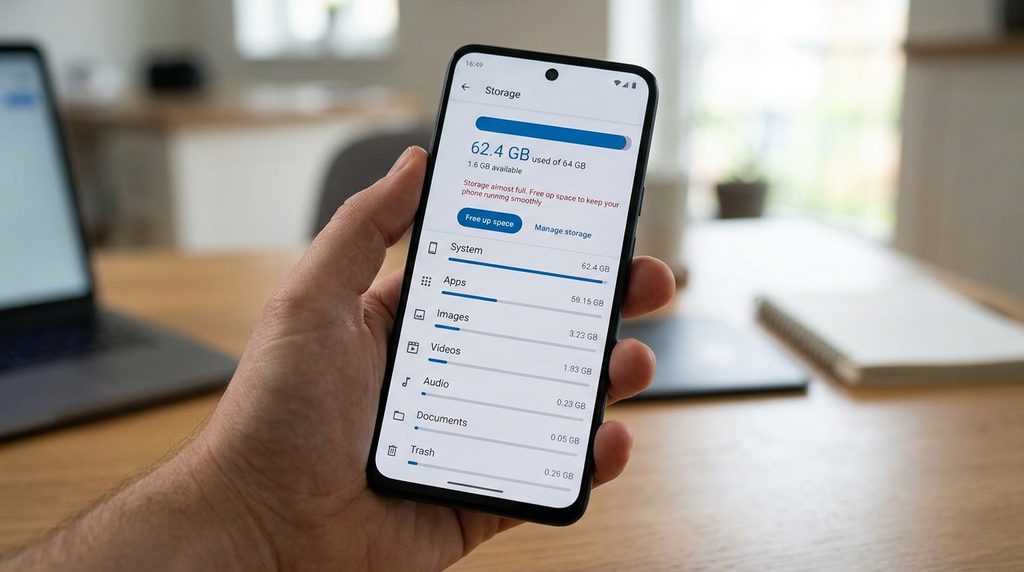
Low storage can make managing files and apps more difficult and may contribute to performance problems.
Open:
Settings → Storage
The exact location may be different on your phone.
Check how much free space remains.
If the storage is nearly full, look for things you no longer need, such as:
- Old downloads
- Large videos
- Duplicate photos
- Unused apps
- Offline media
- Large files you have already backed up
Don’t delete files simply because you don’t recognize their names. If you are unsure about a file, leave it alone until you know what it is.
3. Remove Apps You Don’t Use
Unused apps can take up storage and may perform background tasks.
Open your installed-app list and review applications you no longer need.
If you find an app that you haven’t used for months and don’t need, consider uninstalling it.
Before removing an app, make sure you understand whether it contains locally stored information that you still need.
Avoid uninstalling essential system applications simply because they appear unfamiliar.
4. Delete Unnecessary Downloads
The Downloads folder can accumulate files over time.
Open your phone’s Files or My Files app and check the Downloads folder.
You may find:
- Old documents
- Installation files
- Images
- Videos
- ZIP files
- Duplicate downloads
Delete only files you no longer need.
If an important document is stored there, move or back it up before deleting it.
5. Check Which Apps Are Using the Most Storage
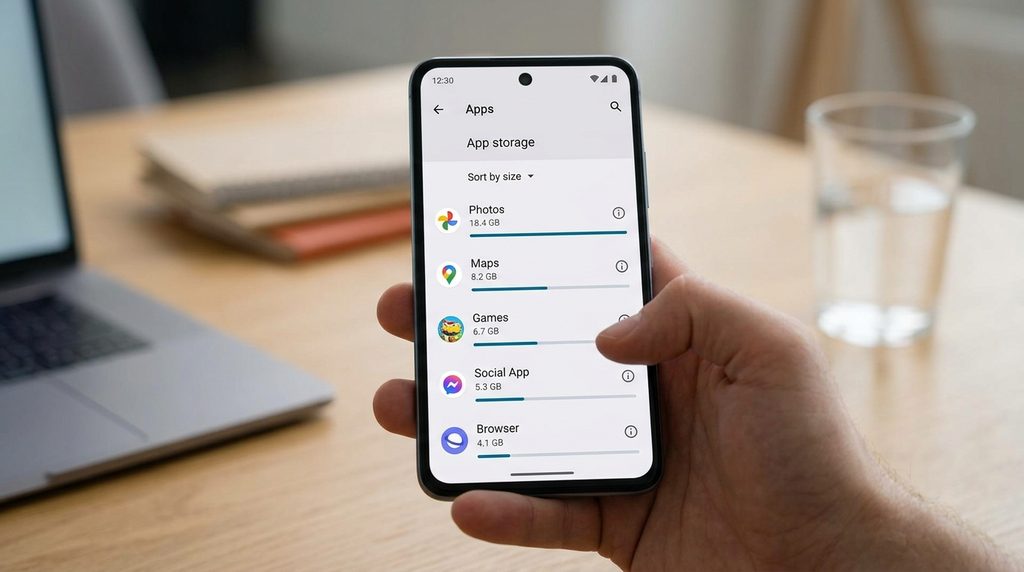
Instead of deleting files randomly, check which apps are taking up the most space.
Depending on your Android version, you may find this information under:
Settings → Apps
Then select an app and open its storage information.
Some phones also provide a storage-management screen that sorts apps by size.
Large games, video editors, social media apps, and streaming apps can accumulate significant amounts of data over time.
6. Clear the Cache of a Slow App
If the entire phone is not slow but one particular app takes a long time to open or respond, its cached files may be worth checking.
Usually, you can find the option under:
Settings → Apps → [App Name] → Storage & cache
Then select:
Clear cache
Clearing the cache removes temporary cached files.
It is different from Clear storage or Clear data, which can remove locally stored app information or reset the app.
If you’re troubleshooting performance, start with clearing the cache rather than immediately clearing the app’s data.
7. Update Your Apps
Open the Google Play Store and check for available app updates.
Updates can include:
- Bug fixes
- Performance improvements
- Compatibility changes
- Security fixes
If your phone has many pending updates, install them when convenient.
After updating an app that was particularly slow, test it again.
If the slowdown started immediately after an update, check the app’s recent information or official support channels for reports of similar problems.
8. Check for an Android System Update
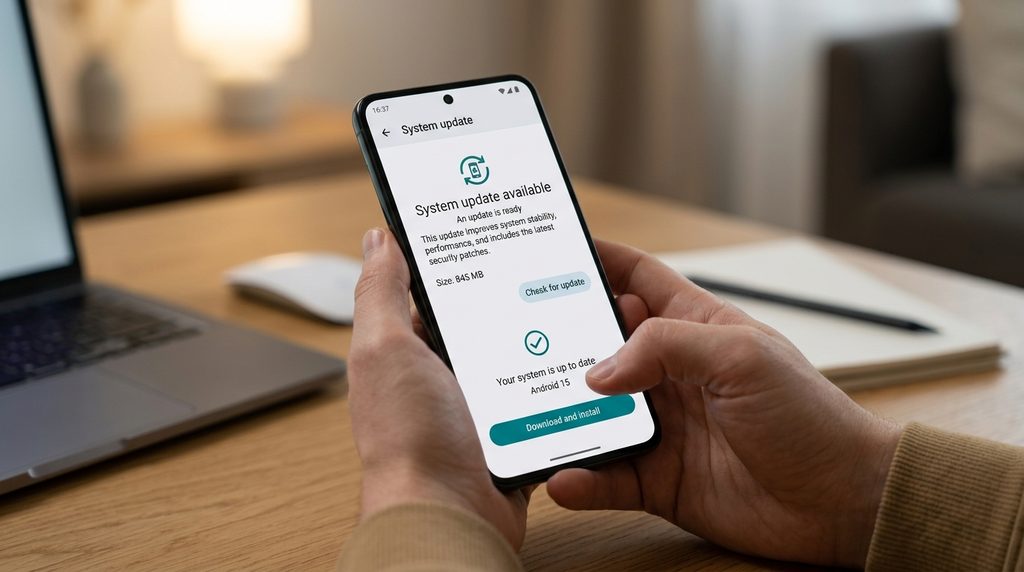
Your phone’s operating system can also receive updates.
Look for a software-update option in Settings.
Depending on your phone, it might be under:
Settings → System → Software update
or another manufacturer-specific section.
If an update is available, review the information provided by the manufacturer and install it when appropriate.
9. Check Battery and Background Activity
Some apps may continue performing tasks when you’re not actively using them.
Open the battery settings and check which apps have been using significant battery recently.
Depending on your Android version, you may see:
- Battery usage
- Battery usage by app
- Background activity
- App battery usage
If an app you rarely use is consuming an unusual amount of battery, open its individual settings and review its background or battery options.
Don’t restrict every application.
Some apps need background activity for features such as notifications, synchronization, location, or other functions.
10. Check Whether One App Is Causing the Problem
Pay attention to when the phone becomes slow.
If the phone becomes slow immediately after opening one particular application, that app may be contributing to the problem.
Try:
- Closing the app.
- Restarting the phone.
- Updating the app.
- Clearing its cache.
- Checking its battery usage.
- Reinstalling it if necessary.
If the phone is slow even when no particular app is open, investigate system-wide causes such as storage, updates, or device age.
11. Reduce Unnecessary Background Activity
Android automatically manages many background processes, so you generally do not need to manually stop every app.
However, if a particular app is consuming excessive battery or data, check its individual battery and background settings.
Depending on the device, you may be able to choose a more restricted battery mode.
Keep in mind that stronger restrictions can affect:
- Notifications
- Automatic synchronization
- Background uploads
- Location updates
Only restrict apps when you understand what functionality may be affected.
12. Reduce Unnecessary Home-Screen Widgets
Widgets can be useful, but some continuously update information.
If your home screen contains many widgets that you rarely use, consider removing the unnecessary ones.
For example, you might remove widgets that you never check and keep only the ones that provide useful information.
This won’t transform every slow phone into a fast one, but simplifying the home screen can make everyday use feel less cluttered.
13. Don’t Install Random “Phone Booster” Apps
Be careful with applications that promise to make your phone dramatically faster with one tap.
You generally don’t need to install an unknown cleaner or booster app simply because your phone feels slow.
Some cleaner applications may provide useful storage-management features, but others can add notifications, consume resources, request broad permissions, or provide little practical benefit.
Start with Android’s built-in storage, battery, and app-management tools whenever possible.
14. Check Whether the Phone Is Overheating
A phone can behave differently when it becomes very warm.
If the device is unusually hot, stop demanding tasks such as gaming, video processing, or intensive downloads and allow it to cool naturally.
Avoid covering the phone with materials that prevent heat from escaping.
If the phone repeatedly becomes extremely hot during ordinary use, investigate the specific app or activity responsible and consider contacting the manufacturer’s support service.
Do not deliberately cool a hot phone using extreme methods such as placing it in a freezer.
15. Check the Phone After Freeing Storage
After deleting unnecessary files or apps, restart the phone and test it again.
Try several normal tasks:
- Open the Settings app.
- Open the browser.
- Switch between apps.
- Open the Gallery.
- Search for a file.
- Play a short video.
This can help you determine whether the performance problem has improved.
16. Consider the Age and Hardware of the Phone
Not every performance problem can be fixed through software settings.
Older phones may have hardware limitations compared with newer devices.
Performance can also depend on:
- Available RAM
- Processor performance
- Storage technology
- Battery condition
- Software requirements
- App complexity
If the phone has always struggled with demanding applications, changing a few settings may not produce a dramatic improvement.
17. Back Up Important Data Before Major Changes
If you are considering more significant troubleshooting, make sure important information is backed up.
Depending on your setup, this could include:
- Photos
- Videos
- Contacts
- Documents
- Messages
- Important app data
A backup is especially important before performing a factory reset.
A factory reset removes data from the device and should not be treated as the first solution to an ordinary slowdown.
Common Problems
My Phone Became Slow Suddenly
Start with a restart and check storage, recent app updates, and battery usage.
A sudden slowdown may be different from gradual performance decline.
My Phone Is Slow When Storage Is Almost Full
Check which files and apps are consuming the most space and remove things you no longer need.
Keep important files backed up before deleting them.
Only One App Is Slow
Update that app, restart the phone, and consider clearing its cache.
If necessary, reinstall the app after checking that important data is backed up or synchronized.
Will Clearing Cache Make My Whole Phone Faster?
Not necessarily.
Clearing the cache of a particular app may help that app if its temporary files are causing a problem, but it is not a universal performance solution.
Should I Close Every App in Recent Apps?
Usually, no.
Android is designed to manage apps and memory automatically. Constantly closing every app is not generally necessary.
Should I Factory Reset My Phone?
A factory reset is a major step and should generally be considered only after less destructive troubleshooting methods have failed and important data has been backed up.
Important Things to Know
- Restart the phone before trying complicated fixes.
- Check storage before deleting random files.
- Keep Android and important apps updated.
- Clear cache only when appropriate.
- Don’t confuse Clear cache with Clear storage/data.
- Don’t install unknown booster or cleaner apps just to improve performance.
- Avoid restricting essential apps without understanding the consequences.
- An older phone may have hardware limitations that software changes cannot completely solve.
- Back up important information before major troubleshooting.
- Android menus vary between manufacturers and versions.
Conclusion
If your Android phone is running slowly, start by identifying whether the problem is temporary, caused by a particular app, or affecting the entire device.
Restart the phone, check available storage, remove unnecessary files and apps, and make sure Android and your applications are updated. If one app is particularly slow, investigate its cache, storage, battery usage, and background activity.
Avoid aggressive “speed-up” solutions that promise instant results. Android already provides several tools for managing storage, apps, battery, and system updates.
If the phone remains slow after these steps, especially if it is an older device, the limitation may be related to its hardware or the demands of modern applications.