

How to Troubleshoot an Android App That Will Not Install

Installing an app on Android is usually straightforward, but sometimes an app refuses to install, gets stuck at “Installing,” shows a download error, or fails with a message about compatibility or insufficient storage.

The problem can come from several different sources, including low storage, an unstable internet connection, Google Play Store problems, outdated Android software, account issues, app compatibility, or restrictions on installing apps.

The exact menus can vary between Android versions and phone manufacturers, but the troubleshooting steps below apply broadly.

Main Points

  • Check your internet connection first.
  • Make sure your phone has enough free storage.
  • Restart the phone and try the installation again.
  • Check whether the problem affects one app or multiple apps.
  • Clear the Google Play Store cache if Play Store installation is failing.
  • Check Google Play Services and Android system updates.
  • Make sure the app is compatible with your device.
  • Check parental controls or other installation restrictions.
  • Avoid downloading APK files from unknown websites.
  • Try advanced troubleshooting only after simpler solutions have failed.

1. Check Your Internet Connection

A weak or unstable internet connection can prevent an app from downloading or installing correctly.

First, try opening a website or another internet-based app.

If you’re using Wi-Fi:

  1. Check that Wi-Fi is connected.
  2. Move closer to the router if the signal is weak.
  3. Try turning Wi-Fi off and back on.
  4. If possible, test another Wi-Fi network.

If you’re using mobile data, make sure mobile data is enabled and that your data connection is working normally.

You can also switch between Wi-Fi and mobile data to determine whether the connection is causing the problem.


2. Check Available Storage

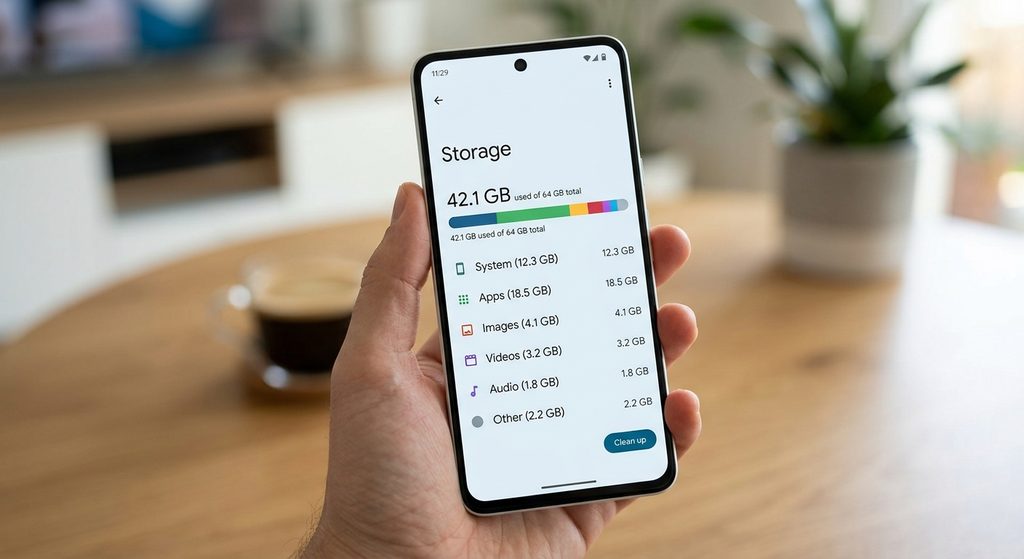
Insufficient storage is one of the most common reasons an app may fail to install.

Go to:

Settings → Storage

The exact location may vary.

Check how much free space is available.

Remember that an app may need more temporary space during installation than the final app size suggests.

If storage is almost full, consider removing unnecessary:

  • Large videos
  • Duplicate photos
  • Downloads
  • Unused apps
  • Temporary files

Don’t delete files simply because they are large. Make sure you know what they contain before removing them.

3. Restart Your Android Phone

If you have enough storage and a working internet connection, restart the phone.

A temporary system or Play Store problem can sometimes prevent an installation from completing.

After restarting:

  1. Connect to the internet.
  2. Open Google Play Store.
  3. Find the app.
  4. Try installing it again.

If the installation works after restarting, you can continue using the phone normally.


4. Check Whether Only One App Is Affected

Try installing another small, trusted app from Google Play.

This is a useful diagnostic step.

If Other Apps Install Normally

The problem may be specific to the app you’re trying to install.

Possible causes include:

  • Compatibility
  • App availability
  • Developer restrictions
  • An existing version of the app
  • Device requirements

If No Apps Will Install

The problem may be related to:

  • Google Play Store
  • Google Play Services
  • Storage
  • Internet connectivity
  • Your Google account
  • Android system settings

This distinction helps you avoid changing unrelated settings.


5. Check Whether the App Is Compatible With Your Phone

Open the app’s Google Play Store page.

Look for information indicating whether the app is available for your device.

Some apps require:

  • A particular Android version
  • Specific hardware
  • Certain device features
  • A compatible processor architecture
  • A supported screen or device configuration

If Google Play indicates that the app isn’t compatible with your device, repeatedly retrying the installation usually won’t solve the underlying compatibility issue.

In that situation, check whether the developer provides a compatible version.


6. Check Whether the App Is Already Installed

Sometimes an installation problem happens because an older version of the app is already on the phone.

Open:

Settings → Apps

Search for the app.

If you find it, check whether it is already installed or disabled.

You may also find the app through Google Play Store.

If an update is available, try updating the existing installation rather than installing the app again.

Be careful when uninstalling an existing app because locally stored data may be removed.


7. Check the Google Play Store

If you’re installing the app through Google Play and the download is stuck or repeatedly fails, the Play Store itself may need attention.

Open:

Settings → Apps → Google Play Store

Then check its storage settings.

Look for:

Clear cache

Clearing the cache removes temporary files associated with the Play Store.

After clearing the cache, open Google Play Store again and try the installation.

8. Clear Google Play Store Cache

If you haven’t already done so, clear the Play Store cache.

A typical path is:

Settings → Apps → Google Play Store → Storage & cache → Clear cache

The exact wording can vary.

Then:

  1. Close Settings.
  2. Open Google Play Store.
  3. Search for the app.
  4. Try the installation again.

Start with Clear cache rather than clearing Play Store storage/data.

Clearing storage can reset Play Store-related settings and may require additional setup.


9. Check Google Play Services

Google Play Services supports many functions used by Android and Google apps.

If multiple apps are failing to install through Google Play, check whether Google Play Services is functioning normally.

You can usually find it under:

Settings → Apps → Google Play Services

Depending on your phone, it may be listed among system apps.

If you’re troubleshooting Play Store installation problems, avoid randomly disabling or uninstalling system components.

If an update is available through your phone’s normal update mechanisms, install it.


10. Check Android System Updates

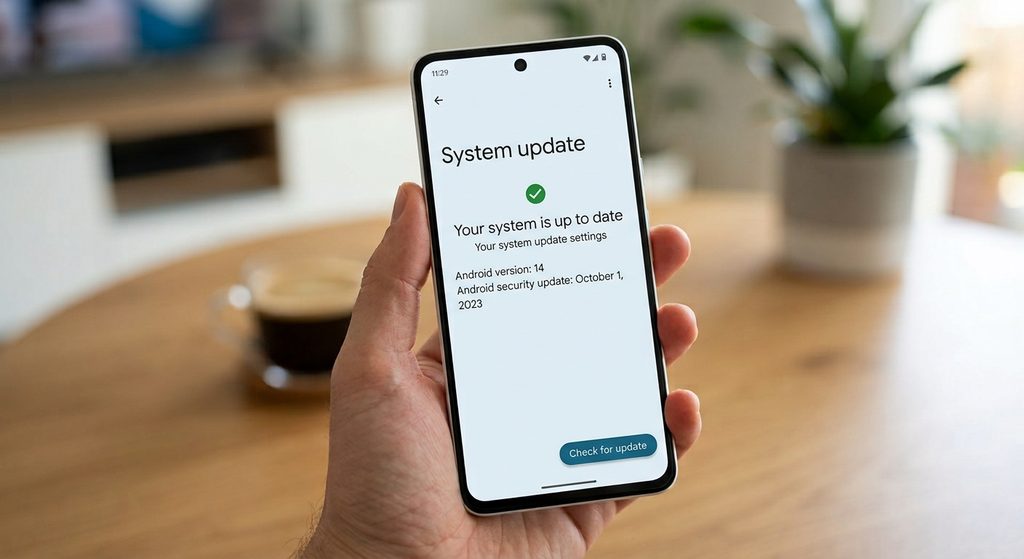
An outdated Android version can sometimes cause compatibility problems with newer applications.

Open your phone’s software-update settings and check whether an update is available.

The menu may be called something like:

Settings → System → Software update

or:

Settings → Software update

Install available updates according to your phone manufacturer’s instructions.

After updating, restart the phone and try the app installation again.

11. Check Google Play Store Download Preferences

Google Play Store can have settings that affect how apps are downloaded.

Open Google Play Store and check its settings.

Look for options related to:

  • Network preferences
  • App download preferences
  • Auto-update settings
  • Storage-related behavior

If downloads are restricted to Wi-Fi and you’re using mobile data, for example, the download may not proceed as expected.

Choose the appropriate setting for your connection.


12. Check Your Google Account

If Google Play Store is behaving unusually, your Google account may also be relevant.

Make sure you’re signed into the expected Google account.

Check whether other Google Play Store functions work normally, such as viewing your installed apps or checking app updates.

Avoid removing your Google account as an early troubleshooting step.

If account-related troubleshooting becomes necessary, make sure you know your account credentials before making changes.


13. Check Date and Time Settings

Incorrect date or time settings can cause problems with some internet-connected services.

Open:

Settings → System → Date & time

If available, enable automatic date and time.

Also check the automatic time-zone setting if your phone provides it.

Then restart the Play Store and try the installation again.


14. Check Parental Controls or Installation Restrictions

If you’re using a managed device or parental controls are enabled, some apps may be restricted.

Google Play Store can also apply age-related or content restrictions.

If an app cannot be installed because of a restriction, changing random system settings won’t necessarily fix the problem.

Check the relevant Play Store or device-management settings and make sure the installation is permitted.


15. Check Whether the Phone Is Managed

Work, school, or organization-managed Android phones can have restrictions that prevent certain apps from being installed.

If the phone belongs to an organization or is managed by an administrator, the restriction may be intentional.

In that situation, contact the device administrator rather than attempting to bypass the restriction.


16. Check the App’s Availability in Your Region

Some apps aren’t available in every country or region.

If Google Play doesn’t offer the app for your account or device, the issue may not be a technical installation problem.

Check the developer’s official website or documentation for information about availability.

Avoid downloading unofficial copies simply because the app isn’t available through your normal app store.


17. Be Careful With APK Files

Android allows apps to be installed from sources other than Google Play under certain circumstances.

However, downloading an APK from an unknown website can introduce security and privacy risks.

If an app is available through Google Play, using the official store is generally the simpler approach.

If you legitimately need to install an APK, obtain it from a trustworthy source such as the app developer or manufacturer and verify that the version is intended for your device.

Don’t install modified or pirated APKs just to bypass an installation problem.


18. Check Whether an Existing App Version Is Causing a Conflict

If you previously installed the app from another source, there may already be a version of the app on your phone.

An APK from a different source may also have a different signing configuration, which can prevent another version from being installed over it.

Check:

Settings → Apps → [App Name]

If an existing installation is present, determine whether you need to update it, keep it, or remove it.

Before uninstalling an app, check whether important data is stored locally.


19. Check for a Pending System or App Installation

Sometimes another installation or update may still be processing.

Open Google Play Store and check:

Profile picture → Manage apps & device

Look for pending downloads or updates.

If several apps are waiting, allow the current downloads or updates to finish and then try installing the problematic app again.


20. Reset Network Settings as a Last Resort

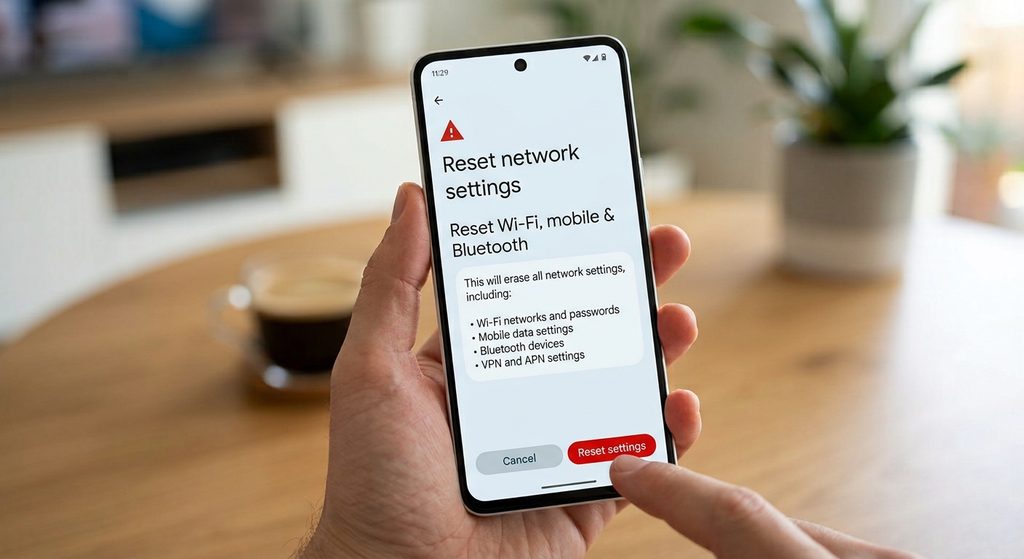
If downloads repeatedly fail despite having a working connection, resetting network settings may be worth considering.

Depending on your phone, the option may be called:

Reset Wi-Fi, mobile & Bluetooth

or something similar.

Be aware that this can remove saved:

  • Wi-Fi networks
  • Wi-Fi passwords
  • Bluetooth pairings
  • Some network-related settings

You will need to reconnect to Wi-Fi and pair Bluetooth devices again afterward.

Use this step only after simpler network troubleshooting has failed.

21. Try the Installation Again After Each Major Change

Don’t change ten settings at once.

Instead, make one relevant change and test the installation.

For example:

  1. Check storage.
  2. Try installing.
  3. Restart the phone.
  4. Try again.
  5. Clear Play Store cache.
  6. Try again.
  7. Check updates.
  8. Try again.

This approach makes it much easier to identify what actually solved the problem.


Common Problems

The App Download Is Stuck

Check your internet connection and available storage first.

Then restart the phone and check Google Play Store for pending downloads or updates.

Google Play Says “Pending”

Check your connection, storage, and other downloads currently waiting in Google Play Store.

If several apps are queued, allow pending updates to finish before trying again.

The App Says It Isn’t Compatible With My Device

Check the app’s requirements and your Android version.

If the developer doesn’t support your device, installing the app may not be possible through the normal supported method.

Apps Won’t Install After a Google Play Store Problem

Check the Play Store cache, Google Play Services, internet connection, storage, and Android updates.

I Have Enough Storage but the App Still Won’t Install

Free storage isn’t the only possible cause.

Check compatibility, Play Store problems, existing versions of the app, account issues, and device restrictions.

An APK Won’t Install

Check that the APK is intended for your Android version and device architecture.

Also consider whether another version of the same app is already installed.

Only use APKs from trustworthy sources.


Important Things to Know

  • Low storage is only one possible cause of installation problems.
  • Google Play Store problems can affect multiple apps.
  • Compatibility requirements differ between apps and devices.
  • Android menus vary between manufacturers and software versions.
  • Clearing Play Store cache is different from clearing its storage/data.
  • Don’t remove your Google account as an early troubleshooting step.
  • Managed phones may intentionally block certain installations.
  • Some apps are unavailable in particular regions.
  • Avoid unknown or modified APK files.
  • Back up important app data before uninstalling an existing app.
  • Network resets can remove saved Wi-Fi and Bluetooth connections.
  • If only one app fails while everything else installs normally, investigate that app’s compatibility and existing installation before changing system settings.

Conclusion

When an Android app won’t install, start with the basics: check your internet connection, confirm that you have enough storage, restart the phone, and determine whether the problem affects one app or every app.

If Google Play Store is involved, checking its cache, Google Play Services, pending downloads, and system updates can help. If only one application refuses to install, investigate compatibility, regional availability, existing versions, and device restrictions.

Avoid jumping immediately to advanced solutions or downloading APK files from unknown websites. Work through the troubleshooting steps one at a time so you can identify the actual cause without unnecessarily changing other Android settings.

Installing an app on Android is usually straightforward, but sometimes an app refuses to install, gets stuck at “Installing,” shows a download error, or fails with a message about compatibility or insufficient storage.

The problem can come from several different sources, including low storage, an unstable internet connection, Google Play Store problems, outdated Android software, account issues, app compatibility, or restrictions on installing apps.

The exact menus can vary between Android versions and phone manufacturers, but the troubleshooting steps below apply broadly.

Main Points

  • Check your internet connection first.
  • Make sure your phone has enough free storage.
  • Restart the phone and try the installation again.
  • Check whether the problem affects one app or multiple apps.
  • Clear the Google Play Store cache if Play Store installation is failing.
  • Check Google Play Services and Android system updates.
  • Make sure the app is compatible with your device.
  • Check parental controls or other installation restrictions.
  • Avoid downloading APK files from unknown websites.
  • Try advanced troubleshooting only after simpler solutions have failed.

1. Check Your Internet Connection

A weak or unstable internet connection can prevent an app from downloading or installing correctly.

First, try opening a website or another internet-based app.

If you’re using Wi-Fi:

  1. Check that Wi-Fi is connected.
  2. Move closer to the router if the signal is weak.
  3. Try turning Wi-Fi off and back on.
  4. If possible, test another Wi-Fi network.

If you’re using mobile data, make sure mobile data is enabled and that your data connection is working normally.

You can also switch between Wi-Fi and mobile data to determine whether the connection is causing the problem.


2. Check Available Storage

Insufficient storage is one of the most common reasons an app may fail to install.

Go to:

Settings → Storage

The exact location may vary.

Check how much free space is available.

Remember that an app may need more temporary space during installation than the final app size suggests.

If storage is almost full, consider removing unnecessary:

  • Large videos
  • Duplicate photos
  • Downloads
  • Unused apps
  • Temporary files

Don’t delete files simply because they are large. Make sure you know what they contain before removing them.


3. Restart Your Android Phone

If you have enough storage and a working internet connection, restart the phone.

A temporary system or Play Store problem can sometimes prevent an installation from completing.

After restarting:

  1. Connect to the internet.
  2. Open Google Play Store.
  3. Find the app.
  4. Try installing it again.

If the installation works after restarting, you can continue using the phone normally.


4. Check Whether Only One App Is Affected

Try installing another small, trusted app from Google Play.

This is a useful diagnostic step.

If Other Apps Install Normally

The problem may be specific to the app you’re trying to install.

Possible causes include:

  • Compatibility
  • App availability
  • Developer restrictions
  • An existing version of the app
  • Device requirements

If No Apps Will Install

The problem may be related to:

  • Google Play Store
  • Google Play Services
  • Storage
  • Internet connectivity
  • Your Google account
  • Android system settings

This distinction helps you avoid changing unrelated settings.


5. Check Whether the App Is Compatible With Your Phone

Open the app’s Google Play Store page.

Look for information indicating whether the app is available for your device.

Some apps require:

  • A particular Android version
  • Specific hardware
  • Certain device features
  • A compatible processor architecture
  • A supported screen or device configuration

If Google Play indicates that the app isn’t compatible with your device, repeatedly retrying the installation usually won’t solve the underlying compatibility issue.

In that situation, check whether the developer provides a compatible version.


6. Check Whether the App Is Already Installed

Sometimes an installation problem happens because an older version of the app is already on the phone.

Open:

Settings → Apps

Search for the app.

If you find it, check whether it is already installed or disabled.

You may also find the app through Google Play Store.

If an update is available, try updating the existing installation rather than installing the app again.

Be careful when uninstalling an existing app because locally stored data may be removed.


7. Check the Google Play Store

If you’re installing the app through Google Play and the download is stuck or repeatedly fails, the Play Store itself may need attention.

Open:

Settings → Apps → Google Play Store

Then check its storage settings.

Look for:

Clear cache

Clearing the cache removes temporary files associated with the Play Store.

After clearing the cache, open Google Play Store again and try the installation.

8. Clear Google Play Store Cache

If you haven’t already done so, clear the Play Store cache.

A typical path is:

Settings → Apps → Google Play Store → Storage & cache → Clear cache

The exact wording can vary.

Then:

  1. Close Settings.
  2. Open Google Play Store.
  3. Search for the app.
  4. Try the installation again.

Start with Clear cache rather than clearing Play Store storage/data.

Clearing storage can reset Play Store-related settings and may require additional setup.


9. Check Google Play Services

Google Play Services supports many functions used by Android and Google apps.

If multiple apps are failing to install through Google Play, check whether Google Play Services is functioning normally.

You can usually find it under:

Settings → Apps → Google Play Services

Depending on your phone, it may be listed among system apps.

If you’re troubleshooting Play Store installation problems, avoid randomly disabling or uninstalling system components.

If an update is available through your phone’s normal update mechanisms, install it.


10. Check Android System Updates

An outdated Android version can sometimes cause compatibility problems with newer applications.

Open your phone’s software-update settings and check whether an update is available.

The menu may be called something like:

Settings → System → Software update

or:

Settings → Software update

Install available updates according to your phone manufacturer’s instructions.

After updating, restart the phone and try the app installation again.


11. Check Google Play Store Download Preferences

Google Play Store can have settings that affect how apps are downloaded.

Open Google Play Store and check its settings.

Look for options related to:

  • Network preferences
  • App download preferences
  • Auto-update settings
  • Storage-related behavior

If downloads are restricted to Wi-Fi and you’re using mobile data, for example, the download may not proceed as expected.

Choose the appropriate setting for your connection.


12. Check Your Google Account

If Google Play Store is behaving unusually, your Google account may also be relevant.

Make sure you’re signed into the expected Google account.

Check whether other Google Play Store functions work normally, such as viewing your installed apps or checking app updates.

Avoid removing your Google account as an early troubleshooting step.

If account-related troubleshooting becomes necessary, make sure you know your account credentials before making changes.


13. Check Date and Time Settings

Incorrect date or time settings can cause problems with some internet-connected services.

Open:

Settings → System → Date & time

If available, enable automatic date and time.

Also check the automatic time-zone setting if your phone provides it.

Then restart the Play Store and try the installation again.


14. Check Parental Controls or Installation Restrictions

If you’re using a managed device or parental controls are enabled, some apps may be restricted.

Google Play Store can also apply age-related or content restrictions.

If an app cannot be installed because of a restriction, changing random system settings won’t necessarily fix the problem.

Check the relevant Play Store or device-management settings and make sure the installation is permitted.


15. Check Whether the Phone Is Managed

Work, school, or organization-managed Android phones can have restrictions that prevent certain apps from being installed.

If the phone belongs to an organization or is managed by an administrator, the restriction may be intentional.

In that situation, contact the device administrator rather than attempting to bypass the restriction.


16. Check the App’s Availability in Your Region

Some apps aren’t available in every country or region.

If Google Play doesn’t offer the app for your account or device, the issue may not be a technical installation problem.

Check the developer’s official website or documentation for information about availability.

Avoid downloading unofficial copies simply because the app isn’t available through your normal app store.


17. Be Careful With APK Files

Android allows apps to be installed from sources other than Google Play under certain circumstances.

However, downloading an APK from an unknown website can introduce security and privacy risks.

If an app is available through Google Play, using the official store is generally the simpler approach.

If you legitimately need to install an APK, obtain it from a trustworthy source such as the app developer or manufacturer and verify that the version is intended for your device.

Don’t install modified or pirated APKs just to bypass an installation problem.


18. Check Whether an Existing App Version Is Causing a Conflict

If you previously installed the app from another source, there may already be a version of the app on your phone.

An APK from a different source may also have a different signing configuration, which can prevent another version from being installed over it.

Check:

Settings → Apps → [App Name]

If an existing installation is present, determine whether you need to update it, keep it, or remove it.

Before uninstalling an app, check whether important data is stored locally.


19. Check for a Pending System or App Installation

Sometimes another installation or update may still be processing.

Open Google Play Store and check:

Profile picture → Manage apps & device

Look for pending downloads or updates.

If several apps are waiting, allow the current downloads or updates to finish and then try installing the problematic app again.


20. Reset Network Settings as a Last Resort

If downloads repeatedly fail despite having a working connection, resetting network settings may be worth considering.

Depending on your phone, the option may be called:

Reset Wi-Fi, mobile & Bluetooth

or something similar.

Be aware that this can remove saved:

  • Wi-Fi networks
  • Wi-Fi passwords
  • Bluetooth pairings
  • Some network-related settings

You will need to reconnect to Wi-Fi and pair Bluetooth devices again afterward.

Use this step only after simpler network troubleshooting has failed.


21. Try the Installation Again After Each Major Change

Don’t change ten settings at once.

Instead, make one relevant change and test the installation.

For example:

  1. Check storage.
  2. Try installing.
  3. Restart the phone.
  4. Try again.
  5. Clear Play Store cache.
  6. Try again.
  7. Check updates.
  8. Try again.

This approach makes it much easier to identify what actually solved the problem.


Common Problems

The App Download Is Stuck

Check your internet connection and available storage first.

Then restart the phone and check Google Play Store for pending downloads or updates.

Google Play Says “Pending”

Check your connection, storage, and other downloads currently waiting in Google Play Store.

If several apps are queued, allow pending updates to finish before trying again.

The App Says It Isn’t Compatible With My Device

Check the app’s requirements and your Android version.

If the developer doesn’t support your device, installing the app may not be possible through the normal supported method.

Apps Won’t Install After a Google Play Store Problem

Check the Play Store cache, Google Play Services, internet connection, storage, and Android updates.

I Have Enough Storage but the App Still Won’t Install

Free storage isn’t the only possible cause.

Check compatibility, Play Store problems, existing versions of the app, account issues, and device restrictions.

An APK Won’t Install

Check that the APK is intended for your Android version and device architecture.

Also consider whether another version of the same app is already installed.

Only use APKs from trustworthy sources.


Important Things to Know

  • Low storage is only one possible cause of installation problems.
  • Google Play Store problems can affect multiple apps.
  • Compatibility requirements differ between apps and devices.
  • Android menus vary between manufacturers and software versions.
  • Clearing Play Store cache is different from clearing its storage/data.
  • Don’t remove your Google account as an early troubleshooting step.
  • Managed phones may intentionally block certain installations.
  • Some apps are unavailable in particular regions.
  • Avoid unknown or modified APK files.
  • Back up important app data before uninstalling an existing app.
  • Network resets can remove saved Wi-Fi and Bluetooth connections.
  • If only one app fails while everything else installs normally, investigate that app’s compatibility and existing installation before changing system settings.

Conclusion

When an Android app won’t install, start with the basics: check your internet connection, confirm that you have enough storage, restart the phone, and determine whether the problem affects one app or every app.

If Google Play Store is involved, checking its cache, Google Play Services, pending downloads, and system updates can help. If only one application refuses to install, investigate compatibility, regional availability, existing versions, and device restrictions.

Avoid jumping immediately to advanced solutions or downloading APK files from unknown websites. Work through the troubleshooting steps one at a time so you can identify the actual cause without unnecessarily changing other Android settings.

Related Posts

LEAVE A REPLY

Please enter your comment!
Please enter your name here

Related posts

Latest posts

How to Recognize Suspicious App Permissions Before Installing an App

Installing a new Android app is usually simple, but it is worth checking what the app wants to access before you tap Install. Some...

How to Review the Privacy Settings on Your Android Phone

Your Android phone contains a lot of personal information, including photos, messages, contacts, location information, files, and data from the apps you use. Android provides...

How to Troubleshoot Low Storage Warnings on Android

A low storage warning means your Android phone is running short of available space. When storage becomes too full, you may have difficulty installing...