

How to Troubleshoot Bluetooth Connection Problems on Android

Bluetooth makes it easy to connect an Android phone to wireless headphones, speakers, cars, keyboards, watches, and other devices. But sometimes a Bluetooth device refuses to connect, disconnects repeatedly, does not appear in the available-device list, or connects without working properly.

The problem can be caused by the phone, the Bluetooth accessory, distance, interference, an existing connection to another device, or a temporary software issue.

The exact Bluetooth menus can vary between Android versions and phone manufacturers, but the troubleshooting process is generally similar.

Main Points

  • Make sure Bluetooth is turned on and the accessory is discoverable.
  • Keep the two devices reasonably close together.
  • Check whether the accessory is already connected to another device.
  • Turn Bluetooth off and back on.
  • Restart both the Android phone and Bluetooth accessory.
  • Forget the Bluetooth device and pair it again.
  • Check for Android and accessory firmware updates when available.
  • If several Bluetooth devices have problems, consider resetting network-related settings.

1. Make Sure Bluetooth Is Turned On

Start with the simplest check.

Swipe down from the top of the Android screen to open Quick Settings.

Look for the Bluetooth button and make sure it is enabled.

You can also open:

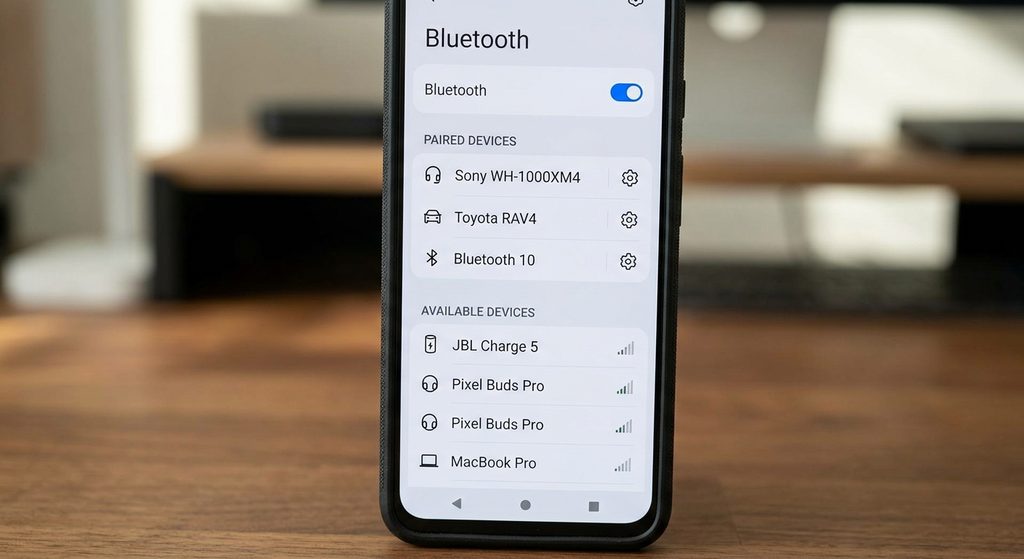
Settings → Connected devices → Connection preferences → Bluetooth

The exact menu may be different on your phone.

If Bluetooth is already enabled, turn it off, wait a few seconds, and turn it back on.

Then try connecting to the accessory again.


2. Make Sure the Bluetooth Device Is Turned On

Your Android phone cannot connect to an accessory that is switched off.

Check the device you are trying to connect, such as:

  • Wireless earbuds
  • Headphones
  • Bluetooth speaker
  • Car stereo
  • Keyboard
  • Mouse
  • Smartwatch

Make sure it has enough battery and is switched on.

Some accessories automatically enter a low-power or sleep mode when they have not been used for a while.
3. Put the Accessory Into Pairing Mode

Turning on a Bluetooth device does not always make it available for pairing.

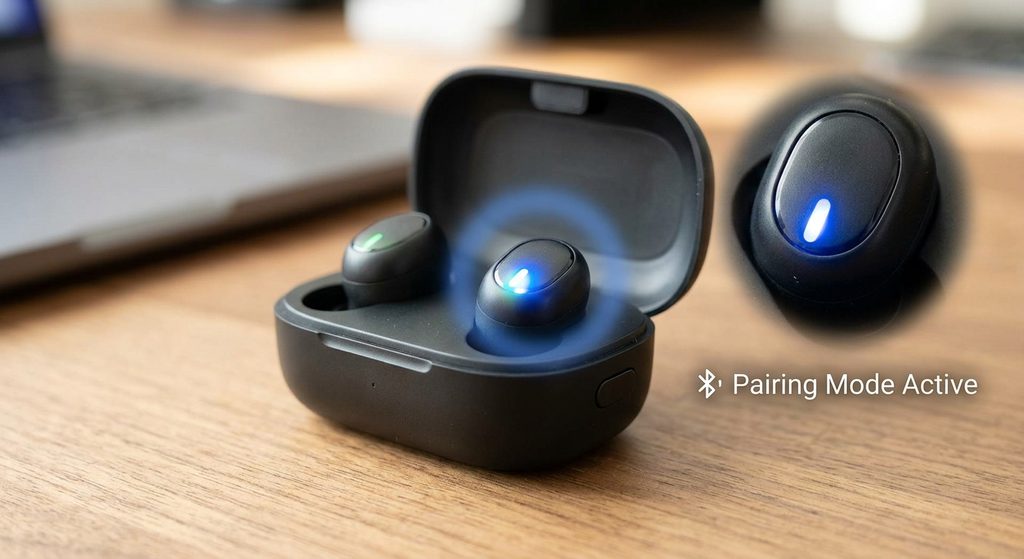
Many accessories have a separate pairing mode.

The method varies by device.

For example, you may need to:

  1. Turn on the accessory.
  2. Press and hold a Bluetooth or power button.
  3. Wait for an indicator light or sound.
  4. Open Bluetooth settings on your phone.
  5. Look for the accessory in the available devices list.

Check the accessory’s instructions if you are unsure how to activate pairing mode.


4. Keep the Devices Close Together

Bluetooth works over a limited wireless range.

If your phone and accessory are too far apart, the connection may be weak or unavailable.

During initial pairing, keep the devices relatively close to each other.

Avoid testing the connection from another room or behind several walls.

If the connection works when the devices are close but becomes unstable when you move away, distance or interference may be contributing to the problem.


5. Check Whether the Accessory Is Already Connected

Some Bluetooth accessories automatically connect to a device they were previously paired with.

For example, your headphones may automatically connect to your laptop instead of your Android phone.

Check nearby devices such as:

  • Laptop
  • Tablet
  • Another phone
  • Smart TV
  • Car

Temporarily disconnect Bluetooth on the other device or disconnect the accessory from it.

Then put the accessory back into pairing mode and try connecting it to your Android phone.


6. Turn Bluetooth Off and Back On

A temporary Bluetooth problem can sometimes be resolved by restarting the Bluetooth connection.

Try this:

  1. Open Quick Settings.
  2. Turn Bluetooth off.
  3. Wait several seconds.
  4. Turn Bluetooth back on.
  5. Open Bluetooth settings.
  6. Try connecting again.

If the device still does not appear, continue with the next steps.


7. Restart Your Android Phone

If Bluetooth still isn’t working, restart the phone.

A restart can clear temporary system problems that may be affecting wireless connections.

After restarting:

  1. Turn Bluetooth on.
  2. Put the accessory into pairing mode.
  3. Open the Bluetooth settings.
  4. Try pairing again.

8. Restart the Bluetooth Accessory

The accessory can have its own temporary software problem.

Turn the device off and back on.

If it has a dedicated restart or reset procedure, follow the manufacturer’s instructions.

For wireless earbuds, you may also need to place them back into their charging case before trying again.

For a car Bluetooth system, the process may be different.
9. Forget the Bluetooth Device and Pair It Again

If the phone previously connected to the accessory but no longer works correctly, remove the saved pairing.

Open:

Settings → Connected devices → Bluetooth

Find the accessory in the saved devices list.

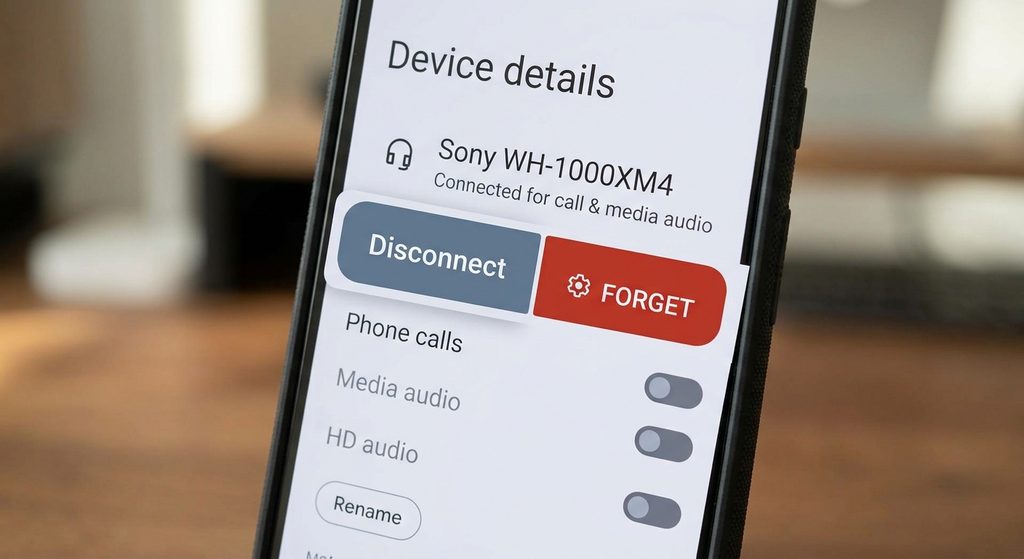
Tap the settings icon next to it and look for:

Forget

or

Forget device

The wording varies by Android version.

After forgetting it:

  1. Put the accessory into pairing mode.
  2. Open Bluetooth settings again.
  3. Find the device.
  4. Select it.
  5. Confirm the pairing request if prompted.
10. Check the Pairing Code

Some Bluetooth devices ask you to confirm a pairing code.

Make sure the code displayed on the phone matches the code shown by the accessory when applicable.

Follow the instructions on both devices.

If you accidentally reject the pairing request, put the accessory back into pairing mode and try again.


11. Check the Bluetooth Device’s Battery

A Bluetooth accessory with very little battery may behave unexpectedly.

It may:

  • Disconnect repeatedly
  • Fail to enter pairing mode
  • Appear briefly and disappear
  • Refuse to connect

Charge the accessory and try again.

For earbuds, make sure both the earbuds and their charging case have sufficient battery when applicable.


12. Check Whether the Device Is Compatible

Not every Bluetooth accessory supports every feature with every phone.

Basic Bluetooth connectivity may work while certain advanced features require additional support.

For example, an accessory might connect for audio but have limited functionality for another feature.

Check the manufacturer’s compatibility information if the device connects but does not provide the expected functionality.


13. Check for Android Updates

An Android system update may contain fixes for connectivity or compatibility problems.

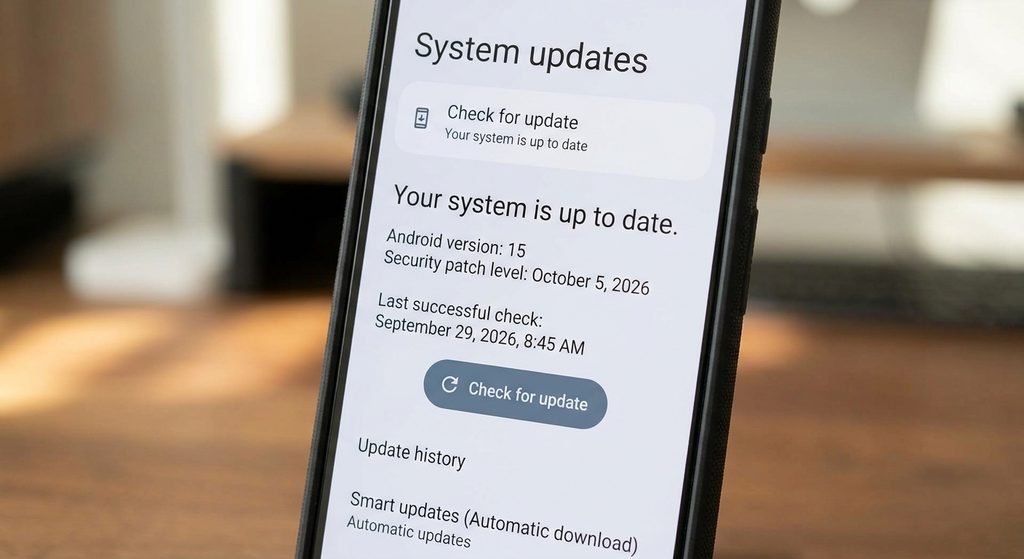
Open your phone’s software-update settings and check whether an update is available.

The location varies between manufacturers.

After installing an update, restart the phone and test the Bluetooth connection again.
14. Check for Updates for the Bluetooth Accessory

Some Bluetooth accessories receive firmware updates through the manufacturer’s companion app.

If your headphones, earbuds, speaker, smartwatch, or other accessory has an official companion app, check whether an update is available.

Only use the manufacturer’s official application or update method when possible.

Don’t install random firmware files from unknown websites.


15. Check Whether Another Bluetooth Device Works

If possible, connect your Android phone to another Bluetooth accessory.

For example, if your headphones won’t connect, try a different Bluetooth speaker or another known-working accessory.

This can help narrow down the problem.

If Another Bluetooth Device Works

The original accessory may be causing the problem.

If No Bluetooth Devices Work

The issue may be related to the Android phone or its Bluetooth/network configuration.


16. Check Nearby Wireless Interference

Bluetooth shares the wireless environment with other devices and networks.

If the connection repeatedly drops in one particular location, try moving to another area and testing again.

Keep the phone and accessory relatively close and avoid placing them behind large obstacles during troubleshooting.

You don’t need to turn off every wireless device in your home. Simply changing the location can help determine whether the environment is contributing to the problem.


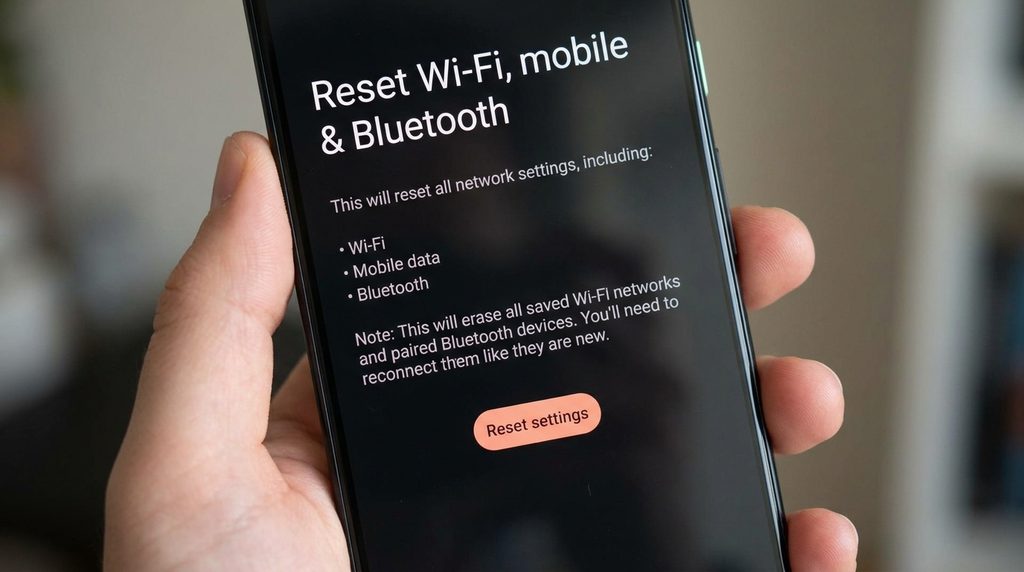
17. Reset Network Settings as a Last Resort

If Bluetooth continues to fail with multiple devices, you can consider resetting network-related settings.

Depending on your Android phone, the option may be called:

Reset Wi-Fi, mobile & Bluetooth

or something similar.

This can remove saved:

  • Wi-Fi networks
  • Wi-Fi passwords
  • Bluetooth pairings
  • Some network-related settings

You will need to pair your Bluetooth accessories again afterward.

Because this affects other connections, use it after trying the simpler troubleshooting steps.
Common Problems

My Bluetooth Device Doesn’t Appear

Make sure the accessory is turned on and in pairing mode.

Keep it close to your phone and check whether it is already connected to another device.

Bluetooth Connects but Immediately Disconnects

Check the accessory’s battery, restart both devices, and try forgetting and pairing the device again.

If the problem continues, check for firmware or Android updates.

My Headphones Are Connected but No Sound Comes From Them

Check the phone’s audio output and volume settings.

Also make sure the headphones are selected as the active audio device when your Android phone provides an output selector.

My Car Bluetooth Won’t Connect

Make sure the car is in Bluetooth pairing mode and that it isn’t already connected to another phone.

You may also need to remove the old pairing from both the car system and the Android phone before pairing again.

Bluetooth Works With One Device but Not Another

This suggests that the problem may be specific to the accessory, its pairing information, or compatibility.

Try forgetting the problematic device and pairing it again.

Should I Reset Network Settings?

Use this as a later troubleshooting step.

Remember that it can remove saved Wi-Fi networks and Bluetooth pairings.


Important Things to Know

  • Bluetooth being turned on does not automatically mean an accessory is ready for pairing.
  • Many accessories require a separate pairing mode.
  • Check whether the accessory is already connected to another device.
  • Keep devices close together during troubleshooting.
  • Charge the accessory before assuming it is defective.
  • Forgetting and re-pairing a device can resolve saved-pairing problems.
  • Check both Android and accessory updates.
  • Compatibility can vary between phones and Bluetooth accessories.
  • A network reset can remove saved Wi-Fi and Bluetooth connections.
  • Android Bluetooth menus vary between manufacturers and versions.

Conclusion

Bluetooth connection problems on Android can often be resolved by checking the basics first. Make sure both devices are turned on, the accessory is in pairing mode, the devices are close together, and the accessory isn’t already connected somewhere else.

If that doesn’t work, restart both devices and try forgetting the Bluetooth connection before pairing it again. For persistent problems, check Android and accessory updates and test another Bluetooth device to determine whether the issue is specific to the accessory or the phone.

A network reset can be useful when multiple Bluetooth devices fail to connect, but it should be one of the later troubleshooting steps because it removes saved Wi-Fi and Bluetooth information.

Bluetooth makes it easy to connect an Android phone to wireless headphones, speakers, cars, keyboards, watches, and other devices. But sometimes a Bluetooth device refuses to connect, disconnects repeatedly, does not appear in the available-device list, or connects without working properly.

The problem can be caused by the phone, the Bluetooth accessory, distance, interference, an existing connection to another device, or a temporary software issue.

The exact Bluetooth menus can vary between Android versions and phone manufacturers, but the troubleshooting process is generally similar.

Main Points

  • Make sure Bluetooth is turned on and the accessory is discoverable.
  • Keep the two devices reasonably close together.
  • Check whether the accessory is already connected to another device.
  • Turn Bluetooth off and back on.
  • Restart both the Android phone and Bluetooth accessory.
  • Forget the Bluetooth device and pair it again.
  • Check for Android and accessory firmware updates when available.
  • If several Bluetooth devices have problems, consider resetting network-related settings.

1. Make Sure Bluetooth Is Turned On

Start with the simplest check.

Swipe down from the top of the Android screen to open Quick Settings.

Look for the Bluetooth button and make sure it is enabled.

You can also open:

Settings → Connected devices → Connection preferences → Bluetooth

The exact menu may be different on your phone.

If Bluetooth is already enabled, turn it off, wait a few seconds, and turn it back on.

Then try connecting to the accessory again.


2. Make Sure the Bluetooth Device Is Turned On

Your Android phone cannot connect to an accessory that is switched off.

Check the device you are trying to connect, such as:

  • Wireless earbuds
  • Headphones
  • Bluetooth speaker
  • Car stereo
  • Keyboard
  • Mouse
  • Smartwatch

Make sure it has enough battery and is switched on.

Some accessories automatically enter a low-power or sleep mode when they have not been used for a while.

3. Put the Accessory Into Pairing Mode

Turning on a Bluetooth device does not always make it available for pairing.

Many accessories have a separate pairing mode.

The method varies by device.

For example, you may need to:

  1. Turn on the accessory.
  2. Press and hold a Bluetooth or power button.
  3. Wait for an indicator light or sound.
  4. Open Bluetooth settings on your phone.
  5. Look for the accessory in the available devices list.

Check the accessory’s instructions if you are unsure how to activate pairing mode.


4. Keep the Devices Close Together

Bluetooth works over a limited wireless range.

If your phone and accessory are too far apart, the connection may be weak or unavailable.

During initial pairing, keep the devices relatively close to each other.

Avoid testing the connection from another room or behind several walls.

If the connection works when the devices are close but becomes unstable when you move away, distance or interference may be contributing to the problem.


5. Check Whether the Accessory Is Already Connected

Some Bluetooth accessories automatically connect to a device they were previously paired with.

For example, your headphones may automatically connect to your laptop instead of your Android phone.

Check nearby devices such as:

  • Laptop
  • Tablet
  • Another phone
  • Smart TV
  • Car

Temporarily disconnect Bluetooth on the other device or disconnect the accessory from it.

Then put the accessory back into pairing mode and try connecting it to your Android phone.


6. Turn Bluetooth Off and Back On

A temporary Bluetooth problem can sometimes be resolved by restarting the Bluetooth connection.

Try this:

  1. Open Quick Settings.
  2. Turn Bluetooth off.
  3. Wait several seconds.
  4. Turn Bluetooth back on.
  5. Open Bluetooth settings.
  6. Try connecting again.

If the device still does not appear, continue with the next steps.


7. Restart Your Android Phone

If Bluetooth still isn’t working, restart the phone.

A restart can clear temporary system problems that may be affecting wireless connections.

After restarting:

  1. Turn Bluetooth on.
  2. Put the accessory into pairing mode.
  3. Open the Bluetooth settings.
  4. Try pairing again.

8. Restart the Bluetooth Accessory

The accessory can have its own temporary software problem.

Turn the device off and back on.

If it has a dedicated restart or reset procedure, follow the manufacturer’s instructions.

For wireless earbuds, you may also need to place them back into their charging case before trying again.

For a car Bluetooth system, the process may be different.

9. Forget the Bluetooth Device and Pair It Again

If the phone previously connected to the accessory but no longer works correctly, remove the saved pairing.

Open:

Settings → Connected devices → Bluetooth

Find the accessory in the saved devices list.

Tap the settings icon next to it and look for:

Forget

or

Forget device

The wording varies by Android version.

After forgetting it:

  1. Put the accessory into pairing mode.
  2. Open Bluetooth settings again.
  3. Find the device.
  4. Select it.
  5. Confirm the pairing request if prompted.

10. Check the Pairing Code

Some Bluetooth devices ask you to confirm a pairing code.

Make sure the code displayed on the phone matches the code shown by the accessory when applicable.

Follow the instructions on both devices.

If you accidentally reject the pairing request, put the accessory back into pairing mode and try again.


11. Check the Bluetooth Device’s Battery

A Bluetooth accessory with very little battery may behave unexpectedly.

It may:

  • Disconnect repeatedly
  • Fail to enter pairing mode
  • Appear briefly and disappear
  • Refuse to connect

Charge the accessory and try again.

For earbuds, make sure both the earbuds and their charging case have sufficient battery when applicable.


12. Check Whether the Device Is Compatible

Not every Bluetooth accessory supports every feature with every phone.

Basic Bluetooth connectivity may work while certain advanced features require additional support.

For example, an accessory might connect for audio but have limited functionality for another feature.

Check the manufacturer’s compatibility information if the device connects but does not provide the expected functionality.


13. Check for Android Updates

An Android system update may contain fixes for connectivity or compatibility problems.

Open your phone’s software-update settings and check whether an update is available.

The location varies between manufacturers.

After installing an update, restart the phone and test the Bluetooth connection again.

14. Check for Updates for the Bluetooth Accessory

Some Bluetooth accessories receive firmware updates through the manufacturer’s companion app.

If your headphones, earbuds, speaker, smartwatch, or other accessory has an official companion app, check whether an update is available.

Only use the manufacturer’s official application or update method when possible.

Don’t install random firmware files from unknown websites.


15. Check Whether Another Bluetooth Device Works

If possible, connect your Android phone to another Bluetooth accessory.

For example, if your headphones won’t connect, try a different Bluetooth speaker or another known-working accessory.

This can help narrow down the problem.

If Another Bluetooth Device Works

The original accessory may be causing the problem.

If No Bluetooth Devices Work

The issue may be related to the Android phone or its Bluetooth/network configuration.


16. Check Nearby Wireless Interference

Bluetooth shares the wireless environment with other devices and networks.

If the connection repeatedly drops in one particular location, try moving to another area and testing again.

Keep the phone and accessory relatively close and avoid placing them behind large obstacles during troubleshooting.

You don’t need to turn off every wireless device in your home. Simply changing the location can help determine whether the environment is contributing to the problem.


17. Reset Network Settings as a Last Resort

If Bluetooth continues to fail with multiple devices, you can consider resetting network-related settings.

Depending on your Android phone, the option may be called:

Reset Wi-Fi, mobile & Bluetooth

or something similar.

This can remove saved:

  • Wi-Fi networks
  • Wi-Fi passwords
  • Bluetooth pairings
  • Some network-related settings

You will need to pair your Bluetooth accessories again afterward.

Because this affects other connections, use it after trying the simpler troubleshooting steps.

Common Problems

My Bluetooth Device Doesn’t Appear

Make sure the accessory is turned on and in pairing mode.

Keep it close to your phone and check whether it is already connected to another device.

Bluetooth Connects but Immediately Disconnects

Check the accessory’s battery, restart both devices, and try forgetting and pairing the device again.

If the problem continues, check for firmware or Android updates.

My Headphones Are Connected but No Sound Comes From Them

Check the phone’s audio output and volume settings.

Also make sure the headphones are selected as the active audio device when your Android phone provides an output selector.

My Car Bluetooth Won’t Connect

Make sure the car is in Bluetooth pairing mode and that it isn’t already connected to another phone.

You may also need to remove the old pairing from both the car system and the Android phone before pairing again.

Bluetooth Works With One Device but Not Another

This suggests that the problem may be specific to the accessory, its pairing information, or compatibility.

Try forgetting the problematic device and pairing it again.

Should I Reset Network Settings?

Use this as a later troubleshooting step.

Remember that it can remove saved Wi-Fi networks and Bluetooth pairings.


Important Things to Know

  • Bluetooth being turned on does not automatically mean an accessory is ready for pairing.
  • Many accessories require a separate pairing mode.
  • Check whether the accessory is already connected to another device.
  • Keep devices close together during troubleshooting.
  • Charge the accessory before assuming it is defective.
  • Forgetting and re-pairing a device can resolve saved-pairing problems.
  • Check both Android and accessory updates.
  • Compatibility can vary between phones and Bluetooth accessories.
  • A network reset can remove saved Wi-Fi and Bluetooth connections.
  • Android Bluetooth menus vary between manufacturers and versions.

Conclusion

Bluetooth connection problems on Android can often be resolved by checking the basics first. Make sure both devices are turned on, the accessory is in pairing mode, the devices are close together, and the accessory isn’t already connected somewhere else.

If that doesn’t work, restart both devices and try forgetting the Bluetooth connection before pairing it again. For persistent problems, check Android and accessory updates and test another Bluetooth device to determine whether the issue is specific to the accessory or the phone.

A network reset can be useful when multiple Bluetooth devices fail to connect, but it should be one of the later troubleshooting steps because it removes saved Wi-Fi and Bluetooth information.

Related Posts

LEAVE A REPLY

Please enter your comment!
Please enter your name here

Related posts

Latest posts

How to Recognize Suspicious App Permissions Before Installing an App

Installing a new Android app is usually simple, but it is worth checking what the app wants to access before you tap Install. Some...

How to Review the Privacy Settings on Your Android Phone

Your Android phone contains a lot of personal information, including photos, messages, contacts, location information, files, and data from the apps you use. Android provides...

How to Troubleshoot Low Storage Warnings on Android

A low storage warning means your Android phone is running short of available space. When storage becomes too full, you may have difficulty installing...