

How to Troubleshoot Low Storage Warnings on Android

A low storage warning means your Android phone is running short of available space. When storage becomes too full, you may have difficulty installing apps, downloading files, taking photos or videos, updating apps, or saving new data.

The warning does not always mean that one particular file is responsible. Storage can be consumed by apps, photos, videos, downloads, cached files, offline content, and other data.

The exact storage menus vary between Android versions and phone manufacturers, but the troubleshooting process is generally similar.

Main Points

  • Check how much storage is actually available.
  • Find which categories or apps are using the most space.
  • Review large videos, photos, and downloaded files.
  • Remove apps you no longer use.
  • Check your Downloads folder.
  • Review offline content from apps.
  • Clear unnecessary app caches when appropriate.
  • Empty trash or recently deleted folders where applicable.
  • Avoid deleting system files or unfamiliar folders blindly.
  • Restart the phone after cleaning up storage and check the available space again.

1. Check How Much Storage Is Available

Start by checking the phone’s storage information.

Open:

Settings → Storage

On some Android phones, it may be under:

Settings → Battery and device care → Storage

You should see information about how much storage is:

  • Used
  • Available
  • Allocated to different categories

Look at the available space first.

If only a small amount remains, you’ll need to remove or move some data.
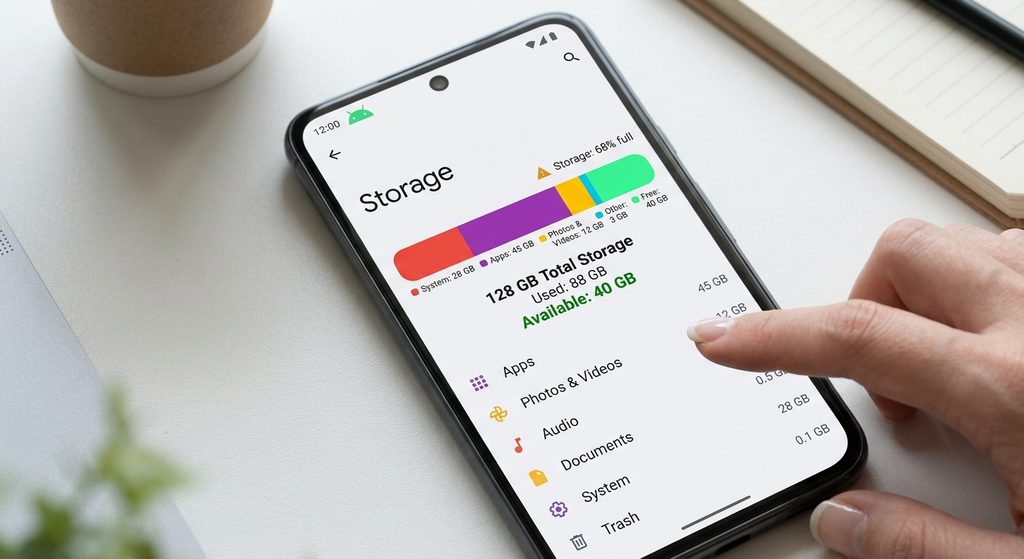
2. Find What’s Using the Most Storage

Don’t start deleting random files.

First determine what is consuming the most space.

Depending on your phone, storage may be divided into categories such as:

  • Apps
  • Images
  • Videos
  • Audio
  • Documents
  • Downloads
  • System
  • Other files

The names and categories can differ.

If videos are taking up most of the space, focus on videos rather than deleting apps.

If apps are consuming most of the storage, review your installed apps.

This makes the cleanup process more efficient and reduces the chance of deleting something important.


3. Review Large Videos

Videos can consume much more storage than ordinary documents or small images.

Open your gallery or photo-management app and look for large videos you no longer need.

Before deleting anything important, check whether it has already been backed up or transferred somewhere safe.

You can consider moving large videos to:

  • A computer
  • External storage
  • A supported cloud-storage service

After confirming that the copy is safe, you can remove the original from the phone if you need the space.


4. Review Photos and Screenshots

Photos can gradually consume a significant amount of storage, particularly if you take many pictures.

Review:

  • Screenshots
  • Duplicate photos
  • Blurry images
  • Accidental photos
  • Old images you no longer need

Don’t delete important personal photos simply because they appear old.

If you use a cloud photo service, confirm that important photos are safely backed up before deleting local copies.

5. Check the Downloads Folder

The Downloads folder is easy to forget.

Files downloaded from browsers, messaging apps, websites, or other applications may remain there long after you need them.

Open your file manager and find:

Downloads

Review the files carefully.

You may find:

  • PDFs
  • ZIP files
  • Images
  • Videos
  • Documents
  • Installation files
  • Duplicate downloads

Delete only files you no longer need.

Be particularly careful with documents, work files, and other personal information.


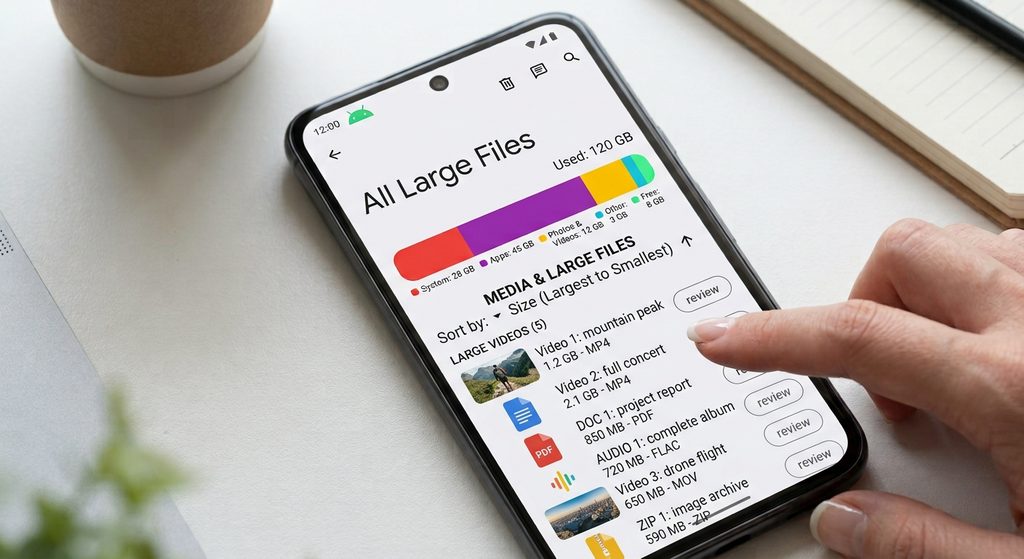
6. Review Large Files

Your Android file manager may allow you to sort files by size.

If that option is available, look for the largest files first.

Large files can include:

  • Movies
  • Videos
  • ZIP archives
  • Backup files
  • Offline downloads
  • Large documents

Reviewing the largest files can help you free up significant space without having to delete many small files.
7. Remove Apps You No Longer Use

Installed apps can occupy a significant amount of storage.

Open:

Settings → Apps

or use the app-management section on your phone.

Review applications you haven’t used for a long time.

Before uninstalling an app, consider whether it contains important locally stored information.

You can also check the Google Play Store for your installed apps and identify applications you no longer need.

Don’t uninstall system applications simply because you don’t recognize their names.


8. Check Individual App Storage

If apps are using most of your storage, check individual apps.

Open:

Settings → Apps → [App Name] → Storage

You may see information for:

  • App size
  • User data
  • Cache

This can help explain why an app is consuming more storage than expected.

Some apps naturally require considerable storage because they contain media or downloaded content.


9. Clear App Cache When Appropriate

Cached files are temporary data created by apps.

For some apps, the cache can become relatively large over time.

You can usually find the option under:

Settings → Apps → [App Name] → Storage & cache

Then select:

Clear cache

The exact wording varies.

Clearing the cache is different from clearing app storage/data.

Clear cache removes temporary cached files.

Clear storage/data can remove locally stored information and reset the app, potentially requiring you to sign in again.

For that reason, use Clear cache first when you’re simply trying to remove temporary files.


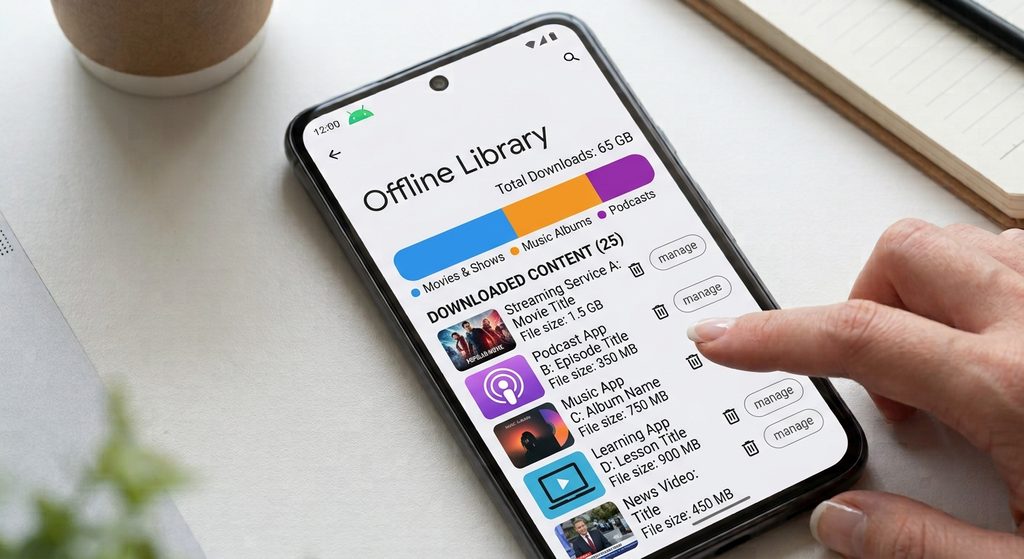
10. Check Offline Downloads

Some apps allow you to save content for offline use.

Examples can include:

  • Music
  • Movies
  • TV episodes
  • Maps
  • Podcasts
  • Documents
  • Web content

Offline files can consume substantial storage without appearing as ordinary photos or documents.

Open the relevant app and check its downloaded or offline-content section.

Remove downloads you no longer need.

You can usually download them again later if the service supports it.
11. Check Messaging Apps

Messaging apps can accumulate large numbers of:

  • Photos
  • Videos
  • Voice recordings
  • Documents
  • Stickers
  • Other media

If you participate in active group chats, media can accumulate quickly.

Check the storage-management section of your messaging app if it provides one.

Review large media files and remove items you no longer need.

Be careful when deleting shared media because you may want to keep certain photos, videos, or documents.


12. Check Trash or Recently Deleted Folders

Some gallery and file-management apps don’t immediately remove deleted files.

Instead, they move them to:

  • Trash
  • Recycle bin
  • Recently deleted

These files can continue consuming storage until the folder is automatically emptied or you empty it manually.

Check your gallery and file manager for these folders.

Before emptying them, make sure you don’t need anything inside.


13. Check Your Browser Downloads

Web browsers can accumulate downloaded files over time.

Open your browser’s downloads section and review old files.

You may find documents, images, videos, or other files that are no longer needed.

Also check the Android Downloads folder because browser downloads are often stored there.


14. Check Large Offline Maps

Navigation apps can store maps for offline use.

Offline maps can become quite large depending on the areas you’ve downloaded.

If you no longer need certain offline maps, open the navigation app and remove them.

Don’t delete map-related files manually through a file manager unless you know exactly what they are.

Use the app’s own storage-management controls when available.


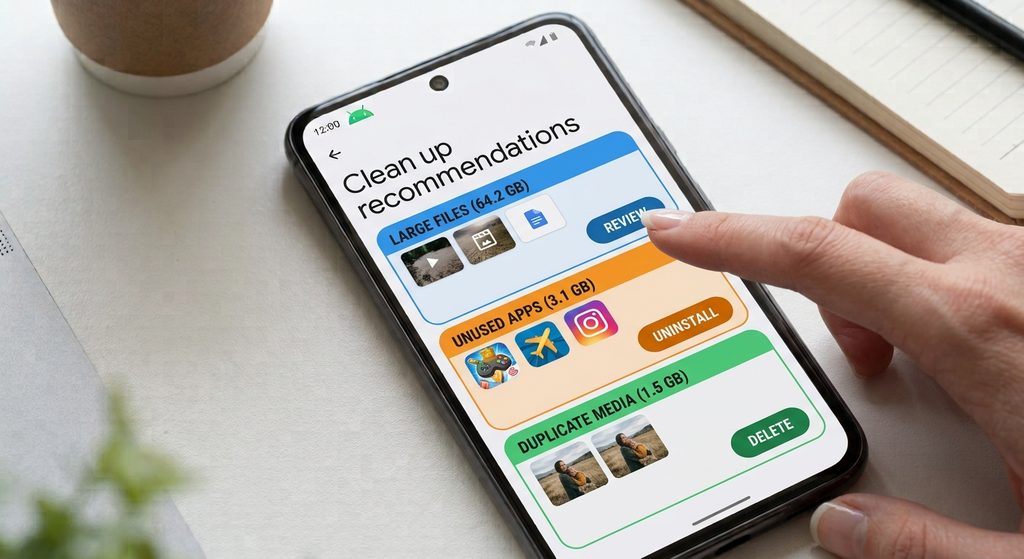
15. Use Android’s Built-In Storage Recommendations

Some Android phones provide suggestions for freeing up storage.

Depending on your device, you may see recommendations involving:

  • Unused apps
  • Large files
  • Duplicate files
  • Old downloads
  • Temporary files

Review each recommendation before accepting it.

Don’t automatically select everything.

A storage-cleanup tool may identify files as removable, but you should still check whether you actually need them.
16. Move Files to a Computer

If you want to keep large files but need more space on your phone, move them to a computer.

You can use:

  • USB cable
  • Wireless file transfer
  • Cloud storage
  • Another supported transfer method

After transferring files, open the destination and confirm that the files are accessible before deleting the originals from the phone.

This is especially useful for large videos and old photo collections.


17. Use Cloud Storage Carefully

Cloud storage can help reduce the amount of local data stored on your phone.

For example, you may upload important photos, videos, or documents and then remove local copies when appropriate.

However, don’t assume that a file is safely backed up simply because an app displays it.

Confirm that the upload or backup has completed before deleting the local copy.

Also remember that cloud storage accounts have their own storage limits.


18. Restart the Phone After Cleaning Up

After deleting or moving a significant amount of data, restart the phone.

Then return to:

Settings → Storage

Check the available space again.

This gives you a fresh view of the storage situation and confirms whether the cleanup actually freed space.

If the available space hasn’t changed as expected, check the Trash/Recently Deleted folders and other storage categories.


19. Don’t Delete System Files Manually

Avoid browsing unfamiliar system folders and deleting files simply because they appear large or have confusing names.

Android uses many files that aren’t intended for manual removal.

Deleting the wrong files can cause apps or system functions to behave unexpectedly.

When possible, use:

  • Android’s Storage settings
  • The app’s own storage controls
  • Your file manager’s normal cleanup tools

rather than manually deleting unfamiliar system data.


20. If Storage Keeps Filling Up Again

If you free several gigabytes and the storage warning returns quickly, don’t repeatedly delete random files.

Look for the source of the recurring growth.

Possible causes include:

  • Large media downloads
  • Messaging-app media
  • Offline content
  • App data
  • Automatic downloads
  • Camera recordings
  • Backups
  • Large browser downloads

Check the storage screen again after some time and compare which category is growing.

This can help identify what is repeatedly consuming space.


Common Problems

I Deleted Files but the Storage Warning Is Still There

Check the Trash or Recently Deleted folders.

Also restart the phone and check the Storage screen again.

My Phone Says Storage Is Full but I Can’t Find the Files

Look at the storage categories and individual app storage.

Offline content, app data, messaging media, and cached files may account for more space than expected.

Can I Delete Everything in the Downloads Folder?

Not automatically.

Review the files first. Some downloads may contain important documents or other information you still need.

Does Clearing Cache Free a Lot of Storage?

Sometimes, but it depends on the app.

Some apps may have relatively small caches, while others may accumulate more temporary data.

Should I Use a Third-Party Cleaner App?

You don’t necessarily need one.

Start with Android’s built-in storage tools and the storage controls provided by your apps.

Be cautious with third-party apps that request broad permissions or make aggressive cleanup claims.

My Storage Keeps Filling Up

Check which storage category is growing over time.

Recurring media downloads, offline content, app data, and messaging attachments are common areas to investigate.


Important Things to Know

  • Low storage can affect app installation, downloads, updates, and other functions.
  • Don’t delete files simply because they are large.
  • Check whether important files are backed up before removing them.
  • Trash and Recently Deleted folders may continue using storage.
  • App cache is different from app data.
  • Offline downloads can consume significant storage.
  • Messaging apps can accumulate large amounts of media.
  • Don’t manually delete unfamiliar Android system files.
  • Moving files to a computer can free space while allowing you to keep them.
  • Cloud backups should be verified before local copies are deleted.
  • Android storage categories and menu names vary between devices.
  • If storage fills up repeatedly, identify what is growing instead of repeatedly deleting random files.

Conclusion

When your Android phone shows a low-storage warning, start by checking the Storage screen to find out where the space is being used. Then focus your cleanup on the categories consuming the most storage.

Large videos, photos, downloads, unused apps, offline content, messaging media, and app data can all contribute to storage problems. Review these areas carefully and remove only files you no longer need.

Use Android’s built-in storage recommendations and app-specific cleanup tools where available. If you want to keep large files, consider moving them to a computer or a suitable cloud-storage service instead of deleting them.

Most importantly, don’t manually delete unfamiliar system files. A careful, category-by-category cleanup is safer and makes it easier to understand why your storage keeps filling up.

A low storage warning means your Android phone is running short of available space. When storage becomes too full, you may have difficulty installing apps, downloading files, taking photos or videos, updating apps, or saving new data.

The warning does not always mean that one particular file is responsible. Storage can be consumed by apps, photos, videos, downloads, cached files, offline content, and other data.

The exact storage menus vary between Android versions and phone manufacturers, but the troubleshooting process is generally similar.

Main Points

  • Check how much storage is actually available.
  • Find which categories or apps are using the most space.
  • Review large videos, photos, and downloaded files.
  • Remove apps you no longer use.
  • Check your Downloads folder.
  • Review offline content from apps.
  • Clear unnecessary app caches when appropriate.
  • Empty trash or recently deleted folders where applicable.
  • Avoid deleting system files or unfamiliar folders blindly.
  • Restart the phone after cleaning up storage and check the available space again.

1. Check How Much Storage Is Available

Start by checking the phone’s storage information.

Open:

Settings → Storage

On some Android phones, it may be under:

Settings → Battery and device care → Storage

You should see information about how much storage is:

  • Used
  • Available
  • Allocated to different categories

Look at the available space first.

If only a small amount remains, you’ll need to remove or move some data.

2. Find What’s Using the Most Storage

Don’t start deleting random files.

First determine what is consuming the most space.

Depending on your phone, storage may be divided into categories such as:

  • Apps
  • Images
  • Videos
  • Audio
  • Documents
  • Downloads
  • System
  • Other files

The names and categories can differ.

If videos are taking up most of the space, focus on videos rather than deleting apps.

If apps are consuming most of the storage, review your installed apps.

This makes the cleanup process more efficient and reduces the chance of deleting something important.


3. Review Large Videos

Videos can consume much more storage than ordinary documents or small images.

Open your gallery or photo-management app and look for large videos you no longer need.

Before deleting anything important, check whether it has already been backed up or transferred somewhere safe.

You can consider moving large videos to:

  • A computer
  • External storage
  • A supported cloud-storage service

After confirming that the copy is safe, you can remove the original from the phone if you need the space.


4. Review Photos and Screenshots

Photos can gradually consume a significant amount of storage, particularly if you take many pictures.

Review:

  • Screenshots
  • Duplicate photos
  • Blurry images
  • Accidental photos
  • Old images you no longer need

Don’t delete important personal photos simply because they appear old.

If you use a cloud photo service, confirm that important photos are safely backed up before deleting local copies.

5. Check the Downloads Folder

The Downloads folder is easy to forget.

Files downloaded from browsers, messaging apps, websites, or other applications may remain there long after you need them.

Open your file manager and find:

Downloads

Review the files carefully.

You may find:

  • PDFs
  • ZIP files
  • Images
  • Videos
  • Documents
  • Installation files
  • Duplicate downloads

Delete only files you no longer need.

Be particularly careful with documents, work files, and other personal information.


6. Review Large Files

Your Android file manager may allow you to sort files by size.

If that option is available, look for the largest files first.

Large files can include:

  • Movies
  • Videos
  • ZIP archives
  • Backup files
  • Offline downloads
  • Large documents

Reviewing the largest files can help you free up significant space without having to delete many small files.

7. Remove Apps You No Longer Use

Installed apps can occupy a significant amount of storage.

Open:

Settings → Apps

or use the app-management section on your phone.

Review applications you haven’t used for a long time.

Before uninstalling an app, consider whether it contains important locally stored information.

You can also check the Google Play Store for your installed apps and identify applications you no longer need.

Don’t uninstall system applications simply because you don’t recognize their names.


8. Check Individual App Storage

If apps are using most of your storage, check individual apps.

Open:

Settings → Apps → [App Name] → Storage

You may see information for:

  • App size
  • User data
  • Cache

This can help explain why an app is consuming more storage than expected.

Some apps naturally require considerable storage because they contain media or downloaded content.


9. Clear App Cache When Appropriate

Cached files are temporary data created by apps.

For some apps, the cache can become relatively large over time.

You can usually find the option under:

Settings → Apps → [App Name] → Storage & cache

Then select:

Clear cache

The exact wording varies.

Clearing the cache is different from clearing app storage/data.

Clear cache removes temporary cached files.

Clear storage/data can remove locally stored information and reset the app, potentially requiring you to sign in again.

For that reason, use Clear cache first when you’re simply trying to remove temporary files.


10. Check Offline Downloads

Some apps allow you to save content for offline use.

Examples can include:

  • Music
  • Movies
  • TV episodes
  • Maps
  • Podcasts
  • Documents
  • Web content

Offline files can consume substantial storage without appearing as ordinary photos or documents.

Open the relevant app and check its downloaded or offline-content section.

Remove downloads you no longer need.

You can usually download them again later if the service supports it.

11. Check Messaging Apps

Messaging apps can accumulate large numbers of:

  • Photos
  • Videos
  • Voice recordings
  • Documents
  • Stickers
  • Other media

If you participate in active group chats, media can accumulate quickly.

Check the storage-management section of your messaging app if it provides one.

Review large media files and remove items you no longer need.

Be careful when deleting shared media because you may want to keep certain photos, videos, or documents.


12. Check Trash or Recently Deleted Folders

Some gallery and file-management apps don’t immediately remove deleted files.

Instead, they move them to:

  • Trash
  • Recycle bin
  • Recently deleted

These files can continue consuming storage until the folder is automatically emptied or you empty it manually.

Check your gallery and file manager for these folders.

Before emptying them, make sure you don’t need anything inside.


13. Check Your Browser Downloads

Web browsers can accumulate downloaded files over time.

Open your browser’s downloads section and review old files.

You may find documents, images, videos, or other files that are no longer needed.

Also check the Android Downloads folder because browser downloads are often stored there.


14. Check Large Offline Maps

Navigation apps can store maps for offline use.

Offline maps can become quite large depending on the areas you’ve downloaded.

If you no longer need certain offline maps, open the navigation app and remove them.

Don’t delete map-related files manually through a file manager unless you know exactly what they are.

Use the app’s own storage-management controls when available.


15. Use Android’s Built-In Storage Recommendations

Some Android phones provide suggestions for freeing up storage.

Depending on your device, you may see recommendations involving:

  • Unused apps
  • Large files
  • Duplicate files
  • Old downloads
  • Temporary files

Review each recommendation before accepting it.

Don’t automatically select everything.

A storage-cleanup tool may identify files as removable, but you should still check whether you actually need them.

16. Move Files to a Computer

If you want to keep large files but need more space on your phone, move them to a computer.

You can use:

  • USB cable
  • Wireless file transfer
  • Cloud storage
  • Another supported transfer method

After transferring files, open the destination and confirm that the files are accessible before deleting the originals from the phone.

This is especially useful for large videos and old photo collections.


17. Use Cloud Storage Carefully

Cloud storage can help reduce the amount of local data stored on your phone.

For example, you may upload important photos, videos, or documents and then remove local copies when appropriate.

However, don’t assume that a file is safely backed up simply because an app displays it.

Confirm that the upload or backup has completed before deleting the local copy.

Also remember that cloud storage accounts have their own storage limits.


18. Restart the Phone After Cleaning Up

After deleting or moving a significant amount of data, restart the phone.

Then return to:

Settings → Storage

Check the available space again.

This gives you a fresh view of the storage situation and confirms whether the cleanup actually freed space.

If the available space hasn’t changed as expected, check the Trash/Recently Deleted folders and other storage categories.


19. Don’t Delete System Files Manually

Avoid browsing unfamiliar system folders and deleting files simply because they appear large or have confusing names.

Android uses many files that aren’t intended for manual removal.

Deleting the wrong files can cause apps or system functions to behave unexpectedly.

When possible, use:

  • Android’s Storage settings
  • The app’s own storage controls
  • Your file manager’s normal cleanup tools

rather than manually deleting unfamiliar system data.


20. If Storage Keeps Filling Up Again

If you free several gigabytes and the storage warning returns quickly, don’t repeatedly delete random files.

Look for the source of the recurring growth.

Possible causes include:

  • Large media downloads
  • Messaging-app media
  • Offline content
  • App data
  • Automatic downloads
  • Camera recordings
  • Backups
  • Large browser downloads

Check the storage screen again after some time and compare which category is growing.

This can help identify what is repeatedly consuming space.


Common Problems

I Deleted Files but the Storage Warning Is Still There

Check the Trash or Recently Deleted folders.

Also restart the phone and check the Storage screen again.

My Phone Says Storage Is Full but I Can’t Find the Files

Look at the storage categories and individual app storage.

Offline content, app data, messaging media, and cached files may account for more space than expected.

Can I Delete Everything in the Downloads Folder?

Not automatically.

Review the files first. Some downloads may contain important documents or other information you still need.

Does Clearing Cache Free a Lot of Storage?

Sometimes, but it depends on the app.

Some apps may have relatively small caches, while others may accumulate more temporary data.

Should I Use a Third-Party Cleaner App?

You don’t necessarily need one.

Start with Android’s built-in storage tools and the storage controls provided by your apps.

Be cautious with third-party apps that request broad permissions or make aggressive cleanup claims.

My Storage Keeps Filling Up

Check which storage category is growing over time.

Recurring media downloads, offline content, app data, and messaging attachments are common areas to investigate.


Important Things to Know

  • Low storage can affect app installation, downloads, updates, and other functions.
  • Don’t delete files simply because they are large.
  • Check whether important files are backed up before removing them.
  • Trash and Recently Deleted folders may continue using storage.
  • App cache is different from app data.
  • Offline downloads can consume significant storage.
  • Messaging apps can accumulate large amounts of media.
  • Don’t manually delete unfamiliar Android system files.
  • Moving files to a computer can free space while allowing you to keep them.
  • Cloud backups should be verified before local copies are deleted.
  • Android storage categories and menu names vary between devices.
  • If storage fills up repeatedly, identify what is growing instead of repeatedly deleting random files.

Conclusion

When your Android phone shows a low-storage warning, start by checking the Storage screen to find out where the space is being used. Then focus your cleanup on the categories consuming the most storage.

Large videos, photos, downloads, unused apps, offline content, messaging media, and app data can all contribute to storage problems. Review these areas carefully and remove only files you no longer need.

Use Android’s built-in storage recommendations and app-specific cleanup tools where available. If you want to keep large files, consider moving them to a computer or a suitable cloud-storage service instead of deleting them.

Most importantly, don’t manually delete unfamiliar system files. A careful, category-by-category cleanup is safer and makes it easier to understand why your storage keeps filling up.

Related Posts

LEAVE A REPLY

Please enter your comment!
Please enter your name here

Related posts

Latest posts

How to Recognize Suspicious App Permissions Before Installing an App

Installing a new Android app is usually simple, but it is worth checking what the app wants to access before you tap Install. Some...

How to Review the Privacy Settings on Your Android Phone

Your Android phone contains a lot of personal information, including photos, messages, contacts, location information, files, and data from the apps you use. Android provides...

Why Android Apps May Use Too Much Battery and What You Can Check

Android apps can use battery for many different reasons. An app may consume more power because it is actively being used, running tasks in...