

Sometimes an Android phone shows that it is connected to a Wi-Fi network, but websites, apps, and online services still do not work.
This usually means the phone has successfully connected to the Wi-Fi network, but the network itself may not have a working internet connection. In other cases, the problem can be related to the phone’s network settings, DNS, VPN, router, or a temporary connection problem.
The good news is that you can check several things before resetting your phone or contacting your internet provider.
Main Points
- Check whether other devices connected to the same Wi-Fi have internet.
- Turn Wi-Fi off and back on.
- Restart your Android phone.
- Restart the Wi-Fi router if other devices are also offline.
- Forget the Wi-Fi network and reconnect.
- Check whether a VPN or Private DNS setting is interfering.
- Move closer to the router and test the connection.
- Check whether the problem affects one network or every Wi-Fi network.
- Avoid resetting all network settings until simpler troubleshooting has failed.
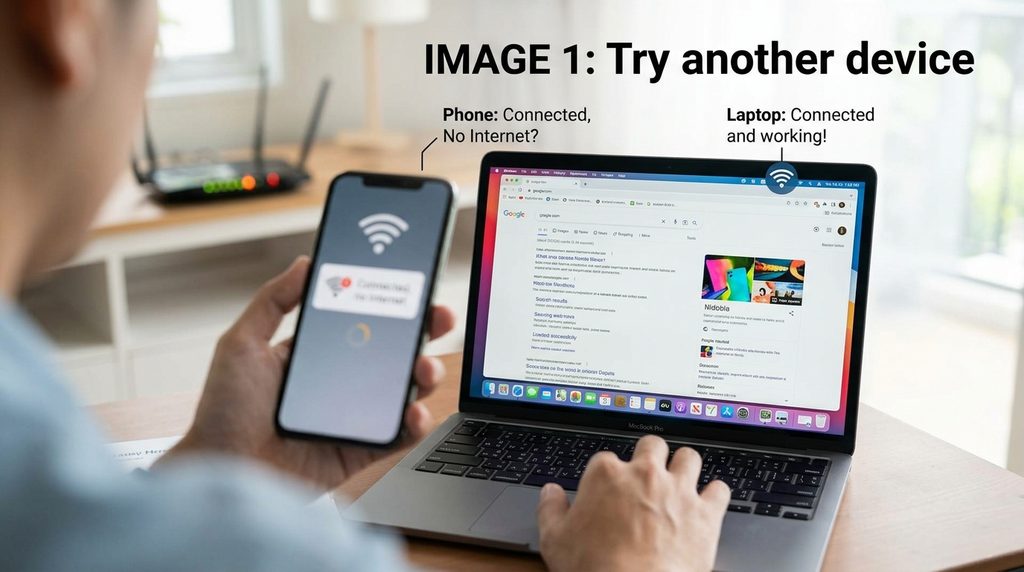
1. Check Whether Other Devices Have Internet
The first thing to determine is whether the problem is with your phone or with the Wi-Fi network.
If you have another phone, computer, tablet, or smart TV connected to the same Wi-Fi network, check whether it can access the internet.
If Other Devices Also Have No Internet
The problem may be with:
- Your router
- Your modem
- Your internet service
- An outage from your internet provider
If Other Devices Work Normally
The problem is more likely to be specific to your Android phone.
This simple test can save you from changing settings unnecessarily.
2. Turn Wi-Fi Off and Back On
Start with a simple connection reset.
Swipe down from the top of the screen to open the Quick Settings panel.
Tap Wi-Fi to turn it off.
Wait a few seconds, then turn Wi-Fi back on.
Reconnect if necessary and try opening a website.
You can also do this through:
Settings → Network & internet → Internet
The exact menu name can vary between Android phones.
3. Restart Your Android Phone
If turning Wi-Fi off and on doesn’t help, restart the phone.
A restart can resolve temporary network or system problems.
To restart:
- Open the phone’s power menu.
- Select Restart.
- Wait for the phone to start completely.
- Connect to Wi-Fi again.
- Test a website or app.
If the internet works normally after restarting, the problem may have been temporary.
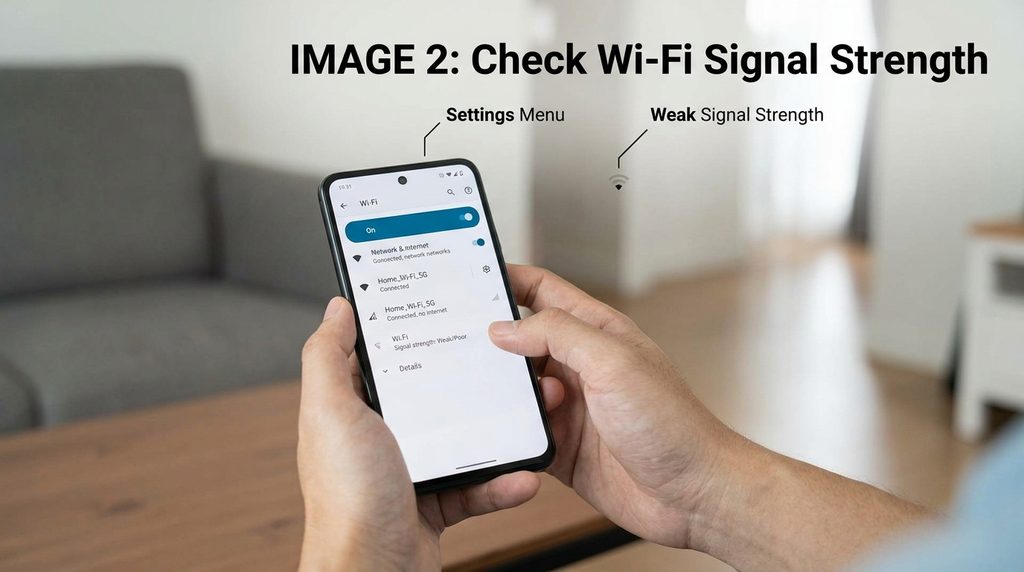
4. Check the Wi-Fi Signal
Move closer to the Wi-Fi router and check the connection again.
A weak signal can cause:
- Slow internet
- Connection drops
- Pages failing to load
- Apps timing out
If the phone works normally near the router but not in another room, distance or obstacles may be affecting the wireless connection.
Walls, floors, furniture, and other wireless devices can also affect Wi-Fi performance.
5. Restart the Wi-Fi Router
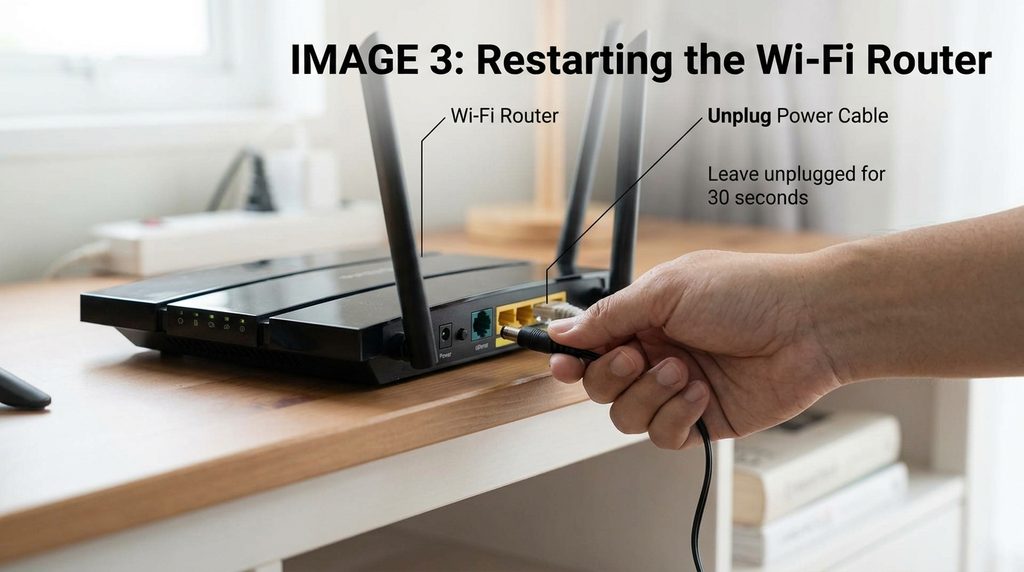
If other devices connected to the same Wi-Fi also have no internet, restart your router.
A basic restart usually involves:
- Disconnecting the router’s power.
- Waiting for a short period.
- Connecting the power again.
- Waiting for the router to finish starting.
- Connecting your phone again.
The exact restart procedure depends on the router.
If your internet provider uses a separate modem or network box, that device may also need to be restarted according to the provider’s instructions.
Don’t press the router’s Reset button unless you specifically intend to reset its configuration.
6. Forget the Wi-Fi Network and Reconnect
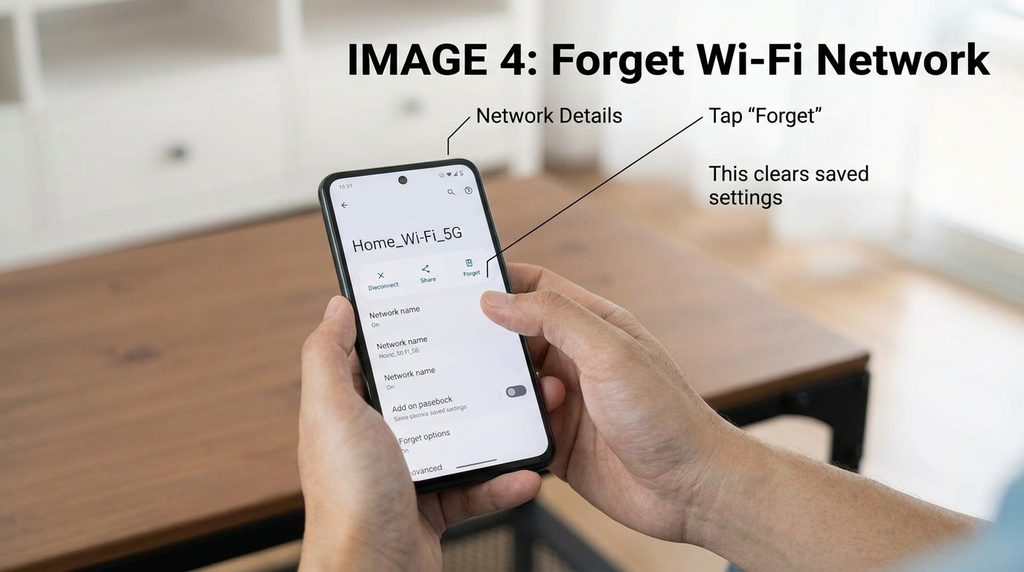
If the problem appears to affect only your Android phone, try removing the saved Wi-Fi connection and connecting again.
Open the Wi-Fi settings and select your connected network.
Look for an option such as:
Forget
or
Forget network
After forgetting the network:
- Return to the Wi-Fi list.
- Select the network again.
- Enter the Wi-Fi password.
- Connect.
- Test the internet connection.
Make sure you know the Wi-Fi password before forgetting the network.
7. Check Whether the Wi-Fi Requires a Sign-In
Some Wi-Fi networks require you to sign in through a webpage before you can access the internet.
This is common with:
- Hotels
- Airports
- Cafés
- Schools
- Universities
- Offices
- Public Wi-Fi
Your phone may show that it is connected to Wi-Fi even though the required sign-in page has not been completed.
Try opening a web browser and visiting a normal website.
If a network sign-in page appears, complete the required steps.
8. Temporarily Check Your VPN
If you use a VPN on your Android phone, it can sometimes affect how your internet connection works.
If the internet stopped working after enabling a VPN, temporarily disconnect the VPN and test the connection.
If the internet works without the VPN, the VPN connection or configuration may be related to the problem.
Don’t assume that every VPN problem means the VPN is defective. Network conditions, server availability, and configuration can all affect connectivity.
9. Check Private DNS
Android includes a Private DNS setting that can affect how domain names are resolved.
Depending on your phone, you may find it under:
Settings → Network & internet → Private DNS
The exact location and available options vary.
If you manually configured a Private DNS provider and Wi-Fi stopped working afterward, check that configuration.
If you’re unsure what a custom Private DNS setting does, don’t change random values.
You can return to the standard/default configuration and test the connection again if appropriate.
10. Check the Date and Time
Incorrect date or time settings can sometimes cause problems with secure internet connections.
Open:
Settings → System → Date & time
Look for options that automatically set the date and time.
If automatic date and time are available, using the network-provided or automatic setting can help keep the device synchronized.
After correcting the time, test the internet connection again.
11. Check Whether Only One App Is Offline
If websites work but one particular app says there is no internet connection, the Wi-Fi connection may not actually be the problem.
Try opening another website or app.
For example:
- Open your browser.
- Search for a website.
- Open another online app.
If everything works except one application, troubleshoot that app separately.
You can try updating the app, restarting it, or checking its permissions and network-related settings.
12. Check Whether Mobile Data Works
Turn Wi-Fi off temporarily and test the internet using mobile data.
If mobile data works but Wi-Fi does not, that provides a useful clue that the issue is related to the Wi-Fi connection or network.
If both mobile data and Wi-Fi fail, the problem may be broader and could involve the phone, an individual app, or an internet service issue.
Remember to turn Wi-Fi back on after testing if you want to avoid unnecessary mobile-data usage.
13. Try Another Wi-Fi Network
If another Wi-Fi network is available, connect your phone to it.
For example, you could test with:
- A trusted home network
- Another personal Wi-Fi network
- A hotspot from another device
If the phone works normally on another network, the problem is more likely related to the original Wi-Fi network or router.
If the phone cannot access the internet on multiple Wi-Fi networks, investigate the phone’s network settings more closely.
14. Check for Android Updates
An outdated Android system can sometimes contribute to network or compatibility problems.
Open your phone’s software-update settings and check whether an update is available.
The exact menu depends on the manufacturer.
If an update is available, review the update information and install it when appropriate.
After the update, restart the phone and test Wi-Fi again.
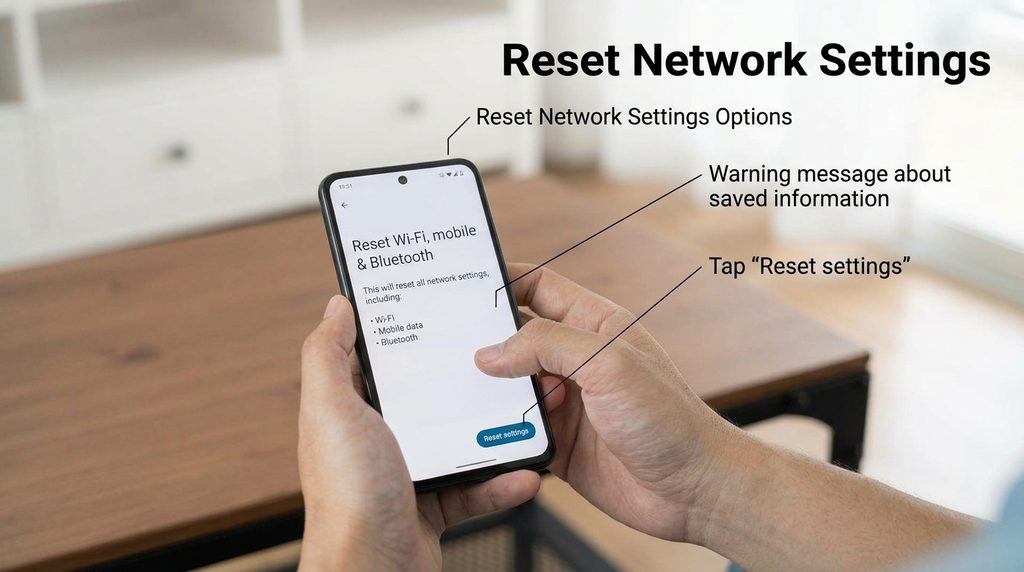
15. Reset Network Settings as a Last Resort
If you’ve tried the simpler troubleshooting steps and Wi-Fi still does not work correctly, you can consider resetting the phone’s network settings.
Depending on the Android version, this may appear as:
Reset Wi-Fi, mobile & Bluetooth
or a similar option.
Be aware that a network reset can remove saved network information, including:
- Saved Wi-Fi networks
- Wi-Fi passwords
- Bluetooth pairings
- Some network-related settings
You will need to reconnect to Wi-Fi networks afterward.
Because of this, don’t use the reset option as your first troubleshooting step.
Common Problems
My Phone Says “Connected” but Websites Don’t Open
Check whether other devices on the same Wi-Fi have internet.
If they also cannot connect, restart the router and check your internet service.
Wi-Fi Works on My Laptop but Not My Phone
The problem may be specific to the Android phone.
Try turning Wi-Fi off and on, restarting the phone, forgetting the network, and reconnecting.
Wi-Fi Works Near the Router but Not in My Room
The Wi-Fi signal may be too weak in that location.
Move closer to the router and test again.
My Phone Connects to Wi-Fi but Says “No Internet”
The phone can be connected to the router while the router itself has no working internet connection.
Check another device on the same network to determine whether the internet service is working.
Should I Reset Network Settings?
Only consider it after simpler troubleshooting has failed.
Remember that a network reset can remove saved Wi-Fi networks and Bluetooth connections.
Wi-Fi Works Except in One App
If websites and other apps work, troubleshoot the individual app rather than resetting your entire network configuration.
Important Things to Know
- A Wi-Fi connection does not always mean the Wi-Fi network has internet access.
- Check another device before changing your phone’s settings.
- Restarting the router can help when multiple devices are offline.
- Forgetting and reconnecting to Wi-Fi can resolve saved-connection problems.
- VPN and Private DNS settings can affect connectivity.
- Public Wi-Fi may require a browser-based sign-in.
- Test another Wi-Fi network to determine whether the problem follows your phone.
- Network settings vary between Android manufacturers and versions.
- A network reset can remove saved Wi-Fi and Bluetooth information.
Conclusion
When your Android phone is connected to Wi-Fi but has no internet, first determine whether the problem affects only your phone or the entire network.
Check another device, restart Wi-Fi and the phone, and make sure you have a strong signal. If other devices are also offline, restarting the router and checking your internet service may be more useful than changing phone settings.
If the problem affects only your Android phone, try forgetting and reconnecting to the Wi-Fi network, checking VPN and Private DNS settings, testing another network, and installing available system updates.
A network reset can be useful when other methods fail, but it should be treated as a later troubleshooting step because it removes saved network information.