

Notifications help you stay updated about messages, emails, missed calls, app activity, reminders, and other important events. But sometimes an Android phone may stop showing notifications even though the apps are working normally.
You might notice that messages only appear after opening an app, notifications don’t appear on the lock screen, or one particular app has stopped sending alerts.
The cause can be something simple, such as notifications being disabled, or a setting related to Do Not Disturb, battery usage, background activity, or notification permissions.
The exact menu names can vary depending on your Android version and phone manufacturer, but the troubleshooting process is generally similar.
Main Points
- Check whether notifications are enabled for the affected app.
- Make sure Do Not Disturb or another notification-silencing mode isn’t active.
- Check notification categories and individual notification types.
- Make sure the app has permission to send notifications.
- Check battery and background restrictions.
- Confirm that the app is updated.
- Restart the phone and test notifications again.
- Check lock-screen notification settings if alerts arrive but don’t appear on the lock screen.
- If only one app is affected, troubleshoot that app separately.
1. Check Whether Notifications Are Enabled
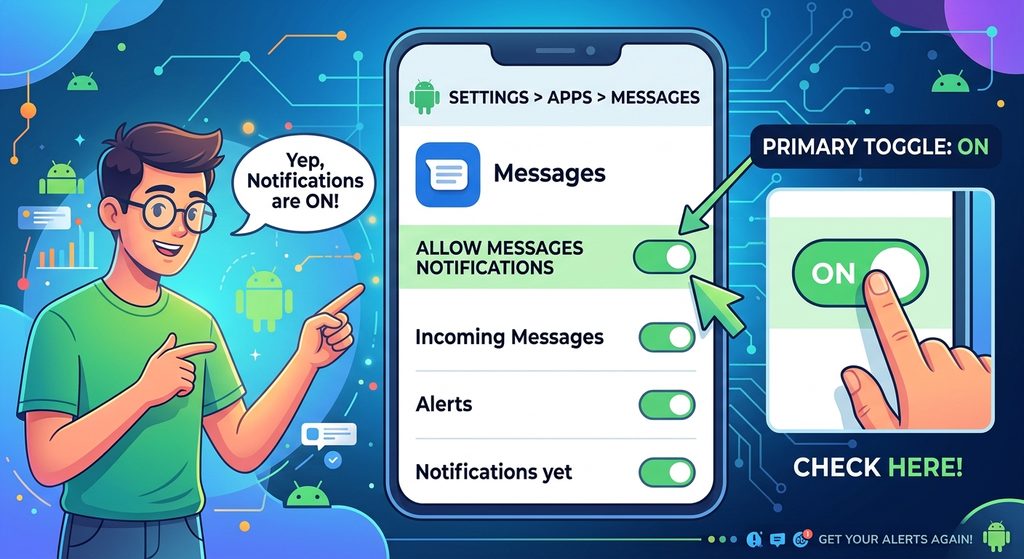
Start by checking the notification settings for the app that isn’t sending alerts.
Go to:
Settings → Notifications → App notifications
On some phones, you may find the option under:
Settings → Apps → [App Name] → Notifications
Find the affected app and make sure notifications are enabled.
If notifications are disabled, turn them on and test the app again.
For example, if WhatsApp notifications aren’t appearing, check WhatsApp’s notification settings rather than changing settings for every app on your phone.
2. Check Do Not Disturb
Do Not Disturb can prevent or silence notifications depending on its configuration.
Swipe down from the top of the screen and look for:
Do Not Disturb
If it is enabled, turn it off temporarily and test the affected app.
You can also check:
Settings → Notifications → Do Not Disturb
The exact location and available options vary between Android devices.
If Do Not Disturb is scheduled, your phone may automatically activate it at certain times.
Check for schedules if notifications stop at predictable times.
3. Check Notification Categories
Some Android apps divide notifications into different categories.
For example, an app might have separate notification categories for:
- Messages
- Calls
- Downloads
- Reminders
- Promotions
- Other alerts
You can have notifications enabled for the app while a specific category is disabled.
Open the app’s notification settings and look for individual notification categories.
Make sure the category you actually need is enabled.

4. Check Notification Permission
On supported Android versions, apps may need permission to send notifications.
If you recently installed an app, you may have been asked whether you wanted to allow notifications.
If you selected Don’t allow, notifications may not appear.
Go to the app’s notification settings and check whether notification permission is enabled.
If the option is available, allow notifications and test the app again.
5. Check Lock-Screen Notification Settings
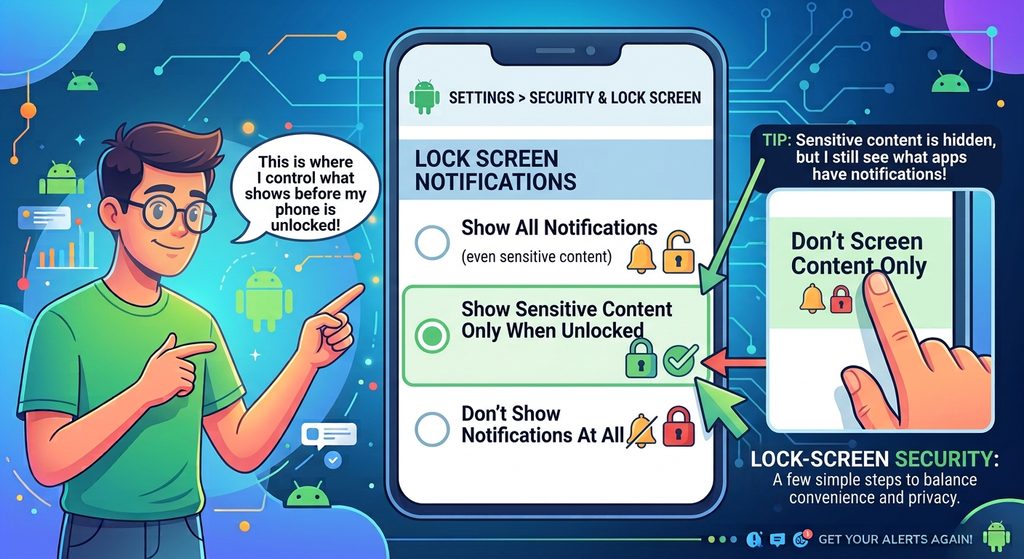
Sometimes notifications are arriving, but they aren’t visible on the lock screen.
If you hear a notification sound or see notifications after unlocking the phone, check your lock-screen settings.
Look under:
Settings → Notifications → Notifications on lock screen
Depending on the phone, you may see options related to:
- Showing notifications
- Showing alerting notifications
- Hiding silent notifications
- Showing sensitive content
The wording can differ significantly between manufacturers.
If notifications are hidden from the lock screen, changing this setting can make them visible again.
6. Check Notification Volume
If notifications appear on the screen but you don’t hear a sound, the problem may be related to volume rather than notification delivery.
Press a volume button and check the available volume controls.
Depending on the phone, notification sounds may be affected by the phone’s sound mode or notification volume.
Make sure the phone isn’t set to:
- Silent
- Vibrate only
unless that is intentional.
Also check whether the specific app has its own notification sound settings.
7. Check Battery Saver and Background Restrictions
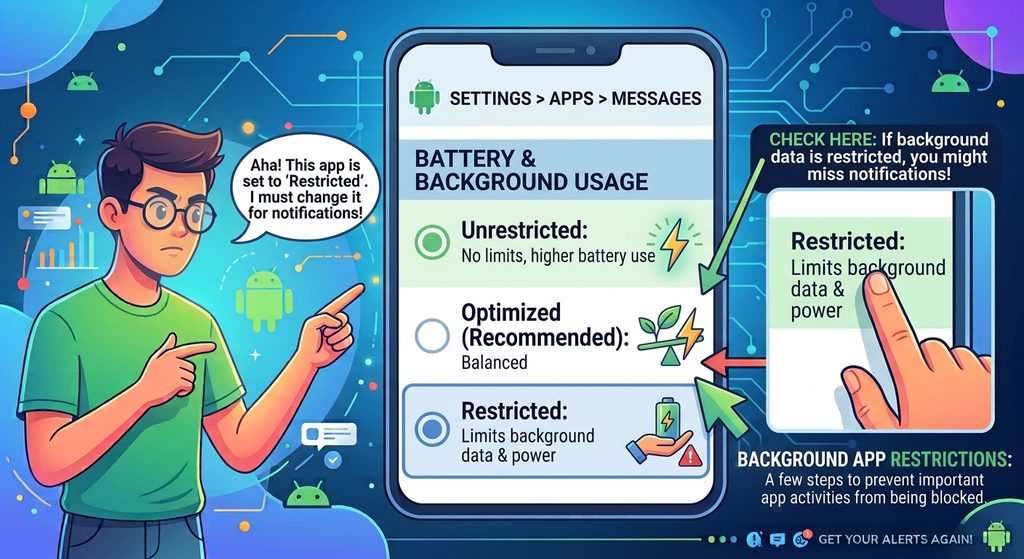
Android can restrict background activity to reduce battery consumption.
In some situations, this can affect how quickly an app checks for new information or performs background work.
Open:
Settings → Apps → [App Name] → Battery
You may see options such as:
- Unrestricted
- Optimized
- Restricted
The available choices depend on your phone.
If an important app is heavily restricted, check whether changing its battery setting improves notification delivery.
Don’t automatically disable battery optimization for every app.
Apps that don’t need frequent background activity can usually remain optimized.
8. Check Background Mobile Data
If notifications work on Wi-Fi but not when you’re using mobile data, check the app’s data settings.
Some Android phones allow you to control whether an app can use mobile data in the background.
Look under the app’s settings for options related to:
Mobile data & Wi-Fi
or
Background data
Make sure background data is allowed if the app needs an internet connection to deliver notifications.
9. Check Data Saver
Data Saver can limit how apps use mobile data in the background.
If you’re having notification problems while using mobile data, check:
Settings → Network & internet → Data Saver
The exact location varies by device.
If Data Saver is active, check whether the affected app is allowed to use background data.
10. Check Whether the App Is Being Put to Sleep
Some Android manufacturers provide additional battery-management features.
Samsung Galaxy devices, for example, may have settings related to sleeping or deep-sleeping apps.
If an app is being restricted aggressively, it may not behave normally in the background.
Look through your phone’s battery or background-app settings and check whether the affected app has been placed into a restricted or sleeping category.
11. Open the App and Test It
If you’re troubleshooting one particular app, open it and use it normally for a few minutes.
For example, if you aren’t receiving notifications from a messaging app, open the app and check whether new messages appear.
If messages only appear after opening the app, that can be a useful clue that the app isn’t receiving or processing information normally while running in the background.
Continue checking battery, data, notification, and account settings.
12. Check the App’s Own Notification Settings
Some apps have notification controls inside the app itself.
For example, an app may allow you to control:
- Message notifications
- Group notifications
- Email alerts
- Promotional notifications
- Sound
- Vibration
- Specific account notifications
Open the app and look under its settings.
Make sure the type of alert you’re expecting hasn’t been disabled there.
This is especially important when Android’s system notification settings show that notifications are enabled.
13. Check Your Internet Connection
Many apps require an internet connection to receive new information.
If notifications from several internet-based apps stop working at the same time, check whether your phone has a reliable connection.
Try opening a website or another internet-based app.
If the internet connection isn’t working properly, solve the connection problem first.
If only one app is affected while other apps receive notifications normally, the problem is more likely specific to that app or its settings.
14. Restart Your Android Phone
A simple restart can resolve temporary system problems.
Restart the phone and wait until it has completely started.
Then:
- Connect to Wi-Fi or mobile data.
- Make sure notifications are enabled.
- Open the affected app if necessary.
- Test whether new notifications arrive.
If notifications begin working after the restart but stop again later, continue investigating battery, background, notification, and app settings.
15. Update the App
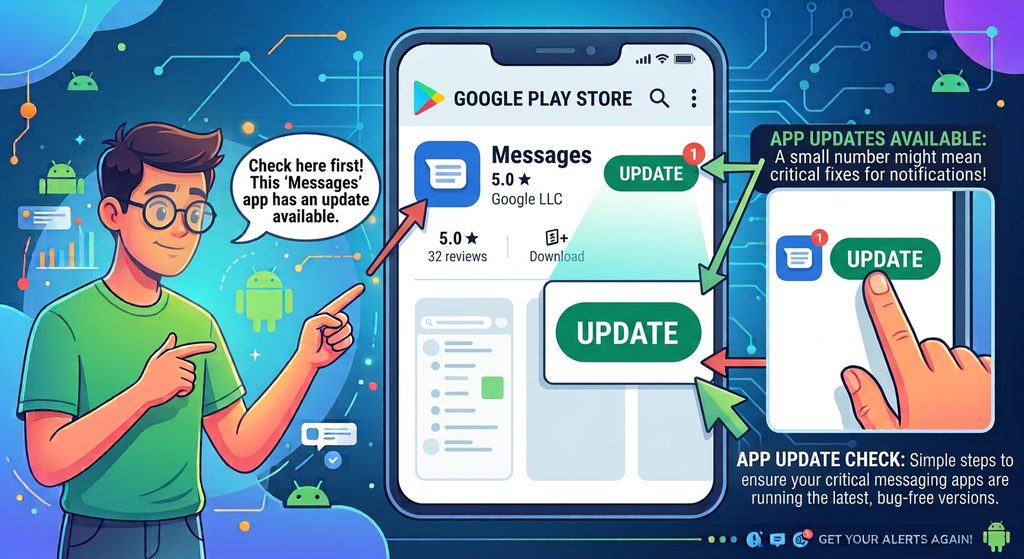
Open the Google Play Store and check whether an update is available for the affected app.
An outdated app may have compatibility or functionality problems.
If an update is available, install it and test notifications again.
Also check for Android system updates when appropriate.
16. Check Notification History
Some Android phones provide Notification history.
This can help determine whether notifications were generated but dismissed or missed.
Look under:
Settings → Notifications → Notification history
If the feature is available and enabled, you may be able to see recently dismissed notifications.
This can help distinguish between:
- The app not generating a notification
- The phone receiving a notification but hiding it
- A notification being dismissed accidentally
Not every Android phone exposes the feature in exactly the same way.
17. Check Whether Notifications Are Delayed
Some phones may delay background activity to save battery.
If notifications eventually appear but arrive much later than expected, investigate:
- Battery optimization
- Background restrictions
- Data Saver
- Background mobile data
- Do Not Disturb schedules
- The app’s own settings
Avoid changing multiple settings at once if possible.
Change one relevant setting, test the notification, and then continue if necessary.
This makes it easier to identify what actually fixed the problem.
18. Clear the App’s Cache
If only one app is having notification problems, clearing its cache may be worth trying.
Go to:
Settings → Apps → [App Name] → Storage
Look for:
Clear cache
This removes temporary cached files.
Be careful not to select Clear storage or Clear data unless you understand what it does.
Clearing an app’s storage can remove locally stored information and may require you to sign in or configure the app again.
19. Reinstall the App as a Later Step
If notifications still don’t work for one particular app, reinstalling it can sometimes resolve damaged app files or configuration problems.
Before uninstalling an app, make sure important information is synchronized or backed up.
For messaging or other apps that store information locally, check the app’s backup options first.
Then reinstall the app from a trusted source such as Google Play.
After installation, allow notifications when prompted and test the app.
20. Check Whether the Problem Affects Every App
This is an important troubleshooting step.
Ask yourself:
Are notifications missing from one app or many apps?
Only One App Is Affected
Focus on:
- App notification settings
- Notification categories
- App permissions
- Battery restrictions
- Background data
- The app’s own settings
- App updates
- Cache or reinstall
Many Apps Are Affected
Check:
- Do Not Disturb
- Notification settings
- Battery Saver
- Data Saver
- Internet connection
- Android system updates
- System-level notification settings
This distinction can save you from changing settings that aren’t related to the problem.
Common Problems
Notifications Only Appear When I Open the App
Check the app’s battery and background settings first.
Also check background data, Data Saver, and the app’s own notification settings.
I Receive Notifications but Don’t See Them on the Lock Screen
Check the lock-screen notification settings.
The phone may be configured to hide notifications or their contents while locked.
I Don’t Hear Notification Sounds
Check the phone’s sound mode and notification volume.
Also check whether the individual notification category has a sound enabled.
Notifications Stop at Certain Times
Check Do Not Disturb and any schedules or routines that may automatically activate it.
One App Isn’t Sending Notifications
Start with that app’s Android notification settings, notification categories, battery settings, background data, and in-app notification controls.
All Apps Stopped Sending Notifications
Check system-level settings first, particularly Do Not Disturb, notification settings, internet connectivity, battery-saving features, and system updates.
Important Things to Know
- Android notification menus vary between phones and Android versions.
- An app can have notifications enabled while individual notification categories are disabled.
- Lock-screen visibility and notification delivery are separate settings.
- Battery restrictions can affect how apps behave in the background.
- Data Saver can affect background mobile-data activity.
- Some apps have additional notification settings inside the app.
- Don’t disable battery optimization for every app without a reason.
- Clearing an app’s cache is different from clearing its storage/data.
- Reinstalling an app may remove locally stored information, so check backups first.
- If several apps have the same problem, investigate system-level settings before troubleshooting every app individually.
Conclusion
When your Android phone isn’t receiving notifications, start with the simplest possibilities. Check the affected app’s notification permission and categories, then make sure Do Not Disturb isn’t preventing alerts.
If notifications are delayed or only appear after opening an app, investigate battery optimization, background activity, Data Saver, and background mobile-data settings. Also check the app’s own notification controls.
If the problem affects only one app, focus your troubleshooting there. If notifications have stopped across many apps, look for a system-level setting or connectivity problem.
Finally, keep both Android and your apps reasonably up to date. By checking these settings systematically, you can usually narrow down whether the problem comes from the app, the Android system, or the phone’s connectivity and power-management settings.