

Android apps can use battery for many different reasons. An app may consume more power because it is actively being used, running tasks in the background, using location services, syncing data, playing media, accessing the camera, or repeatedly performing work when the phone is not being actively used.
High battery usage does not automatically mean an app is faulty. Some apps naturally use more battery because of what they do. The important thing is to identify which app or activity is using the battery and whether that usage is expected.
The exact battery menus vary between Android versions and phone manufacturers, but the troubleshooting process is generally similar.
Main Points
- Check which apps are using the most battery.
- Look at battery usage over an appropriate time period.
- Consider what the app was doing when the battery was consumed.
- Check whether the app is running heavily in the background.
- Review location, camera, microphone, and other permissions when relevant.
- Check background data and battery settings.
- Keep the app and Android system updated.
- Restart the phone if battery usage suddenly changes.
- Don’t restrict every app automatically.
- Investigate unusual battery drain rather than relying only on a single percentage.
1. Check Which App Is Using the Battery
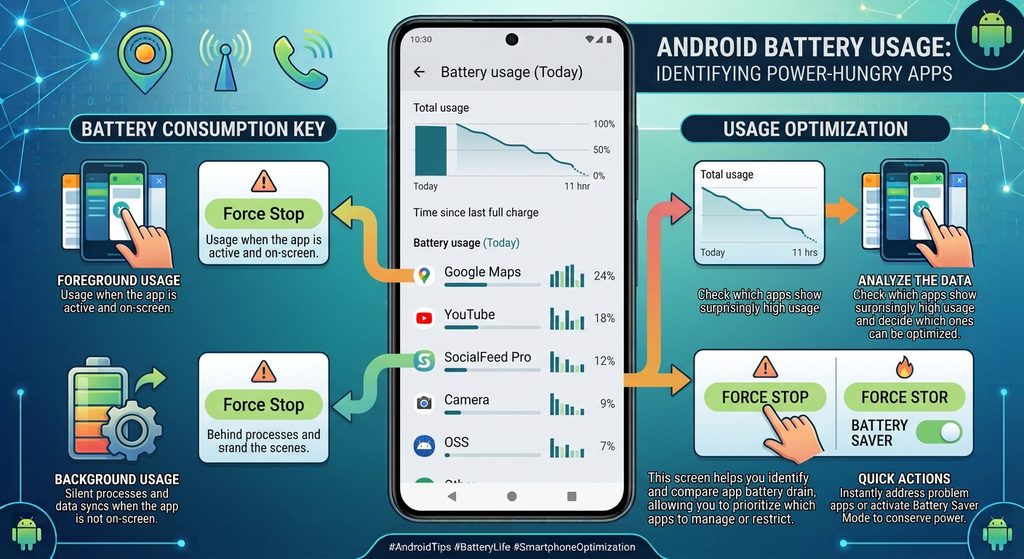
Start by looking at your phone’s battery-usage information.
Open:
Settings → Battery → Battery usage
The exact menu name may differ.
You may see a list of apps showing how much battery they have used over a selected period.
Look for apps that appear unusually high compared with how much you actually used them.
For example, if you barely opened an app but it appears near the top of the battery-usage list, it may be worth investigating its background activity.
However, don’t assume that the highest percentage automatically means there is a problem.
An app you used heavily for several hours may naturally consume a significant amount of battery.
2. Consider How You Used the App
Before changing any settings, think about what you were doing with the app.
Battery usage can increase when an app:
- Streams video
- Plays games
- Uses GPS
- Uploads or downloads large files
- Makes video calls
- Records audio or video
- Uses the camera
- Continuously synchronizes information
- Displays graphics or animations
- Uses mobile data for extended periods
For example, a navigation app can use more battery while actively tracking your location because GPS and the screen may remain active.
Similarly, a video-streaming app may consume substantial battery during extended playback.
Higher usage in these situations can be expected.
3. Check Whether the App Is Running in the Background
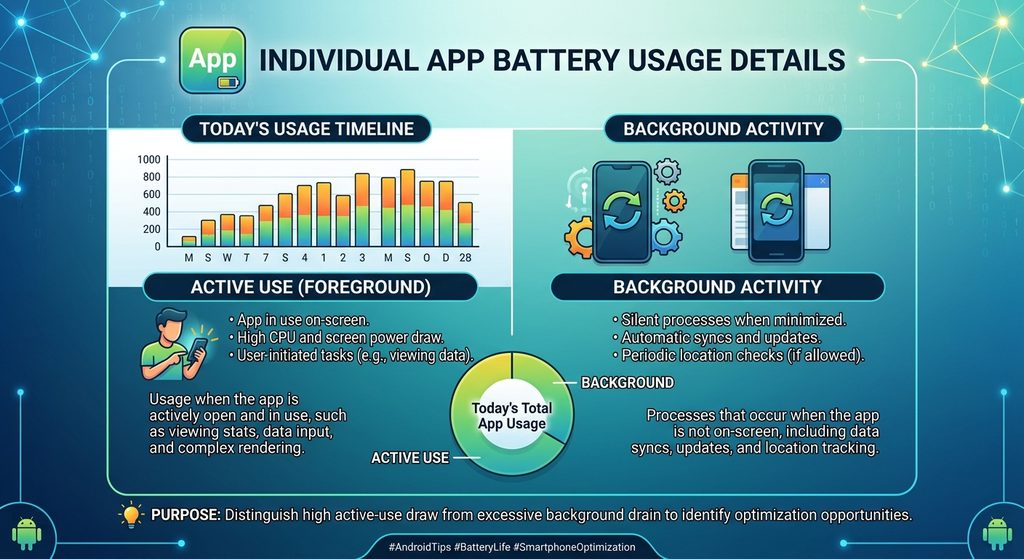
One of the most useful things to investigate is background activity.
An app can perform certain tasks even when you aren’t actively looking at it.
Depending on the app, background activity may include:
- Synchronizing information
- Checking for new messages
- Uploading files
- Updating content
- Processing media
- Using location
- Maintaining connections
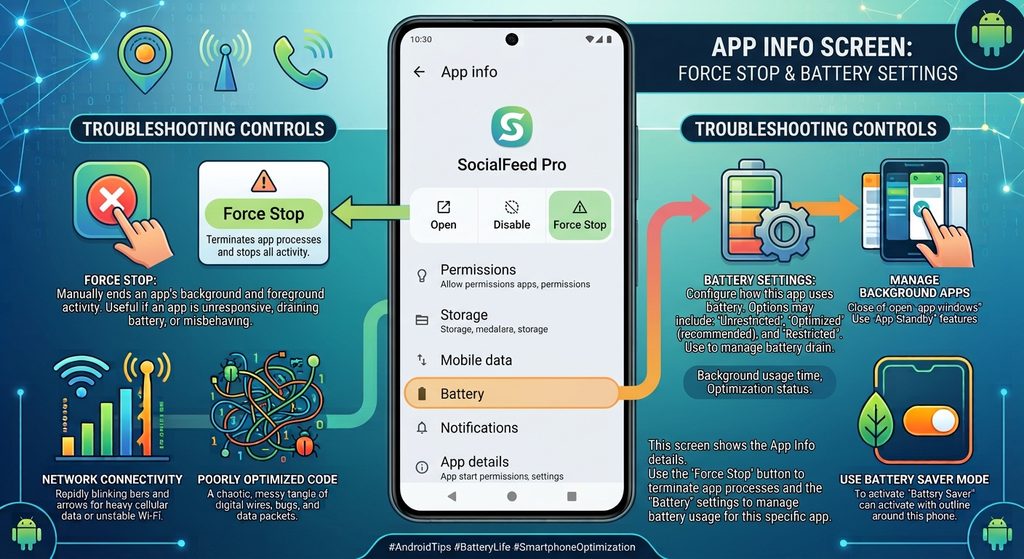
Open the affected app’s battery settings.
A typical path may be:
Settings → Apps → [App Name] → Battery
You may see options such as:
- Unrestricted
- Optimized
- Restricted
The available options vary by Android device.
If an app is consuming a lot of battery in the background, its battery setting is worth reviewing.
4. Check Whether the App Needs Background Activity
Don’t restrict an app simply because it uses battery.
Some apps need background activity to perform their main functions.
For example, messaging, email, navigation, wearable-device, and synchronization apps may need some background activity to provide timely updates.
If you restrict such an app too aggressively, you may experience:
- Delayed notifications
- Delayed synchronization
- Missing updates
- Problems connecting to another device
- Reduced functionality
The goal isn’t to make every app use as little battery as possible.
The goal is to prevent unnecessary battery use while keeping the functions you need.
5. Check Location Access
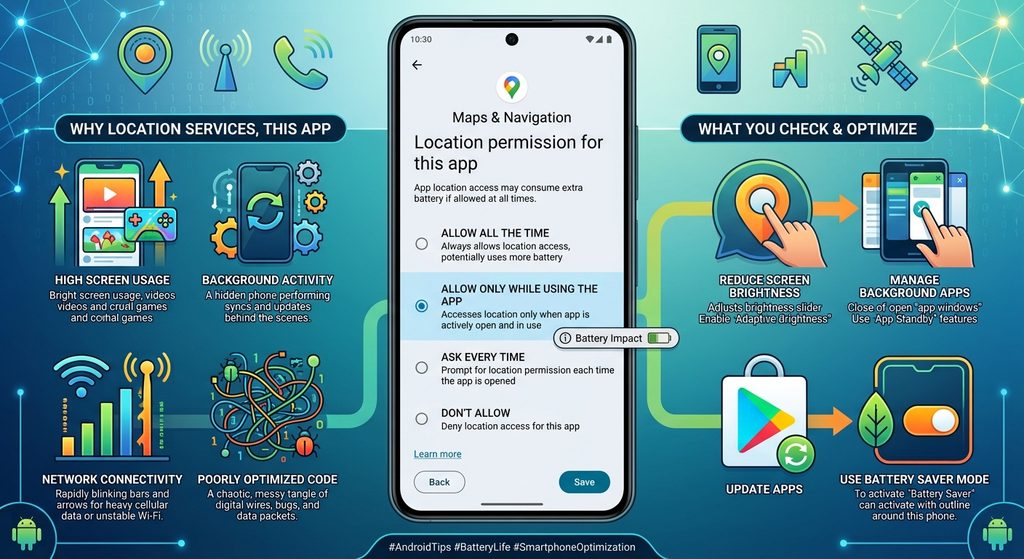
Location services can contribute to battery usage, particularly when an app frequently requests your location.
Open:
Settings → Location → App location permissions
The exact menu can vary.
Review apps that have access to your location.
Depending on the Android version, you may see options such as:
- Allow all the time
- Allow only while using the app
- Ask every time
- Don’t allow
Choose the option that matches how you actually use the app.
If an app doesn’t need continuous location access, you can review whether a more limited permission is appropriate.
6. Check Other Permissions When Relevant
Location isn’t the only permission worth reviewing.
Depending on the app, battery use may be related to features involving:
- Camera
- Microphone
- Bluetooth
- Nearby devices
- Physical activity
- Photos and videos
Open:
Settings → Apps → [App Name] → Permissions
Review whether the permissions make sense for the app’s purpose.
For example, a navigation app may reasonably need location access.
A simple calculator generally doesn’t need continuous access to your location.
Permissions themselves don’t necessarily mean that an app is constantly using a particular sensor or feature. Review them in context rather than assuming every permission causes battery drain.
7. Check Background Mobile Data
Some apps regularly communicate with online services while running in the background.
If an app uses significant mobile data, it may also be performing background network activity.
Depending on your Android version, check:
Settings → Apps → [App Name] → Mobile data & Wi-Fi
Look for options related to:
- Background data
- Mobile data
- Wi-Fi usage
If an app doesn’t need background mobile-data access, you can review whether restricting it makes sense.
Keep in mind that restricting background data can affect notifications and synchronization.
8. Check Battery Optimization
Android may provide battery-optimization settings for individual apps.
Depending on the device, an app may be set to:
Optimized
or another battery-management mode.
If an app is consuming unusually high battery, check its battery settings before making changes.
For many ordinary apps, the default optimized setting is appropriate.
Avoid setting every app to unrestricted operation. That can allow more background activity and may increase battery consumption rather than reduce it.
9. Check for Apps That Are Stuck or Repeatedly Working
Sometimes an app may behave unusually and continue performing work longer than expected.
You might notice:
- The app appears unusually high in battery usage.
- Battery consumption continues even when you aren’t using the app.
- The phone becomes warmer than usual.
- The app repeatedly starts or performs background activity.
If this happens, try opening the app and checking whether it has an unfinished task.
You can also restart the phone and observe battery usage afterward.
If the unusual behavior returns consistently, check for an app update or investigate the app’s settings.
10. Update the App
An outdated app can sometimes have bugs or compatibility problems.
Open Google Play Store and check whether an update is available.
If an update exists, install it and monitor battery usage afterward.
It’s useful to compare battery behavior before and after the update rather than assuming the update will automatically solve the problem.
If battery usage suddenly became abnormal after an app update, check whether another update is available later and review the developer’s release information if necessary.
11. Check for Android System Updates
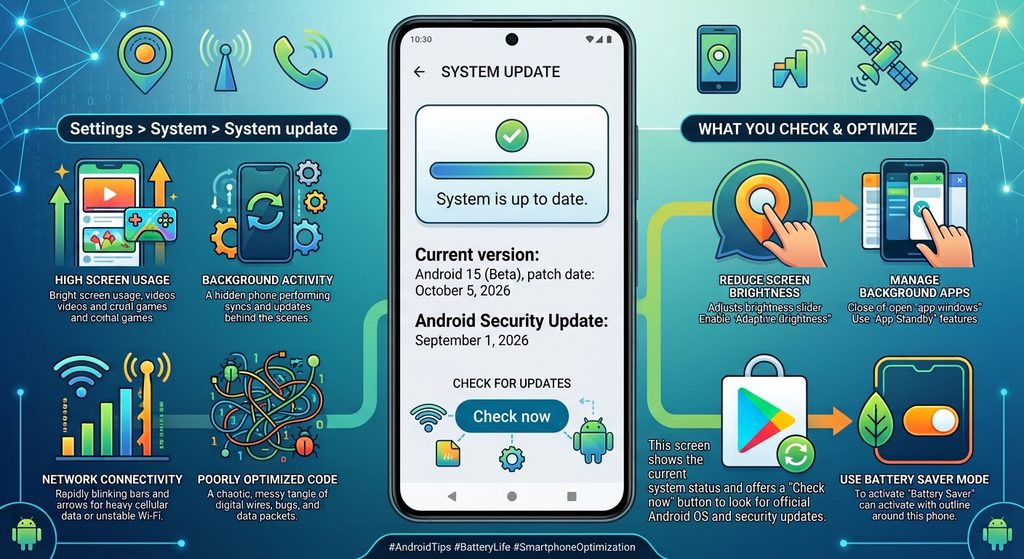
Your phone’s software can also affect battery behavior.
Open your device’s software-update settings and check whether an update is available.
The path varies between manufacturers.
After installing a system update, battery behavior can sometimes change temporarily while the phone completes background tasks.
For that reason, don’t immediately conclude that an update has caused a permanent battery problem based only on a short period of increased usage.
12. Restart Your Android Phone
If an app suddenly begins consuming much more battery than usual, restart the phone.
A restart can stop temporary processes and clear certain short-term software problems.
After restarting, use the phone normally and check battery usage again.
If the same app repeatedly becomes a major battery user without an obvious reason, continue investigating instead of repeatedly restarting the phone.
13. Check Screen Usage Too
Sometimes an app appears to use a lot of battery when the real reason is that the phone’s screen has been active for a long time.
For example, if you spent two hours watching videos, browsing social media, or playing a game, both the app and the display may contribute significantly to battery consumption.
When investigating battery drain, consider:
- Screen-on time
- App usage
- Mobile data
- Wi-Fi
- Location
- Background activity
Looking at the overall picture is more useful than focusing on one number.
14. Check Whether Mobile Data Is Causing Higher Battery Use
Mobile connectivity can sometimes consume more power than expected, particularly in areas with weak cellular coverage.
If you notice battery drain mainly while using mobile data, compare battery behavior when connected to a reliable Wi-Fi network.
You can also check whether the phone is frequently switching between different network conditions.
This doesn’t necessarily mean the app itself is defective.
The phone’s network activity may be contributing to overall battery consumption.
15. Check for Location, Bluetooth, or Wearable Connections
Some apps work with other devices or sensors.
For example:
- Fitness apps may use location or activity sensors.
- Navigation apps may use location continuously.
- Smartwatch apps may maintain Bluetooth communication.
- Earbud companion apps may maintain device connections.
If battery usage increased after connecting a new device or enabling a new feature, consider whether that connection is related.
Don’t disable Bluetooth or location permanently if you need those features. Instead, identify which service or app is actually using them.
16. Clear the App’s Cache
If one app is behaving unusually, clearing its cache can be worth trying.
Go to:
Settings → Apps → [App Name] → Storage & cache
Then select:
Clear cache
This removes temporary cached files.
It is different from clearing the app’s storage or data.
Avoid selecting Clear storage or Clear data unless you understand the consequences, because it may remove locally stored information or sign you out.
17. Force Stop the App When Necessary
If an app appears to be stuck performing background activity, you can temporarily stop it.
Go to:
Settings → Apps → [App Name]
Then select:
Force stop
The exact wording may differ.
Afterward, use the phone normally and monitor the app.
Force stopping an app is a troubleshooting action, not something you generally need to do repeatedly every day.
If the app immediately returns to unusually high battery usage, investigate why rather than continually force-stopping it.
18. Reinstall the App as a Later Step
If only one app continues to behave unusually, reinstalling it may help.
Before uninstalling, make sure important information is synchronized or backed up.
This is especially important for apps that store information locally.
After reinstalling:
- Sign in if required.
- Restore or synchronize your data.
- Give only the permissions the app actually needs.
- Use the app normally.
- Monitor battery usage.
If the app immediately starts using excessive battery again, the cause may be related to its behavior, settings, or compatibility rather than damaged installation files.
19. Don’t Automatically Restrict Every Battery-Heavy App
A common mistake is to see several apps using battery and restrict all of them.
This can create new problems.
For example, aggressive restrictions can interfere with:
- Messaging
- Calendar synchronization
- Navigation
- Smartwatch connections
- File synchronization
- Important alerts
Instead, investigate the apps individually.
Ask:
Is the battery usage expected based on what I do with this app?
If yes, there may be nothing wrong.
If the app uses substantial battery while you’re barely using it, investigate its background activity and settings.
Common Problems
An App Uses a Lot of Battery Even When I Don’t Use It
Check its battery settings and background activity.
Also review location, background data, and synchronization settings where relevant.
My Phone Gets Warm When a Certain App Is Running
Check whether the app is performing intensive work such as video processing, navigation, uploading, downloading, or other background tasks.
If the behavior is unexpected and persistent, update the app and investigate further.
Battery Usage Increased After Installing a New App
Check the new app’s battery usage and permissions.
Temporarily uninstalling the app can help determine whether the change is related to it, provided your important data is backed up.
Should I Set Every App to Restricted?
No.
Some apps need background activity to provide notifications, synchronization, or connected-device functionality.
Use restrictions selectively.
Should I Clear App Data?
Not as a first step.
Try clearing the cache first. Clearing app data can remove locally stored information and reset the app.
One App Uses More Battery Than All Others
Consider how you use that app before assuming there is a problem.
A navigation, gaming, video, or communication app may naturally use more battery during active use.
Important Things to Know
- High battery usage does not automatically mean an app is defective.
- Battery percentages should be considered together with actual app usage.
- Background activity can contribute to battery drain.
- Location, Bluetooth, mobile data, and synchronization can affect battery consumption.
- Restricting background activity can affect notifications and other features.
- Android battery settings vary by manufacturer and software version.
- Don’t disable permissions simply because an app has them; consider whether they are appropriate for the app’s purpose.
- Clearing cache is different from clearing app data.
- Force stopping an app is mainly a troubleshooting step.
- Keep Android and apps reasonably up to date.
- If unusual battery drain affects many apps, investigate the phone’s overall battery and network behavior rather than focusing on one application.
Conclusion
When an Android app appears to use too much battery, start by checking the phone’s Battery Usage screen. Then consider how heavily you actually used the app and whether it needs background activity, location, mobile data, Bluetooth, or synchronization.
If the battery usage seems unusual, review the app’s battery and permission settings, update the app, restart the phone, and consider clearing its cache. For a single problematic app, reinstalling it can be a later troubleshooting step.
Most importantly, don’t assume that the app with the highest battery percentage is automatically the cause of a problem. Some apps naturally use more power because of what they do. The useful question is whether the battery consumption is reasonable for the app’s activity and whether it continues when the app isn’t being used.