

How to Recognize Suspicious App Permissions Before Installing an App

Installing a new Android app is usually simple, but it is worth checking what the app wants to access before you tap Install. Some permissions are necessary for an app to work, while others may be unnecessary for the features the app provides.

For example, a navigation app may reasonably need location access, while a simple calculator generally has little reason to request access to your contacts, microphone, or SMS.

Android provides several ways to review an app’s privacy information and permissions. By checking these details before installation, you can make a more informed decision about whether an app fits your needs.

Main Points

  • Check what data and permissions the app may request before installing it.
  • Think about whether each permission makes sense for the app’s main purpose.
  • Pay particular attention to access involving your location, microphone, camera, contacts, SMS, phone, and files.
  • Check the app’s privacy information and developer details.
  • Be cautious when an app appears to request access unrelated to its advertised features.
  • Review permissions again after installation because permissions can change or be requested later.
  • Avoid installing apps from untrusted sources simply because they promise features unavailable elsewhere.

1. Start With the App’s Main Purpose

The first question to ask is simple:

What is this app supposed to do?

Understanding the app’s primary function gives you a reference point for evaluating its requested access.

For example:

  • A navigation app may need your location.
  • A video-calling app may need the camera and microphone.
  • A document-scanning app may need the camera.
  • A photo-editing app may need access to selected photos.
  • A calculator may not need access to your contacts or SMS.
  • A flashlight app may not need access to your microphone or call history.

This does not automatically mean an unusual permission is malicious. Some apps have additional features that require extra access.

Instead, treat permissions as something to investigate when they do not appear connected to the app’s purpose.
2. Check the App’s Information Before Installing

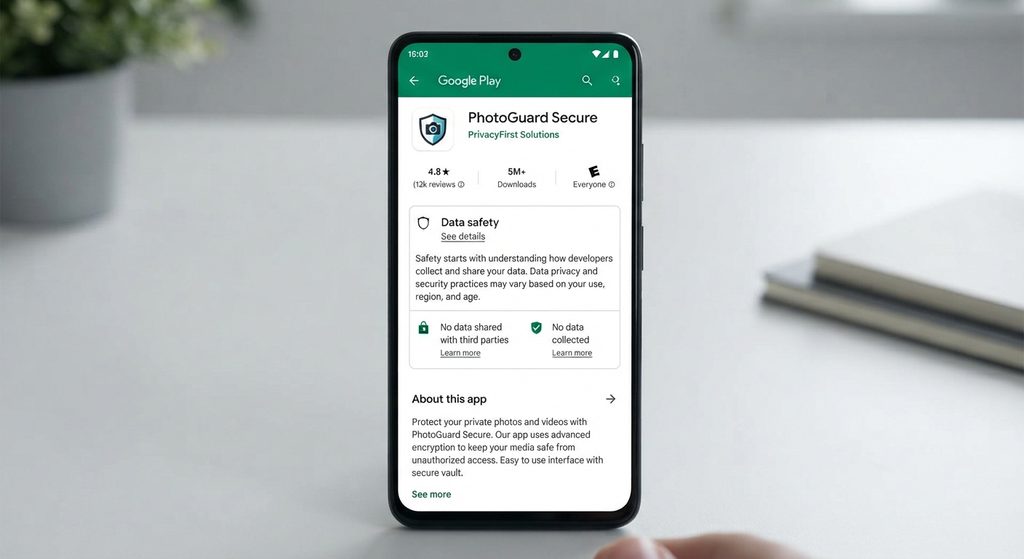
Before installing an app from Google Play, look through its store listing rather than immediately tapping Install.

Pay attention to:

  • App name
  • Developer name
  • Description
  • Number of downloads
  • Ratings and reviews
  • Last update information
  • Data safety information
  • Privacy policy
  • In-app purchases, if applicable

The goal is not to decide whether an app is safe based on one item.

Instead, look at the overall picture.

An app with a clear description, identifiable developer, regularly updated software, and understandable privacy information gives you more information to work with than an app whose purpose and data practices are unclear.
3. Review the Data Safety Information

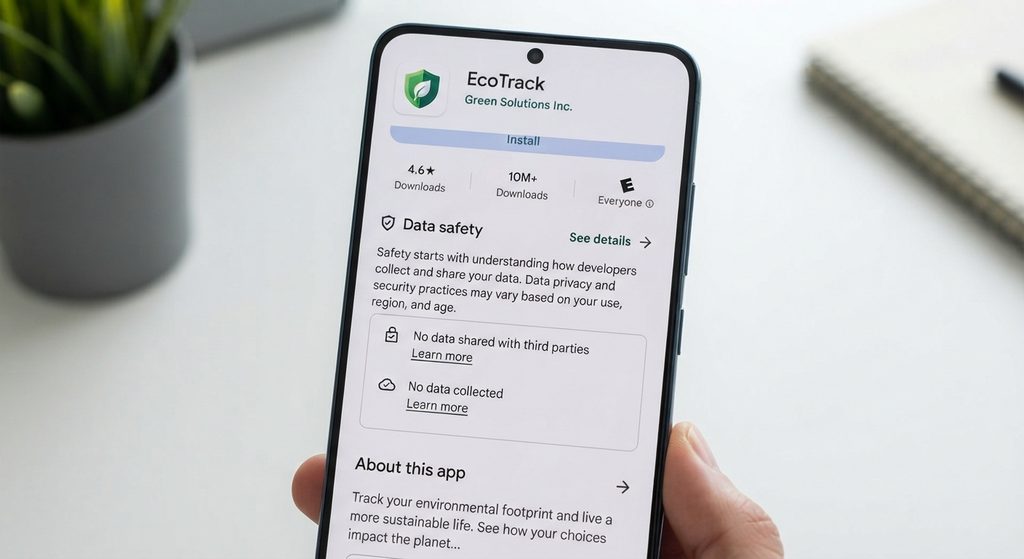
Google Play provides a Data safety section for apps that explains information developers disclose about how their apps handle data.

The information can help you understand whether an app may:

  • Collect certain types of data
  • Share certain data
  • Use data for particular purposes
  • Allow you to request deletion of certain data
  • Use security practices such as encryption for data in transit

Remember that this section is based on information provided by the app developer. It should be considered part of your overall review rather than a guarantee that an app is harmless.

If the app’s data practices seem excessive for what you want the app to do, consider looking for an alternative.
4. Look at Location Access Carefully

Location can be particularly sensitive because it can reveal where you are or where you regularly go.

Ask why the app would need your location.

For example:

A weather app may use location to provide local forecasts. A map application may need location for navigation. But a basic note-taking app may have little reason to require continuous location access.

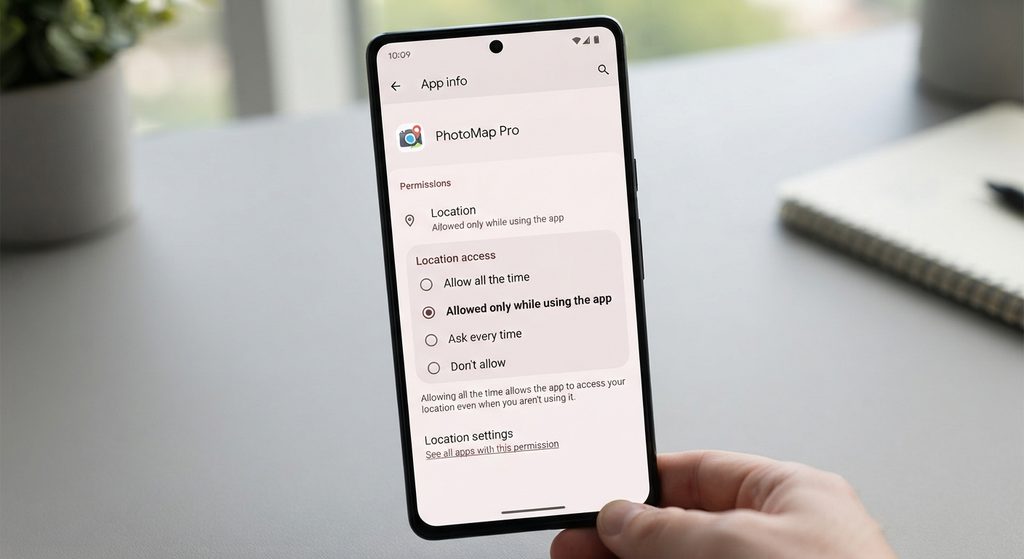
Also pay attention to the type of access being requested.

Depending on the Android version and device, you may encounter options such as:

  • Precise location
  • Approximate location
  • While using the app
  • Allow all the time
  • Don’t allow

If an app only needs your location while you are actively using it, continuous background location may not be necessary.
5. Be Careful With Camera and Microphone Access

Camera and microphone permissions can provide access to sensors that capture images, video, or sound.

Some apps obviously need them.

For example:

  • Video-conferencing apps need the microphone and camera for calls.
  • Camera apps need camera access.
  • Voice-recording apps need microphone access.
  • QR-code scanners may need the camera.

But if an app’s main function has nothing to do with recording or communication, ask why it needs these permissions.

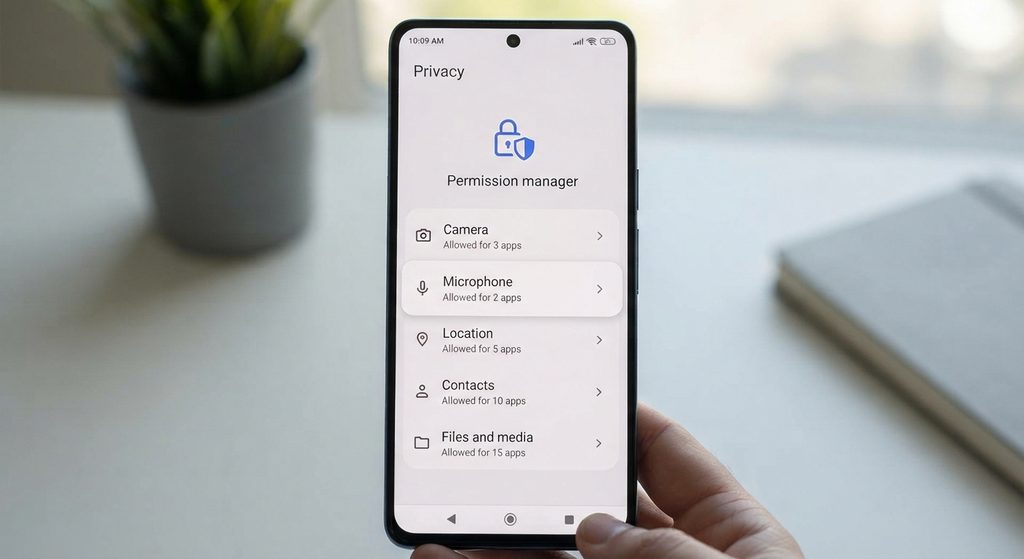
You can also review these permissions later in Android’s privacy settings.

If you do not use a feature requiring the microphone or camera, you may not need to grant access immediately.


6. Pay Attention to Contacts Access

Contacts contain information about people you know, including names, phone numbers, email addresses, and other details depending on how your contacts are stored.

Some applications legitimately need contacts.

For example, a messaging or calling app may use your contacts to help you communicate with people.

However, a simple utility app requesting access to your entire contacts list deserves closer attention.

Before allowing access, ask:

Does this feature actually require my contacts?

If the answer is unclear, look for an explanation in the app’s description or privacy information.


7. Treat SMS and Phone Permissions With Extra Care

SMS and phone-related permissions can provide access to communication information or functionality.

Some apps may have legitimate reasons to use them. For example, certain communication or verification features can depend on SMS or phone-related functionality.

But these permissions should not be treated as routine requests.

If an unrelated app asks for access to SMS or phone functions, investigate before continuing.

Avoid granting sensitive permissions simply because the app says they are required without explaining why.


8. Check Photo and File Access

Android has changed how apps can access photos and files over time, and the exact options depend on your Android version and device.

When an app asks for access to photos or videos, consider whether it actually needs that access.

For example:

  • A photo editor may need photos you choose to edit.
  • A social media app may need photos when you upload them.
  • A document scanner may need access to images or files for its features.

You may not need to give an app broad access to everything if Android offers a more limited option.

When available, choosing only the photos or files needed for a particular task can reduce unnecessary access.


9. Look for Permissions That Do Not Match the App

One of the most useful warning signs is a mismatch between an app’s purpose and the access it requests.

Imagine an app advertised as a simple wallpaper tool.

If it asks for:

  • Microphone access
  • SMS access
  • Contacts
  • Precise location
  • Phone access

you have a reason to stop and investigate.

This does not prove that the app is malicious. There may be a legitimate explanation.

However, the mismatch is enough to justify asking questions before granting access.


10. Don’t Ignore Accessibility or Special Access Requests

Some apps may request access through Android features that are different from ordinary permissions.

One example is Accessibility access.

Accessibility features are designed to help people interact with their devices and can also support legitimate automation or specialized applications.

Because this type of access can provide significant control over aspects of the device, you should understand why an app wants it before enabling it.

Be particularly cautious if a simple utility asks you to enable a powerful device-level feature without a clear explanation.

Do not enable special access just because an app claims that it is necessary.


11. Check the Developer and Privacy Policy

Before installing an unfamiliar app, look at who developed it.

Consider:

  • Does the developer have other recognizable apps?
  • Is there a legitimate website?
  • Is there a privacy policy?
  • Does the description clearly explain what the app does?
  • Does the developer provide a way to contact them?

A privacy policy does not automatically make an app trustworthy, but the absence of understandable information can make it harder to determine how your data may be handled.

Read the relevant sections rather than assuming that the existence of a privacy policy guarantees good privacy practices.


12. Don’t Rely Only on Ratings and Reviews

Ratings can provide useful information, but they should not be your only security check.

A highly rated app can still request permissions you do not want to grant.

When reading reviews, look for recurring comments about issues such as:

  • Excessive advertising
  • Unexpected behavior
  • Permission requests
  • Crashes
  • Privacy concerns
  • Changes after an update

Also remember that individual reviews can be inaccurate or based on misunderstandings.

Use reviews as additional information rather than proof that an app is safe.


13. Check Whether the App Actually Needs the Permission

A useful habit is to separate necessary access from optional access.

For example, suppose you install a photo-editing app.

It makes sense that the app may need access to photos when you want to edit them.

But you can still ask:

  • Does it need access to every photo?
  • Can I select specific photos instead?
  • Does it need location information?
  • Does it need microphone access?
  • Does it need contacts?

The goal is not to deny every permission.

The goal is to give an app only the access that makes sense for the features you actually use.
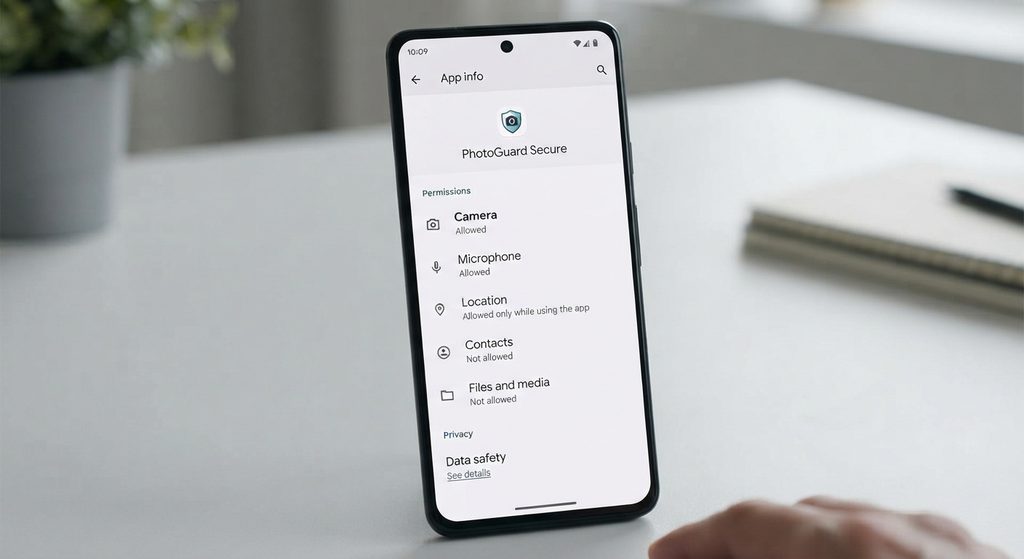
14. Review Permissions After Installation

Checking permissions before installation is useful, but it should not be the end of the process.

Android apps may request additional permissions later when you use particular features.

After installing an unfamiliar app, you can review its permissions through Android’s settings.

The exact menu names vary by Android version and phone manufacturer, but a common path is:

Settings → Apps → Select the app → Permissions

You may see categories such as:

  • Camera
  • Microphone
  • Location
  • Contacts
  • Photos and videos
  • Music and audio
  • Phone
  • SMS

Review the list and remove access that you do not need when Android gives you that option.


15. Use Android’s Privacy Tools Regularly

Android includes privacy-related tools that can help you see how apps interact with sensitive permissions.

Depending on your Android version, you may have features such as:

  • Permission Manager
  • Privacy Dashboard
  • Camera and microphone indicators
  • Permission controls for individual apps

These tools can be useful when you are unsure which applications have access to sensitive information.

Instead of checking every app every day, review permissions when:

  • You install several new apps.
  • An app receives a major update.
  • You notice unexpected behavior.
  • You are cleaning up old applications.
  • You want to improve your privacy settings.

16. Be Extra Careful With Apps Installed Outside Google Play

Android allows software to be installed from sources other than Google Play, depending on your device and settings.

This can be useful in legitimate situations, but it also increases the importance of verifying where an app comes from.

Before installing an APK from outside an official app store, consider:

  • Who published it?
  • Is the source trustworthy?
  • Is the download from the developer’s official website?
  • Has the file been modified?
  • Why isn’t the app being installed through the normal store?

Avoid downloading random APK files from websites you do not trust simply because they promise a paid feature for free or an otherwise restricted feature.


17. Watch for Permission Requests That Appear Suddenly

Sometimes an app works normally and later asks for additional access.

Don’t automatically approve the request.

Read the message and consider what you were trying to do when the request appeared.

For example, if you select a feature that obviously requires the camera, a camera permission request makes sense.

If you simply open an unrelated settings page and the app suddenly requests contacts or microphone access, investigate before allowing it.

A permission request should make sense in context.


18. What to Do If a Permission Seems Suspicious

If you are uncomfortable with an app’s permission requests, you have several options.

Option 1: Don’t install the app

This is the simplest choice if you have not installed it yet.

Option 2: Look for an alternative

Search for another app that provides similar functionality with fewer or more understandable permissions.

Option 3: Research the permission

Check Android’s documentation and the developer’s explanation to understand why the permission might be needed.

Option 4: Install and deny optional permissions

If the app can function without certain permissions, you may be able to deny them.

Keep in mind that denying a permission can prevent a specific feature from working.

Option 5: Uninstall the app

If you already installed the app and no longer trust it, uninstalling it can remove the app and its future access to device permissions. If you are concerned about data that may already have been collected, review the developer’s privacy and data-deletion options as well.


Common Problems

“The app needs the permission to work, so I have to allow it.”

Not necessarily.

Some features genuinely require permissions, but you should understand which feature requires the permission. Android may also allow you to deny access or provide a more limited option.

“The app has a high rating, so all of its permissions must be safe.”

A high rating does not automatically mean that every permission is appropriate for you.

Review the permissions and data practices separately.

“A permission sounds scary, so the app must be dangerous.”

Not necessarily.

Many legitimate apps need sensitive permissions. A navigation app requesting location, for example, is expected.

The important question is whether the requested access makes sense for the app’s functionality.

“I denied a permission and now something doesn’t work.”

That can happen when the feature genuinely requires the permission.

You can review the permission later and decide whether you want to enable it.

“The permission list looks different on my phone.”

That’s normal.

Android version, phone manufacturer, app version, and regional differences can affect the names and location of privacy settings.


Important Things to Know

Permissions are only one part of app privacy. An app can have reasonable permissions and still collect other information through its normal operation.

Don’t judge an app from one permission alone. Look at the app’s purpose, developer, privacy information, requested access, and how the permissions relate to its features.

Android settings vary between phones. Samsung Galaxy, Google Pixel, Xiaomi, OnePlus, and other devices may use different menu names or locations.

Keep Android and apps updated. Updates can include security fixes and changes to privacy controls.

Don’t grant permissions just to get past a setup screen. If you do not understand why an app needs access, pause and investigate first.

Never share personal information unnecessarily. An app should not automatically receive more access simply because you want to try one of its features.


Conclusion

Checking app permissions before installing an Android app is a simple habit that can give you more control over your personal information.

Start by understanding what the app is designed to do. Then review its developer information, privacy details, data practices, and requested permissions. Pay particular attention when an app requests sensitive access that does not appear connected to its main purpose.

You do not need to reject every app that asks for a sensitive permission. Instead, make sure you understand why the permission is being requested and whether you are comfortable granting it.

After installation, review the app’s permissions again and remove unnecessary access where Android allows it. This combination of checking before installation and reviewing permissions afterward can help you make more informed decisions about the apps on your phone.

Installing a new Android app is usually simple, but it is worth checking what the app wants to access before you tap Install. Some permissions are necessary for an app to work, while others may be unnecessary for the features the app provides.

For example, a navigation app may reasonably need location access, while a simple calculator generally has little reason to request access to your contacts, microphone, or SMS.

Android provides several ways to review an app’s privacy information and permissions. By checking these details before installation, you can make a more informed decision about whether an app fits your needs.

Main Points

  • Check what data and permissions the app may request before installing it.
  • Think about whether each permission makes sense for the app’s main purpose.
  • Pay particular attention to access involving your location, microphone, camera, contacts, SMS, phone, and files.
  • Check the app’s privacy information and developer details.
  • Be cautious when an app appears to request access unrelated to its advertised features.
  • Review permissions again after installation because permissions can change or be requested later.
  • Avoid installing apps from untrusted sources simply because they promise features unavailable elsewhere.

1. Start With the App’s Main Purpose

The first question to ask is simple:

What is this app supposed to do?

Understanding the app’s primary function gives you a reference point for evaluating its requested access.

For example:

  • A navigation app may need your location.
  • A video-calling app may need the camera and microphone.
  • A document-scanning app may need the camera.
  • A photo-editing app may need access to selected photos.
  • A calculator may not need access to your contacts or SMS.
  • A flashlight app may not need access to your microphone or call history.

This does not automatically mean an unusual permission is malicious. Some apps have additional features that require extra access.

Instead, treat permissions as something to investigate when they do not appear connected to the app’s purpose.

2. Check the App’s Information Before Installing

Before installing an app from Google Play, look through its store listing rather than immediately tapping Install.

Pay attention to:

  • App name
  • Developer name
  • Description
  • Number of downloads
  • Ratings and reviews
  • Last update information
  • Data safety information
  • Privacy policy
  • In-app purchases, if applicable

The goal is not to decide whether an app is safe based on one item.

Instead, look at the overall picture.

An app with a clear description, identifiable developer, regularly updated software, and understandable privacy information gives you more information to work with than an app whose purpose and data practices are unclear.

3. Review the Data Safety Information

Google Play provides a Data safety section for apps that explains information developers disclose about how their apps handle data.

The information can help you understand whether an app may:

  • Collect certain types of data
  • Share certain data
  • Use data for particular purposes
  • Allow you to request deletion of certain data
  • Use security practices such as encryption for data in transit

Remember that this section is based on information provided by the app developer. It should be considered part of your overall review rather than a guarantee that an app is harmless.

If the app’s data practices seem excessive for what you want the app to do, consider looking for an alternative.

4. Look at Location Access Carefully

Location can be particularly sensitive because it can reveal where you are or where you regularly go.

Ask why the app would need your location.

For example:

A weather app may use location to provide local forecasts. A map application may need location for navigation. But a basic note-taking app may have little reason to require continuous location access.

Also pay attention to the type of access being requested.

Depending on the Android version and device, you may encounter options such as:

  • Precise location
  • Approximate location
  • While using the app
  • Allow all the time
  • Don’t allow

If an app only needs your location while you are actively using it, continuous background location may not be necessary.

5. Be Careful With Camera and Microphone Access

Camera and microphone permissions can provide access to sensors that capture images, video, or sound.

Some apps obviously need them.

For example:

  • Video-conferencing apps need the microphone and camera for calls.
  • Camera apps need camera access.
  • Voice-recording apps need microphone access.
  • QR-code scanners may need the camera.

But if an app’s main function has nothing to do with recording or communication, ask why it needs these permissions.

You can also review these permissions later in Android’s privacy settings.

If you do not use a feature requiring the microphone or camera, you may not need to grant access immediately.


6. Pay Attention to Contacts Access

Contacts contain information about people you know, including names, phone numbers, email addresses, and other details depending on how your contacts are stored.

Some applications legitimately need contacts.

For example, a messaging or calling app may use your contacts to help you communicate with people.

However, a simple utility app requesting access to your entire contacts list deserves closer attention.

Before allowing access, ask:

Does this feature actually require my contacts?

If the answer is unclear, look for an explanation in the app’s description or privacy information.


7. Treat SMS and Phone Permissions With Extra Care

SMS and phone-related permissions can provide access to communication information or functionality.

Some apps may have legitimate reasons to use them. For example, certain communication or verification features can depend on SMS or phone-related functionality.

But these permissions should not be treated as routine requests.

If an unrelated app asks for access to SMS or phone functions, investigate before continuing.

Avoid granting sensitive permissions simply because the app says they are required without explaining why.


8. Check Photo and File Access

Android has changed how apps can access photos and files over time, and the exact options depend on your Android version and device.

When an app asks for access to photos or videos, consider whether it actually needs that access.

For example:

  • A photo editor may need photos you choose to edit.
  • A social media app may need photos when you upload them.
  • A document scanner may need access to images or files for its features.

You may not need to give an app broad access to everything if Android offers a more limited option.

When available, choosing only the photos or files needed for a particular task can reduce unnecessary access.


9. Look for Permissions That Do Not Match the App

One of the most useful warning signs is a mismatch between an app’s purpose and the access it requests.

Imagine an app advertised as a simple wallpaper tool.

If it asks for:

  • Microphone access
  • SMS access
  • Contacts
  • Precise location
  • Phone access

you have a reason to stop and investigate.

This does not prove that the app is malicious. There may be a legitimate explanation.

However, the mismatch is enough to justify asking questions before granting access.


10. Don’t Ignore Accessibility or Special Access Requests

Some apps may request access through Android features that are different from ordinary permissions.

One example is Accessibility access.

Accessibility features are designed to help people interact with their devices and can also support legitimate automation or specialized applications.

Because this type of access can provide significant control over aspects of the device, you should understand why an app wants it before enabling it.

Be particularly cautious if a simple utility asks you to enable a powerful device-level feature without a clear explanation.

Do not enable special access just because an app claims that it is necessary.


11. Check the Developer and Privacy Policy

Before installing an unfamiliar app, look at who developed it.

Consider:

  • Does the developer have other recognizable apps?
  • Is there a legitimate website?
  • Is there a privacy policy?
  • Does the description clearly explain what the app does?
  • Does the developer provide a way to contact them?

A privacy policy does not automatically make an app trustworthy, but the absence of understandable information can make it harder to determine how your data may be handled.

Read the relevant sections rather than assuming that the existence of a privacy policy guarantees good privacy practices.


12. Don’t Rely Only on Ratings and Reviews

Ratings can provide useful information, but they should not be your only security check.

A highly rated app can still request permissions you do not want to grant.

When reading reviews, look for recurring comments about issues such as:

  • Excessive advertising
  • Unexpected behavior
  • Permission requests
  • Crashes
  • Privacy concerns
  • Changes after an update

Also remember that individual reviews can be inaccurate or based on misunderstandings.

Use reviews as additional information rather than proof that an app is safe.


13. Check Whether the App Actually Needs the Permission

A useful habit is to separate necessary access from optional access.

For example, suppose you install a photo-editing app.

It makes sense that the app may need access to photos when you want to edit them.

But you can still ask:

  • Does it need access to every photo?
  • Can I select specific photos instead?
  • Does it need location information?
  • Does it need microphone access?
  • Does it need contacts?

The goal is not to deny every permission.

The goal is to give an app only the access that makes sense for the features you actually use.

14. Review Permissions After Installation

Checking permissions before installation is useful, but it should not be the end of the process.

Android apps may request additional permissions later when you use particular features.

After installing an unfamiliar app, you can review its permissions through Android’s settings.

The exact menu names vary by Android version and phone manufacturer, but a common path is:

Settings → Apps → Select the app → Permissions

You may see categories such as:

  • Camera
  • Microphone
  • Location
  • Contacts
  • Photos and videos
  • Music and audio
  • Phone
  • SMS

Review the list and remove access that you do not need when Android gives you that option.


15. Use Android’s Privacy Tools Regularly

Android includes privacy-related tools that can help you see how apps interact with sensitive permissions.

Depending on your Android version, you may have features such as:

  • Permission Manager
  • Privacy Dashboard
  • Camera and microphone indicators
  • Permission controls for individual apps

These tools can be useful when you are unsure which applications have access to sensitive information.

Instead of checking every app every day, review permissions when:

  • You install several new apps.
  • An app receives a major update.
  • You notice unexpected behavior.
  • You are cleaning up old applications.
  • You want to improve your privacy settings.

16. Be Extra Careful With Apps Installed Outside Google Play

Android allows software to be installed from sources other than Google Play, depending on your device and settings.

This can be useful in legitimate situations, but it also increases the importance of verifying where an app comes from.

Before installing an APK from outside an official app store, consider:

  • Who published it?
  • Is the source trustworthy?
  • Is the download from the developer’s official website?
  • Has the file been modified?
  • Why isn’t the app being installed through the normal store?

Avoid downloading random APK files from websites you do not trust simply because they promise a paid feature for free or an otherwise restricted feature.


17. Watch for Permission Requests That Appear Suddenly

Sometimes an app works normally and later asks for additional access.

Don’t automatically approve the request.

Read the message and consider what you were trying to do when the request appeared.

For example, if you select a feature that obviously requires the camera, a camera permission request makes sense.

If you simply open an unrelated settings page and the app suddenly requests contacts or microphone access, investigate before allowing it.

A permission request should make sense in context.


18. What to Do If a Permission Seems Suspicious

If you are uncomfortable with an app’s permission requests, you have several options.

Option 1: Don’t install the app

This is the simplest choice if you have not installed it yet.

Option 2: Look for an alternative

Search for another app that provides similar functionality with fewer or more understandable permissions.

Option 3: Research the permission

Check Android’s documentation and the developer’s explanation to understand why the permission might be needed.

Option 4: Install and deny optional permissions

If the app can function without certain permissions, you may be able to deny them.

Keep in mind that denying a permission can prevent a specific feature from working.

Option 5: Uninstall the app

If you already installed the app and no longer trust it, uninstalling it can remove the app and its future access to device permissions. If you are concerned about data that may already have been collected, review the developer’s privacy and data-deletion options as well.


Common Problems

“The app needs the permission to work, so I have to allow it.”

Not necessarily.

Some features genuinely require permissions, but you should understand which feature requires the permission. Android may also allow you to deny access or provide a more limited option.

“The app has a high rating, so all of its permissions must be safe.”

A high rating does not automatically mean that every permission is appropriate for you.

Review the permissions and data practices separately.

“A permission sounds scary, so the app must be dangerous.”

Not necessarily.

Many legitimate apps need sensitive permissions. A navigation app requesting location, for example, is expected.

The important question is whether the requested access makes sense for the app’s functionality.

“I denied a permission and now something doesn’t work.”

That can happen when the feature genuinely requires the permission.

You can review the permission later and decide whether you want to enable it.

“The permission list looks different on my phone.”

That’s normal.

Android version, phone manufacturer, app version, and regional differences can affect the names and location of privacy settings.


Important Things to Know

Permissions are only one part of app privacy. An app can have reasonable permissions and still collect other information through its normal operation.

Don’t judge an app from one permission alone. Look at the app’s purpose, developer, privacy information, requested access, and how the permissions relate to its features.

Android settings vary between phones. Samsung Galaxy, Google Pixel, Xiaomi, OnePlus, and other devices may use different menu names or locations.

Keep Android and apps updated. Updates can include security fixes and changes to privacy controls.

Don’t grant permissions just to get past a setup screen. If you do not understand why an app needs access, pause and investigate first.

Never share personal information unnecessarily. An app should not automatically receive more access simply because you want to try one of its features.


Conclusion

Checking app permissions before installing an Android app is a simple habit that can give you more control over your personal information.

Start by understanding what the app is designed to do. Then review its developer information, privacy details, data practices, and requested permissions. Pay particular attention when an app requests sensitive access that does not appear connected to its main purpose.

You do not need to reject every app that asks for a sensitive permission. Instead, make sure you understand why the permission is being requested and whether you are comfortable granting it.

After installation, review the app’s permissions again and remove unnecessary access where Android allows it. This combination of checking before installation and reviewing permissions afterward can help you make more informed decisions about the apps on your phone.

Related Posts

LEAVE A REPLY

Please enter your comment!
Please enter your name here

Related posts

Latest posts

How to Review the Privacy Settings on Your Android Phone

Your Android phone contains a lot of personal information, including photos, messages, contacts, location information, files, and data from the apps you use. Android provides...

How to Troubleshoot Low Storage Warnings on Android

A low storage warning means your Android phone is running short of available space. When storage becomes too full, you may have difficulty installing...

Why Android Apps May Use Too Much Battery and What You Can Check

Android apps can use battery for many different reasons. An app may consume more power because it is actively being used, running tasks in...