
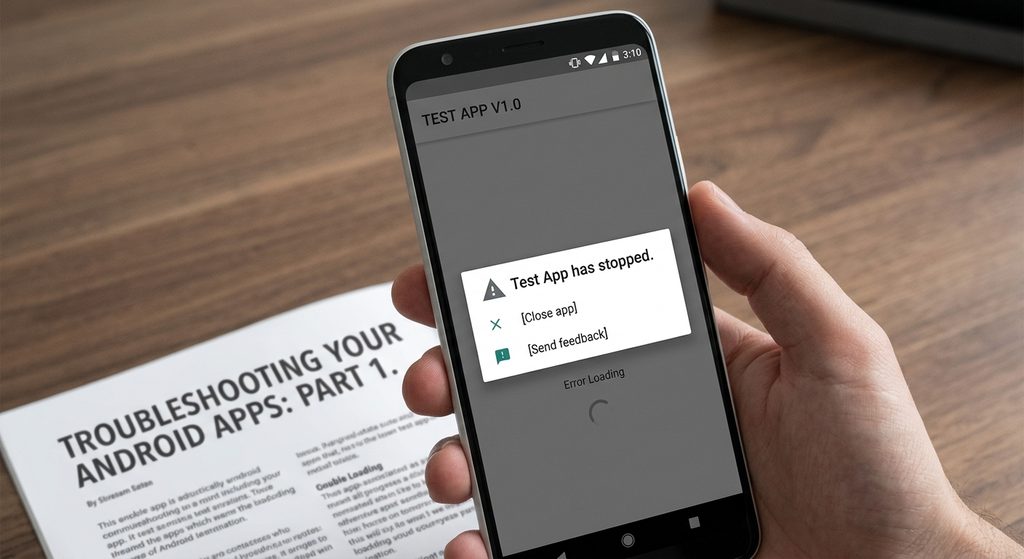
An Android app that repeatedly crashes can be frustrating, especially when it closes as soon as you open it or stops working while you are using it.
An app can crash for many reasons, including a temporary software problem, an outdated app version, corrupted temporary files, insufficient storage, compatibility issues, or problems with the Android system.
The good news is that you can usually troubleshoot the problem yourself before considering more complicated solutions.
The exact menus can vary between Android phones and manufacturers, but the basic troubleshooting process is similar.
Main Points
- Restart the phone before trying complicated fixes.
- Check whether the app has an available update.
- Make sure Android is updated.
- Check available storage space.
- Clear the app’s cache before considering more destructive options.
- Force stopping an app can sometimes resolve a temporary problem.
- Clearing app data is different from clearing the cache and may remove locally stored information.
- If only one app crashes, the problem may be specific to that app.
- If many apps crash, the problem may involve Android, storage, or another system component.
1. Restart Your Android Phone
The first thing to try is a simple restart.
A temporary system or app problem can sometimes disappear after the phone starts again.
To restart your phone:
- Press and hold the power button, or use the power menu available on your device.
- Select Restart.
- Wait for the phone to start completely.
- Open the problematic app again.
If the app works normally after restarting, you may not need to make any other changes.
2. Check Whether the App Keeps Crashing
Before changing settings, try opening the app again after the restart.
Pay attention to what happens.
For example:
- Does it crash immediately?
- Does it crash after you sign in?
- Does it crash when opening a particular screen?
- Does it crash when uploading a file?
- Does it only crash after several minutes?
Knowing when the crash happens can help identify the cause.
If the app crashes every time you perform the same action, make a note of that behavior.
3. Update the App
An outdated app may have bugs that have already been fixed in a newer version.
Open the Google Play Store and search for the problematic app.
If an update is available, select Update.
After the update finishes, open the app again.
App developers regularly release updates that can include:
- Bug fixes
- Compatibility improvements
- Performance improvements
- Security fixes
- Support for newer Android versions
If the app was recently updated and started crashing afterward, the problem could also be related to the new version.
In that situation, check the app’s recent reviews or the developer’s support information for reports of similar problems.
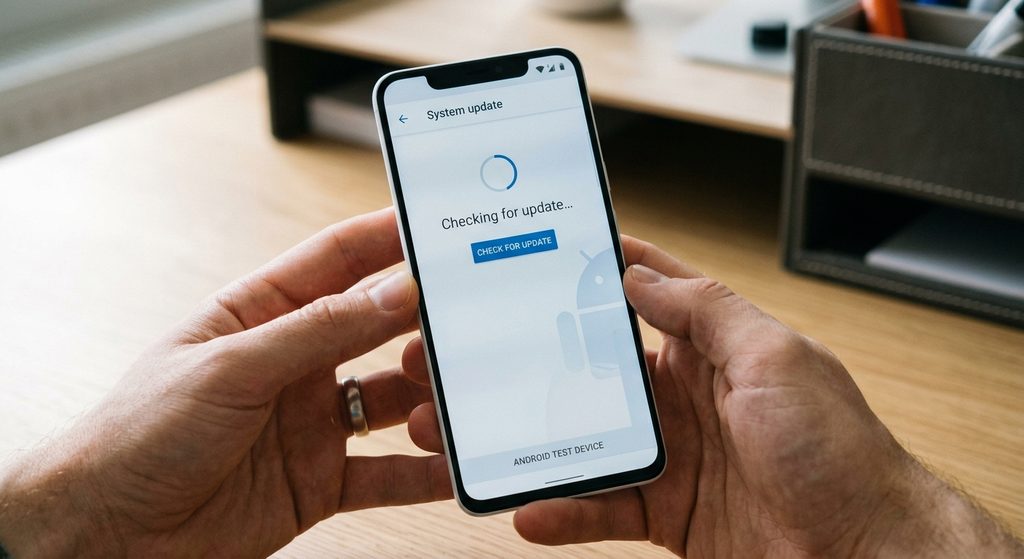
4. Update Android
The app itself may not be the only software involved.
Check whether your phone has a system update available.
Depending on your device, you may find this under:
Settings → System → Software update
or a similar menu.
Samsung Galaxy phones, for example, may place software updates under a different Settings section.
If an update is available, follow the instructions provided by your phone.
After updating Android, restart the phone and test the app again.
5. Check Your Available Storage
Very low storage can cause problems with apps and other phone functions.
Open your phone’s storage settings and check how much free space remains.
You may find this under:
Settings → Storage
If your phone is almost full, consider removing unnecessary files.
You might start with:
- Large videos
- Duplicate photos
- Old downloads
- Unused apps
- Unnecessary offline files
Do not randomly delete system files or folders simply to create space.
After freeing some storage, restart the phone and check the app again.
6. Force Stop the App
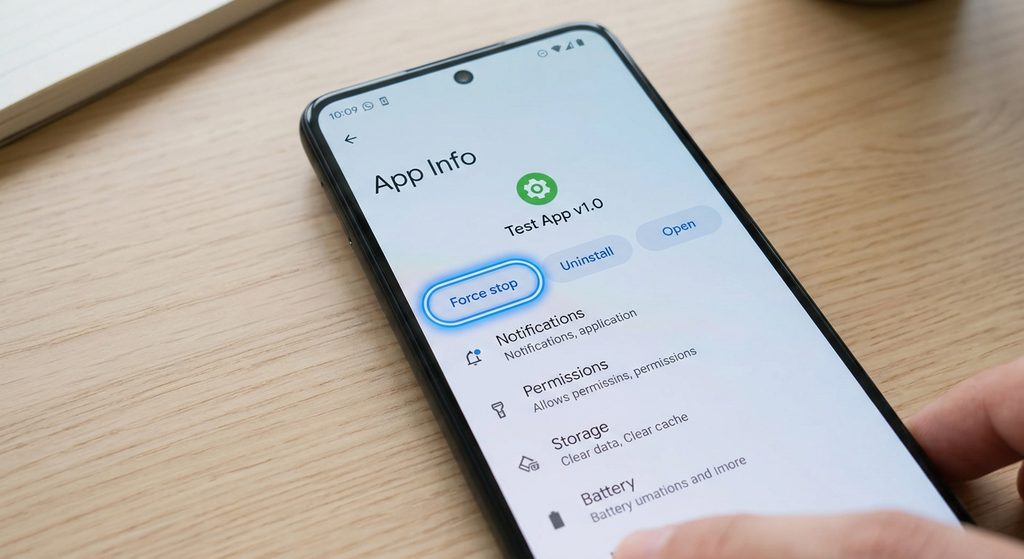
If the app is stuck or behaving incorrectly, you can try force stopping it.
Open:
Settings → Apps → [App Name]
Then look for Force stop.
Tap it and confirm if Android asks you to do so.
After that, open the app again.
Force stopping an app ends its current running process. It does not normally uninstall the app or delete your account.
However, the exact behavior can vary depending on the app.
7. Clear the App’s Cache
An app stores temporary files in its cache.
If those temporary files become problematic, clearing the cache can sometimes help.
Usually, you can find the option through:
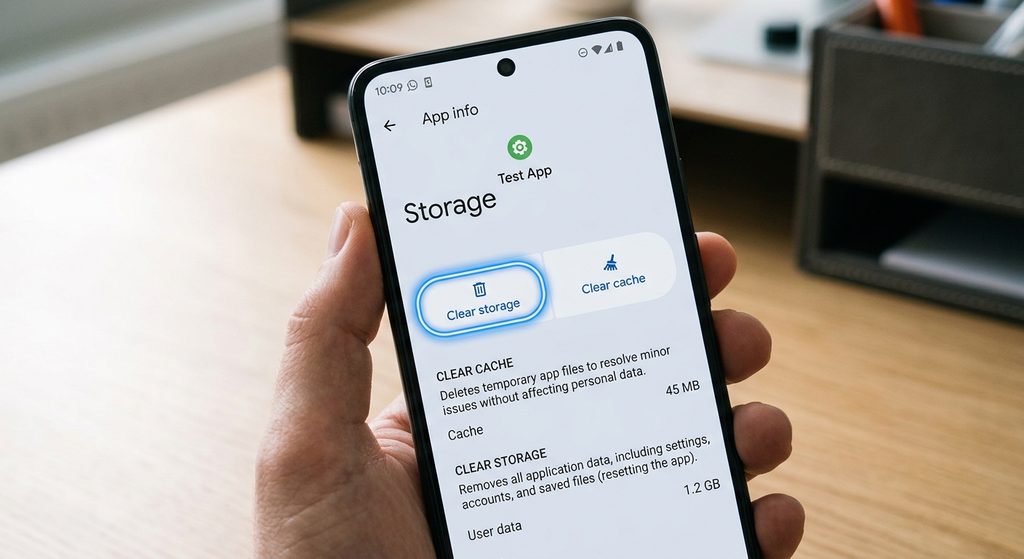
Settings → Apps → [App Name] → Storage & cache
Then select:
Clear cache
The exact wording can vary.
Clearing the cache is different from clearing the app’s storage or data.
Clear Cache
This removes temporary cached files.
Clear Storage or Clear Data
This can remove locally stored app information and may reset the app.
For that reason, try clearing the cache before using the more destructive Clear storage or Clear data option.
8. Open the App Again
After clearing the cache, launch the app again.
The first launch may behave slightly differently because the app may need to recreate temporary files.
Check whether the original crashing problem has disappeared.
If it still crashes, continue with the next troubleshooting steps rather than repeatedly clearing the cache.
9. Check the App’s Permissions
Some apps need specific permissions to perform certain functions.
For example, an app may need access to:
- Camera
- Microphone
- Photos and videos
- Files
- Location
Open:
Settings → Apps → [App Name] → Permissions
Review the permissions available to the app.
If you recently changed a permission and the app started malfunctioning, check whether the change is related to the problem.
Don’t grant unnecessary permissions simply because an app crashes. Only allow permissions that are appropriate for the app’s features.
10. Check Whether Other Apps Are Crashing
This is an important troubleshooting step.
If only one app keeps crashing, the issue may be specific to that application.
But if several unrelated apps are crashing, the problem may be broader.
For example, you might notice problems with:
- Your browser
- Messaging apps
- Camera
- Games
- File-management apps
If many apps are affected, focus on system updates, storage, recently installed software, and other device-level issues rather than repeatedly reinstalling individual apps.
11. Reinstall the App
If the app continues to crash after the previous steps, reinstalling it may help.
Before uninstalling an app, make sure you understand what information is stored locally.
For account-based apps, important information may be synchronized with an online account, but this is not guaranteed for every app.
If possible:
- Confirm you know your login details.
- Check whether important data is synchronized or backed up.
- Uninstall the app.
- Restart the phone if appropriate.
- Reinstall the app from the official app store.
- Sign in again if necessary.
- Test the app.
Avoid downloading an APK from an unknown website simply because the app is crashing.
12. Check Whether the App Is Compatible With Your Android Version
Some applications may have compatibility problems with particular Android versions or older devices.
Check the app’s Play Store listing for information about supported devices and Android versions.
If the app recently stopped working after an Android update, look for recent information from the app developer.
This can help determine whether the issue is likely to be a temporary app bug rather than a problem with your phone.
13. Think About What Changed Recently
If the app worked normally a few days ago, think about what changed.
For example, did you:
- Update Android?
- Update the app?
- Install another application?
- Change permissions?
- Run out of storage?
- Change battery restrictions?
- Restore or transfer data to the phone?
A recent change can provide a useful clue.
You don’t need to undo every recent change. Instead, use the timing to narrow down the possible cause.
14. If the App Crashes Only When Using a Specific Feature
Sometimes an app doesn’t crash generally.
Instead, it may crash when you:
- Open the camera
- Upload a photo
- Play a video
- Open a particular file
- Use Bluetooth
- Access your location
- Sign in
- Download something
If this happens, write down the exact action that triggers the crash.
Then check the permissions and settings related to that feature.
You can also check whether other users are reporting the same problem through the app’s official support channels.
15. Don’t Immediately Factory Reset Your Phone
A factory reset is a major step and should not normally be the first response to one crashing application.
A reset removes data from the device and requires you to set up the phone again.
Before considering such a step, try the less destructive troubleshooting methods first.
If many apps and system functions are failing and other troubleshooting methods have not helped, professional support or the phone manufacturer’s support service may be more appropriate.
Common Problems
The App Crashes Immediately After Opening
Try restarting the phone, updating the app, clearing its cache, and checking available storage.
If the problem continues, check whether other users are reporting the same issue.
Only One App Is Crashing
The issue may be specific to that app.
Check for an app update, clear its cache, review permissions, and consider reinstalling it.
Several Apps Keep Crashing
Look beyond the individual apps.
Check Android updates, available storage, and recent system or software changes.
Will Clearing Cache Delete My Account?
Clearing an app’s cache normally removes temporary files rather than deleting an online account.
However, Clear storage or Clear data is different and can remove locally stored app information.
Will Reinstalling the App Delete My Account?
Uninstalling an app does not necessarily delete an online account associated with the service.
However, locally stored information may be removed, and you may need to sign in again.
Check the app’s own account and backup information before uninstalling.
The App Worked Before an Android Update
The update may have changed compatibility or exposed a problem with the app.
Check for a newer version of the app and look for information from the developer.
Important Things to Know
- Start with simple troubleshooting before making major changes.
- Restarting the phone can resolve temporary problems.
- Keep both Android and your apps reasonably up to date.
- Check storage when the phone is nearly full.
- Clearing cache is different from clearing app data.
- Don’t grant unnecessary permissions to an app just because it crashes.
- If many unrelated apps crash, investigate the phone rather than only individual apps.
- Avoid downloading unofficial versions of apps from unknown sources.
- Back up important information before uninstalling apps or making major system changes.
- Android settings vary between manufacturers and versions.
Conclusion
When an Android app keeps crashing, start with the simplest solutions: restart your phone, update the app, check Android updates, and make sure your device has enough free storage.
If the problem continues, force stop the app and try clearing its cache. You can then review permissions, investigate whether other apps are affected, and consider reinstalling the application.
The most important thing is to avoid jumping immediately to destructive solutions such as clearing app data or factory-resetting the phone. Work through the troubleshooting steps one at a time and check the app after each significant change.