

Running out of storage on an Android phone can be frustrating, especially when the storage screen shows that photos, videos, apps, and other files are taking up most of the available space.
The good news is that you do not necessarily have to delete important personal files to make room. In many cases, you can recover storage by removing temporary files, old downloads, duplicate content, unused offline downloads, or apps you no longer need.
The safest approach is to check what is consuming your storage before deleting anything. This helps you avoid accidentally removing photos, documents, or other files you still need.
Quick Fix: Start With Android’s Storage Settings
Before deleting files manually, open your phone’s storage settings.
On many Android phones, you can find this under:
Settings → Storage
The exact wording and location can vary between Android versions and manufacturers.
Look at the categories shown there. Depending on your phone, you may see categories such as:
- Apps
- Images
- Videos
- Audio
- Documents
- Downloads
- System
- Other files
Start with the categories using the most space. This gives you a much better idea of where the problem is.
Important: Do not delete a large category simply because it uses a lot of storage. Some of that space may contain important personal data or files required by the system.
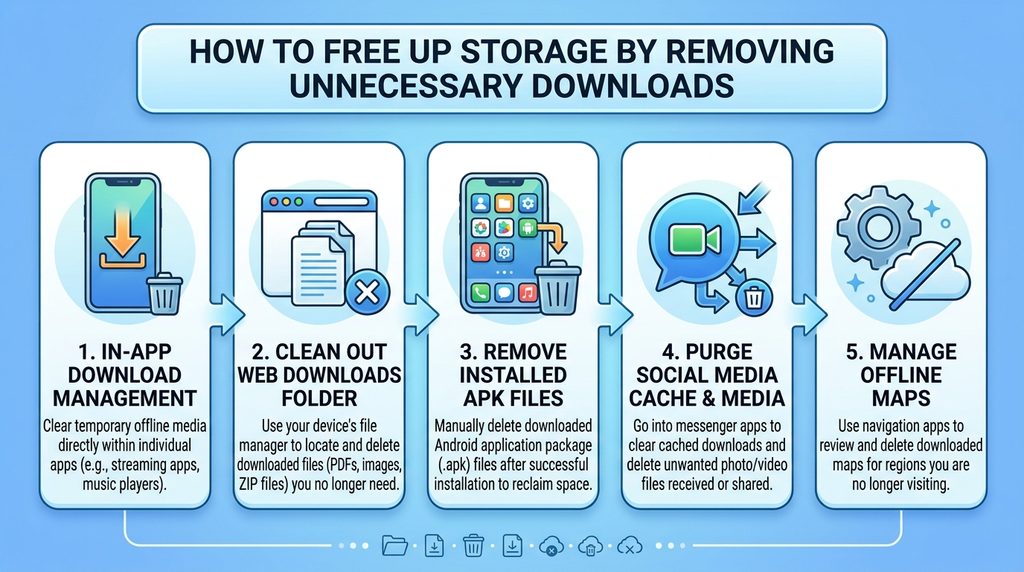
1. Remove Unnecessary Downloads
The Downloads folder is an easy place to find files you may no longer need.
Files downloaded from browsers, email, messaging apps, websites, and other services can remain on your phone long after you have finished using them.
How to check Downloads
- Open your phone’s Files, File Manager, or similar app.
- Open the Downloads folder.
- Sort the files by size or date if your file manager provides those options.
- Review the files carefully.
- Delete files you are certain you no longer need.
- Empty the file manager’s trash or recycle bin if it has one and you want the space recovered immediately.
Pay particular attention to large videos, ZIP files, installers, PDFs, and other files downloaded temporarily.
Do not delete a file just because its name looks unfamiliar. If you are unsure what it is, leave it alone until you know what created it.
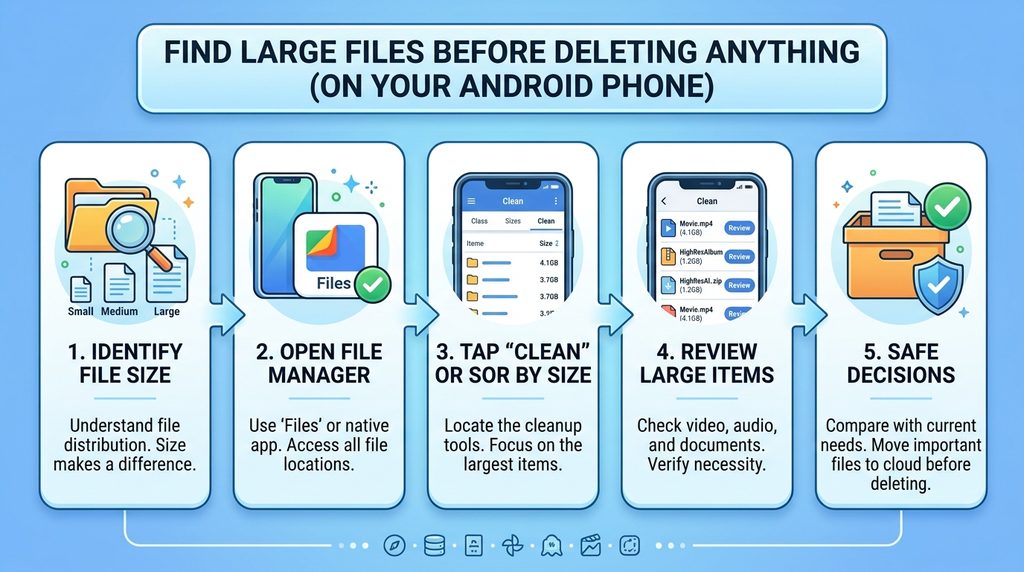
2. Find Large Files Before Deleting Anything
Large files can consume storage surprisingly quickly.
A few long videos, downloaded movies, screen recordings, or large documents may take more space than hundreds of small files.
Open your phone’s file manager and look for an option such as Large files, Storage, or Clean.
If your file manager does not provide this option:
- Open the file manager.
- Browse folders containing media and downloads.
- Sort files by size if available.
- Review the largest files first.
- Delete only files you have identified as unnecessary.
- Move important files to another storage location instead of deleting them.
This approach is safer than randomly deleting files from your phone.
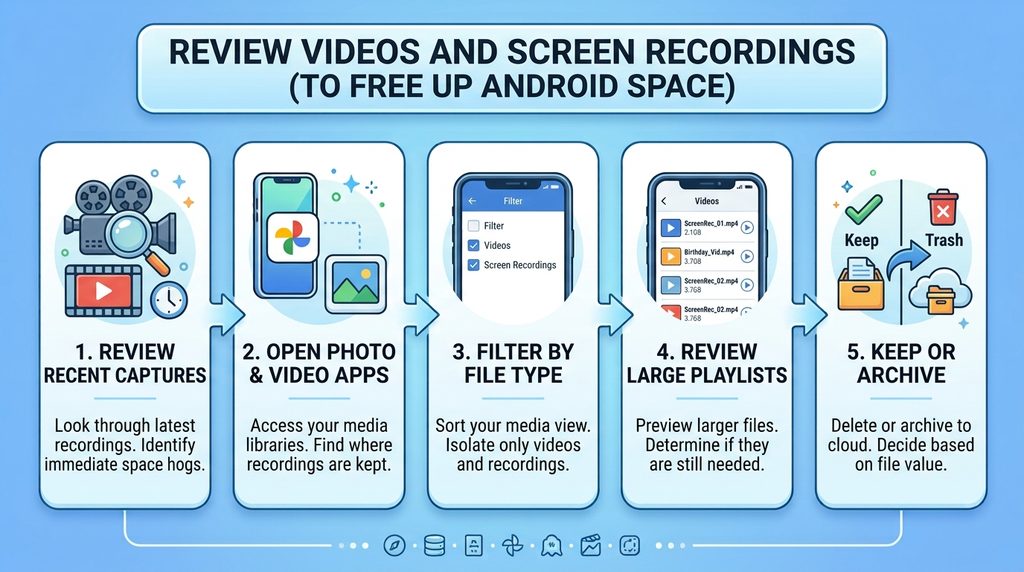
3. Review Videos and Screen Recordings
Videos are often among the largest files stored on a phone.
Open your Gallery or Photos app and look for:
- Old screen recordings
- Duplicate videos
- Videos downloaded from messaging apps
- Videos you no longer need
- Large recordings created accidentally
- Media saved from social apps
Before deleting anything important, make sure you have another copy if you want to keep it.
For example, you could move important videos to a computer or another storage location first.
Be careful with messaging-app media
WhatsApp, Telegram, and other messaging apps may save media locally. A video might appear in your gallery even though you did not intentionally download it.
Review the file before deleting it, particularly if it may be part of a conversation you want to keep.
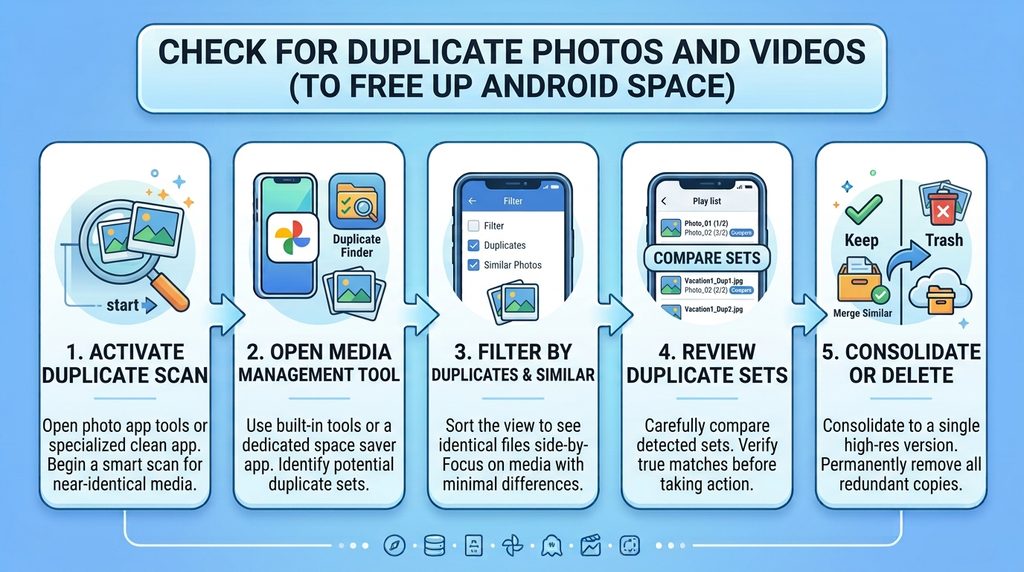
4. Check for Duplicate Photos and Videos
Duplicate photos can gradually consume a significant amount of storage.
You may have multiple copies because:
- A photo was downloaded more than once.
- An edited copy was saved separately.
- Messaging apps created additional copies.
- You transferred the same images multiple times.
- Screenshots and original photos both remain on the phone.
Some Android file-management or photo apps can identify duplicates or unnecessary files.
If you use a cleanup feature, review its suggestions before confirming deletion. Automated cleanup tools can make mistakes, and you should understand what will be removed.
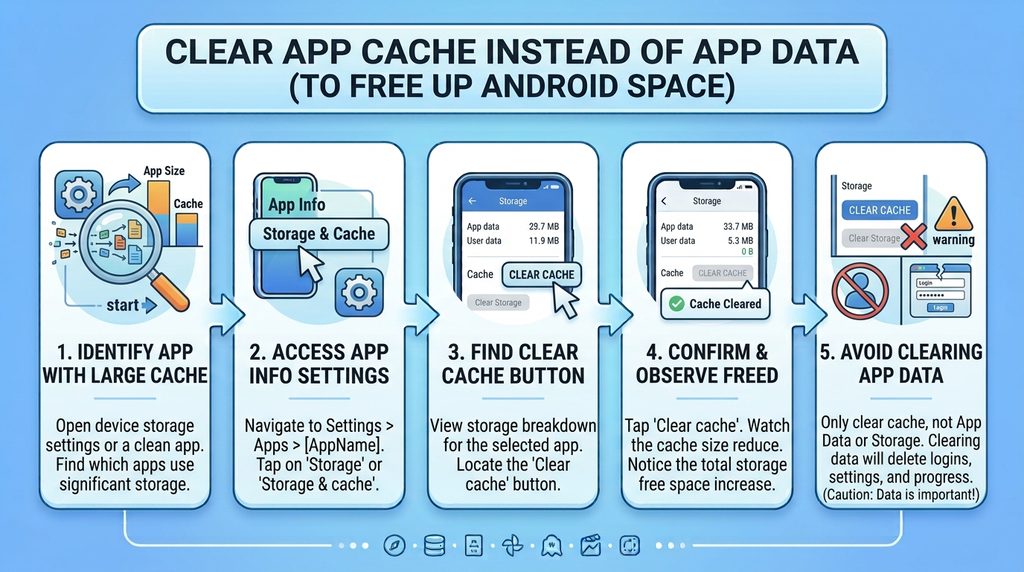
5. Clear App Cache Instead of App Data
Some apps store temporary data called a cache. Cached files can help an app load certain content more quickly, but the cache can grow over time.
On many Android phones, you can check an app’s cache through:
Settings → Apps → [App Name] → Storage & cache
You may see options such as:
- Clear cache
- Clear storage
- Clear data
These options are not the same.
Clear cache
This generally removes temporary cached files.
Clear storage or Clear data
This can remove locally stored app data and may reset the app. Depending on the app, you could be signed out or lose locally stored information.
For a storage cleanup, do not casually tap “Clear storage” or “Clear data.”
If you only want to remove temporary cached files, use Clear cache when the option is available.
The exact menu names vary by Android version and phone manufacturer.
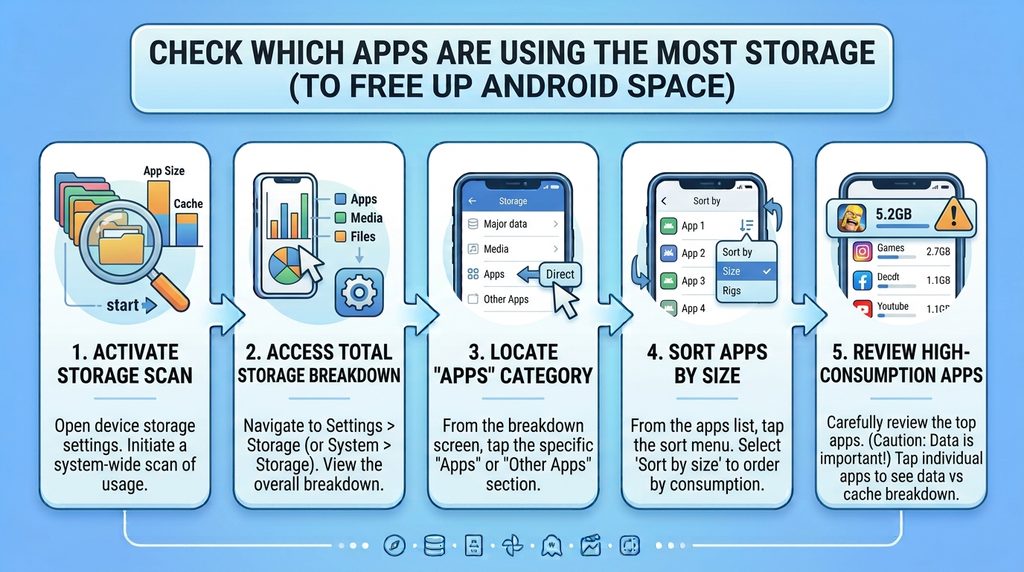
6. Check Which Apps Are Using the Most Storage
Apps can take up more space than expected because their installed size is only part of their total storage use.
An app may also have:
- Cached files
- Downloaded content
- Offline maps
- Music
- Videos
- Documents
- Other locally stored data
Go to your phone’s Settings → Apps area and review apps using significant storage.
Before removing an app’s data, check whether the app contains anything that is stored only locally.
For example, an app with downloaded offline content may use considerably more storage than its original installation size suggests.
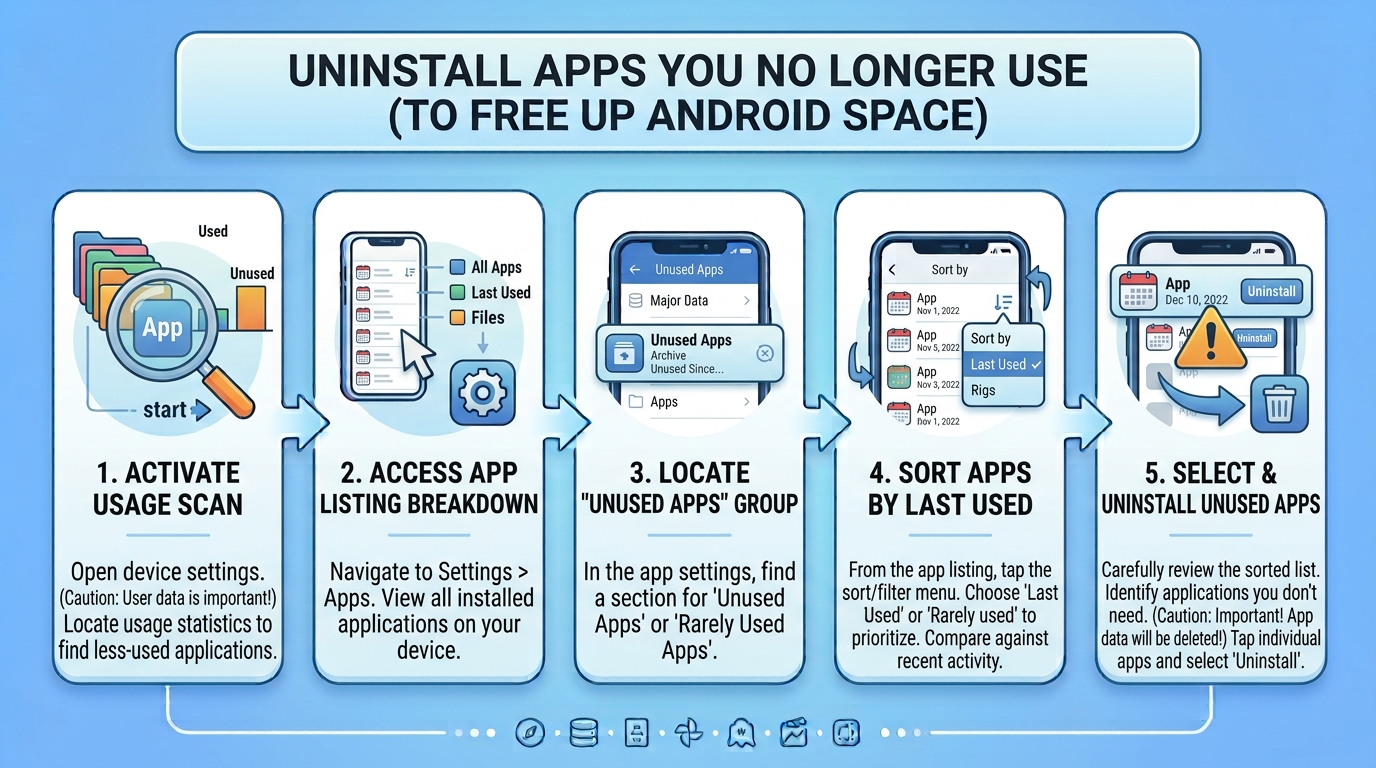
7. Uninstall Apps You No Longer Use
If you have apps installed that you have not used for months, uninstalling them can free more space than deleting a few small files.
Before uninstalling an app, consider:
- Do you still use it?
- Is important information stored locally?
- Will you need to sign in again later?
- Does it contain downloaded offline content?
- Can you reinstall it later if necessary?
If you are unsure, you can leave the app installed and investigate its storage usage first.
Some Android phones also offer options related to unused apps. The exact feature and behavior depend on the device and Android version.
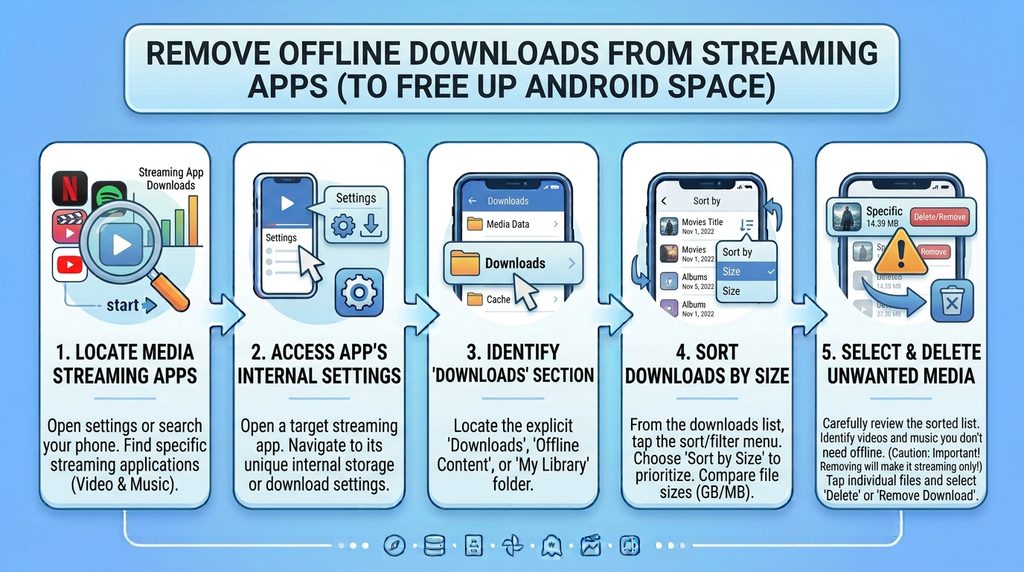
8. Remove Offline Downloads From Streaming Apps
Streaming services can store downloaded content for offline use.
This can include:
- Movies
- TV episodes
- Music
- Podcasts
- Maps
- Other offline content
Check the apps you regularly use and look for their Downloads or Offline sections.
If you no longer need the downloaded content, remove it from within the app rather than manually deleting random files from its storage folders.
This is particularly useful when you have limited storage but still want to keep the app installed.
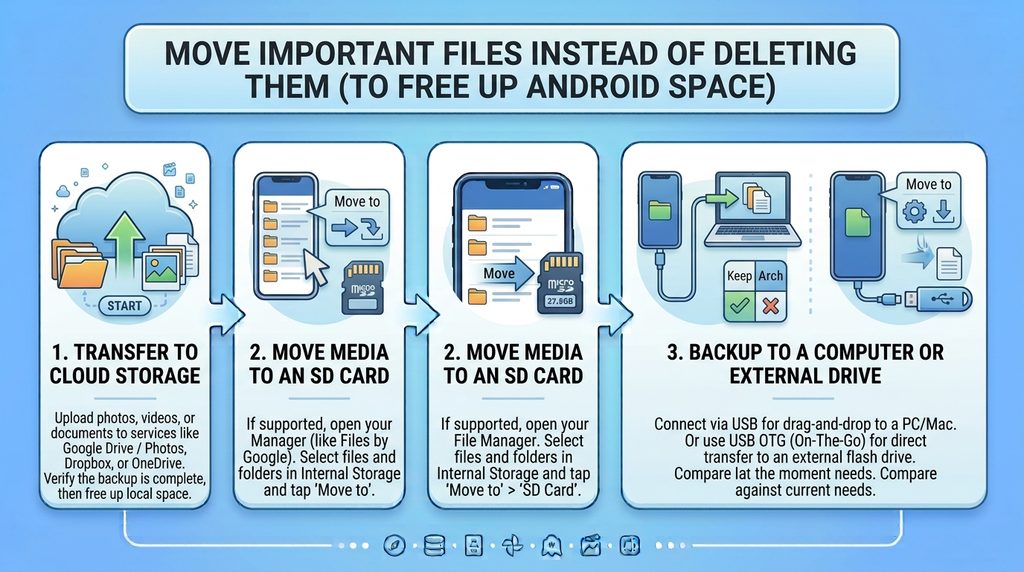
9. Move Important Files Instead of Deleting Them
If you have important photos, videos, or documents that you rarely need on your phone, consider moving them somewhere else.
Possible options include:
- A computer
- External storage supported by your phone
- A trusted cloud-storage service
- Another backup location
The important distinction is:
Moving or backing up a file is different from deleting it.
If a file is important, verify that the backup or transfer was successful before removing the original from your phone.
For irreplaceable photos and documents, keeping more than one copy is generally safer than relying on a single storage location.
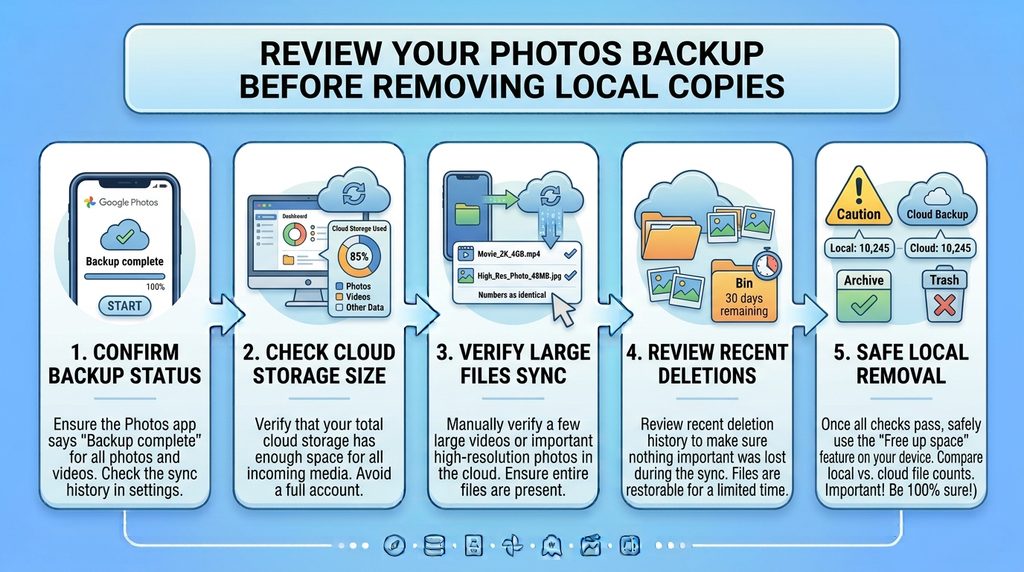
10. Review Your Photos Backup Before Removing Local Copies
If you use a cloud photo service, check whether your important photos and videos have actually been backed up before removing local copies.
Do not assume that seeing a photo in a photo app automatically means you have a safe backup.
Check the service’s backup status and make sure the files you care about are available from your account.
Also remember that cloud storage and phone storage are separate things. A photo service may have its own storage limit.
Never delete your only copy of an important photo just to recover a few gigabytes.
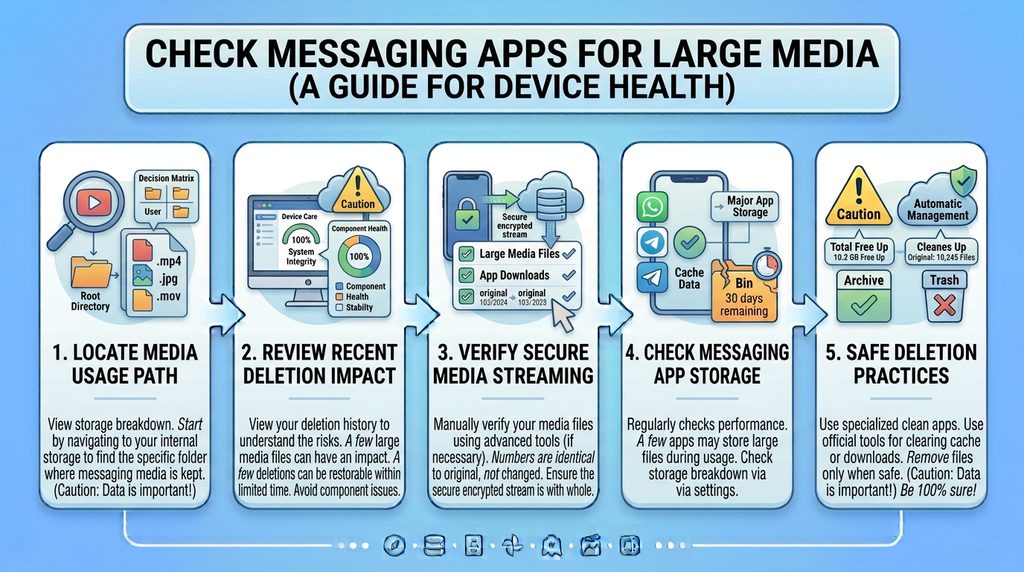
11. Check Messaging Apps for Large Media
Messaging apps can quietly accumulate large amounts of media.
A busy group chat may contain:
- Videos
- Photos
- Voice messages
- Documents
- GIFs
- Other attachments
Many messaging apps provide their own storage-management tools.
If available, open the app’s storage settings and review conversations or categories consuming the most space.
This is often safer than manually browsing application folders because the app can identify the media associated with particular conversations.
Before deleting anything, check whether the content is still needed.
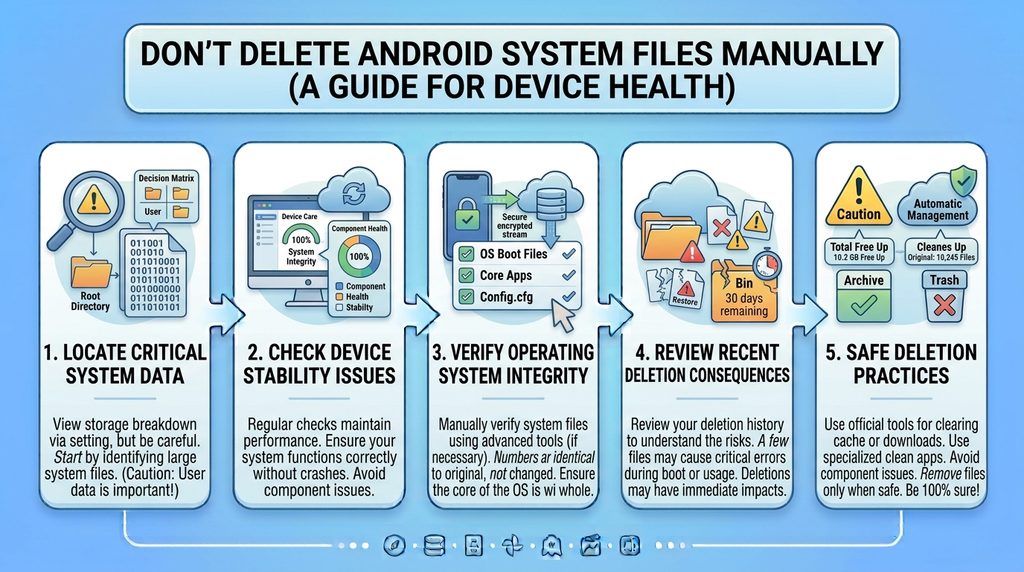
12. Don’t Delete Android System Files Manually
If you see folders or files that you do not recognize, avoid deleting them simply because they appear large or unnecessary.
Android and individual apps may rely on files that are not obvious to a normal user.
Be particularly careful with:
- System folders
- Unknown application folders
- Files outside familiar personal folders
- Files with unfamiliar extensions
- Data belonging to apps you still use
If you do not know what a file does, investigate it before removing it.
A small amount of free storage is not worth causing an app or the operating system to behave unexpectedly.
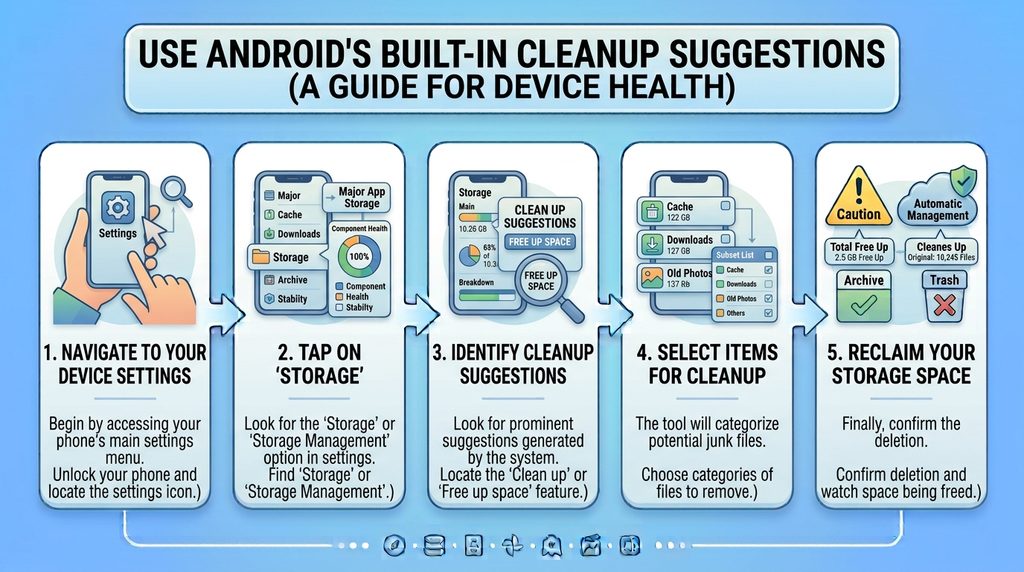
13. Use Android’s Built-In Cleanup Suggestions
Some Android phones provide built-in storage recommendations or cleanup tools.
Depending on the device, these may suggest:
- Unused apps
- Large files
- Duplicate files
- Old downloads
- Temporary files
- Other items that may be safe to review
The available options differ by phone and Android version.
Treat cleanup suggestions as recommendations, not automatic permission to delete everything.
Open each category and review what will be removed before confirming.
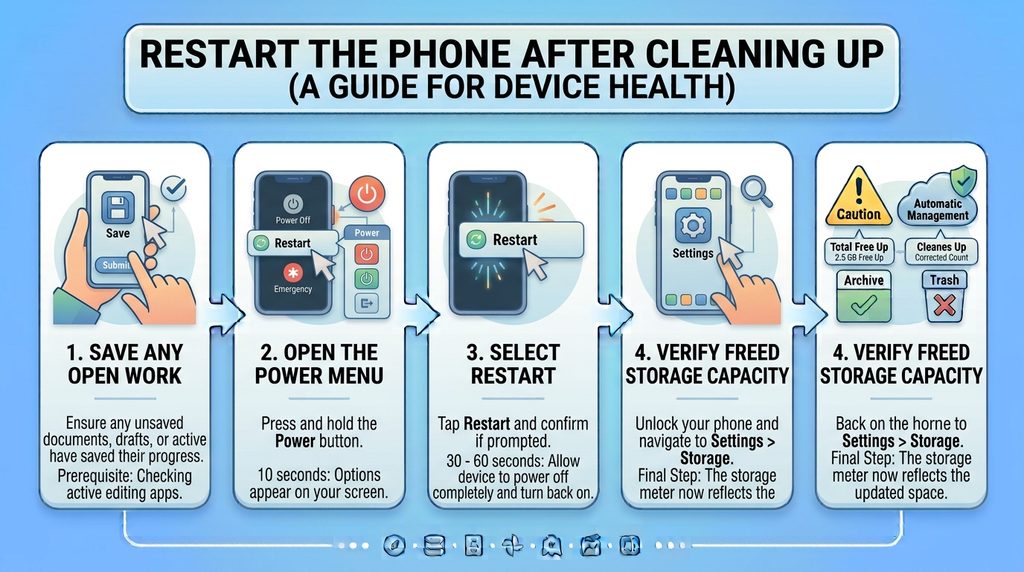
14. Restart the Phone After Cleaning Up
After removing unnecessary files, restarting the phone can be a useful final step.
It does not magically create storage, but it can help the system refresh after a large cleanup or after removing applications and files.
Then return to:
Settings → Storage
and check how much free space is available.
If the amount has barely changed, investigate which category is still consuming the storage rather than continuing to delete files randomly.
What Not to Delete When Freeing Android Storage
If your goal is to protect important files, avoid these common mistakes:
- Do not delete photos before confirming you have a backup.
- Do not use Clear storage/Clear data when you only intended to clear an app cache.
- Do not delete unfamiliar system folders.
- Do not remove messaging-app media without checking whether you need it.
- Do not uninstall an app before considering locally stored data.
- Do not trust an automatic cleanup tool without reviewing its selections.
- Do not assume a cloud backup exists without checking its status.
What If Android Storage Is Still Full?
If you have already removed obvious unnecessary files but storage is still almost full, look at the storage breakdown again.
Focus on the largest categories.
If Apps are consuming most of the space, inspect individual apps and their stored data.
If Videos or Images dominate, review your media library and backup options.
If Downloads is unusually large, review that folder.
If the storage category is unclear or the reported amount seems unusual, avoid deleting system files manually. The exact storage categories and behavior can vary between Android versions and manufacturers.
If the phone continues showing extremely low storage after a careful cleanup, a more detailed review of the device’s storage settings may be necessary.
Important Things to Know
Freeing storage does not mean deleting everything
The safest cleanup is selective. You are looking for files and data that are unnecessary—not simply trying to make every category as small as possible.
Cached files are different from personal files
A cache is generally temporary data, while photos, documents, downloads, and app data may contain information you actually need.
Android menus differ between phones
Samsung, Google Pixel, Xiaomi, Motorola, OnePlus and other Android phones can use different menu names and layouts. Your device may not show the exact path described above.
If a menu is missing, use the Settings search feature and search for terms such as Storage, Apps, or Cache.
Conclusion
You can often free up considerable storage on an Android phone without deleting important files. Start by checking the storage breakdown, then review large files, Downloads, duplicate media, offline content, unused apps, and app caches.
The most important rule is to know what you are deleting before you delete it. For valuable photos, videos and documents, create or verify a backup first.
If your phone is still low on storage after a careful cleanup, use the storage breakdown to identify the largest category rather than deleting unfamiliar system files at random.
3. FAQ
How can I free up storage on Android without deleting photos?
Start by checking Downloads, app caches, unused apps, offline downloads, duplicate files and large files. You can also move important photos to another verified storage location instead of deleting them.
Does clearing app cache delete important data?
Clearing an app’s cache is generally different from clearing its storage or data. However, menu names and app behavior can vary, so make sure you select Clear cache, not Clear storage or Clear data, when that is your goal.
Why is my Android storage full when I don’t have many photos?
Apps, downloaded videos, offline content, messaging-app media, cached data and downloads can consume significant storage. Check the storage breakdown in Android’s Settings to identify the largest category.
Is it safe to delete files from the Downloads folder?
It can be safe to delete downloads you no longer need, but review each file first. Important documents, installers, PDFs or other files may also be stored there.
How do I find what is taking up the most space on Android?
Open Settings → Storage or search Settings for Storage. Your phone should show a breakdown of storage usage, although the categories and layout vary by device.
Should I clear app data to free up storage?
Not unless you understand what the app stores locally. Clearing app data or storage can reset an app and may remove locally stored information or sign you out. For temporary files, check whether Clear cache is available instead.