

How to Review the Privacy Settings on Your Android Phone

Your Android phone contains a lot of personal information, including photos, messages, contacts, location information, files, and data from the apps you use.

Android provides several privacy controls that let you review which apps can access sensitive information and how your phone handles permissions, location, camera, microphone, and other data.

You don’t need to disable every permission or turn off every privacy feature. The goal is to review the settings and make sure apps have access that makes sense for what they do.

The exact names and locations of privacy settings can vary between Android versions and phone manufacturers.

Main Points

  • Review your Android Privacy settings regularly.
  • Check which apps can access your location.
  • Review camera and microphone permissions.
  • Check access to contacts, photos, files, and other sensitive information.
  • Review recently used permissions when available.
  • Check whether apps have unnecessary permissions.
  • Review Google and device privacy controls separately when applicable.
  • Keep Android and your apps updated.
  • Remove permissions from apps that no longer need them.
  • Don’t assume that every permission is dangerous; consider the app’s purpose and functionality.

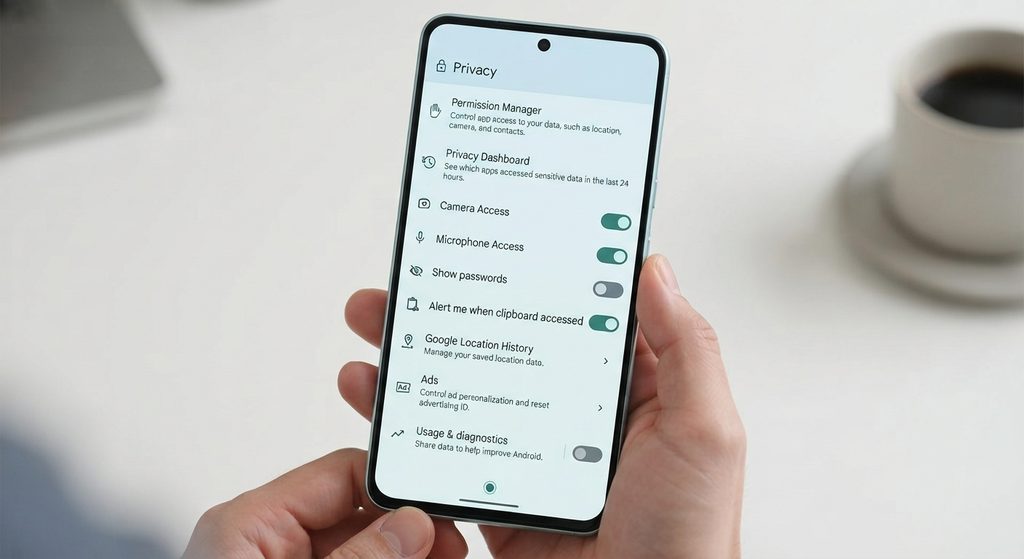
1. Open Android’s Privacy Settings

Start with the main privacy section on your phone.

Open:

Settings → Privacy

On some Android devices, privacy controls may be organized slightly differently.

You may find options related to:

  • Permission manager
  • Privacy dashboard
  • Location
  • Camera
  • Microphone
  • Advertising
  • Clipboard
  • Screen-lock settings
  • Other privacy controls

Take a few minutes to look through the available options.

You don’t need to change anything immediately.

The first step is simply understanding what controls your phone provides.
2. Review the Permission Manager

One of the most useful privacy tools is the Permission Manager.

It allows you to see which apps have access to different types of information or device features.

Depending on your Android version, you may be able to review permissions such as:

  • Location
  • Camera
  • Microphone
  • Contacts
  • Phone
  • SMS
  • Photos and videos
  • Files
  • Calendar
  • Nearby devices

Open:

Settings → Privacy → Permission manager

The exact location can vary.

Select a permission category and review the apps listed there.


3. Review Location Permissions

Location access can be particularly important because it can reveal where you are.

Open the location-permission section and review which apps have access.

Depending on your Android version, you may see options such as:

  • Allow all the time
  • Allow only while using the app
  • Ask every time
  • Don’t allow

Think about what each app actually needs.

For example, a navigation app may need location while you’re using it.

A simple flashlight app generally has little reason to need your location.

Don’t automatically deny every location permission. Some apps depend on location to provide their main functionality.

4. Review Camera Permissions

Apps can request access to your phone’s camera.

Open the camera-permission section and review which apps have access.

Ask yourself:

Does this app reasonably need camera access?

Apps designed for photography, video calls, document scanning, or video recording may have a clear reason.

If an unrelated app has camera access and you don’t need the feature, review whether that permission should remain enabled.

On supported Android versions, your phone may also show an indicator when the camera is being accessed.


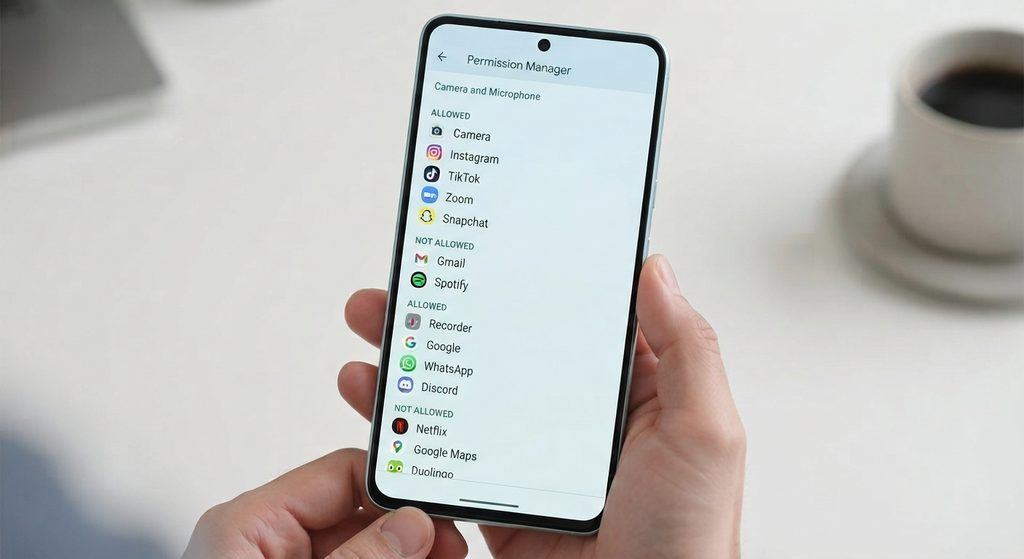
5. Review Microphone Permissions

The microphone is another permission worth checking.

Review which apps can access it.

Apps such as:

  • Voice recorders
  • Video-call apps
  • Voice assistants
  • Communication apps

may reasonably need microphone access.

If an app doesn’t require audio recording for a feature you use, consider whether it needs this permission.

Remember that having microphone permission does not automatically mean an app is continuously recording.

The permission allows the app to access the microphone under the conditions permitted by Android.

6. Check the Privacy Dashboard

Some Android devices provide a Privacy Dashboard.

This feature can show recent access to certain permissions.

Depending on the Android version, you may be able to see which apps recently accessed:

  • Location
  • Camera
  • Microphone
  • Other sensitive permissions

This is useful because permission lists tell you which apps have access, while activity information can show when certain permissions were recently used.

If your phone provides Privacy Dashboard, open it and review recent activity.


7. Review Contacts Access

Your contacts can contain names, phone numbers, email addresses, and other personal information.

Open the Contacts permission category and review the apps that have access.

Ask:

Does this app actually need access to my contacts?

Messaging and communication apps may need contacts to help you find people you know.

Other types of apps may not need contact access for their main purpose.

If you don’t need a feature that requires contacts, consider removing the permission.


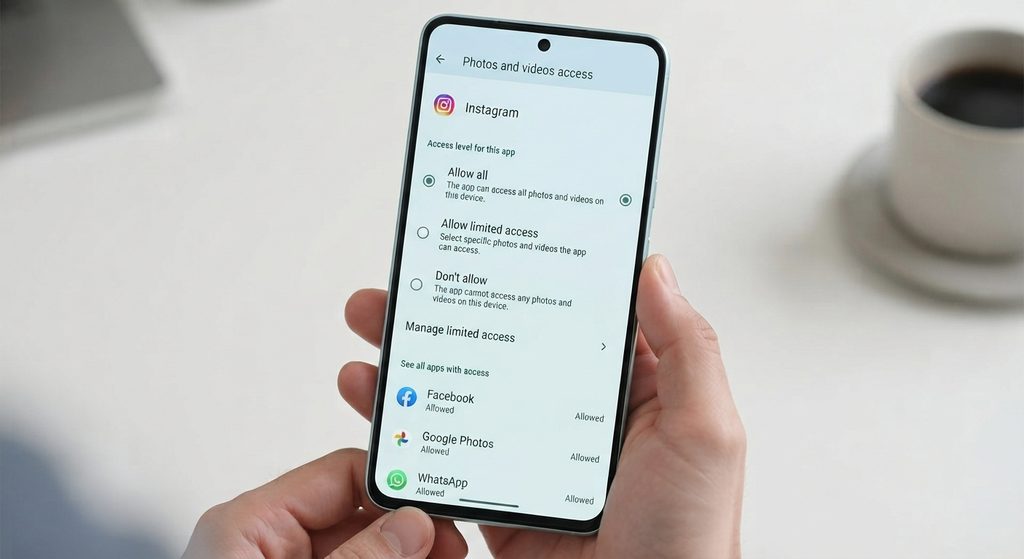
8. Review Photos and Videos Access

Photos and videos can contain highly personal information.

Depending on your Android version, you may have controls that allow you to choose which photos an app can access.

Review apps that have access to your photos and videos.

For example, a photo-editing app may reasonably need access when you’re selecting an image to edit.

If an app only needs one particular photo, consider using a more limited access option when your Android version provides one.
9. Review Files and Documents Access

Some apps may request access to files or documents stored on your phone.

Review apps that can access files and determine whether that access is necessary.

Be especially careful with apps that request broad access to stored files.

If an app only needs to open a particular document, use Android’s standard file-selection interface when possible rather than granting broader access than necessary.


10. Review Nearby Devices Permissions

Modern Android versions may provide controls related to nearby devices.

This can be relevant to apps that interact with:

  • Bluetooth accessories
  • Smartwatches
  • Headphones
  • Speakers
  • Other nearby hardware

Review which apps have access.

If you use an app to connect to a specific accessory, the permission may be necessary.

If you don’t use the related functionality, consider whether the permission should remain enabled.


11. Check SMS and Phone Permissions

Some apps may request access to phone or SMS functions.

Review these permissions carefully because they can provide access to sensitive communication information.

If an app doesn’t need phone or SMS functionality for something you use, there may be little reason to grant it.

However, some legitimate apps may need these permissions for specific features.

Always consider the app’s actual purpose before removing access.


12. Review Calendar and Other Personal Information

Your calendar can contain information about:

  • Appointments
  • Meetings
  • Events
  • Travel
  • Personal activities

Review which apps can access your calendar.

Also check other sensitive permission categories available on your phone.

The goal is to periodically ask:

Does this app still need access to this information?

An app may have received a permission months ago for a feature you no longer use.


13. Check Which Apps Were Recently Installed

When reviewing privacy settings, pay particular attention to apps you installed recently.

Think about:

  • Why you installed the app
  • What permissions it requested
  • Whether those permissions make sense
  • Whether you still use the app

If you installed an app for a temporary purpose and no longer need it, consider uninstalling it.

Removing an app also removes its need for Android permissions.


14. Review Apps You No Longer Use

Unused apps don’t necessarily become dangerous simply because they are installed.

However, if you don’t use an app anymore, you may not have a reason to keep its permissions active.

Consider uninstalling apps you no longer need.

Before removing an app, make sure you don’t have important locally stored information that needs to be saved.


15. Check Camera and Microphone Indicators

On supported Android devices, the system can display an indicator when an app is accessing the camera or microphone.

If you notice an indicator and aren’t sure which app is using the feature, open the relevant privacy controls to investigate.

This can be useful when troubleshooting unexpected camera or microphone activity.

Don’t assume that every indicator represents malicious behavior. Legitimate apps can access these features when you’ve granted permission and are using a related function.


16. Review Clipboard Privacy

Some Android versions provide protections around clipboard access.

When you copy sensitive information such as:

  • Passwords
  • Account numbers
  • Private messages
  • Addresses

be careful about leaving that information in the clipboard.

Android versions may display notices when apps access copied information.

The exact behavior depends on your Android version and the app involved.


17. Review Advertising and Personalization Settings

Your Android device and Google services may provide settings related to advertising and personalization.

These controls are separate from app permissions.

Look through the relevant privacy or Google settings available on your phone.

You may find options related to advertising identifiers, personalization, or other data controls.

The available settings can change over time, so use the options currently displayed on your device rather than relying on an old menu path.


18. Check Your Google Account Privacy Settings

Some privacy controls are associated with your Google Account rather than Android’s device-level permission system.

For example, Google Account settings can include controls related to:

  • Account activity
  • Location-related information
  • Personalization
  • Connected services
  • Data and privacy

If you’re reviewing your phone’s privacy comprehensively, consider reviewing both:

Android device privacy settings

and

Google Account privacy settings

They control different aspects of your digital information.


19. Review App Permissions After Updates or Major Changes

An app’s functionality can change over time.

When an app receives a major update, review its permissions if you notice new behavior or requests.

You don’t need to inspect permissions after every small update.

Instead, pay attention when:

  • An app requests a new permission
  • You start using a new feature
  • The app changes significantly
  • You notice unexpected access

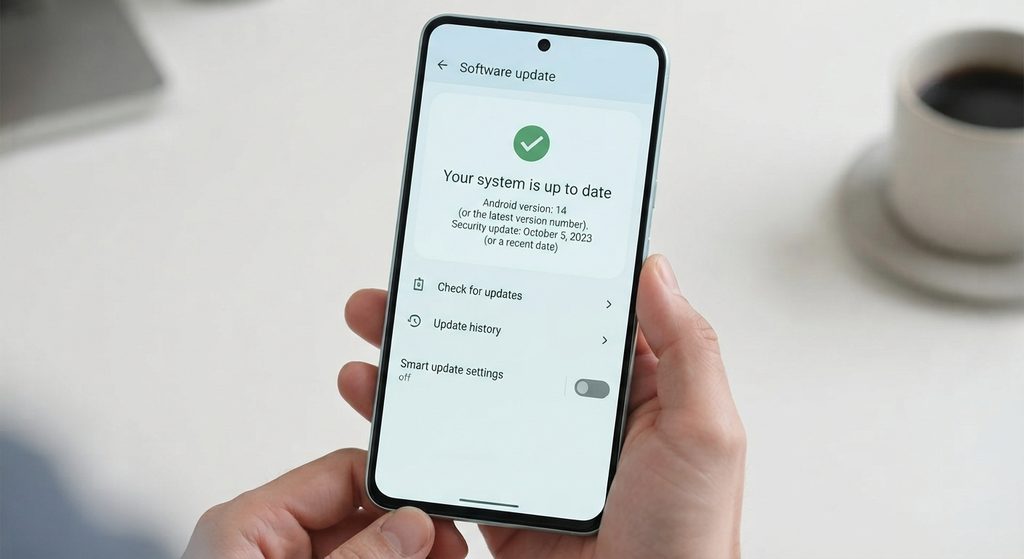
20. Keep Android and Apps Updated

Privacy and security improvements can be included in Android and app updates.

Open your phone’s software-update settings and check whether updates are available.

Also keep important apps updated through Google Play or the manufacturer’s official app store.

Updates don’t replace good privacy settings, but keeping software current is an important part of maintaining a phone.
21. What to Do When You Find an Unnecessary Permission

If an app has a permission you don’t think it needs, don’t immediately assume that the app is unsafe.

First check what the permission is used for.

Then consider whether you use a feature that requires it.

If you don’t need the permission, you can review the available options and choose a more limited setting when appropriate.

After removing a permission, test the app.

Some features may stop working because they genuinely require that access.

If the feature isn’t important to you, keeping the permission disabled may be reasonable.


Common Problems

Should I Turn Off Every App Permission?

No.

Some permissions are necessary for an app to perform its main function.

The goal is to give apps appropriate access rather than disabling everything.

An App Wants Location Access. Should I Allow It?

Consider what the app does.

If location is necessary for a feature you use, an appropriate location setting may be reasonable.

If the app doesn’t need location for anything you use, review whether it should have access.

Does Camera Permission Mean an App Is Always Using My Camera?

No.

Permission allows an app to access the camera under Android’s permission rules. It does not by itself prove that the camera is continuously being used.

Does Microphone Permission Mean an App Is Always Listening?

No.

Having microphone permission does not by itself establish continuous recording or microphone use.

Review actual permission activity and the app’s functionality when investigating unexpected access.

What If Removing a Permission Breaks an App?

That’s possible.

Some app features depend on specific permissions.

If you need that feature, restore the appropriate permission or choose a more limited permission option if Android provides one.

Should I Uninstall Apps I Don’t Recognize?

First identify the app.

Some unfamiliar apps are legitimate system components or manufacturer services.

Don’t uninstall system software simply because its name is unfamiliar.


Important Things to Know

  • Android privacy settings vary between devices and software versions.
  • Permission Manager is useful for reviewing app access.
  • Location, camera, microphone, contacts, photos, and files deserve particular attention.
  • A permission being enabled doesn’t automatically mean an app is currently using that feature.
  • Privacy Dashboard can help show recent permission activity on supported devices.
  • Some apps genuinely require sensitive permissions for their main functions.
  • Removing a permission can disable an app feature.
  • Google Account privacy settings are separate from many Android device settings.
  • Don’t remove unfamiliar system apps without first identifying them.
  • Keep Android and important apps updated.
  • Review permissions periodically rather than changing everything at once.

Conclusion

Reviewing your Android privacy settings doesn’t have to be complicated. Start with the Privacy section in Settings and work through the permissions that provide access to sensitive information or device features.

Pay particular attention to location, camera, microphone, contacts, photos, files, nearby devices, phone, and SMS permissions. Consider whether each app actually needs the access it has and whether Android provides a more limited permission option.

Also check Privacy Dashboard and other privacy activity information when available. If you find a permission you don’t need, you can review or remove it and then test the app.

Finally, remember that privacy isn’t about turning off every permission. It’s about understanding what apps can access and choosing settings that make sense for the way you use your phone.

Your Android phone contains a lot of personal information, including photos, messages, contacts, location information, files, and data from the apps you use.

Android provides several privacy controls that let you review which apps can access sensitive information and how your phone handles permissions, location, camera, microphone, and other data.

You don’t need to disable every permission or turn off every privacy feature. The goal is to review the settings and make sure apps have access that makes sense for what they do.

The exact names and locations of privacy settings can vary between Android versions and phone manufacturers.

Main Points

  • Review your Android Privacy settings regularly.
  • Check which apps can access your location.
  • Review camera and microphone permissions.
  • Check access to contacts, photos, files, and other sensitive information.
  • Review recently used permissions when available.
  • Check whether apps have unnecessary permissions.
  • Review Google and device privacy controls separately when applicable.
  • Keep Android and your apps updated.
  • Remove permissions from apps that no longer need them.
  • Don’t assume that every permission is dangerous; consider the app’s purpose and functionality.

1. Open Android’s Privacy Settings

Start with the main privacy section on your phone.

Open:

Settings → Privacy

On some Android devices, privacy controls may be organized slightly differently.

You may find options related to:

  • Permission manager
  • Privacy dashboard
  • Location
  • Camera
  • Microphone
  • Advertising
  • Clipboard
  • Screen-lock settings
  • Other privacy controls

Take a few minutes to look through the available options.

You don’t need to change anything immediately.

The first step is simply understanding what controls your phone provides.

2. Review the Permission Manager

One of the most useful privacy tools is the Permission Manager.

It allows you to see which apps have access to different types of information or device features.

Depending on your Android version, you may be able to review permissions such as:

  • Location
  • Camera
  • Microphone
  • Contacts
  • Phone
  • SMS
  • Photos and videos
  • Files
  • Calendar
  • Nearby devices

Open:

Settings → Privacy → Permission manager

The exact location can vary.

Select a permission category and review the apps listed there.


3. Review Location Permissions

Location access can be particularly important because it can reveal where you are.

Open the location-permission section and review which apps have access.

Depending on your Android version, you may see options such as:

  • Allow all the time
  • Allow only while using the app
  • Ask every time
  • Don’t allow

Think about what each app actually needs.

For example, a navigation app may need location while you’re using it.

A simple flashlight app generally has little reason to need your location.

Don’t automatically deny every location permission. Some apps depend on location to provide their main functionality.

4. Review Camera Permissions

Apps can request access to your phone’s camera.

Open the camera-permission section and review which apps have access.

Ask yourself:

Does this app reasonably need camera access?

Apps designed for photography, video calls, document scanning, or video recording may have a clear reason.

If an unrelated app has camera access and you don’t need the feature, review whether that permission should remain enabled.

On supported Android versions, your phone may also show an indicator when the camera is being accessed.


5. Review Microphone Permissions

The microphone is another permission worth checking.

Review which apps can access it.

Apps such as:

  • Voice recorders
  • Video-call apps
  • Voice assistants
  • Communication apps

may reasonably need microphone access.

If an app doesn’t require audio recording for a feature you use, consider whether it needs this permission.

Remember that having microphone permission does not automatically mean an app is continuously recording.

The permission allows the app to access the microphone under the conditions permitted by Android.


6. Check the Privacy Dashboard

Some Android devices provide a Privacy Dashboard.

This feature can show recent access to certain permissions.

Depending on the Android version, you may be able to see which apps recently accessed:

  • Location
  • Camera
  • Microphone
  • Other sensitive permissions

This is useful because permission lists tell you which apps have access, while activity information can show when certain permissions were recently used.

If your phone provides Privacy Dashboard, open it and review recent activity.


7. Review Contacts Access

Your contacts can contain names, phone numbers, email addresses, and other personal information.

Open the Contacts permission category and review the apps that have access.

Ask:

Does this app actually need access to my contacts?

Messaging and communication apps may need contacts to help you find people you know.

Other types of apps may not need contact access for their main purpose.

If you don’t need a feature that requires contacts, consider removing the permission.


8. Review Photos and Videos Access

Photos and videos can contain highly personal information.

Depending on your Android version, you may have controls that allow you to choose which photos an app can access.

Review apps that have access to your photos and videos.

For example, a photo-editing app may reasonably need access when you’re selecting an image to edit.

If an app only needs one particular photo, consider using a more limited access option when your Android version provides one.

9. Review Files and Documents Access

Some apps may request access to files or documents stored on your phone.

Review apps that can access files and determine whether that access is necessary.

Be especially careful with apps that request broad access to stored files.

If an app only needs to open a particular document, use Android’s standard file-selection interface when possible rather than granting broader access than necessary.


10. Review Nearby Devices Permissions

Modern Android versions may provide controls related to nearby devices.

This can be relevant to apps that interact with:

  • Bluetooth accessories
  • Smartwatches
  • Headphones
  • Speakers
  • Other nearby hardware

Review which apps have access.

If you use an app to connect to a specific accessory, the permission may be necessary.

If you don’t use the related functionality, consider whether the permission should remain enabled.


11. Check SMS and Phone Permissions

Some apps may request access to phone or SMS functions.

Review these permissions carefully because they can provide access to sensitive communication information.

If an app doesn’t need phone or SMS functionality for something you use, there may be little reason to grant it.

However, some legitimate apps may need these permissions for specific features.

Always consider the app’s actual purpose before removing access.


12. Review Calendar and Other Personal Information

Your calendar can contain information about:

  • Appointments
  • Meetings
  • Events
  • Travel
  • Personal activities

Review which apps can access your calendar.

Also check other sensitive permission categories available on your phone.

The goal is to periodically ask:

Does this app still need access to this information?

An app may have received a permission months ago for a feature you no longer use.


13. Check Which Apps Were Recently Installed

When reviewing privacy settings, pay particular attention to apps you installed recently.

Think about:

  • Why you installed the app
  • What permissions it requested
  • Whether those permissions make sense
  • Whether you still use the app

If you installed an app for a temporary purpose and no longer need it, consider uninstalling it.

Removing an app also removes its need for Android permissions.


14. Review Apps You No Longer Use

Unused apps don’t necessarily become dangerous simply because they are installed.

However, if you don’t use an app anymore, you may not have a reason to keep its permissions active.

Consider uninstalling apps you no longer need.

Before removing an app, make sure you don’t have important locally stored information that needs to be saved.


15. Check Camera and Microphone Indicators

On supported Android devices, the system can display an indicator when an app is accessing the camera or microphone.

If you notice an indicator and aren’t sure which app is using the feature, open the relevant privacy controls to investigate.

This can be useful when troubleshooting unexpected camera or microphone activity.

Don’t assume that every indicator represents malicious behavior. Legitimate apps can access these features when you’ve granted permission and are using a related function.


16. Review Clipboard Privacy

Some Android versions provide protections around clipboard access.

When you copy sensitive information such as:

  • Passwords
  • Account numbers
  • Private messages
  • Addresses

be careful about leaving that information in the clipboard.

Android versions may display notices when apps access copied information.

The exact behavior depends on your Android version and the app involved.


17. Review Advertising and Personalization Settings

Your Android device and Google services may provide settings related to advertising and personalization.

These controls are separate from app permissions.

Look through the relevant privacy or Google settings available on your phone.

You may find options related to advertising identifiers, personalization, or other data controls.

The available settings can change over time, so use the options currently displayed on your device rather than relying on an old menu path.


18. Check Your Google Account Privacy Settings

Some privacy controls are associated with your Google Account rather than Android’s device-level permission system.

For example, Google Account settings can include controls related to:

  • Account activity
  • Location-related information
  • Personalization
  • Connected services
  • Data and privacy

If you’re reviewing your phone’s privacy comprehensively, consider reviewing both:

Android device privacy settings

and

Google Account privacy settings

They control different aspects of your digital information.


19. Review App Permissions After Updates or Major Changes

An app’s functionality can change over time.

When an app receives a major update, review its permissions if you notice new behavior or requests.

You don’t need to inspect permissions after every small update.

Instead, pay attention when:

  • An app requests a new permission
  • You start using a new feature
  • The app changes significantly
  • You notice unexpected access

20. Keep Android and Apps Updated

Privacy and security improvements can be included in Android and app updates.

Open your phone’s software-update settings and check whether updates are available.

Also keep important apps updated through Google Play or the manufacturer’s official app store.

Updates don’t replace good privacy settings, but keeping software current is an important part of maintaining a phone.

21. What to Do When You Find an Unnecessary Permission

If an app has a permission you don’t think it needs, don’t immediately assume that the app is unsafe.

First check what the permission is used for.

Then consider whether you use a feature that requires it.

If you don’t need the permission, you can review the available options and choose a more limited setting when appropriate.

After removing a permission, test the app.

Some features may stop working because they genuinely require that access.

If the feature isn’t important to you, keeping the permission disabled may be reasonable.


Common Problems

Should I Turn Off Every App Permission?

No.

Some permissions are necessary for an app to perform its main function.

The goal is to give apps appropriate access rather than disabling everything.

An App Wants Location Access. Should I Allow It?

Consider what the app does.

If location is necessary for a feature you use, an appropriate location setting may be reasonable.

If the app doesn’t need location for anything you use, review whether it should have access.

Does Camera Permission Mean an App Is Always Using My Camera?

No.

Permission allows an app to access the camera under Android’s permission rules. It does not by itself prove that the camera is continuously being used.

Does Microphone Permission Mean an App Is Always Listening?

No.

Having microphone permission does not by itself establish continuous recording or microphone use.

Review actual permission activity and the app’s functionality when investigating unexpected access.

What If Removing a Permission Breaks an App?

That’s possible.

Some app features depend on specific permissions.

If you need that feature, restore the appropriate permission or choose a more limited permission option if Android provides one.

Should I Uninstall Apps I Don’t Recognize?

First identify the app.

Some unfamiliar apps are legitimate system components or manufacturer services.

Don’t uninstall system software simply because its name is unfamiliar.


Important Things to Know

  • Android privacy settings vary between devices and software versions.
  • Permission Manager is useful for reviewing app access.
  • Location, camera, microphone, contacts, photos, and files deserve particular attention.
  • A permission being enabled doesn’t automatically mean an app is currently using that feature.
  • Privacy Dashboard can help show recent permission activity on supported devices.
  • Some apps genuinely require sensitive permissions for their main functions.
  • Removing a permission can disable an app feature.
  • Google Account privacy settings are separate from many Android device settings.
  • Don’t remove unfamiliar system apps without first identifying them.
  • Keep Android and important apps updated.
  • Review permissions periodically rather than changing everything at once.

Conclusion

Reviewing your Android privacy settings doesn’t have to be complicated. Start with the Privacy section in Settings and work through the permissions that provide access to sensitive information or device features.

Pay particular attention to location, camera, microphone, contacts, photos, files, nearby devices, phone, and SMS permissions. Consider whether each app actually needs the access it has and whether Android provides a more limited permission option.

Also check Privacy Dashboard and other privacy activity information when available. If you find a permission you don’t need, you can review or remove it and then test the app.

Finally, remember that privacy isn’t about turning off every permission. It’s about understanding what apps can access and choosing settings that make sense for the way you use your phone.

Related Posts

LEAVE A REPLY

Please enter your comment!
Please enter your name here

Related posts

Latest posts

How to Recognize Suspicious App Permissions Before Installing an App

Installing a new Android app is usually simple, but it is worth checking what the app wants to access before you tap Install. Some...

How to Troubleshoot Low Storage Warnings on Android

A low storage warning means your Android phone is running short of available space. When storage becomes too full, you may have difficulty installing...

Why Android Apps May Use Too Much Battery and What You Can Check

Android apps can use battery for many different reasons. An app may consume more power because it is actively being used, running tasks in...